How To Use Audio Meter Razer Synapse
Ever feel like your gaming or streaming audio is a bit…off? Like you're whispering when you meant to shout, or blasting your friends' eardrums with sudden explosions? We've all been there. It's like trying to pour milk into your cereal in the dark – messy and frustrating! That's where the audio meter in Razer Synapse comes in. Think of it as your audio's personal seeing-eye dog, guiding you through the murky waters of volume control.
What's the Big Deal with an Audio Meter?
Okay, so maybe you're thinking, "Why should I bother with this thing?" Fair question! Imagine you're cooking. Would you just throw ingredients into a pot without measuring? Probably not, unless you're aiming for a culinary surprise (and not always a pleasant one!). An audio meter is like your measuring cup and scales for sound. It gives you a visual representation of how loud your audio is, preventing you from clipping (distorted, harsh sound) or being too quiet to be heard. It's about crafting a smoother, more professional audio experience.
Think about streaming. You're broadcasting your voice and potentially game sounds to the world. If your mic is too quiet, your audience will strain to hear you, and they might just click away. Too loud, and you're essentially screaming into their ears – not exactly the best way to make friends! The audio meter helps you find that sweet spot, that perfect volume level where your voice is clear, your game sounds are immersive, and everyone's happy (including your viewers!).
Must Read
Finding Your Audio Meter in Razer Synapse
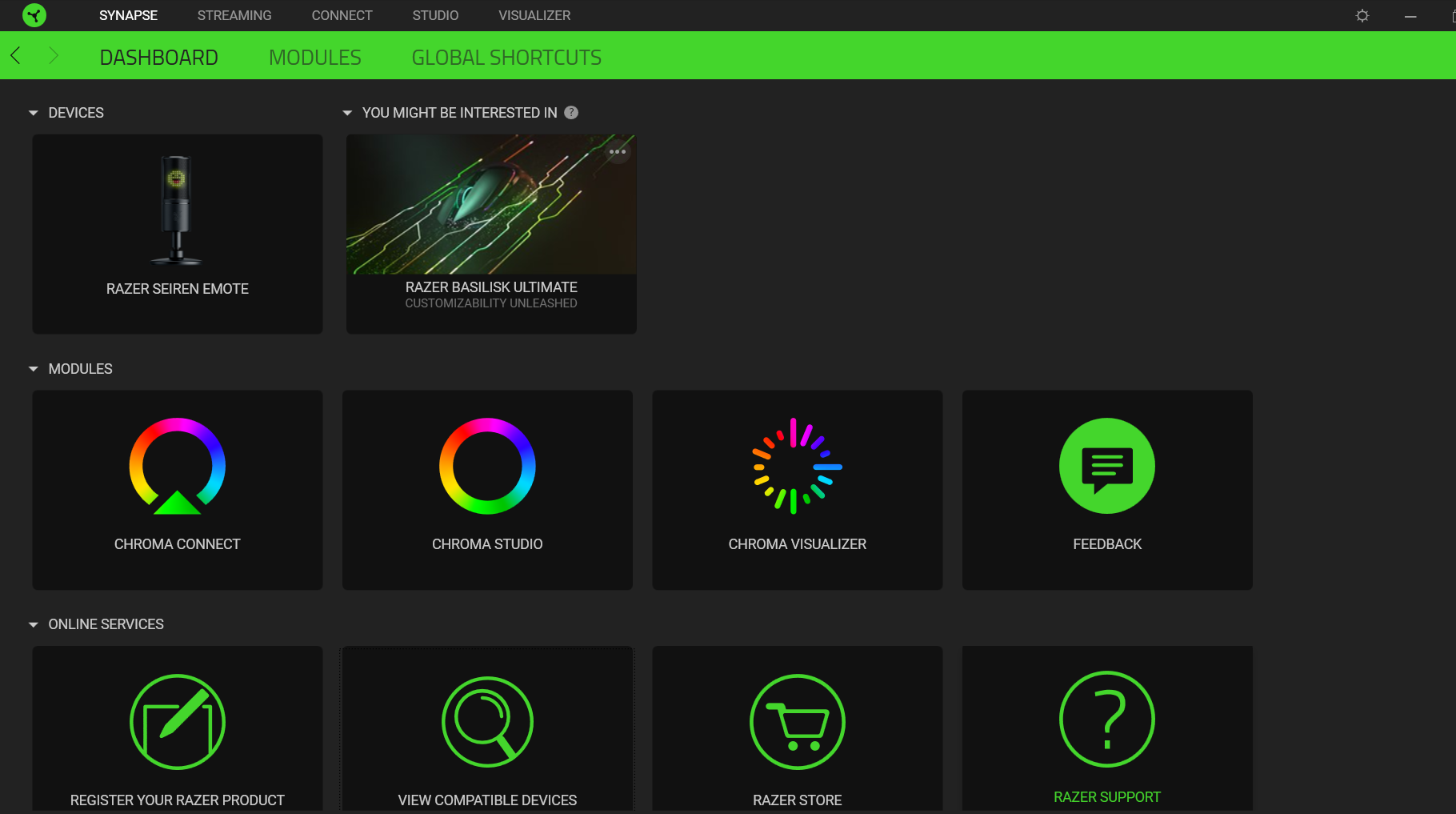
Alright, let's get practical. Finding the audio meter in Razer Synapse is usually pretty straightforward. Now, Razer Synapse gets updated frequently, so the exact location might vary slightly depending on your version, but here's the general idea:
First, make sure you have Razer Synapse installed and running. It's usually that cool green icon hanging out in your system tray. Open it up!
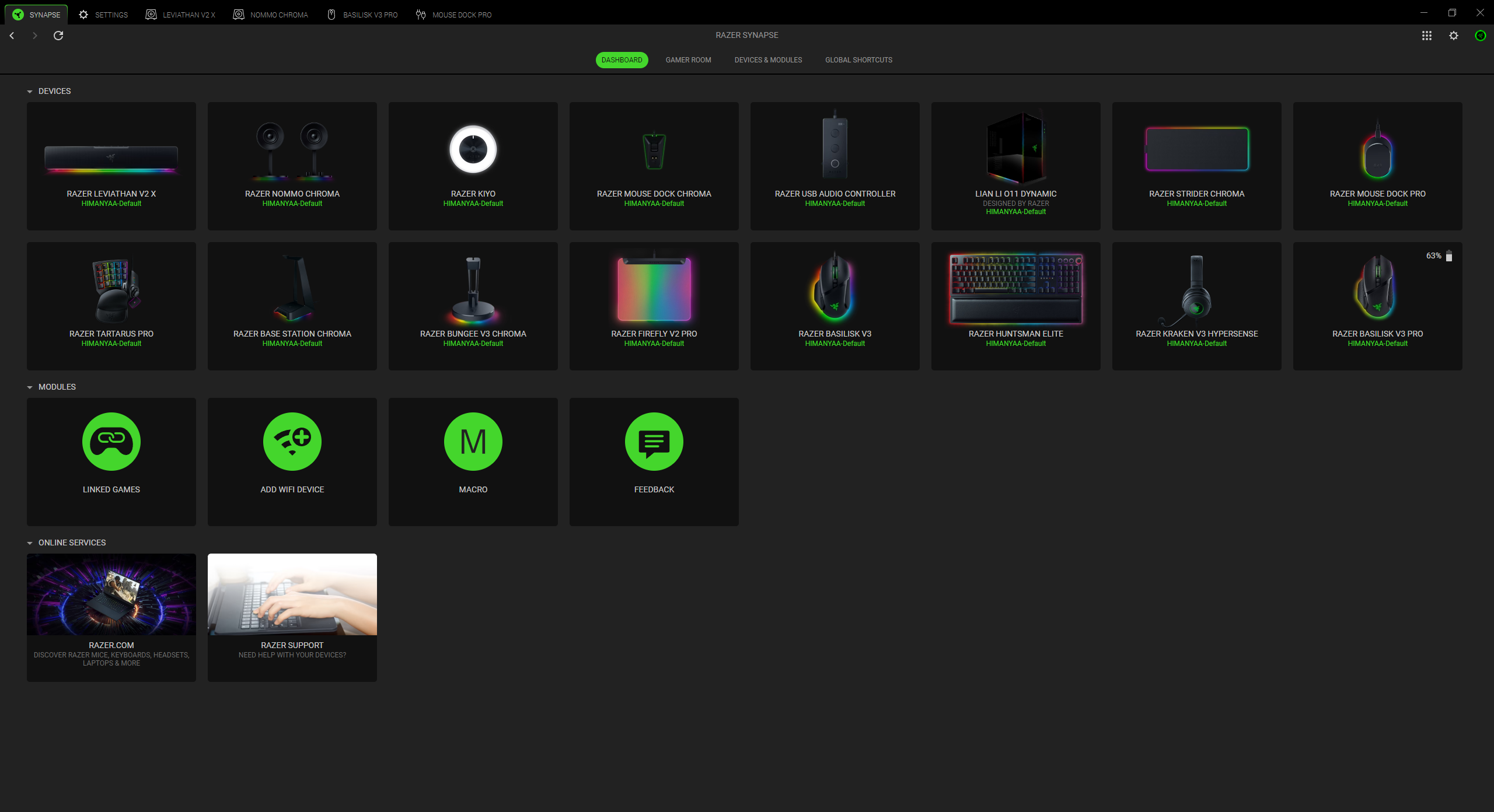
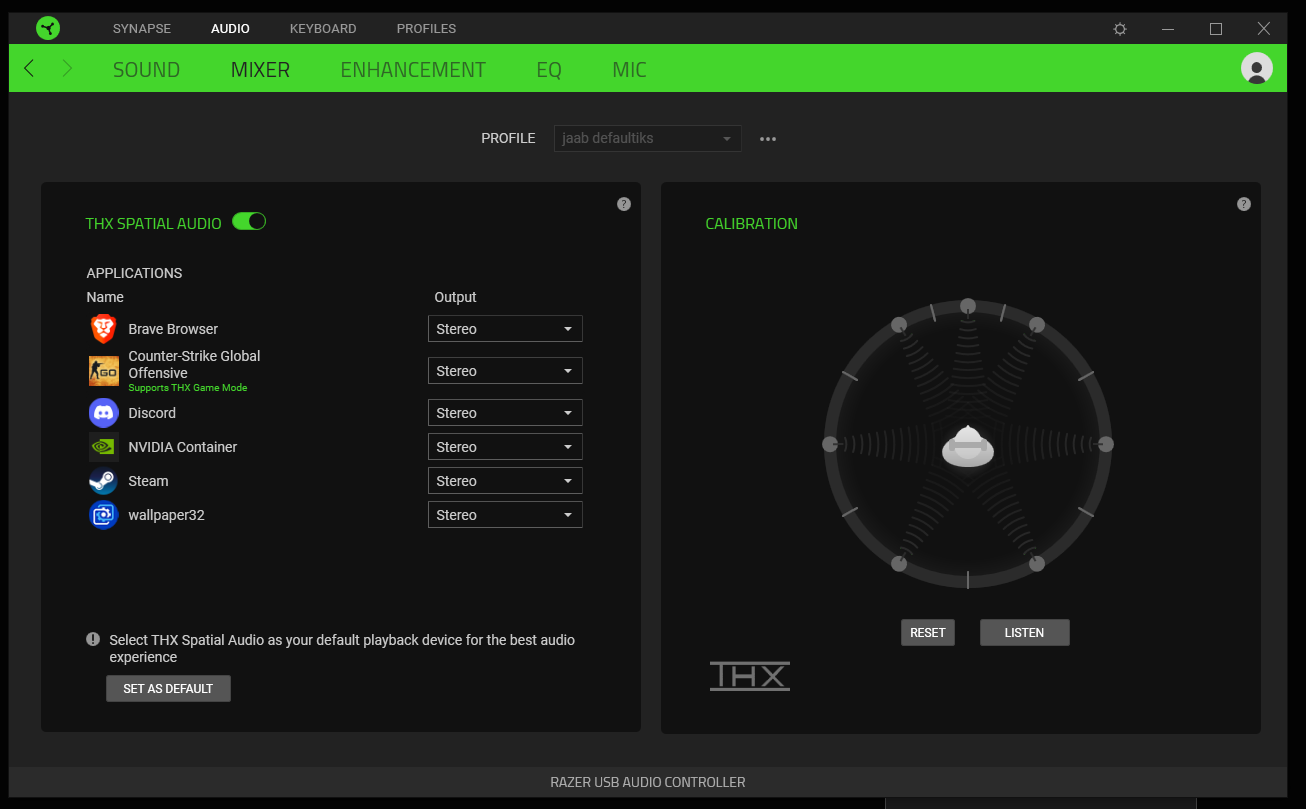
Next, look for a section related to your audio device. This could be under "Audio," "Mixer," or something similar. It depends on the specific Razer device you're using (headphones, microphone, etc.). Click on that.
Within the audio settings, you should find an option to enable or view the audio meter. It might be labeled as "Volume Meter," "Audio Level," or something along those lines. Pay close attention to the visuals! It's typically a bar or graph that moves up and down in response to the sound level.
Using the Audio Meter: A Practical Example
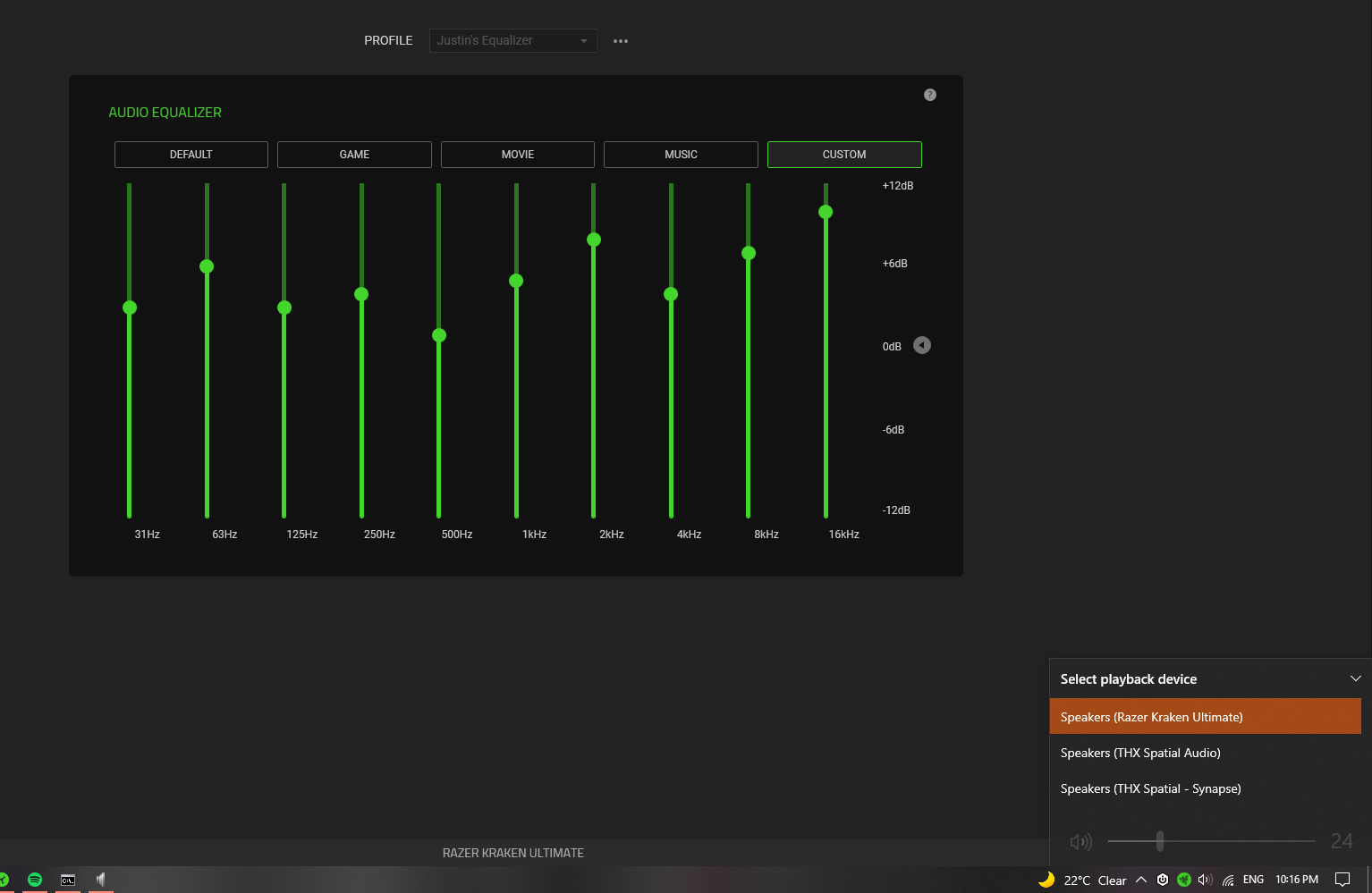
Let's say you're setting up your microphone for streaming. Open up your audio settings in Razer Synapse and find that audio meter. Now, start talking into your mic like you normally would. Watch the meter. Ideally, you want the meter to hover in the yellow or green zone. If it's consistently hitting the red zone, your mic is too loud, and you need to turn down the input gain (often found near the audio meter settings!). If it barely registers, your mic is too quiet, and you need to crank up the gain.
Think of it like driving. The yellow zone is your comfortable cruising speed, the green zone is slightly accelerating, and the red zone is flooring it and potentially getting a speeding ticket (audio distortion!). You want to stay in the safe zones.
Pro-tip: Test your audio levels with different sounds. Try whispering, talking normally, and even shouting a little (but maybe warn your neighbors first!). This will give you a good sense of the dynamic range of your microphone and how to adjust your input gain accordingly.
Why Bother Fine-Tuning?
"Okay, I get it," you might be thinking. "But does a little too loud or little too quiet really matter?" Absolutely! Audio quality can make or break an experience. Imagine watching a movie with the sound constantly fluctuating – distracting, right? It's the same with gaming and streaming. Well-balanced audio creates a more immersive and enjoyable experience for you and your audience.
Plus, a little effort with the audio meter can save you time and frustration in the long run. You'll spend less time re-recording audio, fixing distortion, or dealing with complaints about your audio being too quiet. It's like spending a few minutes sharpening your knives before cooking – it makes the whole process smoother and more enjoyable!
So, give that audio meter in Razer Synapse a try. It's a simple tool that can make a big difference in the quality of your audio. Happy gaming, happy streaming, and happy sound-mastering!