How To Unlock An Hp Laptop Without Password
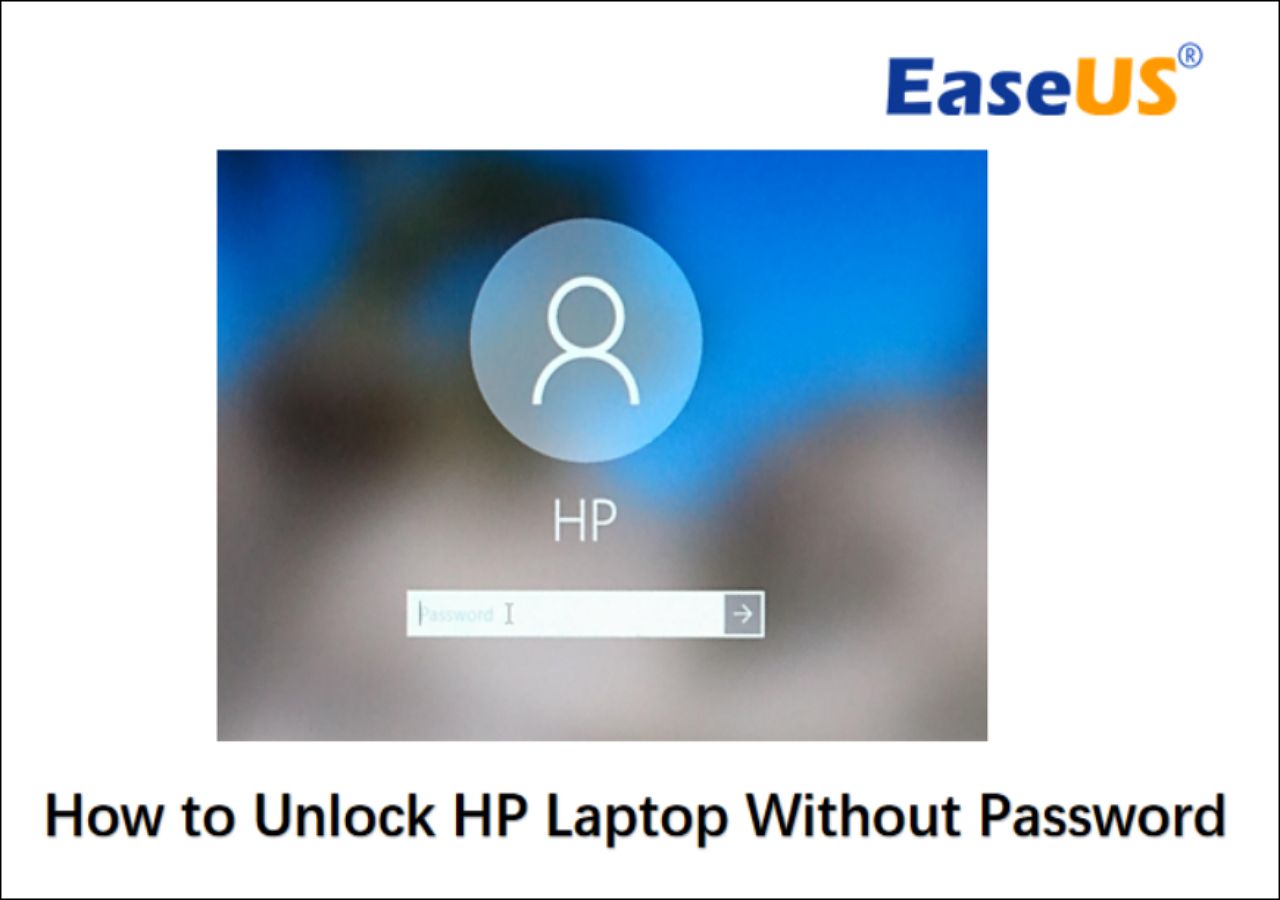
Let's face it, we've all been there. Staring blankly at a login screen, a little voice whispering, "Did I use 'password123' again? Please, no." Being locked out of your HP laptop is a modern-day tragedy, but don't fret! We're here to guide you through the digital wilderness and back into your beloved device.
The Classic Reset: When You Remember... Kinda
Sometimes, the password is just on the tip of your tongue. Maybe it's your pet's name backwards, or your birth year... with a twist. Before diving into more drastic measures, try these simple tricks:
- Caps Lock Awareness: This might sound silly, but ensure Caps Lock isn't on. It's a common culprit!
- Think Outside the Box (A Little): Consider common variations of your usual passwords. Did you recently change it and forget?
- Password Hints: HP laptops often offer password hints. Check if yours does, and see if it jogs your memory. They are there for a reason!
Pro Tip: Write down your passwords in a secure location. A password manager is a great option – think of it as a digital vault for your precious keys. LastPass and 1Password are popular choices.
Must Read
The Password Reset Disk: Your Backup Superhero
Did you know you can create a password reset disk? It’s like having a spare key to your digital kingdom! If you were forward-thinking enough to make one, congratulations! You’re a digital Boy Scout (or Girl Scout!). Here's how to use it:
- Insert your password reset disk (usually a USB drive) into your HP laptop.
- Enter any incorrect password on the login screen. You'll likely see a "Reset password" option.
- Click "Reset password" and follow the on-screen instructions. The wizard will guide you to create a new password.
If you didn't create a reset disk… well, let's just say this is a good lesson for the future. Backups are your friends! Seriously, they’re more reliable than that friend who always "forgets" their wallet.
Microsoft Account to the Rescue: Cloud Power
If your HP laptop is linked to a Microsoft account, you might be in luck! Microsoft offers a convenient password reset option through their website. It’s like having a remote control for your digital life.
- On another device (smartphone, tablet, or another computer), go to the Microsoft account recovery page: account.live.com/password/reset.
- Verify your identity using the methods provided (email, phone number, security questions).
- Follow the instructions to create a new password.
- Restart your HP laptop. You should now be able to log in with your new Microsoft account password.
Fun Fact: Did you know that the average person has over 100 online passwords? It's no wonder we forget them! Consider multi-factor authentication (MFA) for extra security – it’s like having a bouncer for your online accounts.
The Nuclear Option: Factory Reset (Last Resort!)
Okay, this is the "break glass in case of emergency" option. A factory reset will wipe everything from your HP laptop, restoring it to its original factory settings. This means you'll lose all your data! So only proceed if you’ve exhausted all other options and have backups (you do have backups, right?).

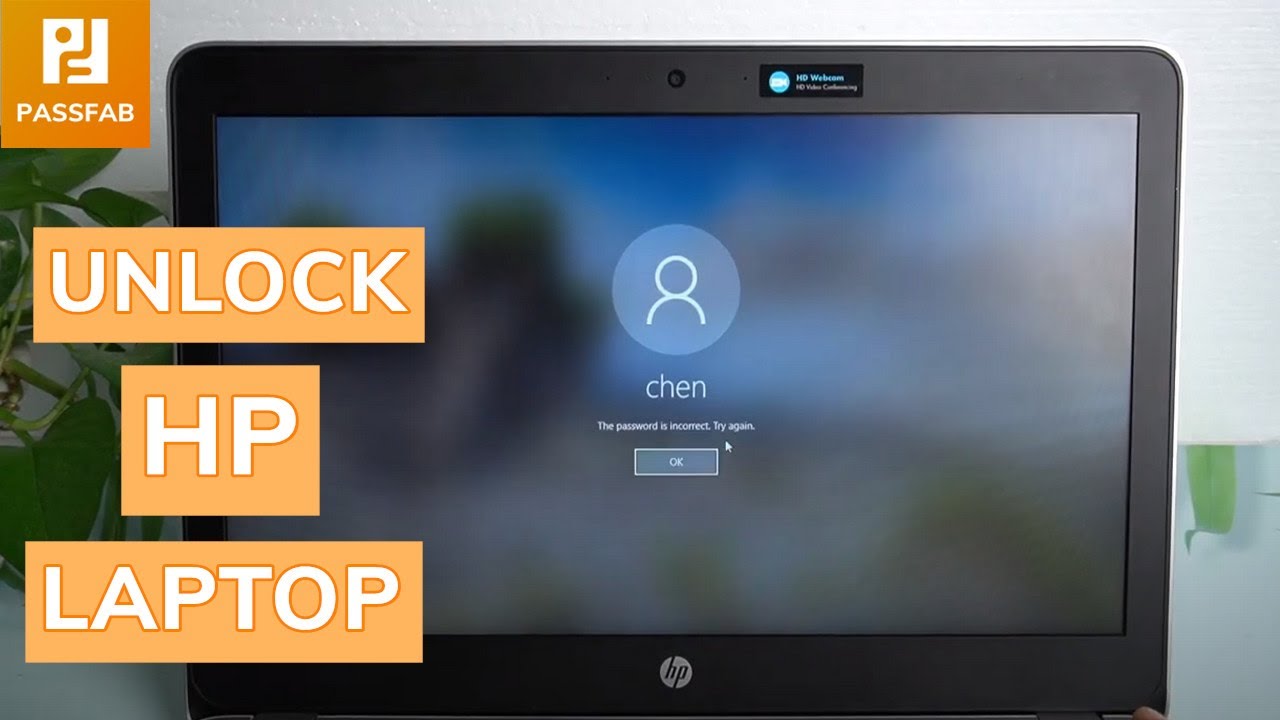
The exact steps vary depending on your HP laptop model and Windows version. Typically, you'll need to access the recovery options during startup (often by pressing a specific key like F11 or Esc while the laptop is booting). Follow the on-screen prompts to perform the factory reset. This process can take a while, so grab a cup of coffee (or tea – we're not judging!).
Important Note: Before performing a factory reset, try to back up any important data that you can access, even if it's just copying files to a USB drive.
![[Unlock HP Laptop] How to Open HP Laptop without Password 2023 | How to](https://i.ytimg.com/vi/MXhyXeU2Xgo/maxresdefault.jpg)
Prevention is Key: Future-Proofing Your Login
Let’s learn from this experience! Here's how to avoid future password predicaments:
- Create a strong, unique password: Use a combination of uppercase and lowercase letters, numbers, and symbols. Think of it as a digital fortress!
- Use a password manager: Let technology handle the heavy lifting.
- Create a password reset disk or recovery drive: Be prepared! Future you will thank you.
- Regularly update your password: Change it every few months, just to be safe.
We've all been there. That moment of panic, the frustration, the realization that your digital life is temporarily locked away. But with these tips and tricks, you can conquer the password beast and reclaim your HP laptop. Remember, technology is a tool, and with a little knowledge, you can master it. Just like Neo learning kung fu in the Matrix, you too can bend the digital world to your will. Now go forth and log in!
Life Lesson: Forgetting your password is a tiny bump in the road. It's a reminder to slow down, take a breath, and remember that solutions are usually within reach. It's also a great excuse to finally back up your photos. Happy computing!