
How To Turn Off Power Save Mode On Computer
:max_bytes(150000):strip_icc()/how-to-turn-off-power-saving-mode-4706502-13-753a1211bd4b42bdb6674f9ee624452b.png)
Okay, so picture this: you're in the middle of an epic online battle, your fingers are flying across the keyboard, and victory is so close you can practically taste the digital glory. Then, BAM! Your screen dims, everything slows to a crawl, and you're suddenly staring at a power-save mode notification. It's like the universe is conspiring against your gaming ambitions, right?
Don't worry, you're not alone. We've all been there. Power save mode, while generally a good thing for Mother Earth and your electricity bill, can be a real party pooper when you need that extra burst of performance. So, how do we tame this energy-conscious beast? Let's dive in!
The Windows Route: A Quest for Settings
First up, the classic Windows approach. Think of this as a mini-adventure where you, the intrepid explorer, venture into the depths of your computer's settings.
Must Read
1. The Battery Icon Beckons: Look down in your system tray (usually in the bottom right corner of your screen). Spot that little battery icon? Give it a click. A slider should pop up. This is your power-saving throttle. Slide it towards "Best Performance" (or something similar) if you want to unleash the full fury of your machine. Just be warned, your battery might cry a little.
2. The Power Plan Portal: Still not satisfied? Okay, we're going deeper! Type "Power Options" into the Windows search bar (that little magnifying glass thingy). Hit Enter, and prepare to be amazed (or mildly underwhelmed, depending on your standards). You'll see a few "power plans" listed, like "Balanced," "Power Saver," and maybe even "High Performance." Choose the one that tickles your fancy. "High Performance" is generally the best for, well, performance, but it will drain your battery faster than you can say "Game Over."
:max_bytes(150000):strip_icc()/changepowerplansettings-ba5f4fbed82f4365ba4bec8fbdadda79.jpg)
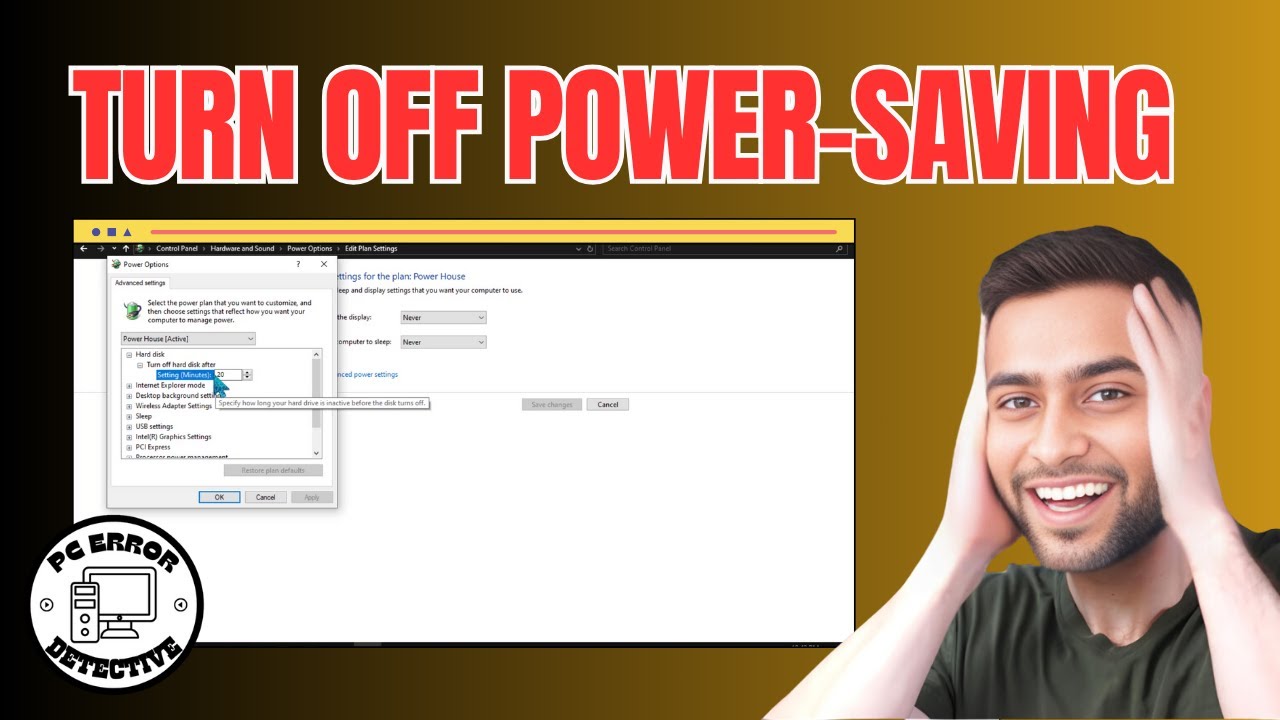
3. The Advanced Settings Labyrinth: For the truly adventurous souls, there's the "Change plan settings" link next to your chosen power plan. Click that, then click "Change advanced power settings." Prepare for a wall of options! Here, you can customize everything, from how long your display stays on to when your hard drive spins down. Be careful, though! Messing with the wrong settings can lead to… well, let's just say unexpected results. Like your computer suddenly thinking it's a toaster.
The macOS Maneuver: A More Zen Approach
If you're a Mac user, things are a little… simpler. (Or, as some might say, more "Apple-y.")
1. The System Preferences Sanctuary: Click the Apple logo in the top left corner of your screen and choose "System Preferences." This is your control center for all things Mac.
2. The Energy Saver Expedition: Find the "Energy Saver" icon (it looks like a lightbulb, because… energy!) and click it. Here, you'll find options to adjust when your display turns off and when your computer goes to sleep. Uncheck "Put hard disks to sleep when possible" if you want to keep your hard drive spinning and ready for action. You can also adjust the "Battery Health Management" settings, but be aware that disabling this feature can reduce your battery's lifespan.
3. The Battery Health Balancing Act: Newer macOS versions have "Battery Health Management." It's designed to prolong the life of your battery, but it might also throttle performance a bit. You'll find it in the same Energy Saver settings. Play around with it to find a balance between battery longevity and performance.
The Universal Truths: Tips and Tricks for Maximum Power
No matter what operating system you're using, here are a few extra tips to squeeze every last drop of performance out of your machine:

- Close Unnecessary Programs: This seems obvious, but it's often overlooked. Every program running in the background is sucking up resources. Close anything you're not actively using. Yes, even that cat video you had paused from last week.
- Update Your Drivers: Outdated drivers can cause all sorts of performance issues. Make sure your graphics card drivers are up-to-date. Think of it as giving your computer a tiny performance-enhancing shot.
- Defragment Your Hard Drive (Windows Only): This is an oldie but a goodie. Over time, your hard drive can become fragmented, which slows things down. Defragmenting it reorganizes the data and makes everything run smoother. (Note: this is generally unnecessary for SSDs).
- Embrace the Power of a Charger: If you're really desperate for performance, plug in your laptop. Running on battery power often limits performance to conserve energy. It's like your computer is saying, "I'm conserving energy so I can last longer!"
A final word of warning: Turning off power save mode will definitely improve performance, but it will also drain your battery faster and potentially generate more heat. So, use this power wisely, and don't blame us when your laptop runs out of juice in the middle of that crucial Zoom meeting!
And there you have it! Now go forth and conquer the digital world, free from the tyranny of power save mode! Just remember to maybe, possibly, eventually, think about saving some energy too. You know, for the polar bears.
Disclaimer: We are not responsible for any overheated laptops, drained batteries, or sudden urges to buy a new computer that may result from following these instructions. Use at your own risk!