How To Turn Off Leave On Honeywell Thermostat

Okay, so picture this: You’ve just rolled back from a glorious vacation, sun-kissed and relaxed, already dreaming of that first home-cooked meal. You haul your luggage through the front door, drop your bags with a thud, and… whoosh. A blast of air hits you. But not the good kind.
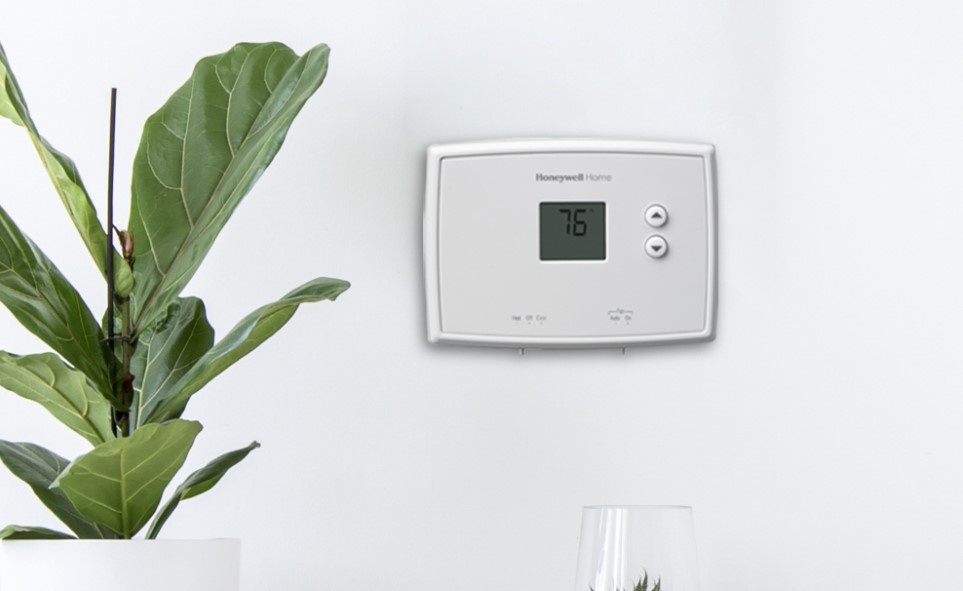
It's either arctic cold in the middle of summer or stifling hot in winter, making your home feel less like a sanctuary and more like a poorly regulated climate chamber. You stare at your Honeywell thermostat, squinting. It proudly displays something like 'Leave' or 'Away', along with a temperature setting that definitely isn’t what you wanted to come home to. Sound familiar? Because, oh my goodness, it’s a tale as old as programmable thermostats themselves.
That 'Leave' setting, while born from the best intentions – saving energy while you’re out living your best life – can be a real head-scratcher when you’re trying to just get your house back to normal. It’s like a well-meaning friend who keeps setting your alarm for 5 AM 'just in case you want to get an early start.' Appreciate the thought, but no thank you.
Must Read
Seriously, sometimes these smart devices try to be too smart, don't they? They anticipate your needs, which is great, until those needs suddenly change. Basically, when your Honeywell thermostat is in 'Leave' mode, it’s diligently maintaining a predetermined energy-saving temperature, assuming you're not home. Which is great! Until you actually are home, and suddenly your perfectly calibrated comfort zone feels like a distant memory.
The good news? You’re not stuck in thermostat purgatory forever. Turning it off is usually quite simple, once you know the secret handshake. And trust me, you're not the first, nor will you be the last, to wonder, "How do I make this thing just... stop?"
The Great Escape: Turning Off 'Leave' Mode
So, you’re ready to reclaim your climate control. Good. Let’s walk through the most common ways to tell your Honeywell thermostat that its services in 'Leave' mode are no longer required. Remember, Honeywell has a lot of models, so the exact buttons might differ slightly, but the logic remains pretty consistent across the board. Think of these as universal thermostat-whispering techniques.
Method 1: The 'Run Schedule' or 'Run Program' Button (The Most Common Culprit)
This is often the first place to look. Your thermostat likely has a pre-set schedule for when you're home and when you're away. 'Leave' mode is essentially a temporary override of that schedule, forcing it into an energy-saving state.

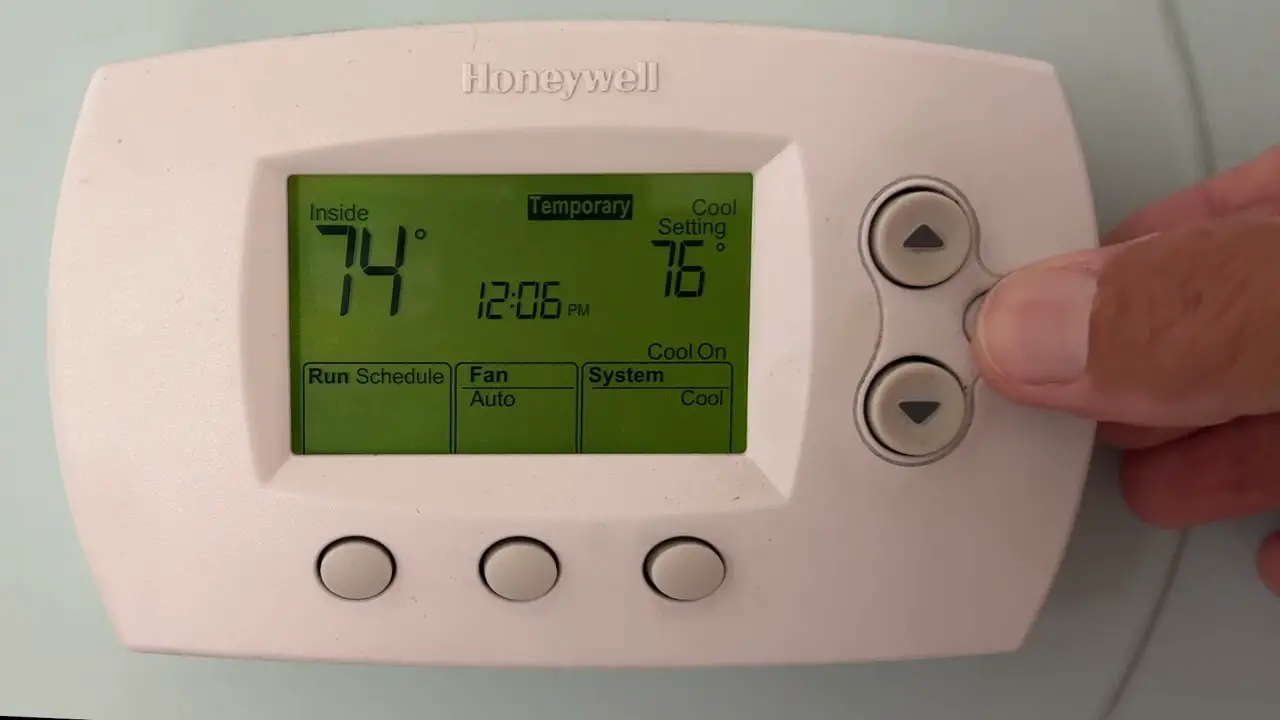
- Locate the Button: Look for a button labeled something like "Run Schedule", "Run Program", or simply "Run". On some touchscreens, it might be an on-screen option.
- Press It: Give it a firm press. What this usually does is tell the thermostat, "Hey, stop doing what you're doing and just go back to my regularly scheduled programming, please and thank you!"
- Verify: The 'Leave' or 'Away' indicator should disappear, and your thermostat should revert to its normal programmed schedule or display the temperature you've set for your current time block. Voila! Instant relief.
Method 2: The 'Hold' or 'Cancel Hold' Button (When You Just Want a Quick Fix)
Sometimes, 'Leave' mode can be activated via a temporary 'Hold' function. This is more common if you manually put it into 'Away' mode before leaving, or if someone else in the house got a little button-happy.
- Find 'Hold': Look for a "Hold" button. If it's already in 'Hold' mode (which 'Leave' often functions as), you might see an option to "Cancel Hold".
- Press to Override: Pressing "Hold" might allow you to set a temporary temperature, overriding the 'Leave' setting. But if you want to get out of 'Leave' and back to your schedule, you're really looking for a "Cancel Hold" or pressing "Run Schedule" after pressing "Hold" once. It’s a bit of a dance, I know.
- The Goal: The aim here is to get it to stop 'holding' that 'Leave' temperature and return to its programmed state.
Method 3: Adjusting the Mode or Temperature (The "I'm Just Going to Force It" Approach)
This isn't always the cleanest way to turn off 'Leave', but it often works as a temporary fix, especially if you just want to set a comfortable temperature right now and worry about the schedule later. Think of it as nudging the thermostat until it gets the hint.
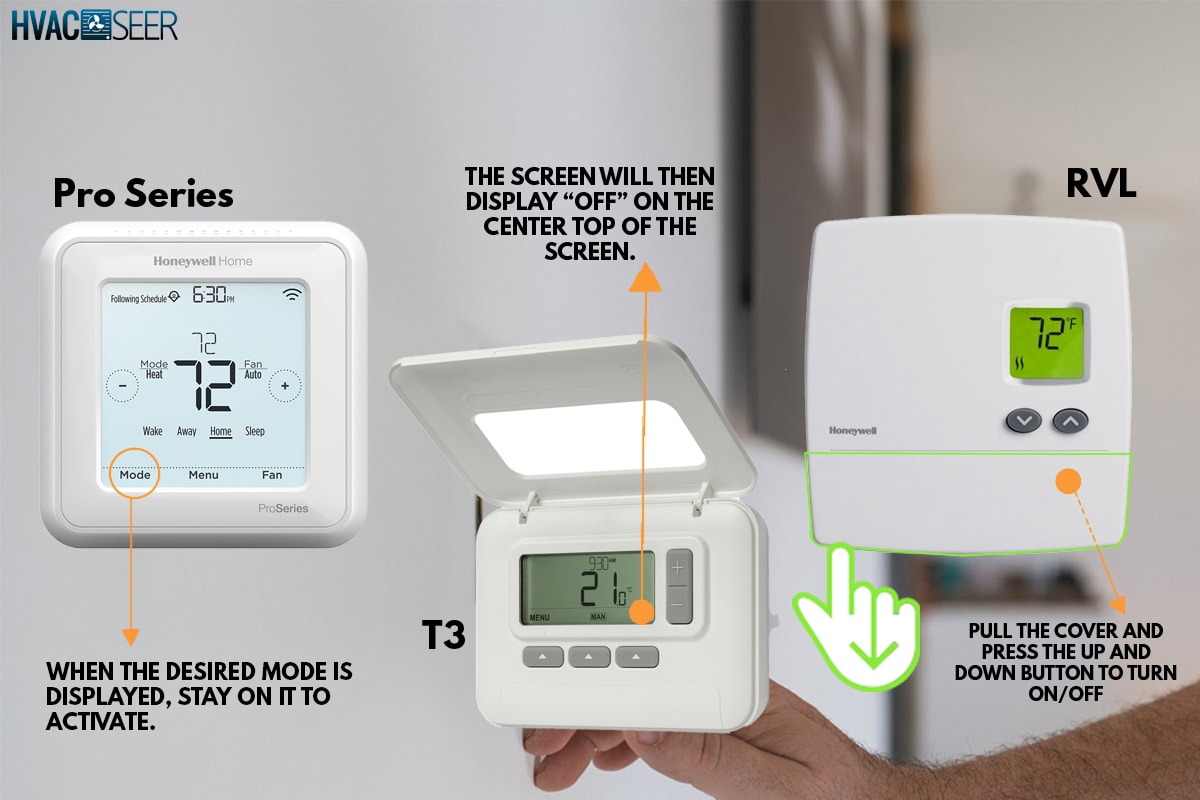
- Change Mode: Sometimes simply changing the mode (e.g., from "Heat" to "Cool" and back, or setting to "Off" and then back to "Heat/Cool") can kick it out of a stubborn 'Leave' state.
- Adjust Temperature: Simply pressing the Up or Down arrows to change the desired temperature will often put the thermostat into a temporary 'Hold' at that new temperature. This effectively overrides 'Leave', at least until the next scheduled program change. You might then need to press "Run Schedule" to fully exit the override.
Method 4: The 'Menu' Dive (For the Explorers Among Us)
If the obvious buttons aren't doing the trick, it's time to delve into the menu system. This is more common on newer, touchscreen models.
- Press 'Menu': Tap the "Menu" button or on-screen option.
- Look for Settings: Navigate through options like "System", "Schedule", "Away Settings", or "Vacation". You might find an option to disable or exit the 'Leave' or 'Away' mode directly here.
- Confirm: Always confirm your selections. You might even find a dedicated "Vacation" or "Away" setting that needs to be explicitly turned off.
A Few Parting Thoughts (Because Life Isn't Always Simple)
Sometimes, 'Leave' mode can be linked to geofencing if you're using a smart thermostat connected to an app (like Honeywell Home or Total Connect Comfort). If your phone leaves a certain radius, the thermostat automatically goes into 'Away' mode. If this is the case, you'll need to disable this feature in the app settings, not just on the thermostat itself. Ah, technology! Always one step ahead, sometimes two steps too clever.
So, there you have it! The next time you find your Honeywell thermostat stubbornly clinging to its 'Leave' setting, hopefully, you'll have the power (and the knowledge!) to politely, yet firmly, tell it, "Thanks for looking out, but I'm home now. Let's get comfortable." Your post-vacation self, or just your Tuesday evening self, will thank you.