How To Tell If Your Iphone Is Charging When Dead

Ever experienced that moment of panic? Your iPhone screen is black, unresponsive, and you're pretty sure it's completely dead. You plug it in, but...nothing. Is it charging? Is it just really dead? Learning how to tell if your iPhone is actually charging when it's seemingly lifeless is a surprisingly useful skill. It can save you from unnecessary worry and help you troubleshoot potential problems.
The purpose of understanding these charging indicators is simple: to know for sure if your iPhone is receiving power and attempting to revive itself. The benefit is peace of mind. Instead of constantly pressing buttons and wondering, you can confidently assess the situation and decide on the next course of action. Is it just a matter of patience, or do you need to try a different charger, cable, or even consider a more serious issue? This knowledge empowers you to take control.
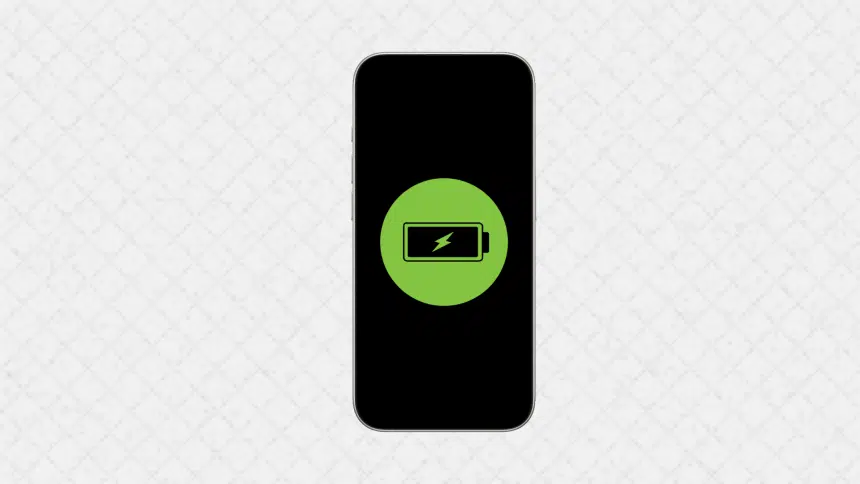
So, how do you tell? Let's break it down. The most obvious indicator is the charging icon on the screen. When you plug in a completely dead iPhone, you should see a black screen with a large battery icon. Inside the battery, a lightning bolt indicates that it's charging. If you see this, excellent! Let it sit for a while. The battery icon may initially be empty, signifying a very low charge. As it gains power, the icon will gradually fill with green (or white, depending on your settings). Keep in mind, it might take a few minutes for this icon to appear, especially if the battery is deeply discharged.
Must Read
However, sometimes the screen remains stubbornly black. Don't despair! There are other ways to check. Try a "hard reset". Press and quickly release the volume up button, then press and quickly release the volume down button, then press and hold the side button (power button) until you see the Apple logo appear. This forces the iPhone to restart, and sometimes that's all it takes to kickstart the charging process and display the charging icon. Be patient; it may take 30 seconds or more of holding the side button. If it’s charging, even weakly, this should eventually force the logo to appear.
Another clue can come from the sound your iPhone makes when you plug it in. Typically, you'll hear a chime or a short vibration. This is a reliable indication that the phone is recognizing the connection and attempting to charge. If you don’t hear anything, make sure your phone isn’t on silent mode (check the switch on the side of your iPhone). If it is, turn it off to hear the charging chime.

These techniques can be useful in various situations. Imagine you're a student relying on your phone for notes and research. Knowing how to quickly assess a seemingly dead iPhone could prevent you from missing crucial information during a lecture. Or, perhaps you're traveling and need your phone for navigation. Verifying that it's charging ensures you won't get stranded. Even in everyday life, it saves you time and frustration.
Here's a practical tip to explore: Regularly let your iPhone's battery drain to a low level (but not completely dead!) and then observe the charging process. Pay attention to how long it takes for the charging icon to appear and how quickly the battery fills. This will give you a baseline understanding of your phone's charging behavior and make it easier to identify any anomalies later on. Experiment with different chargers and cables too; some might be more efficient than others. Ultimately, learning to "read" your iPhone's charging signals is a valuable skill that empowers you to keep it powered up and ready to go.