How To Tell If Your Apple Pencil Is Charging
Alright, settle in, folks! Let's talk about something near and dear to my heart (and probably your iPad): the Apple Pencil. Specifically, that eternal question: Is it charging?! It's like Schrödinger's stylus; it's both charging and not charging until you actually check. Am I right?
We've all been there. You're mid-masterpiece, sketching a majestic unicorn riding a bicycle made of marshmallows, and suddenly… your Apple Pencil craps out. Dead. As a doornail. Deader than disco. You plug it in, cross your fingers, and pray to the tech gods, but how do you actually know if it's sucking up that sweet, sweet electricity?
Method 1: The Widget Whisperer
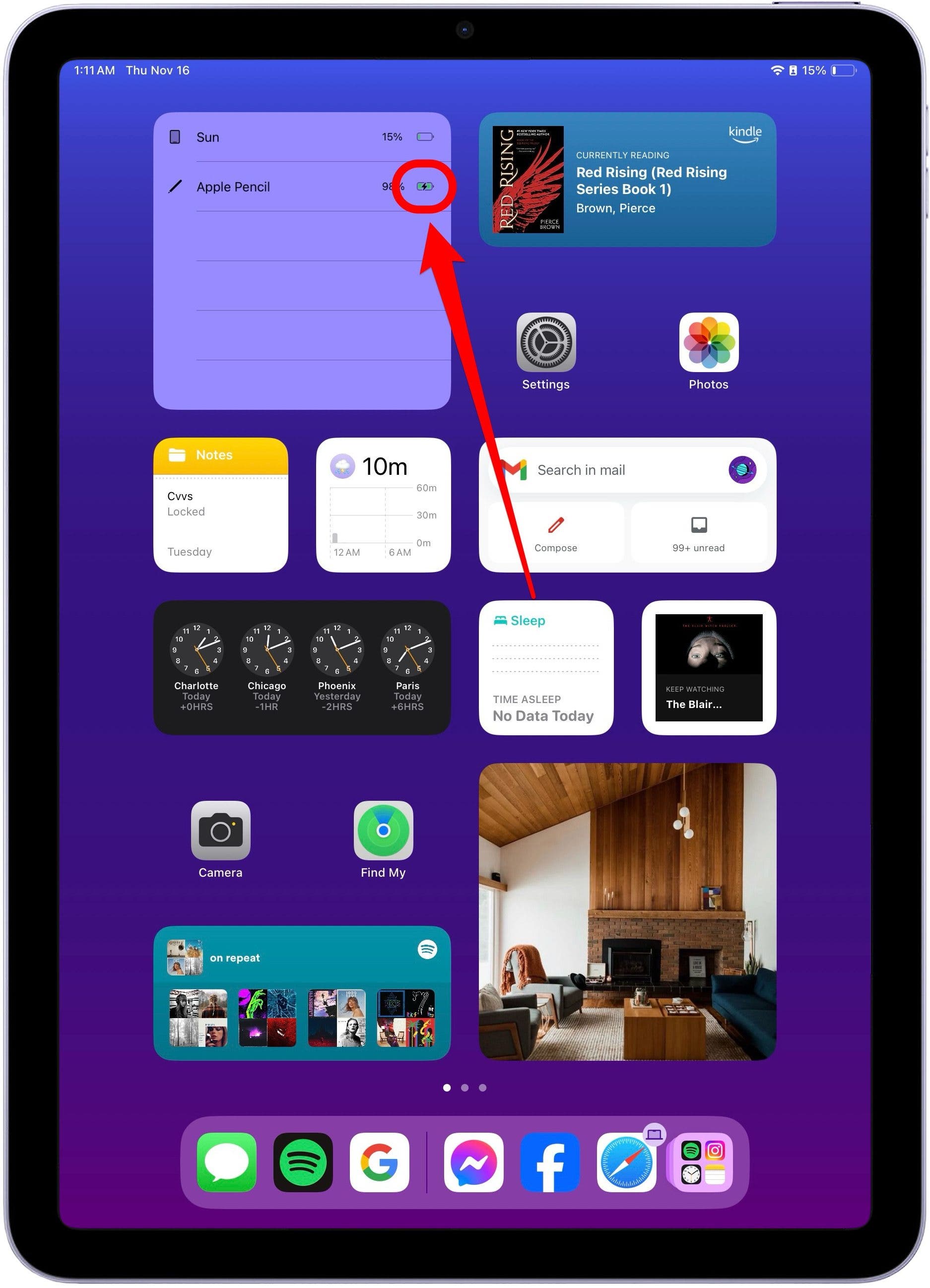
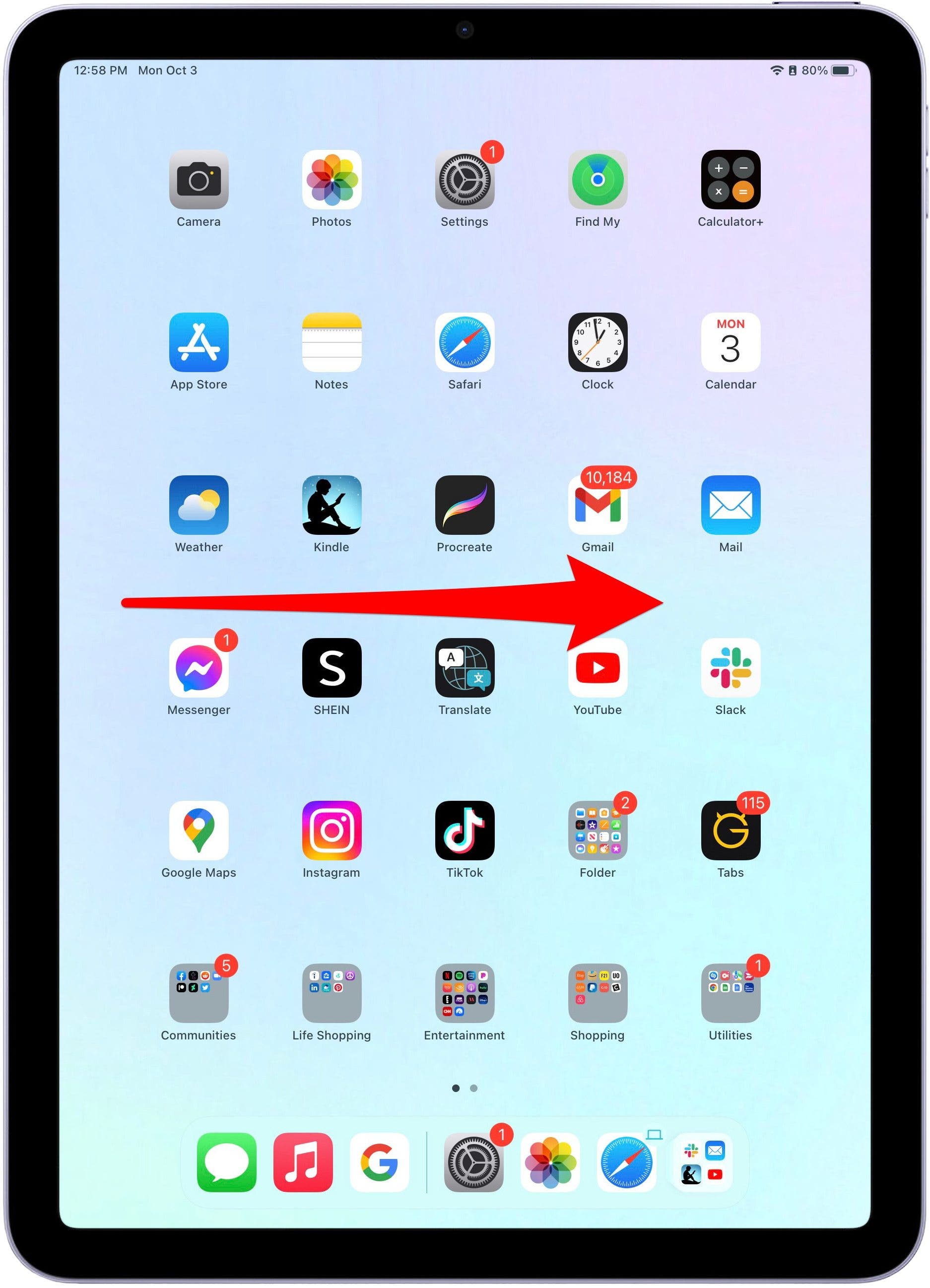
The easiest, and probably least dramatic, method involves the Widgets screen. Now, I know what you’re thinking, "Widgets? Are those still a thing?" Yes, my friend, they are! And they’re incredibly useful for this very purpose. Swipe right on your iPad's Home Screen (or from the very first page if you have widgets pinned). You're looking for the Batteries widget.
Must Read
If you don't see it, don't panic! It's probably hiding, playing shy. Just scroll to the bottom of the Widgets screen and tap "Edit." Then, look for "Batteries" and add it with a tap on the little green plus sign. Voila! You're now a Widget Wizard!
With the Batteries widget in place, you can see the battery percentage of your iPad and, if your Apple Pencil is charging, its battery percentage too! It’s like peeking into the soul of your stylus, knowing its deepest, electrifying secrets. If it's plugged in and the percentage is going up, you're golden. If it’s staying stubbornly at 3%, well, buckle up, buttercup; you're in for a longer wait.

Pro-Tip: Sometimes, the widget is a little… slow on the uptake. If you've just plugged in your Pencil, give it a minute or two to register. Maybe sing it a little song about electrons flowing. I’m not saying it helps, but it can't hurt, right?
Method 2: The Notification Navigator
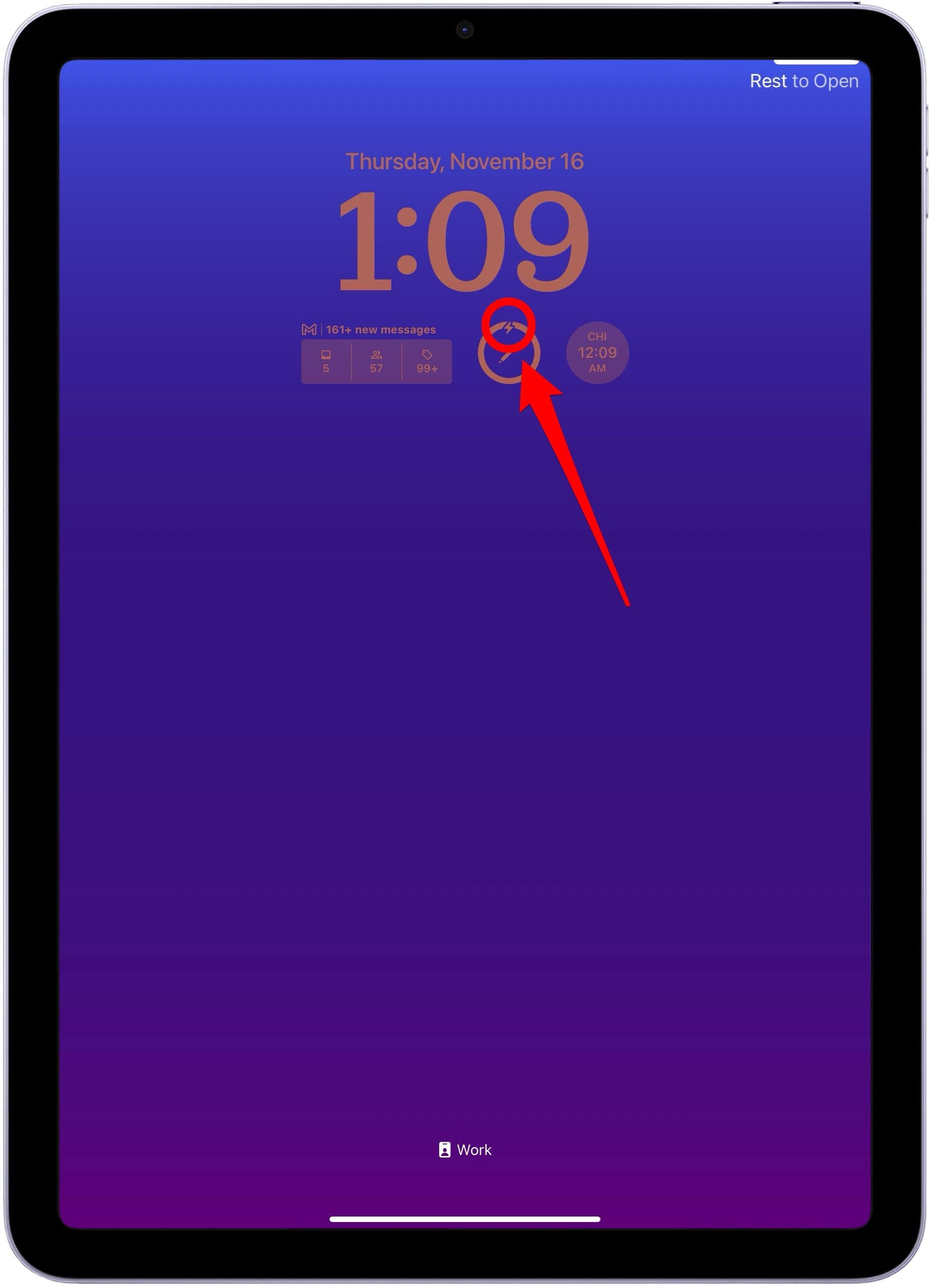
Ah, notifications. The constant barrage of pings and dings that rule our digital lives. But sometimes, they're actually helpful! When you connect your Apple Pencil to charge, you should get a notification at the top of your screen showing its current battery percentage. Think of it as a tiny, digital status report from your Pencil, letting you know it's on the mend.
However, notifications can be fickle beasts. Make sure you haven't accidentally silenced them for the Apple Pencil. Head into your iPad's Settings, then Notifications, and find "Apple Pencil" in the list of apps. Make sure "Allow Notifications" is toggled on. Otherwise, you'll be left in the dark, wondering if your Pencil is charging or just mocking you with its lifelessness.
Important Note: This method is generally more reliable with newer iPad and Apple Pencil models. If you're rocking a vintage iPad (vintage in tech terms, of course, meaning anything older than last Tuesday), your mileage may vary.
Method 3: The Quick Glance (Gen 2 Only)
If you're the proud owner of an Apple Pencil (2nd generation) and a compatible iPad, you've got it easy! The second-generation Pencil attaches magnetically to the side of your iPad. When you snap it on, a little notification usually pops up at the top of the screen showing the Pencil's battery percentage and indicating that it's charging. It’s like the Pencil is saying, “Hey! I’m here, I’m charging, everything’s going to be okay.”
This is by far the most convenient method. No widgets, no settings menus, just a simple magnetic connection and instant feedback. Kudos to Apple for making life a little bit easier (at least in this one, very specific instance).
Troubleshooting Tips (Because Things Always Go Wrong, Don't They?)
- Clean the connectors: Sometimes, a little dust or debris can interfere with the charging process. Gently clean the Lightning connector on your first-generation Pencil or the magnetic charging area on your second-generation Pencil with a soft, dry cloth. Think of it as giving your Pencil a little spa day.
- Restart your iPad: The age-old tech support mantra. "Have you tried turning it off and on again?" Surprisingly, it often works!
- Update your iPadOS: Make sure your iPad is running the latest version of iPadOS. Sometimes, software bugs can cause charging issues.
- Try a different charging method: If you're using the Lightning adapter with a first-generation Pencil, try plugging it directly into your iPad. If that doesn't work, try a different Lightning cable and power adapter.
And there you have it! Everything you need to know to determine if your Apple Pencil is charging. Now go forth and create! Draw those unicorns, sketch those dragons, and write that epic poem about the joys of perfectly charged stylus. The world awaits your artistic genius!
Disclaimer: If none of these methods work, your Apple Pencil might be genuinely broken. In that case, I suggest a solemn moment of silence, followed by a trip to the Apple Store. May the force (of electricity) be with you!