
How To Tell If A Usb-c Cable Can Transfer Data
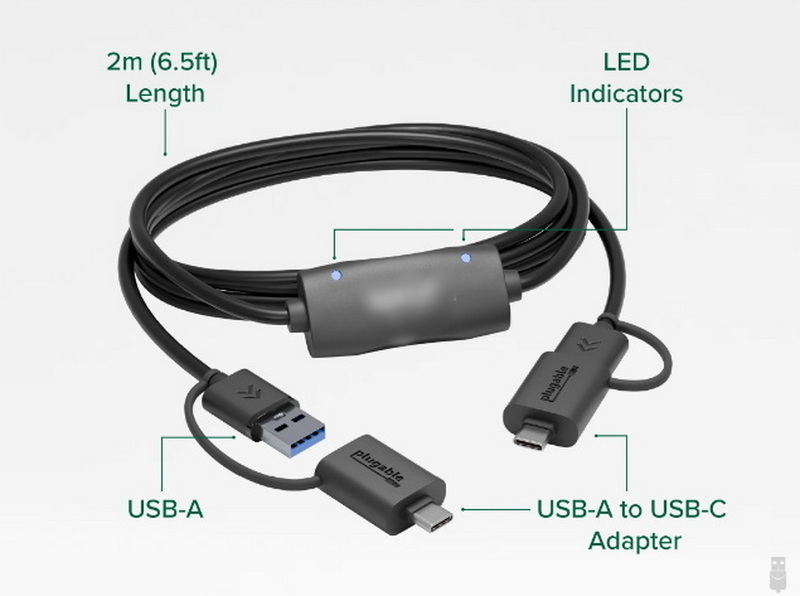
Ah, the humble USB-C cable. In today's tech-saturated world, it's almost as ubiquitous as air. We love it because it promises a simpler, more streamlined existence. No more fumbling with different connectors for every device – just one port to rule them all! It's the promise of universal compatibility that has us all hooked.
But here's the thing: not all USB-C cables are created equal. While they might all look the same, their capabilities can vary wildly. Some are designed purely for charging, while others can handle data transfer, video output, and even power delivery. This distinction is crucial because a cable that can only charge your phone won't be much help when you're trying to transfer those vacation photos to your laptop.
The benefits of a data-capable USB-C cable are immense. Think about transferring large files like videos or high-resolution images between your phone, tablet, and computer. Imagine backing up your entire phone to an external hard drive in a matter of minutes. Or consider using your laptop to power a portable monitor for increased productivity. All these scenarios rely on the data transfer capabilities of your USB-C cable.
Must Read
Common examples of where data transfer is crucial include connecting external hard drives, syncing smartphones with computers, using USB-C hubs to expand connectivity, and even connecting cameras for live streaming or photography. Without a data-capable cable, these tasks become frustratingly slow, or simply impossible.
So, how can you tell if your USB-C cable can actually transfer data? Here are some practical tips:
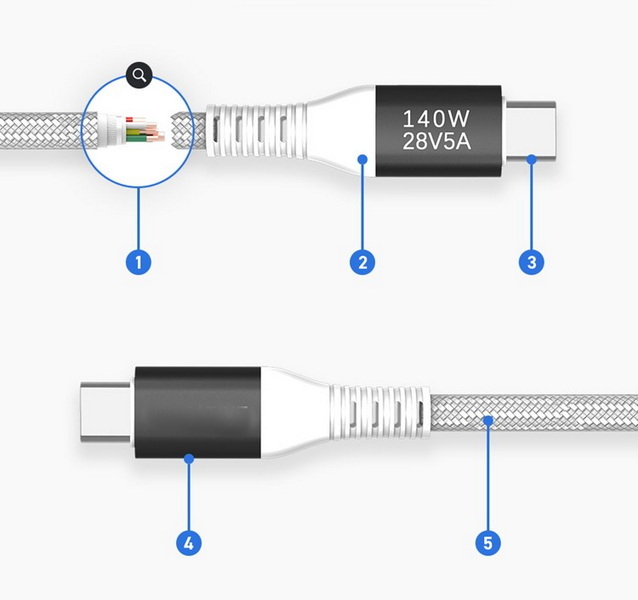
1. Check the Packaging or Documentation: This is the most straightforward method. Look for symbols or text on the packaging that indicate data transfer capabilities. Terms like "USB 3.1 Gen 1/2" or "USB 3.2" strongly suggest data transfer support. If the packaging only mentions charging or power delivery, it's likely a charge-only cable.
2. Look for Markings on the Cable Itself: Some manufacturers print small markings or logos directly on the cable. These markings might indicate the cable's capabilities. However, this isn't always reliable, as some budget cables may lack such markings.

3. Perform a Simple Test: The easiest way to be certain is to actually test the cable. Connect your phone or a USB drive to your computer using the cable. If your computer recognizes the device and allows you to transfer files, then you know the cable supports data transfer. If your computer only recognizes the charging function, then the cable is likely charge-only.
4. Consider the Price: Generally speaking, cables that support data transfer are more expensive than charge-only cables. While price isn't always a guarantee, a significantly cheaper cable is more likely to be limited to charging.
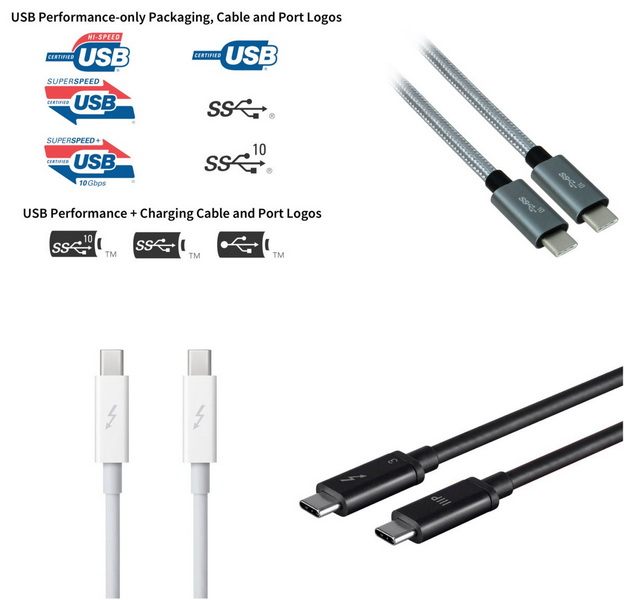
5. Invest in a Good Quality Cable: Don't skimp! Investing in a reputable brand ensures you're getting a cable that meets the advertised specifications and will last longer. Look for cables that meet USB-IF certifications.
By following these tips, you can ensure you're using a USB-C cable that can handle all your data transfer needs. No more guessing, no more frustration – just smooth, seamless connectivity. Enjoy the power of truly universal connectivity!
