
How To Switch On A Laptop Without The Power Button

Okay, let’s be honest. We've all been there. You're ready to conquer the world, your brilliance about to explode onto the screen... but your laptop power button is playing hide-and-seek. Or worse, it’s just… not working. Panic sets in, right? But fear not, fellow tech adventurer! Because today, we're unlocking a secret level: how to switch on your laptop without that pesky power button.
Think of it as a digital escape room, only the prize is getting back to your emails (or, you know, that super important cat video you were about to watch. No judgment!).
Why Bother Learning This? (Besides the Obvious 'My Button's Broken' Reason)
Good question! Why bother learning something that seems so… specific? Well, for starters, it's about empowerment. Knowing your tech inside and out gives you a sense of control. Plus, imagine the bragging rights! "Oh, my power button? Yeah, it's decorative. I have other ways."
Must Read
But beyond the cool factor, it's practical. Buttons break. Things happen. Life throws you curveballs, sometimes in the form of unresponsive laptops. Knowing these alternative methods can save the day (and your sanity).
The Usual Suspects: Exploring Alternative Power-On Methods
Alright, let's dive into the toolbox! Here are a few common ways to resurrect your laptop from its slumber sans power button.
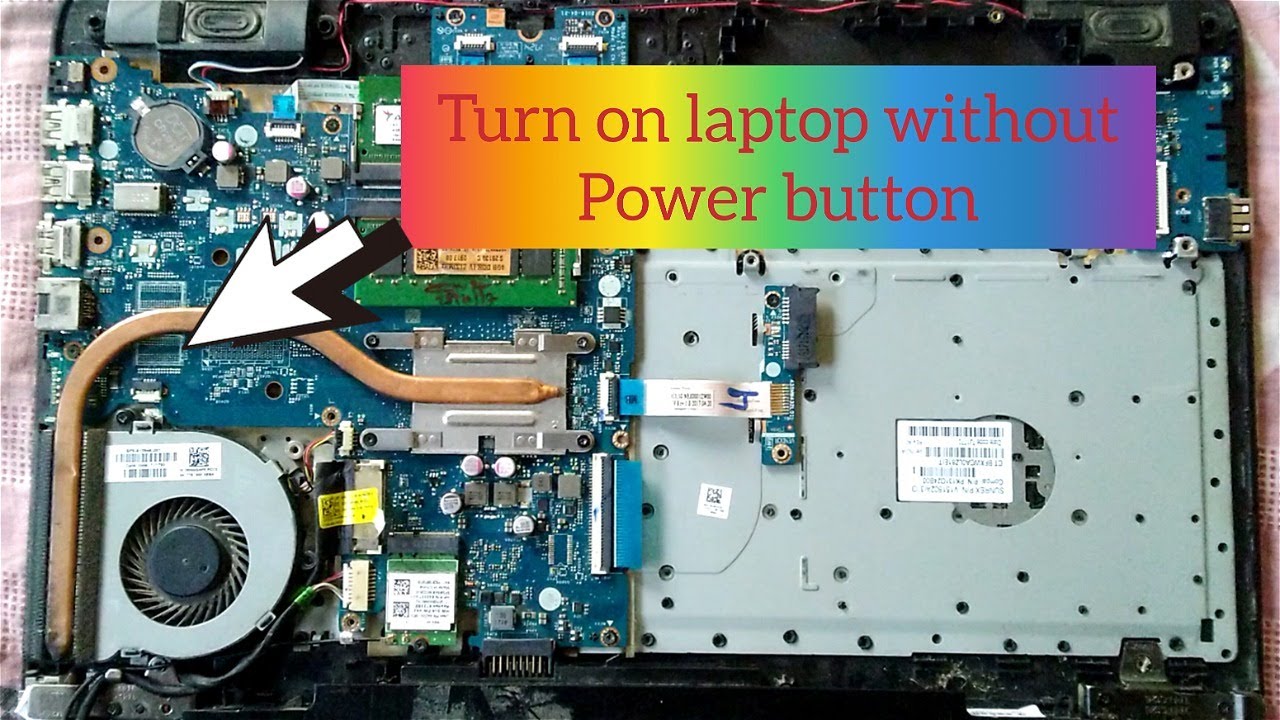
1. The AC Adapter Connection: This is the simplest and often most effective trick. Unplug your laptop from the AC adapter. Wait a few seconds (like, five. Don't get impatient!), and then plug it back in. Some laptops are programmed to automatically power on when they detect a power source. It's worth a shot, right?
2. The Lid Open/Close Trick: This one's a bit of a gamble, but hey, we're explorers! Some laptops are designed to power on when you open the lid after being completely shut down (not just asleep or hibernating). Close the lid, wait a moment, and then reopen it. Fingers crossed!
3. External Keyboard/Mouse Power-On: Believe it or not, some laptops allow you to power them on using an external keyboard or mouse connected via USB. This feature is often enabled in the BIOS settings. Try pressing a key on the keyboard or clicking the mouse button. Who knew your keyboard was so powerful?
4. The BIOS Deep Dive (Proceed with Caution!): Okay, this one's for the slightly more adventurous. You'll need to access your laptop's BIOS settings (usually by pressing Del, F2, F12, or Esc during startup – check your laptop's manual for the exact key). Once in the BIOS, look for power management options related to "AC Power Recovery" or similar wording. Enabling this setting can tell your laptop to automatically power on when it receives power.
Important Note: Messing around in the BIOS can be risky if you don't know what you're doing. If you're unsure, it's best to consult your laptop's manual or seek professional help. We don't want to accidentally turn your laptop into a very expensive paperweight!
When All Else Fails: Calling in the Pros
Sometimes, despite our best efforts, technology remains stubbornly uncooperative. If you've tried all the tricks and your laptop still refuses to wake up, it might be time to call in the professionals. A faulty power button could indicate a deeper hardware issue that requires expert attention.
Think of it like this: you wouldn't try to perform open-heart surgery on yourself, would you? (Please say no!). Sometimes, the best solution is to let a trained technician handle the situation.

The Takeaway: Knowledge is Power (and a Working Laptop!)
So, there you have it! A few unconventional ways to breathe life back into your laptop when the power button decides to take a vacation. Remember, learning these tricks isn't just about fixing a problem; it's about expanding your understanding of technology and becoming a more confident user.
And hey, even if none of these methods work in your specific situation, you've still learned something new! You've explored your laptop's inner workings, and that's always a win. The world of tech is vast and fascinating, and there's always more to discover. So, keep exploring, keep learning, and keep pushing the boundaries of what you think is possible. After all, who knows what other digital secrets you might unlock?
Now go forth and conquer your digital world! And remember, even if your laptop's being stubborn, you've got this!