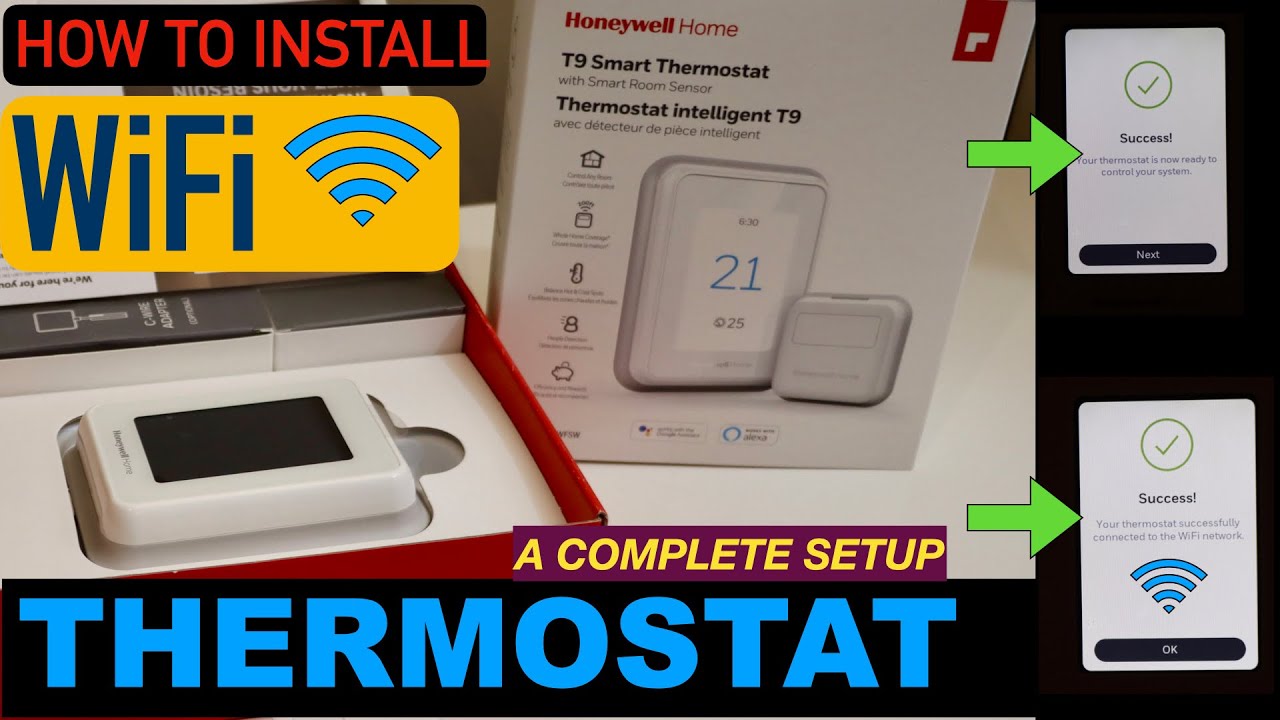
How To Setup Honeywell Thermostat Wifi

Ever dreamed of walking into a perfectly cozy home, or perhaps slashing those pesky energy bills without even thinking about it? Welcome to the wonderful world of smart home comfort! Setting up your Honeywell thermostat's Wi-Fi isn't just a chore; it's your personal portal to a more convenient, energy-efficient, and downright delightful living experience. Forget fiddling with buttons on the wall – soon, your thermostat will be at your beck and call, right from your smartphone!
So, why bother connecting your Honeywell thermostat to Wi-Fi? The benefits are as warm and inviting as a perfectly controlled room. Firstly, there's the undeniable joy of remote control. Heading home early? Crank up the heat (or AC!) from your office. Left on vacation and forgot to adjust the temperature? No problem, a few taps on your phone and you’re saving energy. Secondly, it's a huge win for energy savings. Smart scheduling learns your habits, geofencing knows when you're home or away, and even simple adjustments made from afar can prevent wasted energy. Plus, you’ll get helpful alerts for extreme temperatures or even when it’s time to change your air filter. It’s about more than just temperature; it’s about smart living.
Ready to unlock this climate-controlling magic? Let’s get your Honeywell thermostat talking to your Wi-Fi network. Don't worry, it's easier than trying to decide what to watch on Netflix!
Must Read
What You'll Need:
- Your Honeywell Wi-Fi thermostat (obviously!).
- A smartphone or tablet.
- Your home's Wi-Fi network name and password (most Honeywell thermostats prefer a 2.4 GHz network, so keep that in mind if you have a dual-band router).
- The Honeywell Home App (available for free on iOS and Android).
The Simple Steps:
1. Download and Create an Account: First things first, grab your smartphone and download the Honeywell Home App. Once installed, open it up and follow the prompts to create a new account. This will be your control center for all things comfort!
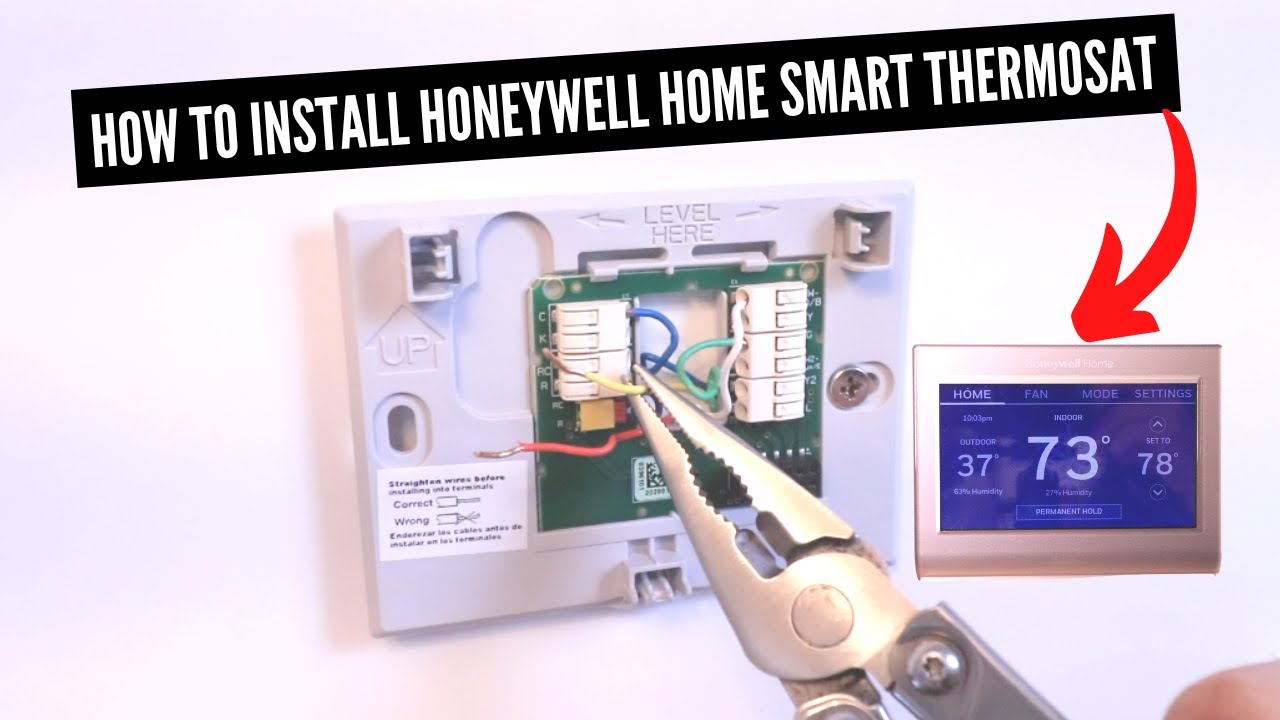
2. Put Your Thermostat in Wi-Fi Setup Mode: Now, head to your thermostat. The exact steps vary slightly by model, but generally, you'll look for a Menu button or a "System" option. Navigate through the settings until you find something like "Wi-Fi Setup," "Connect Wi-Fi," or an option with a Wi-Fi symbol. Select it. Your thermostat will likely display a message like "Wi-Fi Setup Mode" or "Connect to Wi-Fi Network." Some models might show a blinking Wi-Fi icon.
3. Connect Using the Honeywell Home App: With your thermostat patiently waiting, open the Honeywell Home App on your phone. Tap "Add Device" or the plus (+) icon. The app will guide you through finding your thermostat. You might be asked to select your home Wi-Fi network from a list and enter its password. Double-check that password! It’s the most common hiccup.

4. Register and Name Your Thermostat: Once connected, the app will ask you to register your device and give it a name (e.g., "Living Room Thermostat," "Downstairs"). This helps you identify it, especially if you add more smart devices later. You might also set your home's location, which can enable cool features like geofencing.
And voilà! Your Honeywell thermostat is now online. You can now adjust temperatures, create schedules, and monitor your home's climate from anywhere in the world. Enjoy the effortless comfort and smart savings that come with a connected home. Welcome to the future of easy living!