
How To See The Battery Percentage On Apple Watch
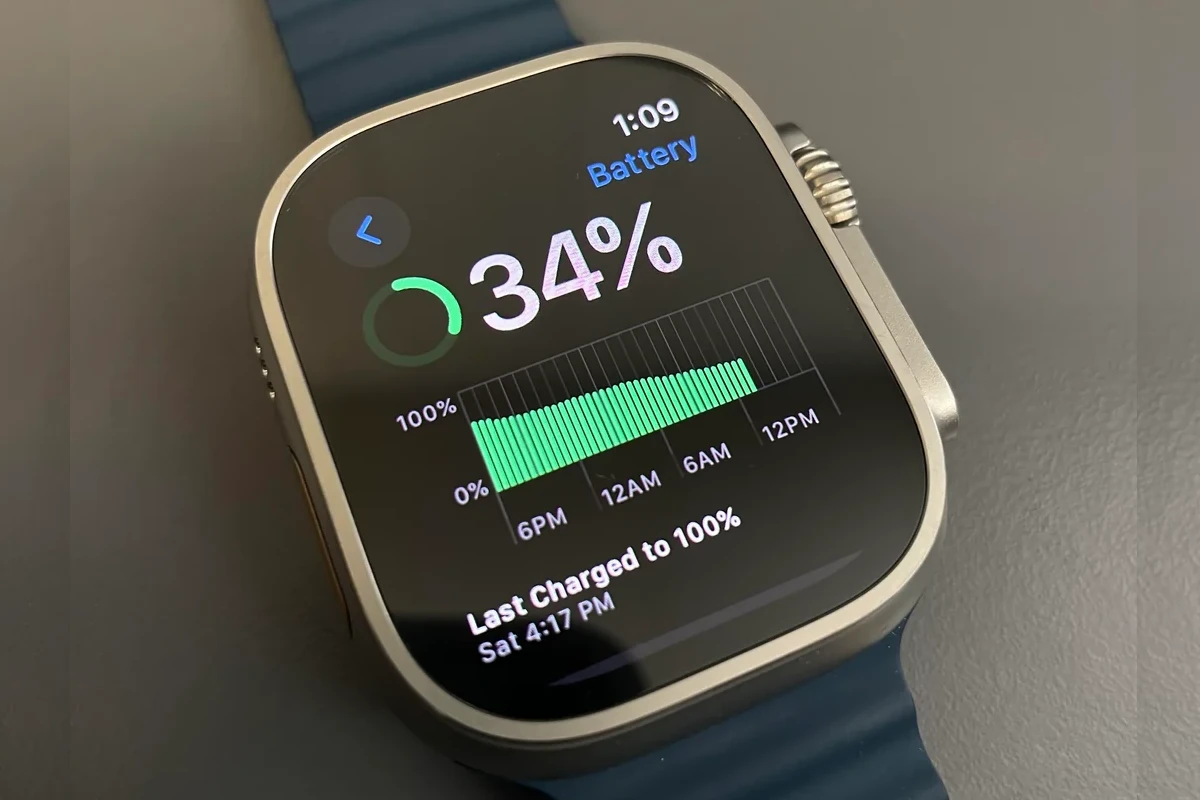
Okay, let's talk Apple Watch batteries. We all love them, right? Except for that nagging feeling of impending doom when you think it might be about to die. The question is, how do you even check the percentage?
The Glances of the Past (R.I.P.)
Remember Glances? Those little swipe-up things? Ah, simpler times. It was so easy back then to see the battery percentage. Swipe, tap, boom, done.
Control Center is Your New Best Friend
Now, it's all about the Control Center. Yes, that thing you usually ignore. It's like that one drawer in your kitchen that's just full of random stuff.
Must Read
Swipe up from the bottom of your watch face. Behold! The Control Center appears! It’s like magic, but less sparkly.
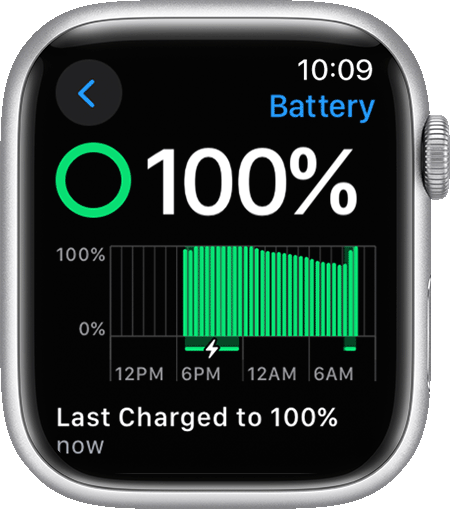
Look for the battery icon. It's probably somewhere near the top. Tap it.
And there it is! Your battery percentage, shining in all its glory. Hopefully, it's not making you sweat.
Complications: The Face-Saving Option
If Control Center feels like too much effort (and let's be honest, sometimes it does), there's another way. It involves the watch face.
Customizing Your Watch Face
This is where things get a little more personal. It's time to talk about complications. No, not the medical kind.
These are the little widgets that live on your watch face. Think of them as tiny, helpful friends. Some people love them, some people hate them.
Press and hold on your watch face until it goes into edit mode. Swipe left or right to choose a face you want to customize. Tap "Edit".
Look for slots where you can add complications. These are usually indicated by little outlines. You'll often find complication slots near the corners and center of the watch face.
Tap on a complication slot. Scroll through the list until you find the "Battery" option. Select it.
Now, your watch face will show your battery percentage all the time! Constant reassurance or constant anxiety, you decide!
Siri: The Voice Assistant with Battery Secrets
If you're feeling chatty, you can always ask Siri. It's like having a tiny, digital butler on your wrist.
Just Ask Siri
Raise your wrist and say, "Hey Siri, what's my battery percentage?" or "Hey Siri, how much battery do I have left?".
Siri will dutifully tell you the percentage. Isn't technology amazing? Especially when it works.
The Charging Stand: A Constant Reminder
This one's a bit of a cheat, but it works. Put your watch on the charging stand.
A Visual Aid
The charging screen shows the battery percentage. Simple, effective, and requires absolutely no effort on your part. Just don't forget to take it off the charger!

The Unpopular Opinion (Brace Yourself!)
Okay, here it comes. My unpopular opinion. Are you ready?
I don't always need to know my battery percentage. Sometimes, ignorance is bliss. I have come to the realization that not knowing is sometimes great.
Hear me out! Constantly checking the battery just leads to anxiety. It's like refreshing your email every five minutes. You're just asking for trouble.
Sometimes, it's better to just live in the moment. Enjoy your day. Trust that your watch will last (or won't!).
But, if you really need to know, now you have the tools. You can check the Control Center, customize your watch face, or ask Siri. I totally understand if you want to be an expert.
We get it. Your Apple Watch is your lifeline.
Battery Saving Tips: Because We All Need Them
Okay, I admit it. Even I worry about battery life sometimes. So, here are a few tips to help you stretch it out.

Turn off Always On Display
The "Always On Display" is nice, but it's a battery hog. Turning it off can make a big difference.
Go to Settings > Display & Brightness > Always On. Turn it off. You'll thank me later. Maybe.
Reduce Motion
All those fancy animations? They're draining your battery. You can reduce them in Settings.
Go to Settings > Accessibility > Reduce Motion. Turn it on. It's like putting your watch on a diet.
Turn off Background App Refresh
Apps constantly refreshing in the background? More battery drain. Stop the madness!
Go to Settings > General > Background App Refresh. Turn it off for apps you don't need constantly updated.
Disable Raise to Wake
Your watch lighting up every time you move your wrist? Another battery drainer. This is optional and based on user preferences.
Go to Settings > General > Raise to Wake. Turn it off.
Limit Notifications
Constant notifications buzzing your wrist? Annoying and battery-draining. Be picky about what you allow.
Go to the Watch app on your iPhone > Notifications. Customize your notification settings. Only keep important notifications on.
The Ultimate Test: Live Your Life!
The best way to see how your battery is doing? Just use your watch! Track your workouts, answer calls, read notifications, and see how long it lasts.
Don't be afraid to experiment with different settings and usage patterns. Figure out what works best for you.
And remember, it's just a watch. Don't let it control your life (or your anxiety!).
Unless it's telling you to move. Then, maybe listen to it.
Now go forth and enjoy your Apple Watch! And maybe check that battery percentage... just once.
But remember, sometimes, ignorance is bliss!
Just one last point: My goal wasn't to discourage anyone. Let's be real: I'm just another Apple Watch enthusiast trying to balance tech with a bit of sanity. Whether you're a battery-percentage-obsessed user or someone who prefers the thrill of living on the edge, know that you’re not alone.