How To Reset A Surface Pro Without Password
Okay, picture this: you're all cozied up, ready to binge-watch your favorite show on your trusty Surface Pro. You haven’t used it in a week because, well, life happened – a chaotic mix of errands, surprise visits from your in-laws, and attempting that ambitious DIY project you saw on Pinterest (spoiler alert: it didn’t turn out as planned). You reach for your Surface Pro, press the power button...and BAM! Password fail. Not just once, but multiple times. Your brain suddenly feels like a dusty attic, completely devoid of the password that was once so readily available. Sound familiar? Yeah, we've all been there. It's like forgetting where you parked your car in a massive parking lot – utterly frustrating!
But don't panic! You're not alone in this digital amnesia. And more importantly, your Surface Pro isn't doomed. There are ways to bring it back to its former glory, even without remembering that elusive password. Think of this as a digital rescue mission. We’re going to explore how to reset your Surface Pro, even when your password has decided to play hide-and-seek.
The "Forgot Your Password" Lifeline
First things first, let's try the easy route. It's like checking your pockets before tearing the house apart looking for your keys. On the login screen, you should see an option that says “I forgot my password” or something similar. It's usually lurking right beneath the password field, almost begging to be clicked. Give it a try!
Must Read
Clicking this magical link will usually walk you through a series of questions, often involving your Microsoft account email or phone number. If you set up recovery options beforehand (and honestly, who remembers to do that?!), this is your golden ticket. Answer the questions honestly – hopefully, you remember your security questions better than your password! If all goes well, you'll be able to create a new password, and boom, you're back in business. Consider this plan A. Like finding a twenty-dollar bill in your old jeans – a pleasant surprise!
The Reset Button: When All Else Fails
Okay, so Plan A went south. Maybe you skipped setting up those recovery options (no judgment, we’ve all been there). Or maybe you’ve changed your email and phone number since then. Time for Plan B: a full system reset. This is a bit like decluttering your closet – you're starting fresh, getting rid of the old to make way for the new.

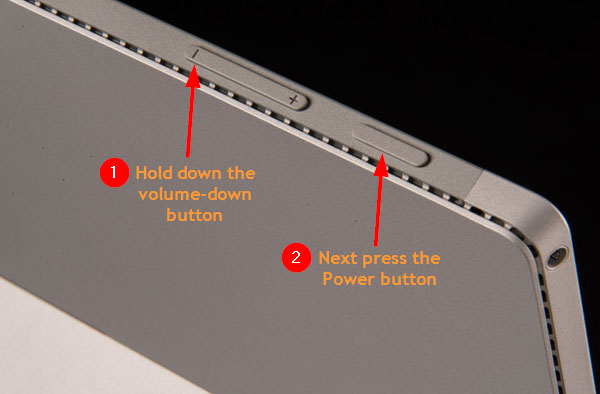
There are a couple of ways to initiate a reset without logging in. One common method involves using the power button and volume buttons.
- Start by completely shutting down your Surface Pro. Make sure it's off, like really off.
- Press and hold the volume-down button. While holding it, press and release the power button.
- Keep holding the volume-down button until you see the Surface logo appear on the screen.
- Release the volume-down button. You should now be in the Windows Recovery Environment (WinRE).
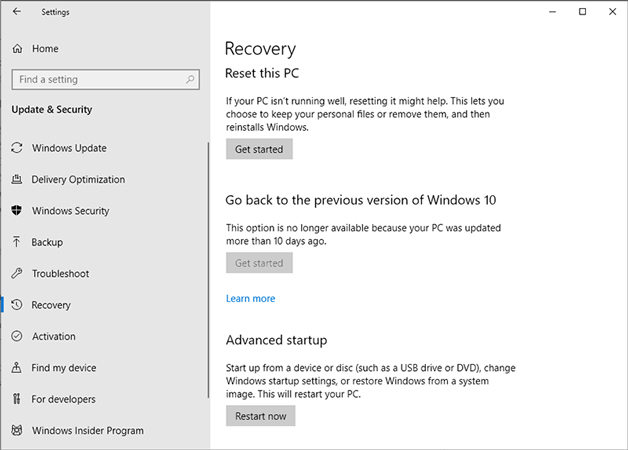
From here, you'll see options like "Troubleshoot" or "Reset this PC". Choose "Troubleshoot," then “Reset this PC.” This is where you'll have two choices: "Keep my files" or "Remove everything." If you can’t remember your password, the “keep my files” option may not work. If you need to keep the files, you may need to contact a professional.

Important! Removing everything will wipe your entire Surface Pro clean. Think of it as moving to a new house – everything gets packed up and left behind. Make sure you have backups of any important files on an external drive or in the cloud! If you don't, consider this a painful but valuable lesson in the importance of backing up your data. It’s like learning to always keep an umbrella in your car after getting caught in a downpour without one.
The Waiting Game and Rebuilding
Once you've chosen your reset option, the process will begin. This can take a while – grab a cup of coffee, binge-watch another episode of your show (on a different device, of course), or finally tackle that Pinterest project. Be patient, let it do its thing. Do not interrupt the process!
After the reset is complete, you'll be greeted with the initial setup screen, just like when you first got your Surface Pro. You'll need to go through the setup process, create a new user account, and reinstall any apps you need. It's a bit of a hassle, but hey, you're back in business! It is like starting from scratch, but this time you hopefully picked up some helpful tips along the way.
So, there you have it – a step-by-step guide to resetting your Surface Pro when your password decides to take a vacation without you. Remember to back up your data, set up those recovery options (seriously, do it!), and maybe write down your password somewhere safe (but not too safe – avoid sticking it on your monitor!). Good luck, and may your future logins be smooth and password-remembered!