
How To Read My Pge Smart Meter

Hey there, energy explorer! Ever looked at that smart meter on the side of your house – the one from PGE – and thought, "What in the wattage is that thing telling me?" You're not alone! It looks a bit like a secret agent gadget, but I promise, understanding it is way easier than cracking an international spy code. Let's demystify that digital display together, shall we?
Think of me as your friendly neighborhood energy guru (minus the flowing robes and crystal ball). We're going to dive into your PGE Smart Meter and, by the end of this chat, you'll be reading it like a pro. No advanced degrees required, just a willingness to peek at your power source!
Why Even Bother?
Good question! While PGE sends you a bill and has a snazzy online portal (which you totally should check out, by the way!), being able to read your meter directly gives you a superpower. The power of instant information! You can:
Must Read
- Catch unusual spikes in usage.
- Verify your bill (just in case!).
- Feel super smart and self-sufficient.
- Maybe even impress your neighbors at the next BBQ. ("Oh, I just checked my kWh for the day, Janet.")
So, let's get you empowered!
First Stop: Find Your Meter!
Alright, grab your metaphorical compass (or just your walking shoes). Your smart meter is usually located on an exterior wall of your house, often on the side or back, or sometimes on your garage. It's that grey or off-white box, usually about the size of a shoebox, with a digital screen on it. If you have both gas and electric service from PGE, you might even have two meters! One for electricity, one for gas. They look pretty similar, but they track different things.
Safety first: While you're looking at it, remember, this is an electrical (and potentially gas!) component. Don't touch wires or try to open anything. We're just looking at the display, not performing surgery!

Meet the Screen: Your Digital Dashboard
Okay, found it? Great! Now, look at that digital display. It's pretty dynamic, isn't it? Unlike those old spinning dial meters (if you're old enough to remember those!), your smart meter automatically cycles through different pieces of information every few seconds. It's like a mini slideshow of data!
What you're mainly looking for are your usage readings. These meters are designed to give you a wealth of information, but some numbers are more important for your daily "how much power am I using?" quest.
The Main Event: Kilowatt-Hours (kWh) for Electricity
For your electricity meter, the most important reading you'll want to spot is your total electricity consumption. This is displayed in kilowatt-hours, or kWh. You'll see this number accompanied by the letters "kWh" or a small icon that clearly indicates it's the energy reading.
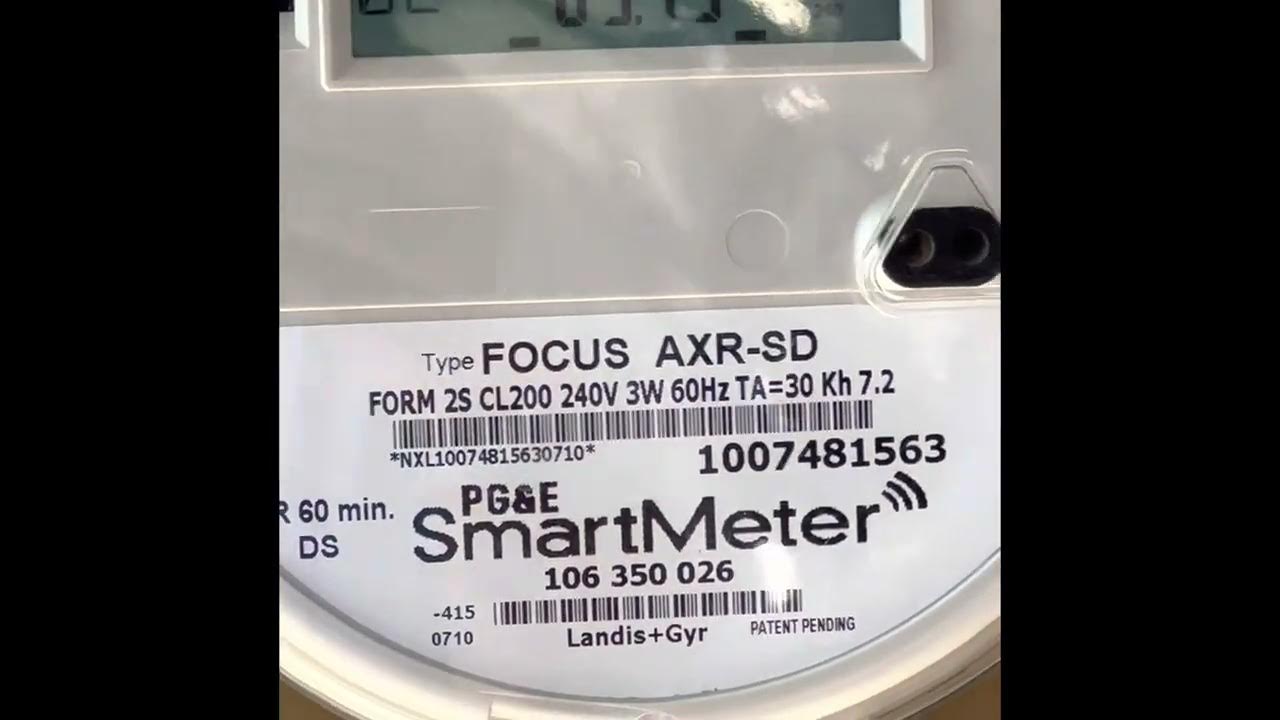
Think of kWh like miles on your car's odometer. It's the cumulative total of all the electricity your home has used since the meter was installed. When you look at your bill, that's what PGE charges you for!
The meter will cycle through various codes and numbers, but keep an eye out for the one that looks like a straightforward number with "kWh" right next to it. That's your golden ticket!
Gas Guzzlers: Cubic Feet (CCF)
If you have a gas smart meter, you'll be looking for something a bit different. Gas usage is typically measured in Cubic Feet (CCF). Again, look for the number followed by "CCF" or a clear indicator. Your PGE bill will then convert this CCF reading into "Therms" for billing purposes (1 Therm equals roughly 100 cubic feet). Don't worry about the conversion right now; just spotting the CCF is your mission!

Other Interesting Bits (But Not What We're After Today)
Your meter might also show you:
- Date and Time: Handy, but not your usage.
- Meter ID Number: A unique identifier for your meter.
- Load Profile Data: Information about your usage during specific time periods (especially relevant if you're on a Time-of-Use rate plan!).
- "Open" or "Closed" Status: Indicates if power is flowing.
Don't get bogged down by these other screens. Just let them cycle on by, like commercials you don't care about.
How to Read It Like a Book (Sort Of)
Here's the trick: You don't "reset" a smart meter like an old scale. The reading you see is the total cumulative usage. To figure out how much electricity or gas you've used in a day, a week, or a month, you'll need to:

- Write Down Today's Reading: Jot down the kWh (or CCF) number you see today. Be precise!
- Write Down a Previous Reading: Take another reading a day or a week later.
- Do the Math: Subtract the older reading from the newer reading. Voilà! That's your usage for that period.
For example, if you read 12345 kWh today, and yesterday you read 12320 kWh, you used 25 kWh in the last 24 hours. Easy peasy lemon squeezy!
A Few Friendly Reminders:
- The display cycles automatically. You usually don't need to push any buttons. Just wait for the information you want to appear.
- Glare can be a pain. You might need to shade the display with your hand to read it clearly on a sunny day.
- Remember, if your smart meter is giving you serious trouble (like not displaying anything), it's time to call PGE, not try to fix it yourself!
You're an Energy Wizard Now!
See? That wasn't so scary, was it? You've just unlocked a new level of understanding about your home's energy consumption. By knowing how to read your PGE Smart Meter, you're not just looking at numbers; you're looking at opportunities to save energy, save money, and be a more informed homeowner.
So next time you glance at that meter, give it a knowing nod. You two have a secret now, a secret language of kWh and CCF. Go forth and conquer your energy bill, my friend – with a smile!