How To Photo Crop A Picture
Okay, so picture this: I spent, like, three hours getting the perfect shot of my avocado toast. I angled the light just so. I even sprinkled some extra fancy sea salt on there (don't judge!). But when I finally went to post it on Instagram... disaster. My thumb was prominently featured in the corner, looking like a swollen pink alien. Mortifying! That’s when I remembered: cropping is my friend. And it can be yours too.
So, why are we even talking about cropping? Simple. It’s the unsung hero of photography. It's the secret sauce that can transform a meh picture into a masterpiece. It allows you to take control of the composition, highlight the subject, and ultimately, tell a better story with your visuals. Think of it as digital plastic surgery... for your pictures. (But, you know, way less invasive.)
What is Cropping, Anyway?
Basically, cropping is just cutting off parts of an image. It’s like taking scissors to a photograph... but without the risk of accidentally chopping off your cat’s ear. (Trust me, I've almost done that.) You’re essentially trimming the edges to focus the viewer's attention on what really matters in the frame. Maybe you need to remove distractions, maybe you want to zoom in on a detail, or maybe you just need to hide your thumb like I did. Cropping can do it all!
Must Read
The Basics: How To Actually Crop
Alright, let’s get down to brass tacks. The good news is that almost every photo editing app and even your phone's built-in gallery has a cropping tool. Seriously, it's everywhere!
Here's a general overview of the process:
- Open your image. Find the picture you want to beautify and open it in your photo app of choice.
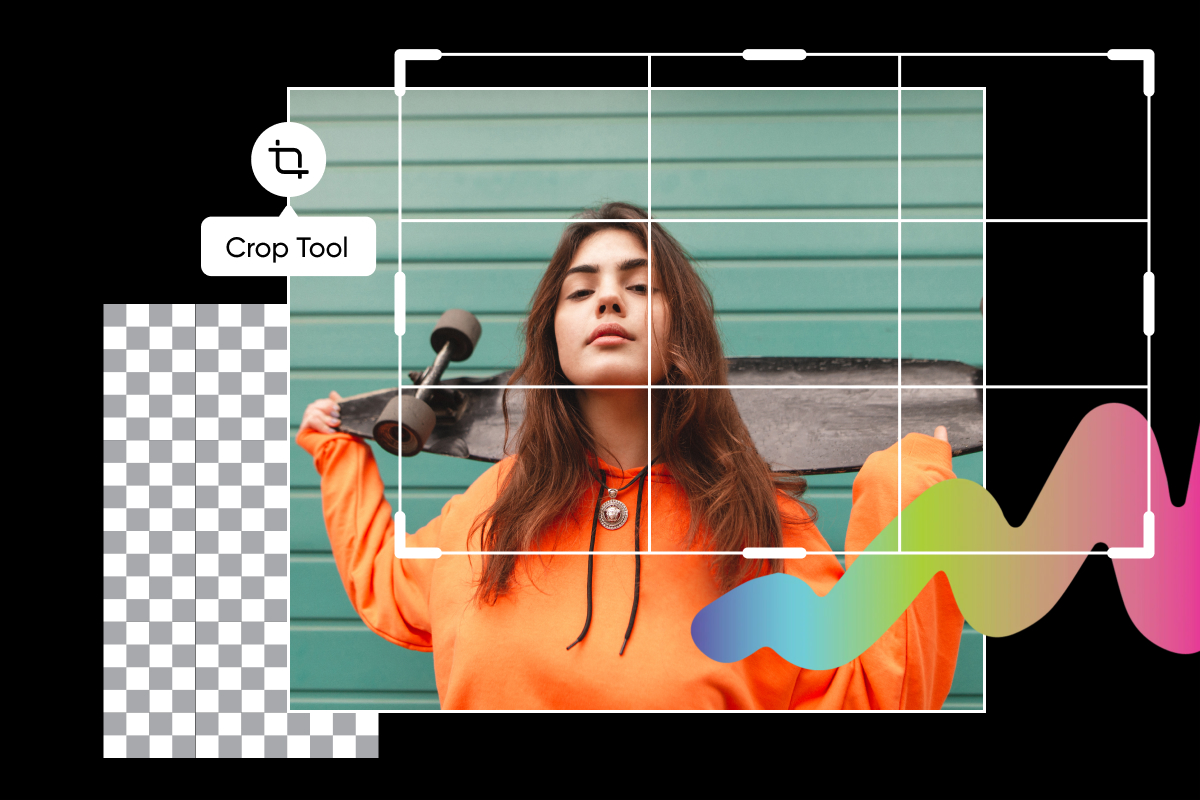
- Find the Crop Tool. Look for an icon that resembles two overlapping right angles or a square with handles on the corners. It might also be labeled "Crop". (Hint: If you can't find it, check the "Edit" options!)
- Select your Crop Area. Most apps will automatically create a cropping box around your image. You can then drag the corners or sides of the box to adjust the area you want to keep. This is where the magic happens!
- Adjust and Refine. Play around with the size and placement of the cropping box. Consider the composition and what you want to emphasize. Experiment!
- Confirm and Save. Once you're happy with your selection, look for a button that says "Crop," "Apply," "Done," or something similar. Then, be sure to save the cropped image! (Pro tip: Save a copy so you don't accidentally overwrite your original masterpiece!)
Things to Consider While Cropping
Okay, so you know how to crop, but let's talk about cropping well. Here are a few things to keep in mind:

- The Rule of Thirds. This is a classic composition guideline. Imagine dividing your image into nine equal parts with two horizontal and two vertical lines. Try placing key elements of your photo along these lines or at their intersections. It often creates a more visually appealing and balanced composition. It’s like visual harmony!
- Aspect Ratio. This refers to the proportions of your image (width to height). Different platforms (like Instagram or Facebook) have different recommended aspect ratios. Be mindful of this when cropping, or you might end up with a weirdly squished or stretched photo. No one wants that.
- Subject Placement. Think about where your subject is in the frame. Centering can be effective, but sometimes placing it off-center can create more visual interest. Don't be afraid to experiment!
- Negative Space. The empty areas around your subject can be just as important as the subject itself. Negative space can create a sense of balance, draw attention to the subject, or even convey a feeling of isolation or peace.
Beyond the Basics: Cropping for Specific Purposes
So, cropping isn't just about removing unwanted elements. It can also be used for some pretty cool creative effects. You can use cropping to:
- Create a Sense of Mystery: Cropping in tight on a subject can leave the viewer wanting more, creating a sense of intrigue.
- Highlight a Detail: Zoom in on a specific feature or texture to draw attention to it.
- Change the Perspective: Cropping can dramatically alter the way a viewer perceives the image. Try cropping an image in different ways to see how it changes the mood or message.
Cropping is a powerful tool, and with a little practice, you can use it to transform your photos and make them truly shine. So go forth and crop... responsibly! And maybe avoid accidentally cropping out any cat ears. Good luck!