How To Make Your Screen Stay On Longer Iphone
Okay, picture this: You're trying to show your friend that hilarious TikTok (you know, the one with the cat doing… whatever cats do these days). You finally find it, everyone's gathered around your phone, anticipation is building... and then BAM! The screen goes black. Silence. Awkward coughing. The moment is gone. We've all been there, right? It’s like your phone is actively sabotaging your social life. Which, let's be honest, sometimes it probably is.
The struggle is real. But fear not, fellow iPhone users! There's a simple (and free!) way to extend the time your screen stays on before going into sleep mode. No more awkward black screen silences! We're about to dive into how to keep your iPhone screen awake for longer. And trust me, your social life (and your TikTok sharing capabilities) will thank you.
Why Does My iPhone Screen Turn Off So Quickly?
Apple, in its infinite wisdom, defaults to a relatively short auto-lock time to conserve battery life. Which, you know, is responsible and all that. But let's be honest, sometimes being responsible is overrated. We need that screen to stay on!
Must Read
Think about it: You're following a recipe, trying to navigate with GPS, or reading a long article. Having to constantly tap the screen to keep it from dimming is annoying, to say the least. So, what's the solution? Let's get into it.
How To Adjust Your Auto-Lock Settings
This is the good stuff. Ready to take control of your screen's destiny?
Here's the step-by-step guide:
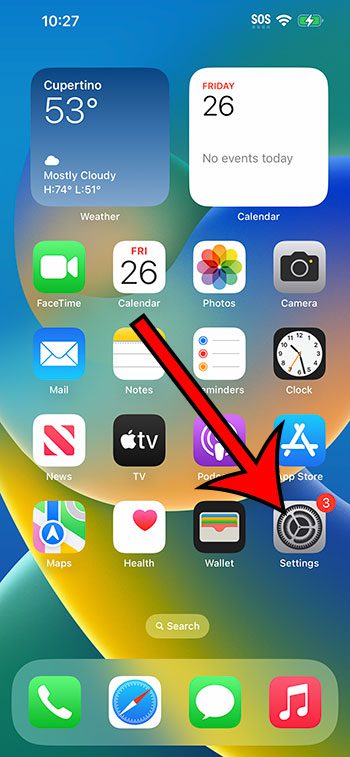
- Open the Settings app on your iPhone. (Yes, the one with the gears.)
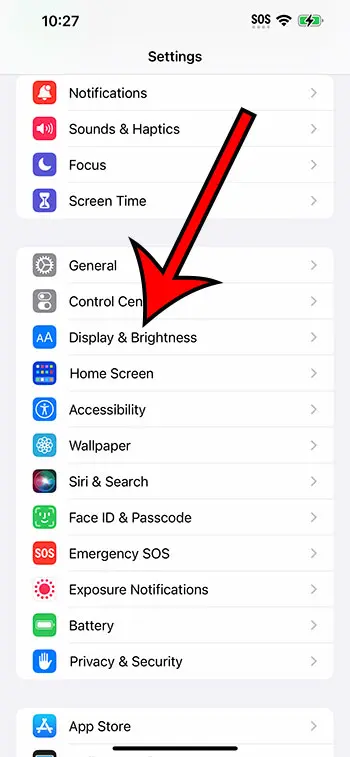
- Scroll down and tap on Display & Brightness. (It's usually near the top.)
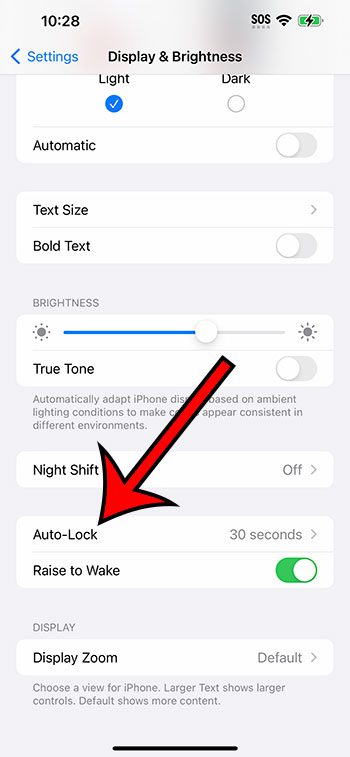
- Look for Auto-Lock and tap on it. (This is where the magic happens!)
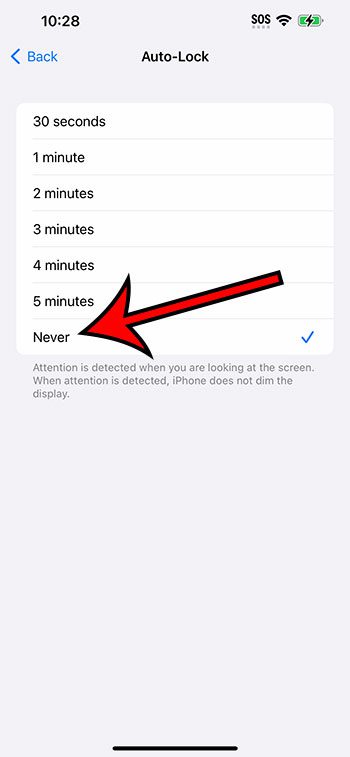
- You'll see a list of options, usually ranging from 30 seconds to 5 minutes. You might even see a "Never" option. (Gasp!)
- Choose the time that works best for you. I personally prefer 2 or 3 minutes, but hey, you do you.
Pro Tip: If you're feeling particularly rebellious, you can select "Never". Just be mindful of your battery life! Seriously, your battery will drain faster if you leave your screen on constantly. Don't say I didn't warn you.
The "Never" Option: Use With Caution!
Okay, let's talk about that "Never" option. It's tempting, I know. Imagine the freedom! But before you go all-in, consider the consequences.
Leaving your screen on indefinitely will absolutely murder your battery life. You'll be reaching for your charger every few hours, which can be a major pain. Also, think about privacy. If you leave your phone unattended with the screen on, anyone can access your information. That’s not ideal.

I'd recommend using the "Never" option sparingly, like when you're charging your phone and using it as a bedside clock, or when you’re actively using it for something where constant screen visibility is crucial. Otherwise, stick to a shorter auto-lock time for the sake of battery and security.
Other Factors That Affect Screen Time
While adjusting the Auto-Lock settings is the main way to control your screen's sleep time, there are a few other things that can affect it.
- Low Power Mode: When your battery is low, your iPhone may automatically turn on Low Power Mode, which can shorten the auto-lock time to conserve energy.
- Attention Aware Features: Some iPhones have attention-aware features that use the front-facing camera to detect when you're looking at the screen. If you are, the screen stays on, even if the auto-lock time has expired. This only works on certain models.
- App Settings: Some apps may have their own settings that override the system-wide auto-lock settings. Check the settings within the specific app if you're having issues.
Final Thoughts
So there you have it! A simple tweak to your iPhone's settings that can make a big difference in your daily life. No more embarrassing screen blackouts during crucial moments. Go forth and share those cat videos with confidence! And remember, with great screen-on time comes great responsibility (to manage your battery life). Now go forth and customize your phone. After all, it's your phone. You should use it exactly how you want to.