How To Know When Iphone Is Charging When Dead

Okay, picture this: You're rushing out the door, phone in hand, ready to conquer the world (or at least make it to that coffee meeting on time). Then… black screen. Dun, dun, DUN! Your iPhone has decided to stage a dramatic exit, right when you need it most. You plug it in, heart pounding (because let’s be honest, we're all a little addicted), and stare intensely, willing it back to life. But… nothing. Is it charging? Is it mocking you? Is your charger secretly plotting against you? We've all been there, haven't we? That's why we need to explore this important question: How do you really know your dead iPhone is actually charging?
The Waiting Game: Signs of Life (or the Lack Thereof)
First things first: Patience is key. I know, I know, easier said than done when your entire life is apparently stored on that shiny rectangle. But iPhones, especially when completely drained, need a little time to wake up. Think of it like you after a really long nap – takes a minute to reboot, right? Give it at least 15-20 minutes plugged into a reliable power source before you start panicking.
So, what are you looking for during those agonizing minutes? Here are a few things to watch for:
Must Read
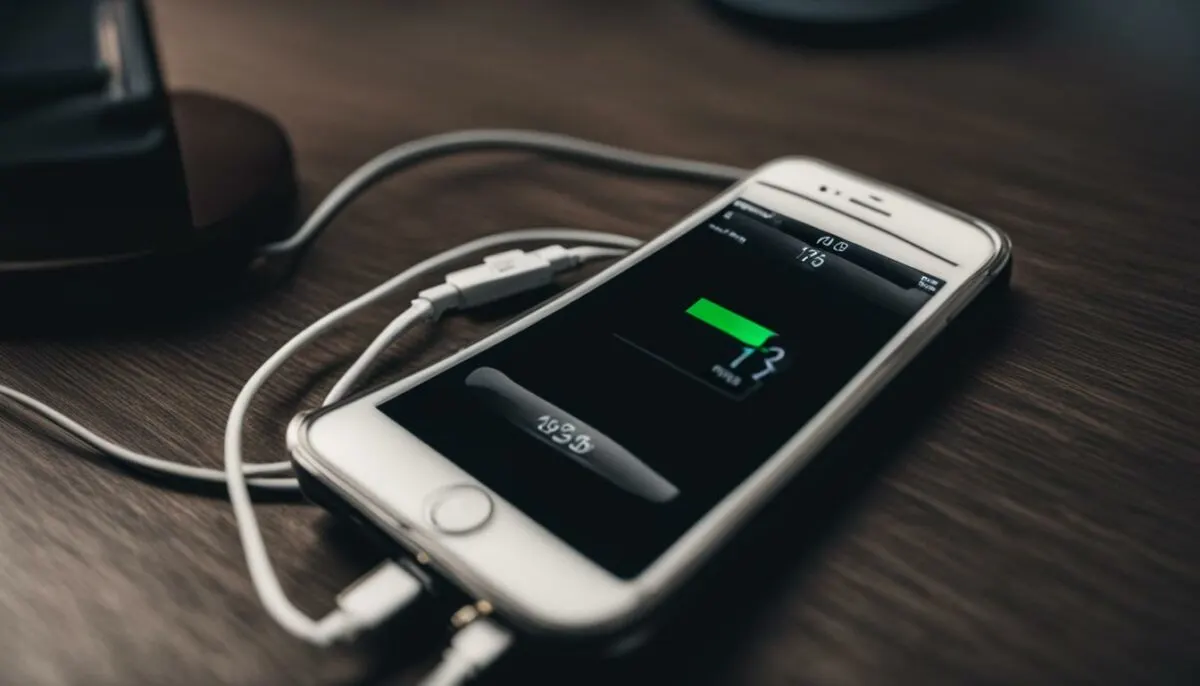
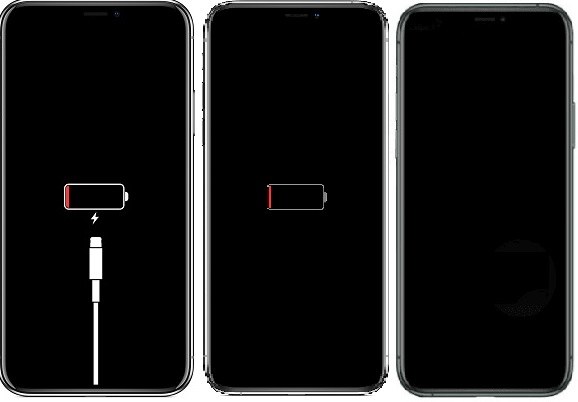
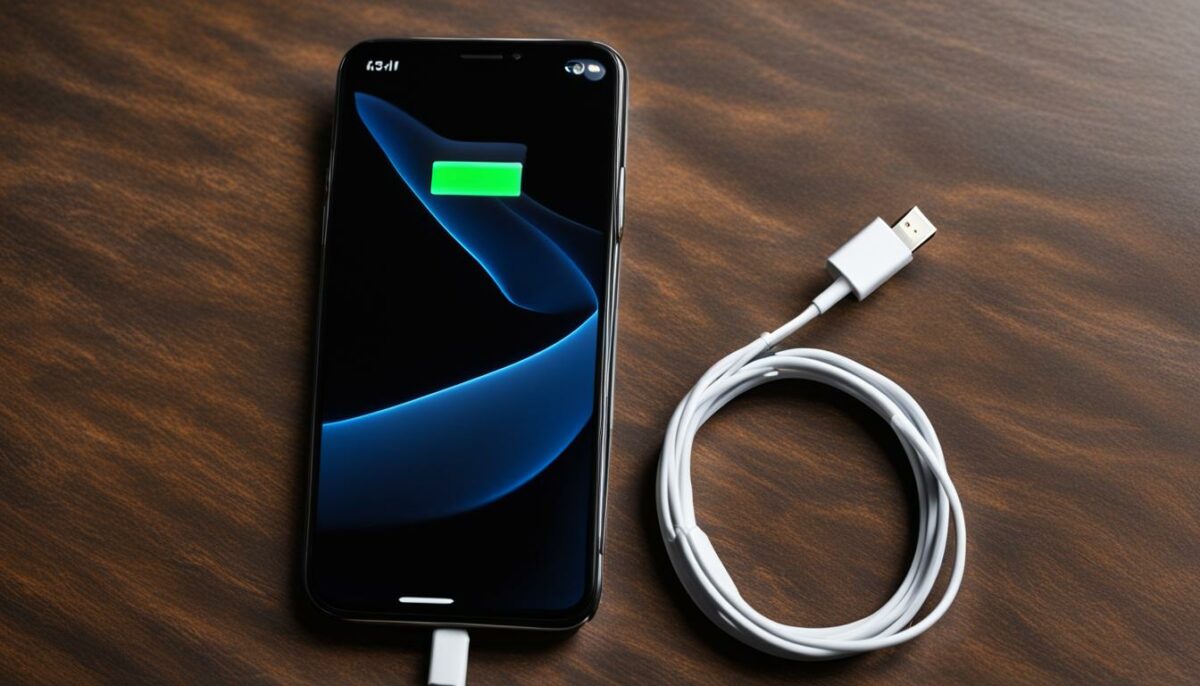
- The Charging Indicator: This is the obvious one. You're hoping to see a battery icon on the screen, usually with a little lightning bolt symbol. If your phone is completely dead, you might just see an empty battery outline. This means it's taking on power, but hasn't reached a usable level yet. Don’t get discouraged!
- The Power Up Noise/Vibration: Some older iPhones will give a little bloop or a quick vibration when they start charging. It's like a tiny little "I'm alive!" signal. If you get that, good news! If not, don't lose hope, many newer models don't do this. (Apple loves to keep us guessing, doesn’t it?)
- The Apple Logo: Ah, the sweet, sweet sight of the Apple logo! Once your phone has gathered enough juice, it should automatically start booting up and display that iconic symbol. This is the ultimate sign that you're in the clear… or at least on your way to being in the clear.
But what if you see nothing? That’s when things get a little trickier.
Troubleshooting the Silent Treatment
Okay, so you've waited, you've watched, and your phone is still stubbornly refusing to acknowledge your existence. Don't immediately assume your phone is a goner! Let's try some troubleshooting:
- Check the Charger and Cable: This might seem ridiculously obvious, but is your charger actually plugged in correctly? Is the cable securely connected to both the charger and your phone? Is the outlet working? (Don't laugh, it happens to the best of us!). Try a different charger and cable if you have one. A faulty cable is a surprisingly common culprit.
- Clean the Charging Port: Over time, lint, dust, and other gunk can accumulate in your iPhone's charging port, preventing a good connection. Use a toothpick or a small, non-metallic tool (turned off!) to carefully clean it out. Be gentle! You don't want to damage anything. (Pro-tip: compressed air can also work wonders.)
- Try a Different Power Source: Are you charging from a wall outlet or a computer? Wall outlets are generally more reliable. If you're using a computer, make sure it's turned on and not in sleep mode. (Some computers don't provide power to USB ports when they're asleep. Sneaky!)
- Force Restart: Sometimes, even when the screen is black, your iPhone might just be stuck. You can try to force restart it. The method varies depending on your iPhone model, so Google "force restart [your iPhone model]" for specific instructions. (Usually involves pressing and holding one or two buttons for a certain amount of time.)
Still nothing? Okay, now it might be time to consider a trip to the Apple Store or an authorized service provider. There could be a more serious hardware issue, like a dead battery or a problem with the charging port itself.

Prevention is Better Than Cure (and a Dead Battery)
The best way to avoid the anxiety of a completely dead iPhone is to, well, not let it get completely dead! Try to keep your battery charged above a certain percentage (20% is a good rule of thumb). Also, be mindful of apps that drain your battery quickly. (Looking at you, Candy Crush!).
In conclusion, knowing when your dead iPhone is charging involves a mix of observation, patience, and a little bit of detective work. So, next time your phone pulls a disappearing act, don't panic! Just follow these steps, and hopefully, you'll be back in action in no time. Good luck, and may your battery life be long and prosperous!