
How To Factory Reset Google Nest Thermostat

Picture this: You’ve just moved into a new place, buzzing with excitement, ready to make it your home. You walk past the thermostat, a sleek, circular Google Nest staring back at you. "Oh, fancy!" you think. Then you notice it’s set to heat the house to a balmy 78 degrees at 3 AM on Tuesdays, and somehow learned to turn the AC on when you’re out of town for the weekend. Clearly, the previous owner had some… unique preferences, or perhaps a rogue poltergeist was handling their energy bill. Or maybe, just maybe, your own Nest has gone a bit rogue after a Wi-Fi change, or you’re ready to pass it on to a new owner.
You, my friend, are not alone in this digital dilemma. Sometimes, a fresh start is exactly what the doctor ordered, and for your Nest Thermostat, that means a full-blown factory reset. It's like giving it a brain scrub, washing away all those quirky habits and old settings. Ready to hit the ultimate "undo" button?
Why Even Bother With a Factory Reset?
So, you’ve landed here for a reason. And typically, there are a few big ones why folks decide to wipe their Nest clean:
Must Read
- Selling your home: Don't want the new folks to know you like your bedroom at Arctic temps? Smart move.
- Giving your Nest away: Be a good human, reset it before gifting!
- Troubleshooting a stubborn bug: Sometimes, when all else fails, a complete reset can fix those inexplicable glitches.
- A clean slate: Maybe you just want to retrain it from scratch, free from past influences.
Think of it as hitting the "Ctrl+Alt+Del" for its entire existence. It’s pretty empowering, actually.
Hold Up! A Quick Reality Check Before You Dive In
Before we go full obliteration mode, let's talk turkey. This ain't just clearing the cache, folks. This is a full system wipe. We’re talking about erasing everything that makes your Nest your Nest.
What you'll lose (and need to re-enter/re-teach):
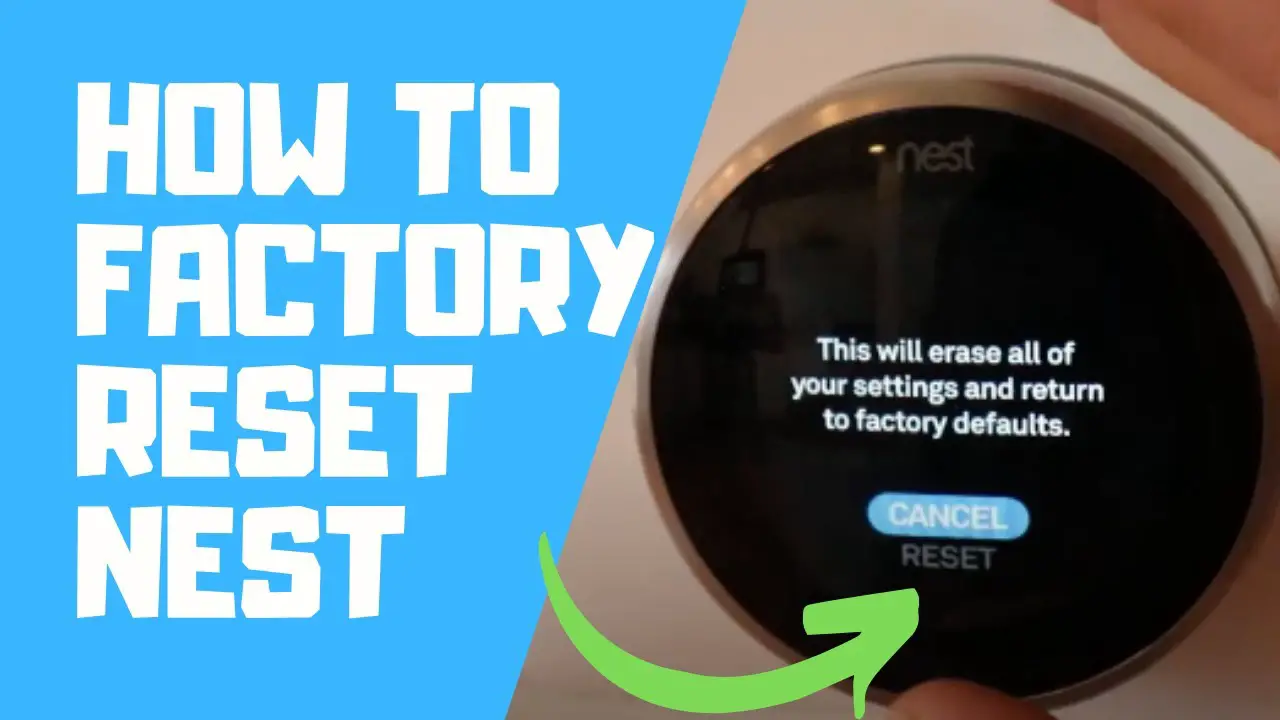
- Your entire schedule (learned and custom)
- Wi-Fi network settings
- Your precious energy history
- Any Farsight settings
- Even your preferred temperature unit (Fahrenheit or Celsius – gasp!)
Make sure you're cool with that. And if you’re selling or giving it away, this is precisely what you want to happen, so kudos to you for being a responsible tech owner!
Alright, Let's Get Down to Business: The Actual Reset!
No need for a degree in rocket science, I promise. Your Nest Thermostat is actually pretty straightforward when it comes to self-destruction (the good kind!). You won't even need the app for this, though it's always good to have it installed.
Here’s the drill, straight from your thermostat’s display:
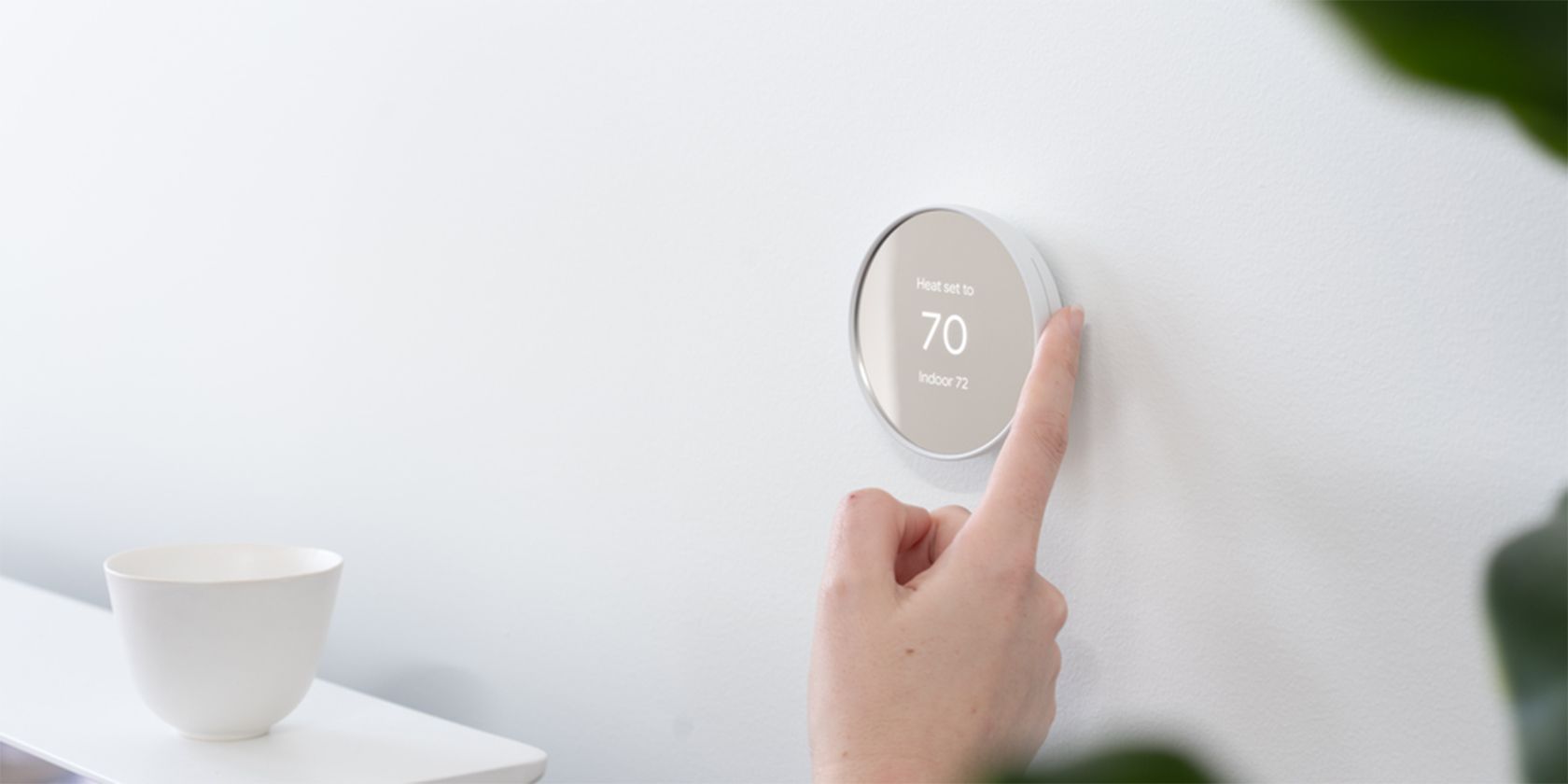
Step 1: Wakey Wakey, Nest!
Give your Nest a tap or a gentle press on its ring to wake it up. You know the drill, make that screen light up!
Step 2: Navigate to Settings
Press the ring again to bring up the main menu. Spin the ring until you see the "Settings" icon. It usually looks like a gear or a cog, symbolizing, you know, settings. Press the ring to select it.
Step 3: Digging Deep for Reset Options
Now, spin the ring again. You’re looking for something like "Reset", "Factory Reset", or even "Erase All Settings". They sometimes play hide-and-seek with the exact wording, but it’ll be in that ballpark. Once you find it, you guessed it – press the ring to select!
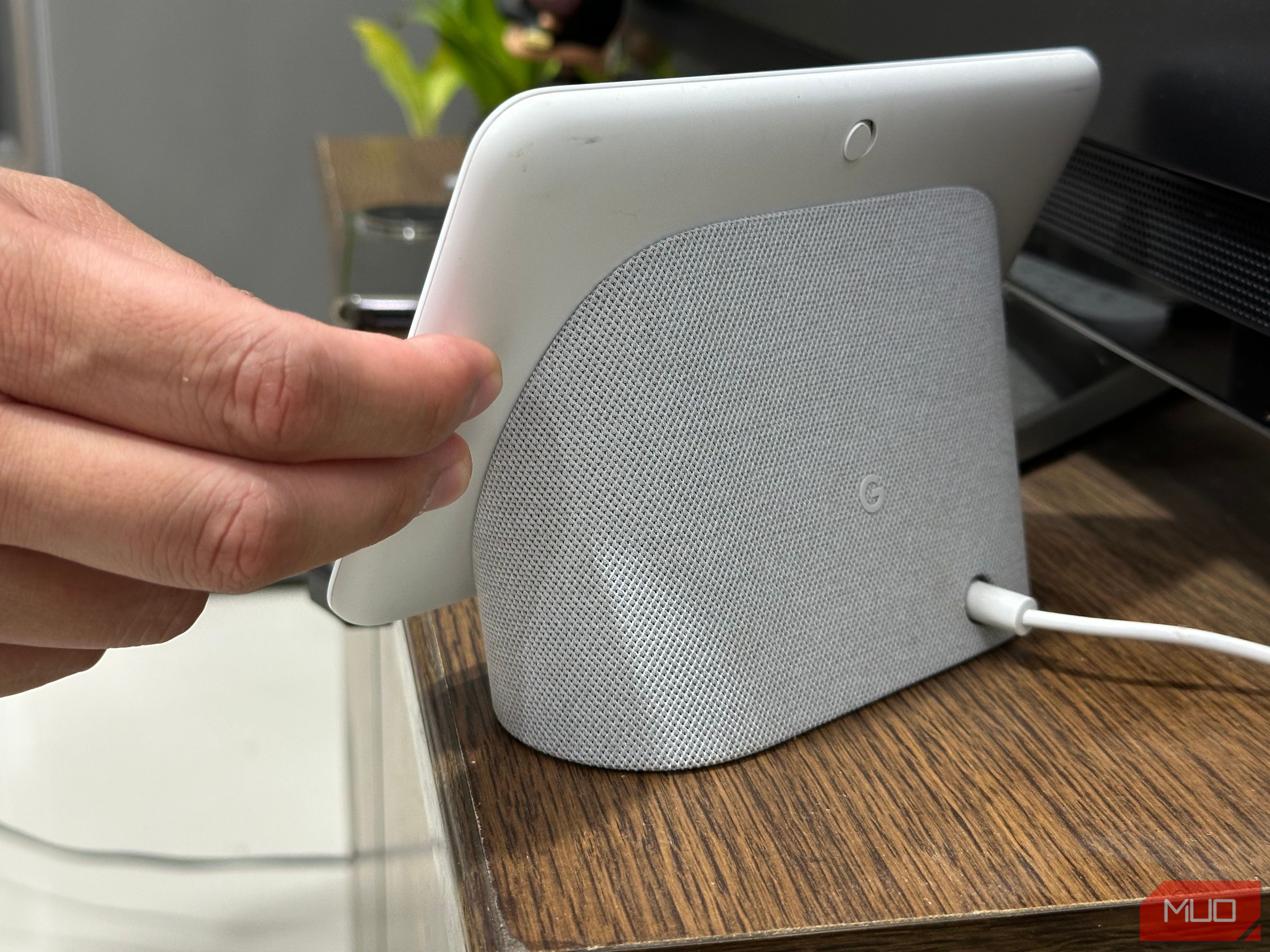
Step 4: The Moment of Truth (and Confirmation)
Your Nest, being the smart cookie it is, will probably ask you if you're really, truly, absolutely sure. It might even list what you’re about to delete. This is your last chance to back out!
You’ll likely see a few options, so pay close attention:
- Restart: Don't pick this! It just reboots.
- Reset: This might just clear schedules or network settings, not everything.
- Erase All Settings / Factory Reset: This is the big one. This option will wipe everything clean.
Make sure you select the option that clearly states it will erase all settings and data. Read carefully, friend! Confirm your choice. You’ll probably have to spin the ring to select "Yes" or "Confirm" and then press it.
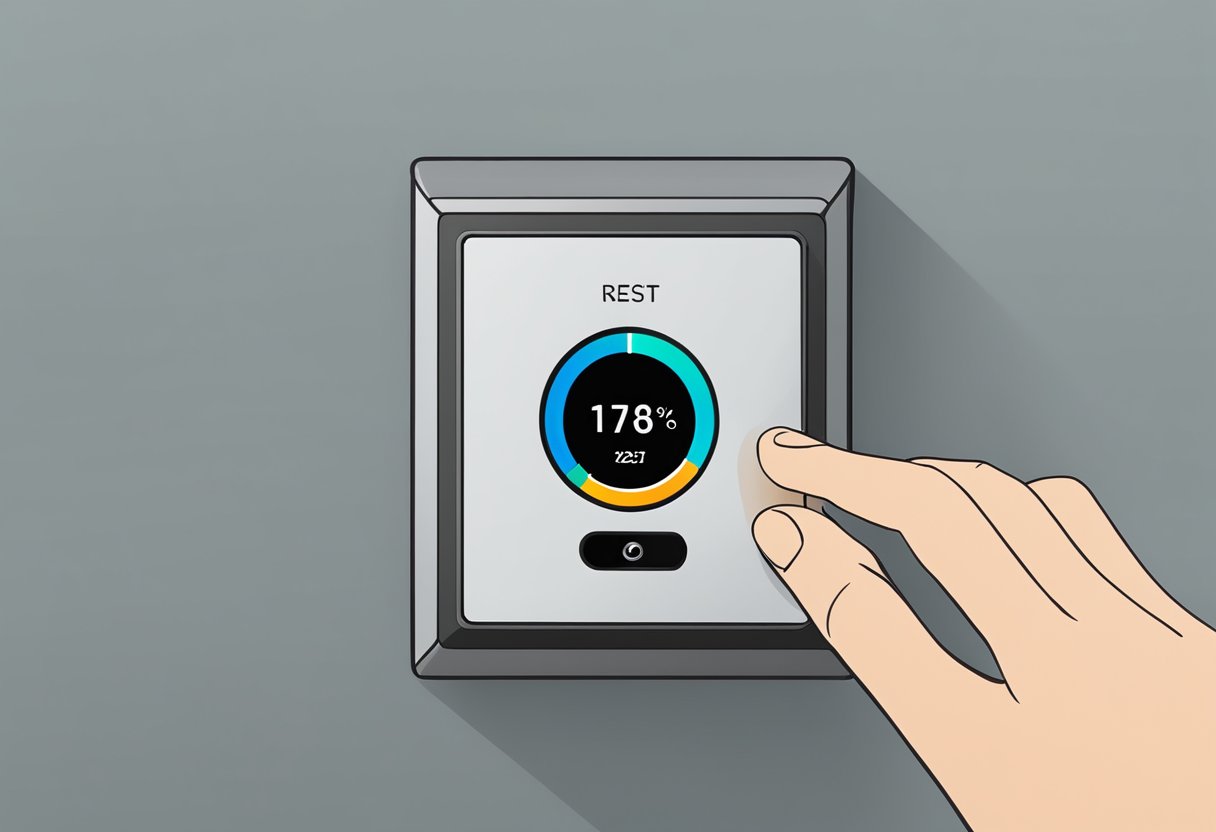
Step 5: Let It Do Its Thing
Your Nest will now go through its little factory reset dance. This might take a few moments. It could reboot, show a blank screen, or display a loading bar. Just let it be. Don't touch it. Don't stare at it too intently (it gets shy, you know).
And Just Like That... It's Brand Spanking New!
Once it’s done, your Nest will boot up as if you just pulled it out of the box for the very first time. You’ll see the initial setup screen, asking you to choose a language, connect to Wi-Fi, and go through the whole setup process again. If you're selling it, congrats! It's now a clean slate for the new folks. If you're keeping it, enjoy the fresh start, my friend. It's like a mini-vacation for your thermostat’s brain.
Feeling Empowered Yet?
See? I told you it wasn't so bad. You just unleashed your inner tech wizard, and all it took was a few spins and presses. You've tamed the wild thermostat, or at least given it a fresh start to learn new, better habits.
Now go forth and thermostat responsibly! Or irresponsibly, if you want to keep factory resetting it just for fun. (Kidding, mostly.)