
How To Configure A Wireless Range Extender

Okay, so your Wi-Fi signal is playing hide-and-seek again, isn't it? One minute you’re streaming your favorite show in the living room, the next you’re practically standing on one leg in the kitchen, holding your phone up like an antenna, just begging for a single bar. Ugh. We've all been there. Those dreaded "dead zones" are the bane of modern existence, right?
But fear not, my friend! There's a little gadget that swoops in like a tiny, techy superhero: the wireless range extender. It's basically your Wi-Fi's personal megaphone, grabbing that existing signal and shouting it out further. Think of it as a middleman, but a really, really helpful one. And setting it up? It’s not the black magic you might imagine. Promise!
Getting Started: Placement is Key!
First things first, let's talk real estate. Where do you plug this thing in? This is probably the most crucial step, honestly. You want it somewhere between your main router and that pesky dead zone. Not too close to the router, because then it’s just repeating an already strong signal and not really helping. But also, not too far from the router, because if it can barely hear the original Wi-Fi, it’s got nothing good to repeat, right?
Must Read
Look for a spot where you still get a couple of decent Wi-Fi bars on your phone or laptop. That's your sweet spot! And, obviously, you’ll need an available power outlet. No brainer there, but sometimes it's the simple stuff we forget when we're in a tech frenzy.
Method One: The "Easy Button" (WPS)
Most modern routers and extenders come with something called WPS, or Wi-Fi Protected Setup. This is usually the quickest, "set it and forget it" method. It’s like a secret handshake between your router and the extender, without you having to remember any complicated passwords.

Here’s how it usually goes down:
- Plug in your extender near your main router for this initial setup.
- Wait for it to power up. You'll see some blinking lights, probably.
- Find the WPS button on your extender. It often looks like two arrows chasing each other or has "WPS" written clearly. Give it a good, firm press.
- Now, hustle over to your main Wi-Fi router and find its WPS button. Press that one too! You usually have a minute or two to do this before the extender stops looking.
- Watch the lights on your extender. They should start doing a happy little dance, usually turning solid green or blue, indicating it’s connected. Success!
If the lights aren’t cooperating after a couple of minutes, or they flash angry red, don't fret! Sometimes WPS is a bit finicky, or maybe one of your devices doesn't have it enabled. Time for Plan B, the "manual master" method!
Method Two: The "Manual Master" (Web Browser Setup)
This method sounds a bit more intimidating, but honestly, it’s just like setting up anything else online. You just need to tell your extender what Wi-Fi network to, well, extend! We're gonna use your computer or phone for this.
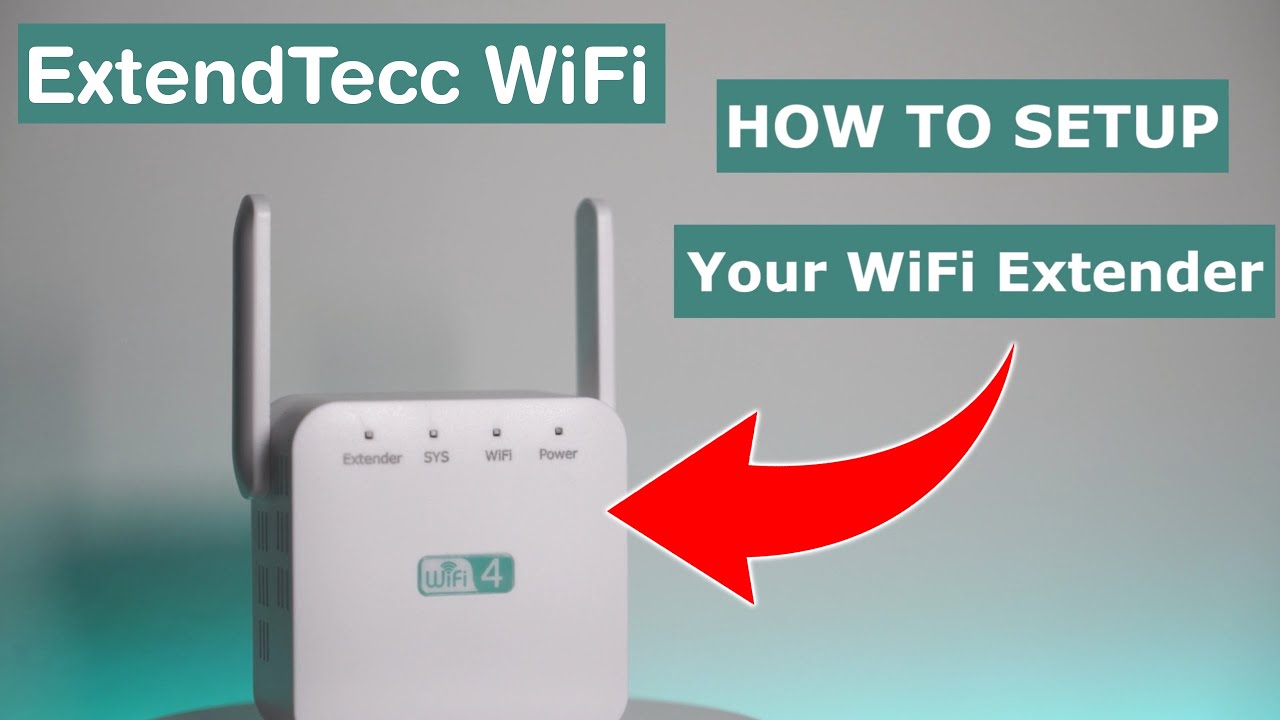
Here’s the step-by-step lowdown:
Step 1: Plug it in (again, near your router for now!)
Go ahead and plug in your extender. Give it a moment to boot up, just like before.
Step 2: Connect to its temporary network
Grab your phone or laptop. Go to your Wi-Fi settings. You should see a new, unfamiliar Wi-Fi network pop up. It might be something like "TP-Link_Extender," "Netgear_Setup," or just "Extender_Setup." Connect to it! There’s usually no password for this initial connection, but if there is, check the extender's manual or a sticker on the device – it'll be something generic like "admin" or "password."

Step 3: Access the setup page
Open up your favorite web browser (Chrome, Firefox, Safari – whatever floats your boat!). Now, this is important: type in the extender's default setup address. This is usually printed on the extender itself, in the manual, or on the box. Common ones are things like http://tplinkrepeater.net, http://www.mywifiext.net, or an IP address like 192.168.0.254 or 192.168.1.250. Once you enter it, hit Enter. You’ll probably be prompted for a username and password. Again, check the device or manual; often it’s "admin" for both.
Step 4: The Wizard Dance
Hooray, you're in! You'll usually see a "Quick Setup" or "Setup Wizard" option. Click that! The extender will then scan for all available Wi-Fi networks in your area. Find your home Wi-Fi network from the list and select it. Then, it will ask you for your main Wi-Fi password. Type that in carefully – typos are the enemy here!
Step 5: Name your new Wi-Fi kingdom
The extender will ask you what you want to name your extended network. You have a choice:
- You can keep the same network name (SSID) as your main Wi-Fi. This is called "seamless roaming," and your devices should automatically switch to the strongest signal. Sometimes they don't, though, and they cling to the weaker signal. Stubborn things!
- Or, you can give it a new, distinct name, like "MyHome_EXT" or "LivingRoom_Wi-Fi." This way, you know exactly which network you're connecting to. I often prefer this, so I have control.
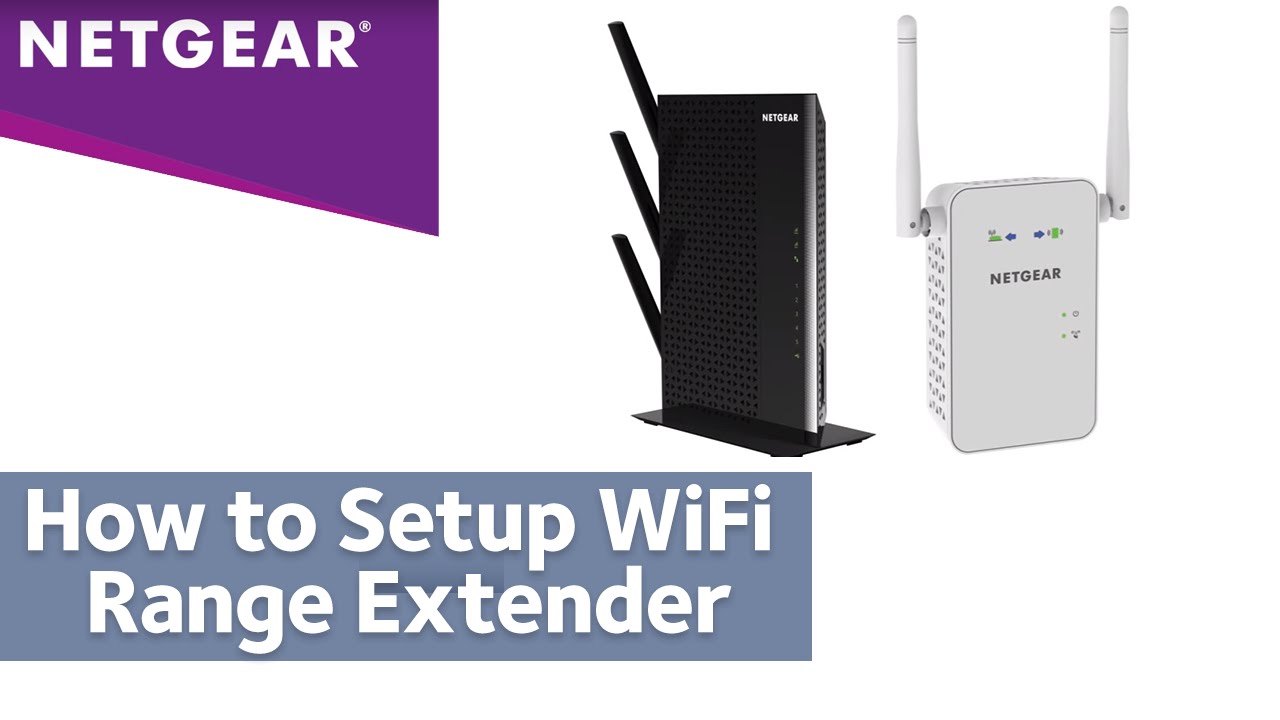
Step 6: Finish up and relocate!
Click "Save" or "Apply" or "Finish." The extender will usually reboot. Once it's back online and its lights look happy, you can unplug it and move it to that perfect sweet spot you identified earlier – between the router and the dead zone. Plug it back in, let it boot up, and it should automatically connect to your main Wi-Fi and start extending!
Victory Lap: Testing Your New Wi-Fi Zone
Time for the moment of truth! Grab your phone, stroll into what used to be the dead zone, and check your Wi-Fi signal. Are you seeing full bars? Can you stream that cat video without buffering? If so, congratulations, my tech-savvy friend! You've successfully conquered the dead zone!
If the signal is still a bit weak, try relocating the extender just a little closer to the main router. It's a bit of a Goldilocks game sometimes – not too far, not too close, but just right. You got this! Enjoy your newfound Wi-Fi freedom!