
How To Check How Much Power My Computer Is Using

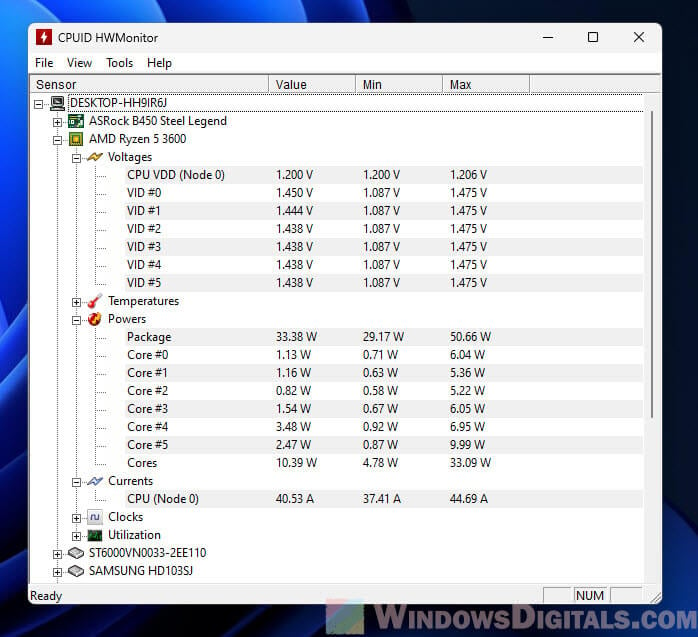
Ever wondered if your computer is a power-hungry beast or a surprisingly efficient little machine? It's kinda fun to find out! Think of it like peeking behind the curtain of your digital world. You get to see how much "juice" your computer is really drinking. Let's dive in and see how you can uncover this electrifying secret!
The Task Manager Trick: A Sneak Peek
For Windows users, the Task Manager is your trusty sidekick. Press Ctrl + Shift + Esc all at once. It's like a secret handshake to summon the Task Manager. Once it pops up, look for the "Performance" tab. This is where things get interesting. Click on "CPU" then find "Power Usage" or "Power Usage Trend".
It's like reading a fortune cookie, but instead of wisdom, you get a glimpse into your processor's power habits. You'll see if it's running on "Low," "Moderate," or even "High." A high power usage doesn't always mean trouble, it simply means your computer is working hard!
Must Read
Activity Monitor: Mac's Power Detective
Mac users, don't fret! You've got your own detective tool: the Activity Monitor. Open Finder, go to "Applications," then "Utilities," and finally, launch Activity Monitor.
Click the "Energy" tab. This is like the mission control for your Mac's power consumption. You'll see a list of apps and how much energy they're using. Some apps might be secretly hogging power, while others are being surprisingly thrifty. It's always fun to see who the usual suspects are!
![How To Check Your PC’s Power Consumption [4 Methods]](https://www.cgdirector.com/wp-content/uploads/media/2022/08/Open-Hardware-Monitor-Screenshot.jpg)
Going Deeper: Third-Party Power Meters
Want even more detailed info? Plug-in power meters are your best friend. These nifty devices plug into your wall socket and then your computer plugs into the meter.
They show exactly how many watts your computer is using. It's like having a tiny electricity bill right in front of you! These meters are a bit more involved but give you granular insights. Brands like Kill A Watt are popular choices. It's almost like measuring the heartbeat of your computer.
Why Bother? It's Kind of Fun!
Why go through all this trouble? Well, for starters, it's just plain interesting! It’s fun seeing what tasks really make your computer sweat and what apps are secretly draining its battery. It's also a great way to diagnose potential problems.
Is your computer using way more power than it should be? Maybe there's a rogue process running in the background or a hardware issue lurking. It's also a great way to see if your new graphics card really lives up to all the hype, and if all that money actually bought you something more than bragging rights at the next water cooler meeting. Or even if all that effort that you have put in to optimizing your code has actually paid off!
Knowing how much power your computer uses is also helpful if you’re trying to be more energy-efficient. Maybe you’ll discover that closing unused programs makes a big difference. Or perhaps you’ll realize it’s time to upgrade to a more efficient power supply.
Turn Power Sleuthing Into a Game
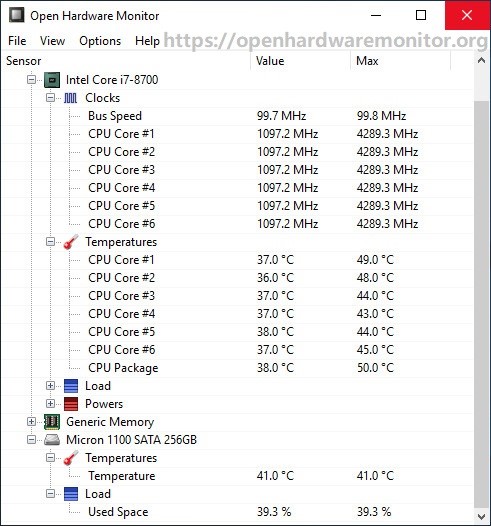
Who says monitoring power consumption can't be fun? Make it a game! Try closing different apps and see how much the power usage drops. Compare the power usage of different tasks. Is gaming a bigger power hog than video editing? Can you reduce the amount of watts drawn by tweaking the graphics settings, without actually noticing a significant reduction of graphic quality? It's all about experimenting and uncovering the mysteries of your machine. It's like a digital scavenger hunt!
So, go ahead! Unleash your inner power detective. Armed with these simple tricks, you can start uncovering the secrets of your computer’s energy consumption. Who knows what you might discover? You might just be surprised by what you find!

And who knows, maybe you'll save a few bucks on your electricity bill in the process. Consider yourself an energy-efficiency ninja!
Happy power sleuthing!
Remember to always practice basic safety measures, such as avoiding opening the actual computer unless you are sure you know what you are doing.