
How To Change How Long Your Iphone Screen Stays On

Ever feel like your iPhone screen is just a tad too eager to take a nap? Like you're mid-sentence in a hilarious text thread, and BAM! Black screen. The nerve!
Well, fret no more! You, my friend, are about to become the master of your iPhone's screen timeout destiny. It's easier than making toast, I promise!
Let's Get This Party Started!
First, you'll want to unlock your iPhone. I know, groundbreaking stuff, right? But hey, gotta start somewhere!
Must Read
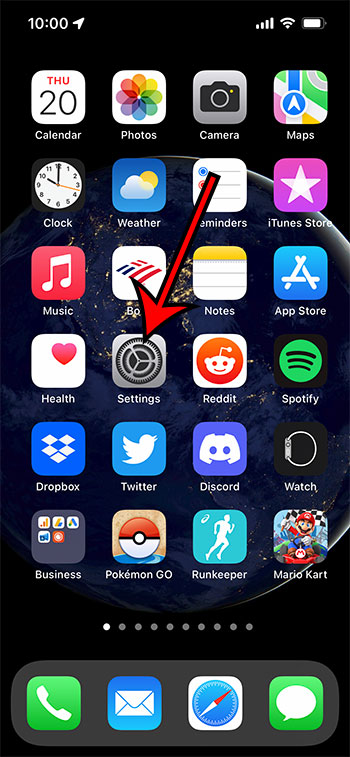
Now, find the Settings app. It's that little gear icon that probably lives on your home screen, judging you for all the time you spend on TikTok. Don't worry, we all do it.
Tap on it! Let the adventure begin!
Display & Brightness: Your New Best Friend
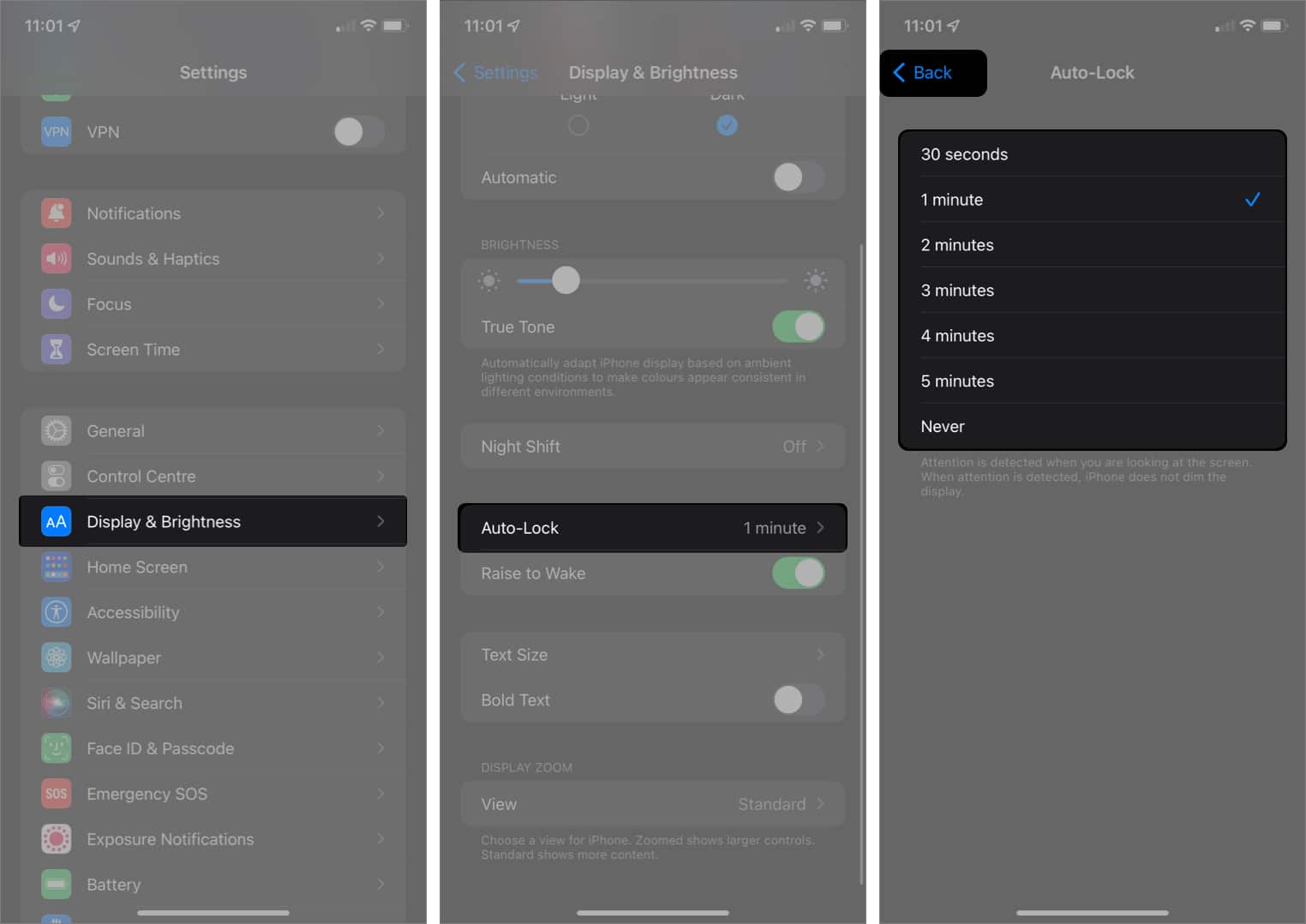
Once inside the Settings kingdom, scroll down a bit. Keep scrolling until you see something that says "Display & Brightness".
This is the VIP section, folks. Tap on it. Welcome!
Inside this magical land of display settings, you'll find all sorts of goodies. Things you probably never knew existed! But we're on a mission, remember?
Auto-Lock: The Key to Screen Timeout Freedom!
Look for the "Auto-Lock" option. It might be hiding a little, but trust me, it's there. This is the golden ticket, the pot of gold at the end of the rainbow, the... okay, I'll stop with the metaphors. Just find it and tap it!
Prepare to be amazed! (Okay, maybe not amazed, but mildly pleased, at least.)

Choosing Your Screen Timeout Adventure
Here, you'll see a list of time options. We're talking seconds to minutes of screen-on glory. The possibilities!
You'll probably see options like "30 Seconds," "1 Minute," "2 Minutes," "3 Minutes," "4 Minutes," and "5 Minutes." And, if you're feeling particularly rebellious, maybe even "Never".
Each of these options dictates how long your iPhone screen will stay illuminated after you stop touching it. 30 seconds is like a blink of an eye in internet time! 5 minutes? Now we're talking serious reading time!
The "Never" Option: A Word of Caution
Before you go wild and select "Never," let's talk strategy. "Never" means your screen will stay on forever (or until the battery dies, which is basically the same thing). This can drain your battery faster than you can say "Where's my charger?!"
Imagine leaving your phone on your coffee table, screen blazing, while you binge-watch your favorite show. Hours later, you return to a phone that's flatter than a pancake. Not ideal.
Also, anyone can just pick up your phone and start snooping. Choose wisely!
Finding the Perfect Balance
So, what's the sweet spot? It really depends on your lifestyle and how you use your phone. Are you a rapid-fire texter? Maybe a minute or two is all you need.
Do you tend to read long articles or recipes on your phone? Four or five minutes might be a better fit.
Experiment! That's the beauty of this whole thing. Try different settings and see what feels right.
Don't be afraid to change it up! You can always go back and adjust it later if you decide you need more or less time.
Selecting Your Time: It's Decision Time!
Ready to make your choice? Simply tap on the time duration you want. A little checkmark will appear next to it, signifying your victory over premature screen dimming!
That's it! You've done it! You've successfully changed your iPhone's screen timeout settings. You're practically a tech wizard!
Now go forth and conquer your digital world with a screen that stays on exactly as long as you want it to. You deserve it!
Testing Your New Settings: A Mini Experiment
To make sure everything is working as expected, put your phone down and don't touch it. Start counting! (Or use a timer, if you're into accuracy.)
Did the screen turn off after the time you selected? If so, congratulations! You're a screen timeout master!
If not, double-check your settings and make sure you selected the correct time. Sometimes, we accidentally tap the wrong thing. It happens to the best of us.
Troubleshooting: What If Things Go Wrong?
Okay, so maybe things didn't go exactly as planned. Don't panic! Technology can be a little finicky sometimes.
First, make sure your phone is updated to the latest version of iOS. Sometimes, software bugs can cause weird behavior. Head to Settings > General > Software Update to check for updates.
Second, try restarting your phone. It's the oldest trick in the book, but it often works wonders! Just turn it off, wait a few seconds, and turn it back on again.
If you're still having trouble, you can always visit the Apple Support website or contact Apple's customer service. They're the experts, after all.
Other Display Settings to Explore
While you're in the Display & Brightness settings, you might as well take a look around! There are all sorts of other cool things you can customize.

For example, you can adjust the brightness of your screen, turn on Dark Mode (which is easier on your eyes, especially at night), and change the text size.
You can even enable True Tone, which automatically adjusts the color and intensity of your display to match the ambient light in your environment. Pretty neat, huh?
You're a Screen Timeout Pro!
And there you have it! You've successfully navigated the world of iPhone screen timeout settings. You're now equipped with the knowledge and skills to customize your screen display to your heart's content!
No more frustratingly short screen timeouts. No more battery-draining "Never" settings. You've found the perfect balance, the Goldilocks zone of screen-on time!
Go forth and enjoy your perfectly timed screen! And remember, you're in control. You're the master of your iPhone's destiny!
Now, if you'll excuse me, I'm going to go adjust my own screen timeout settings. Inspiration struck!
Happy screen timing!