How To Cast From Android To Roku
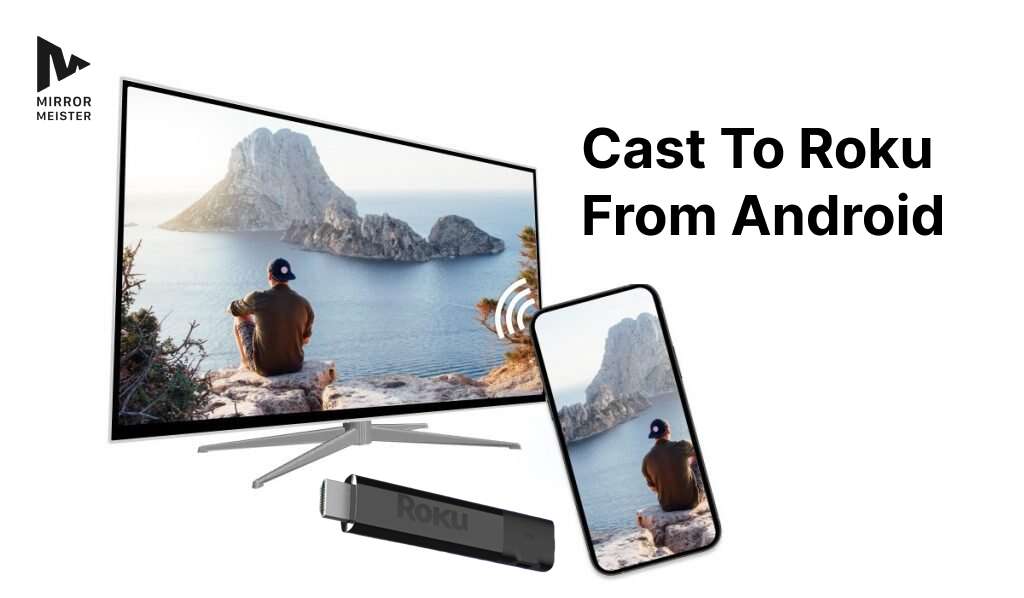
Ever found yourself huddled around a phone screen, trying to share a funny video or show off vacation photos to friends and family? It's a common scene, but what if I told you there’s a super simple way to ditch the small screen and put all that great content right onto your big TV? That's where casting from your Android phone to your Roku comes in! It's not just for tech wizards; it's a fun, practical trick that opens up a whole new world of home entertainment, making your digital life feel much more expansive and shareable. Think less squinting, more enjoying!
This handy skill is a game-changer for just about anyone. For beginners, it’s an effortless way to step into smart home tech without getting tangled in complicated wires or setups. You’ll be amazed at how quickly you can master it! For families, imagine instantly sharing those adorable baby videos, holiday snaps, or even a child's favorite YouTube cartoon on the main living room screen. No more passing the phone around; everyone can see it clearly and together. Even for hobbyists or casual streamers, casting lets you enjoy niche content, a new cooking recipe video, or even a virtual workout class on a much more immersive display, transforming your living room into a multi-purpose hub.
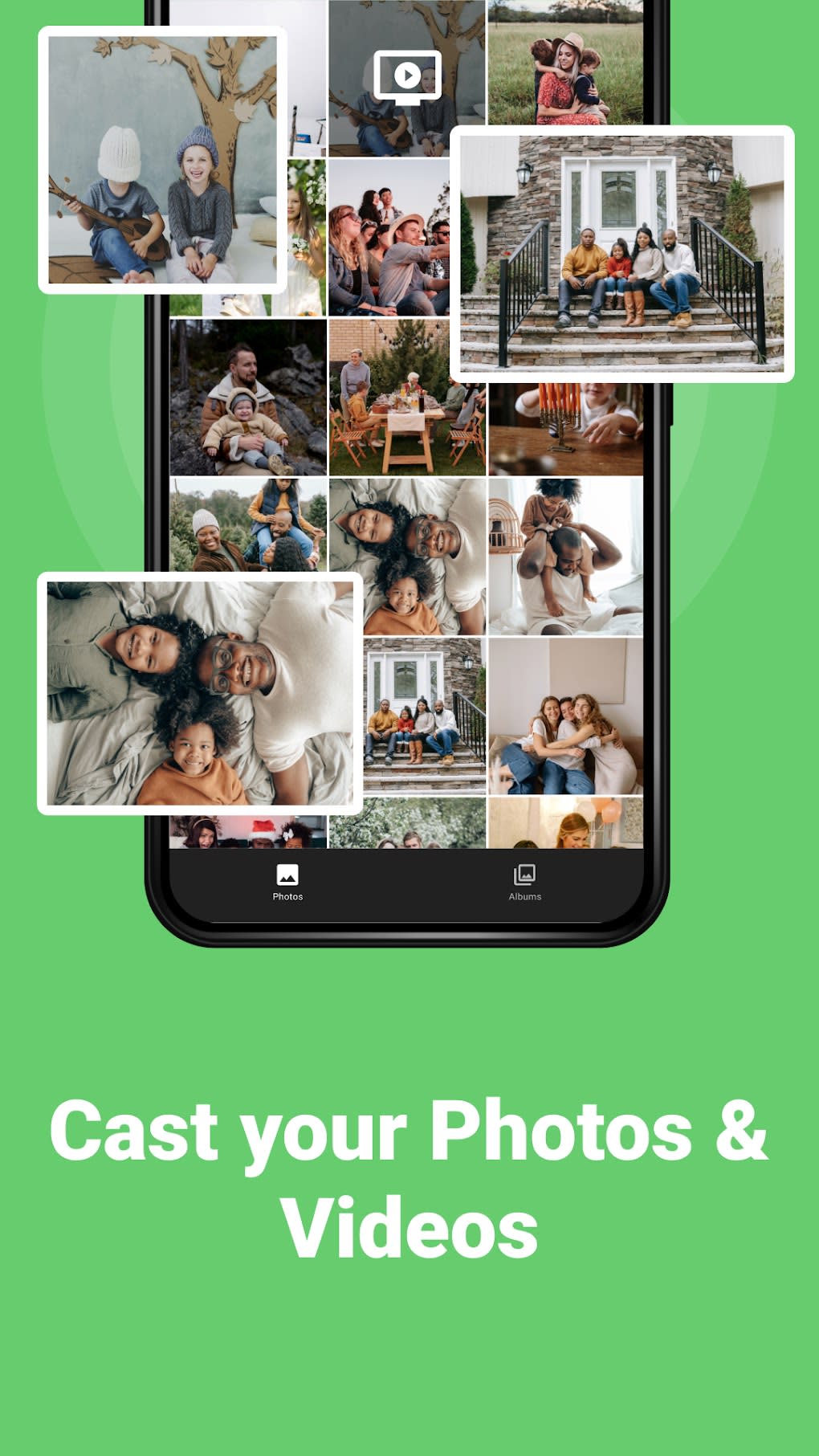
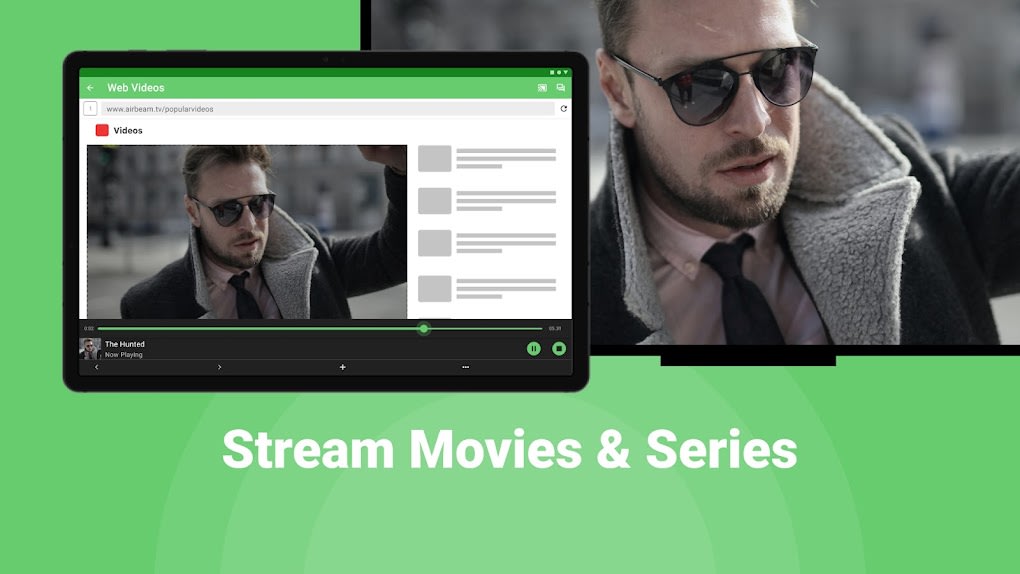
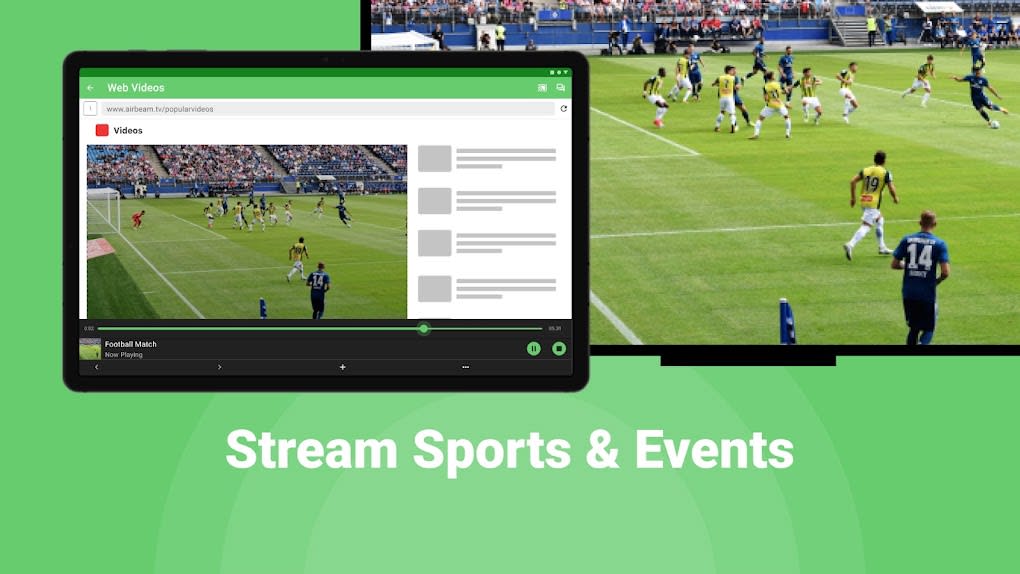
So, what exactly can you cast? The possibilities are surprisingly vast! You can easily stream videos from popular apps like YouTube, Netflix, Hulu, and Spotify directly from your Android phone to your Roku. Just open the app, find the content, and look for the magical "cast" icon. Beyond dedicated streaming apps, you can also cast personal photos and videos stored in your phone’s gallery, bringing those precious memories to life on the big screen. For those times you want to show everything that's on your phone screen, some Android devices also support "screen mirroring" to Roku. This means your phone's entire display, from your home screen to a game or a web page, is mirrored onto your TV. It's incredibly versatile for sharing presentations or just browsing the web on a larger display, though the exact method can vary slightly between phone models.
Must Read
Ready to get started? It’s genuinely straightforward! Here are a few simple tips: First, and most important, make sure your Android phone and your Roku device are connected to the same Wi-Fi network. This is the foundation for casting magic to happen. Next, when you're in an app like YouTube or Netflix on your phone, keep an eye out for the "Cast" icon – it usually looks like a small TV screen with Wi-Fi waves radiating from its bottom left corner. Tap it, select your Roku, and voilà! If you're looking to mirror your entire screen, check your Android phone's quick settings panel for an option like "Smart View," "Screen Cast," or "Screen Share." On your Roku, you might need to go to "Settings" > "System" > "Screen Mirroring" and ensure it's set to "Always Allow" or "Prompt." If native mirroring seems tricky for your specific phone, don't fret; many third-party apps like "Web Video Caster" or "AllCast" can also help you cast a wide variety of content.
Casting from your Android to Roku is more than just a tech trick; it's about enhancing your everyday entertainment and making sharing moments easier and more enjoyable. It’s about taking your digital life off the tiny screen and bringing it into the living room, inviting everyone to participate. So go ahead, give it a try, and unlock a world of bigger, brighter, and more collective viewing experiences!
:max_bytes(150000):strip_icc()/B1-Cast-to-Roku-TV-From-Android-ed23a51965204ea997789780925da9e7.jpg)