How To Calculate Power Requirements For A Pc
Why Bother with Watts? Isn't My PC Smart Enough?
Imagine planning a road trip. You need gas, right? And snacks. Lots of snacks. Your PC is exactly the same, but instead of gas and chips, it needs power. We're talking about calculating how much juice your computer needs to run smoothly, without spontaneously combusting or throwing a digital tantrum. It’s less about rocket science and more about being a good host to your silicon guests. Let's make sure everyone gets enough to eat, metaphorically speaking, so your machine doesn’t get hangry and crash on you mid-game or mid-spreadsheet.
Meet the Unsung Hero: Your Power Supply Unit (PSU)
So, who's in charge of dishing out this power? That would be your Power Supply Unit, or PSU. Think of your PSU as the chef in a busy restaurant kitchen. It takes the raw ingredients (the electricity from your wall socket) and transforms them into precisely measured portions for each hungry component inside your PC. If the chef is overwhelmed or doesn't have enough ingredients, things get messy. A good chef ensures everyone gets fed and the restaurant runs smoothly. A bad or undersized one? Well, that’s when your PC starts complaining louder than a teenager without Wi-Fi.
The Hungry Bunch: Who's Eating All the Watts?
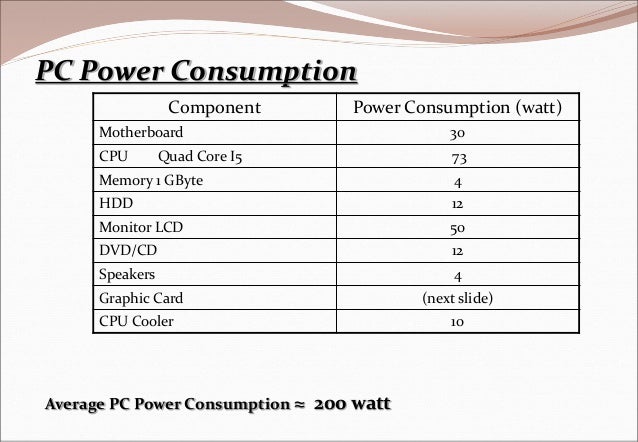
Now, who are these hungry guests? Every single component inside your PC needs a slice of that power pie. The CPU (your computer's brain) needs its share, especially if it's a high-performance chip. Then there's the GPU (your graphics card). Oh boy, the GPU! This is often the hungriest monster in the room, especially if you're into gaming or serious video editing. It’s like the ravenous teenager at the buffet. RAM, storage drives (SSDs and HDDs), the motherboard itself, and all those cooling fans also sip on that power. Even your USB gadgets plug into the party. Each one has a particular appetite, and you need to account for them all.
Must Read
The Easy Button: Online PSU Calculators
"Okay, this sounds complicated," you might be thinking. Fear not, dear reader! The internet, in its infinite wisdom, has blessed us with online PSU calculators. These are your golden tickets to avoiding headaches. You simply plug in your components – "I have this CPU, that GPU, this much RAM," etc. – and poof! The calculator spits out a recommended wattage. It's like having a digital sous-chef who knows exactly how much flour and sugar your cake needs. Sites like PCPartPicker, OuterVision, or Cooler Master's calculator are fantastic starting points. It’s definitely the easiest and most reliable path for most folks.

Going Manual (for the Adventurous Soul)
For those who like a bit of a challenge, or just want to understand the nuts and bolts, you could try estimating manually. Each component typically has a power consumption rating (TDP for CPUs/GPUs often gives a good hint, though it's not the full story). You’d find these specs on the manufacturer's website or reviews. Then, you'd add them all up. It’s a bit like trying to tally up everyone’s dinner order by hand during a chaotic family gathering. Possible, but prone to errors and definitely not for the faint of heart. Honestly, unless you're an electrical engineer moonlighting as a PC builder, stick to the calculators. They've done the heavy lifting for you.
Don't Forget the Wiggle Room: Headroom is Your Friend!
Here's a crucial tip: once you get that magic number from a calculator, don't buy exactly that wattage. Imagine packing for a weekend trip; you always throw in an extra pair of socks, just in case, right? That's your headroom. You want to add about 10-20% extra wattage to your calculated total. Why? For a few reasons:
- Future upgrades: You might add another hard drive or a beefier fan later.
- Efficiency: PSUs are often most efficient when running at 50-70% of their maximum load.
- Spikes: Components can draw more power momentarily than their rated average.

What Happens if I Get It Wrong?
What happens if you skimp on the wattage? Well, your PC might start acting like a toddler who missed their nap. You could experience random shutdowns, system crashes, or your games might just freeze mid-action. It's the PSU saying, "I just can't keep up, folks!" On the flip side, what if you go way overboard? Buying a 1000W PSU for a basic office PC is like buying a monster truck to go to the grocery store. It’ll work, but it’s overkill, less efficient (you're paying for capacity you don't use, potentially losing money on electricity), and often more expensive upfront. You're just wasting money and potentially energy.
The Sweet Spot: Finding Your Goldilocks PSU
The goal is to find your PC's Goldilocks wattage: not too little, not too much, but just right. Using an online calculator, adding that crucial 10-20% headroom, and choosing a reputable PSU brand will set you up for success. Remember, the PSU is the silent, often overlooked, workhorse of your computer. Giving it enough capacity means a stable, happy, and long-lasting PC experience. So go forth, calculate, and build with confidence! Your PC will thank you for feeding it properly.