How To Apple Play On Roku Tv
Ever found yourself wanting to share a hilarious meme, showcase vacation photos, or simply stream your favorite Apple TV+ show on a screen bigger than your phone? For many of us, the living room TV is the ultimate viewing hub, and if you're a proud owner of a Roku TV and an Apple device, you're in luck! This isn't just a tech hack; it's about unlocking a world of convenience and making your digital life just a little bit smoother. Gone are the days of huddling around a tiny screen; today, we're going to dive into how you can effortlessly connect your Apple world to your Roku TV, turning your living room into a seamless entertainment zone. It's fun, it's practical, and it's surprisingly simple!
The main purpose of this wonderful synergy is to allow you to mirror or cast content from your Apple devices directly onto your Roku TV. Imagine showcasing your latest GoPro adventure videos to the whole family on a 50-inch screen, or perhaps using your iPad to present a keynote to colleagues directly from your TV. The benefits are numerous: from enhancing family movie nights with content from your iPhone, to enjoying Apple Music with bigger sound and visuals, or even playing mobile games on a much larger display. It's all about breaking down the barriers between your personal devices and your main entertainment hub, creating a truly integrated experience without the need for cumbersome cables or complicated setups.
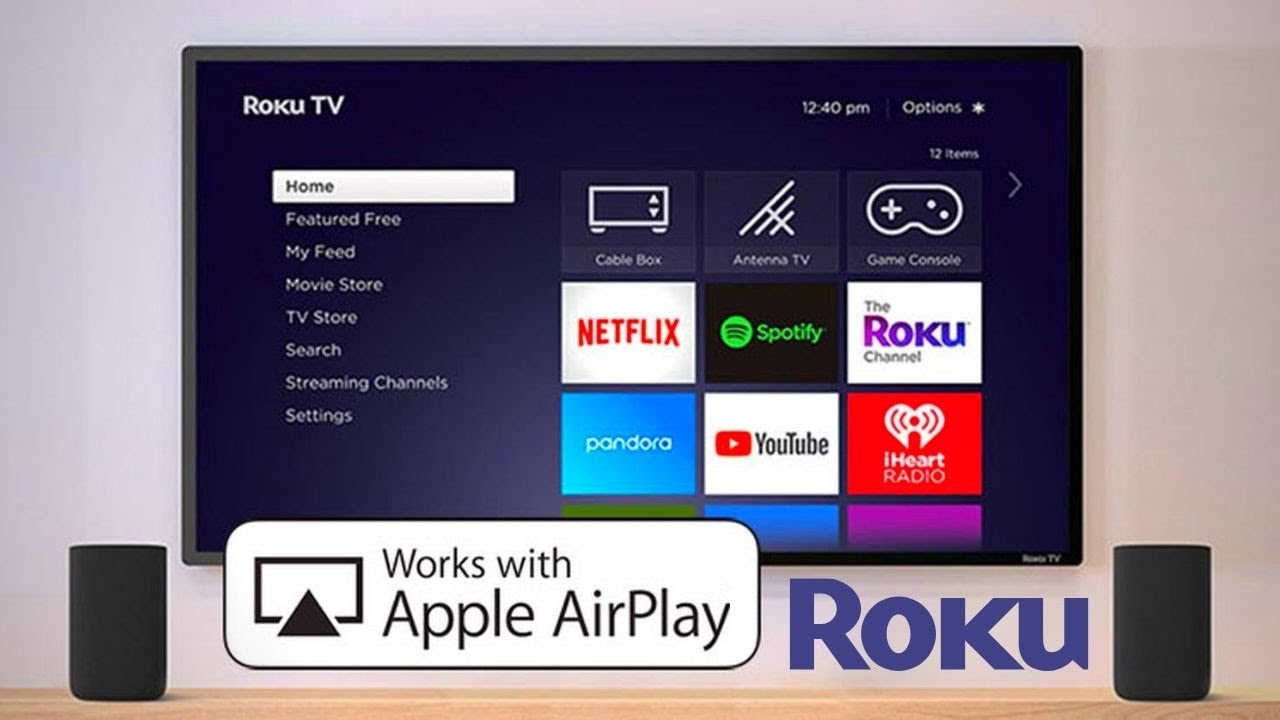
So, how do we make this magic happen? The secret sauce is AirPlay, Apple's proprietary streaming technology that Roku TVs have gracefully adopted. Before we begin, ensure two crucial things: first, that both your Apple device (iPhone, iPad, Mac) and your Roku TV are connected to the same Wi-Fi network. Second, make sure your Roku TV's software is up to date for the best AirPlay performance. Let's get started!
Must Read
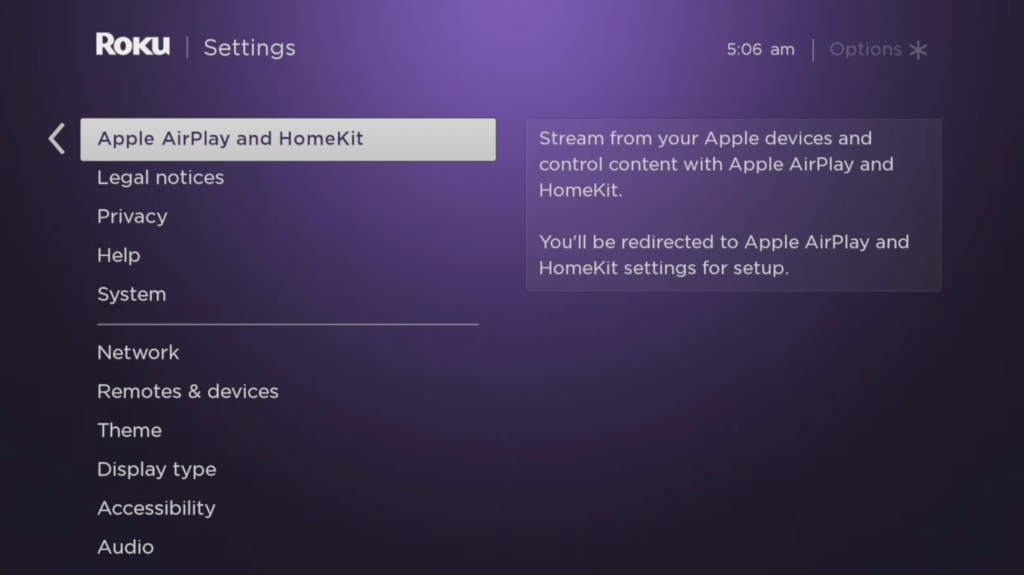
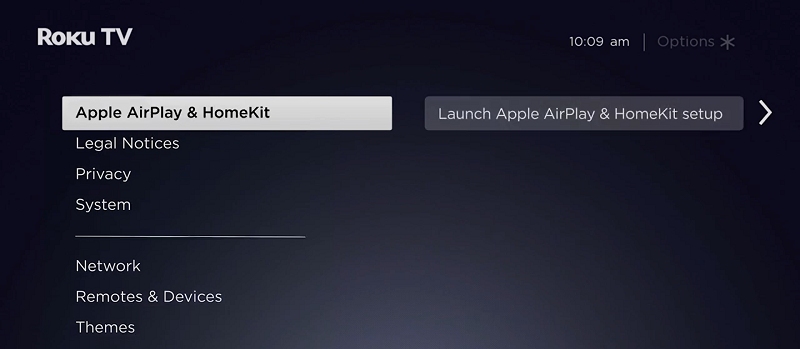
- First things first, let's prep your Roku TV. Grab your Roku remote and navigate to the Settings menu. Scroll down until you see "Apple AirPlay and HomeKit" (or just "AirPlay" on older models). Click on it and ensure that AirPlay is set to "On". You might also want to set "Require Code" to "First Time Only" or "Never" for easier access, but "First Time Only" is a good balance for security.
- Now, pick up your Apple device. If you're using an iPhone or iPad, swipe down from the top-right corner (or up from the bottom on older models) to open the Control Center. For Mac users, look for the AirPlay icon (a rectangle with an upward-pointing triangle) in your menu bar.
- In the Control Center, you'll see an icon that looks like two overlapping rectangles – that's the Screen Mirroring button. Tap it!
- A list of available AirPlay devices will appear. Look for your Roku TV's name (e.g., "Living Room Roku TV") and select it.
- If it's your first time or if you've set a code requirement, a four-digit AirPlay code will pop up on your TV screen. Simply enter this code into your Apple device.
And voilà! Your Apple device's screen should now be mirrored directly onto your Roku TV. Whether you're playing a video, scrolling through photos, or showing off an app, it's all there for everyone to see. To stop mirroring, just go back to the Screen Mirroring menu on your Apple device and tap "Stop Mirroring." It's that easy!
Enabling AirPlay on your Roku TV truly unleashes the full potential of your devices, bridging the gap between your personal content and your big-screen entertainment. So go ahead, give it a try – you might just discover a new favorite way to enjoy your digital world!