How To Airdrop A Video On Iphone
Alright, settle in, grab your virtual coffee – or real, I won't judge – because today we're cracking the code on something super handy: how to airdrop a video on your iPhone. Ever been at a party, a concert, or just chilling with friends, and someone captures that epic moment? You know the one. And then everyone's like, "Send it to me!" But who wants to deal with grainy WhatsApp compression or waiting for giant files to upload to the cloud? Not us!
Enter Airdrop, your iPhone's unsung hero of instant gratification. It's like magic, but with more Wi-Fi and Bluetooth involved. And honestly, it’s so much easier than you might think. We're talking a few taps, and boom! Video shared. No fuss, no muss.
The "What Even Is Airdrop?" Moment
Think of Airdrop as your iPhone's personal, super-fast delivery service for files, pictures, and yes, those glorious videos. It works directly between Apple devices that are close by. The coolest part? It doesn't use your cellular data, and it doesn't even need an active internet connection! It uses Wi-Fi and Bluetooth to create its own little private network. Pretty snazzy, right? It's like having your own secret information highway.
Must Read
Your Quick Pre-Flight Checklist (Don't Skip This!)
Before we dive into the actual sending, let's make sure our digital ducks are in a row. These are usually the tiny things that trip people up, so listen up!
- Both iPhones (or iPads, or Macs!) need to be relatively close. We're talking within about 30 feet, not across the street. The closer, the better the connection, the faster the send. Common sense, right?
- Make sure Wi-Fi and Bluetooth are ON for BOTH devices. Yes, even if you’re not connected to Wi-Fi for internet, Airdrop uses these signals to chat with each other. Don't worry, it's not eating your data plan. Just swipe down from the top right of your screen (or up from the bottom on older iPhones) to check your Control Centre. Blue icons? You're good to go!
-
The receiving iPhone needs to be set to receive Airdrops. This is a biggie! If your friend has Airdrop turned off, or set to "Contacts Only" and you're not in their contacts, you won't see them.
- To check this: Swipe down/up for Control Centre, press and hold on the block with Wi-Fi/Bluetooth. Then tap "Airdrop." They can choose "Receiving Off," "Contacts Only" (meaning you have to be in their address book), or "Everyone." For party situations, "Everyone" for 10 minutes is usually the easiest. Just remember to turn it back to "Contacts Only" later for privacy!
Got all that? Excellent. Now for the fun part!
Sending That Masterpiece (The Main Event!)
Okay, you've got the perfect video. Now, let's get it to your friend!
-
Open your
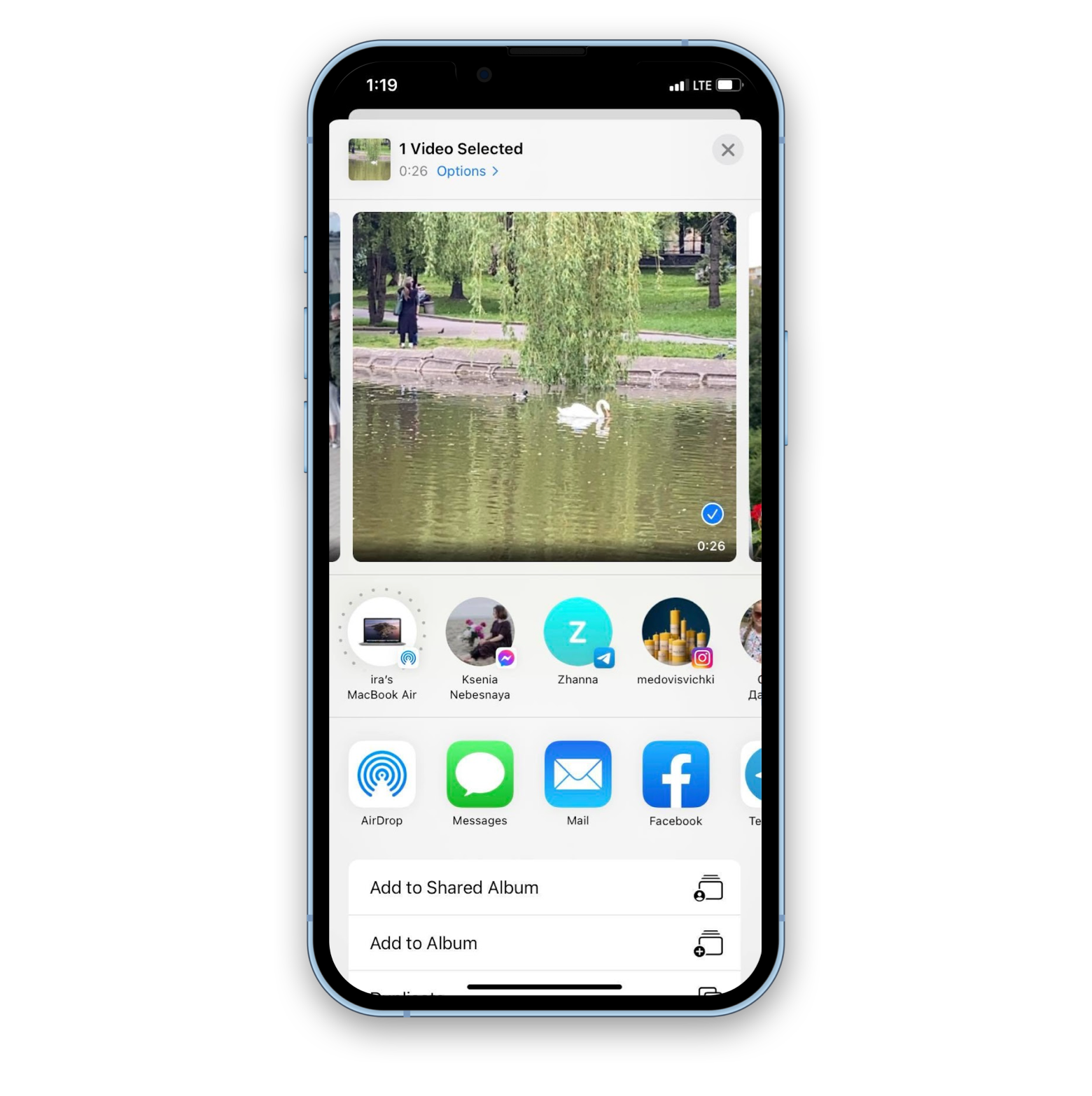
Photos app. This is where all your visual treasures live, naturally. - Find the video you want to send. Tap on it to open it. You can even select multiple videos or photos if you're feeling generous – just tap "Select" in the top right, then tap all the gems you want to share.
-
Look for the
Share icon. It's that little square with an arrow pointing upwards. You know the one. It’s always there, waiting to unleash your content onto the world. Tap it! -
Now, behold the
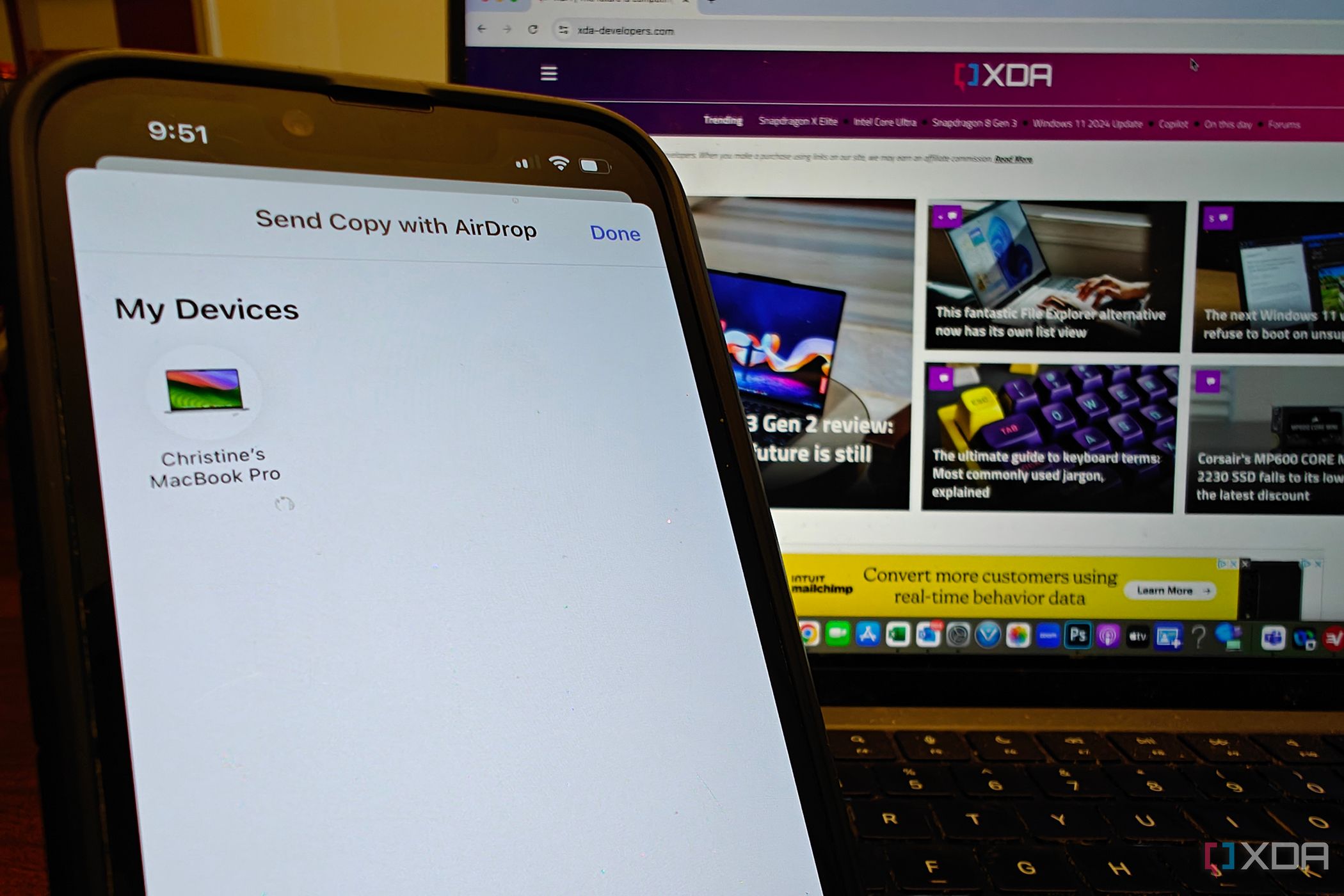
Airdrop section. You'll see a row of icons, and one of them will be the Airdrop icon (it looks like a few concentric circles with a triangle in the middle). Below it, your iPhone will start searching for nearby Airdrop-enabled devices. - Tap on your friend's device! Their profile picture or device name (like "John's iPhone") should pop up there. Tap it! It’s like picking your contestant in a digital game show.
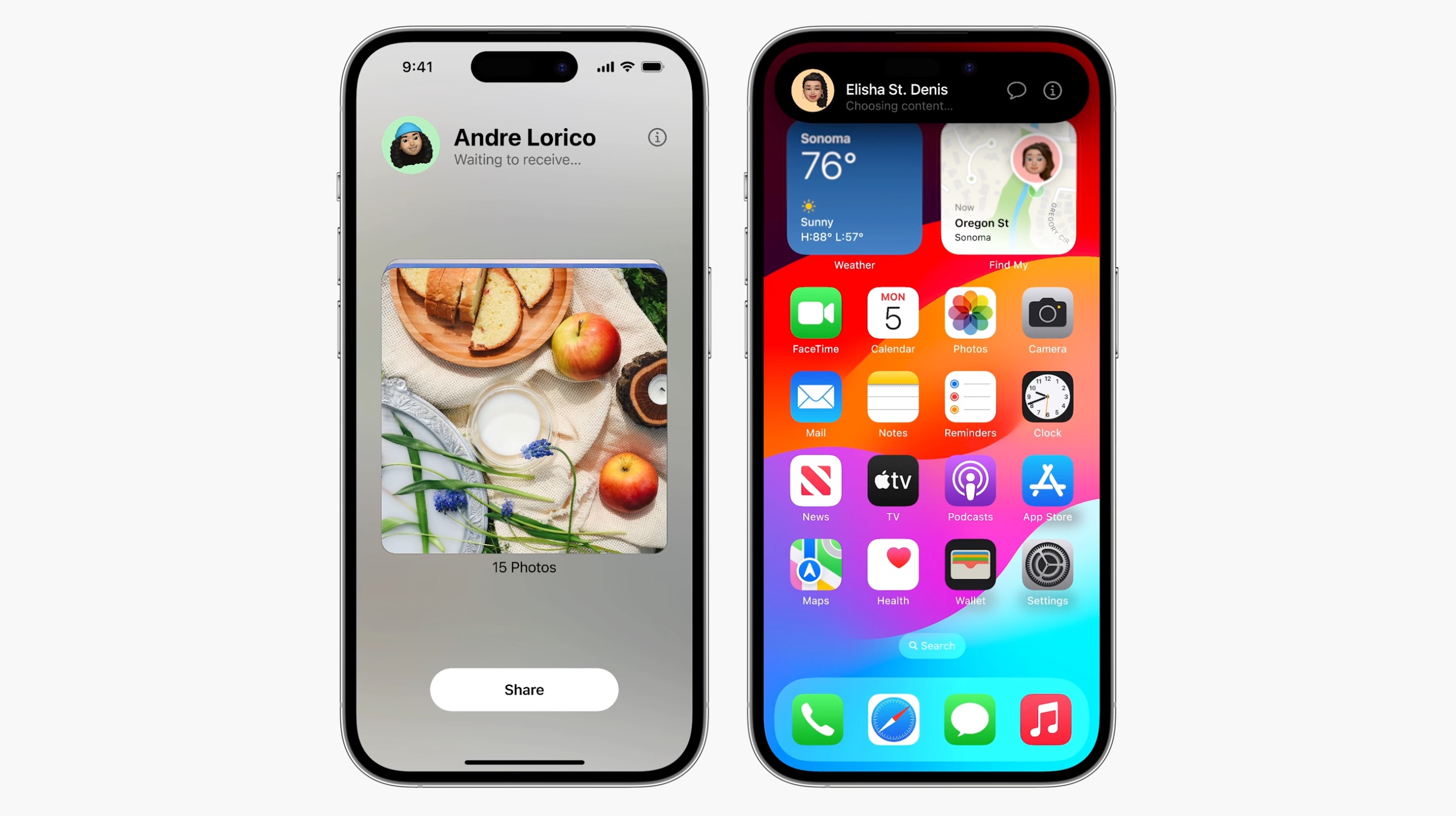
Once you tap, your iPhone will say "Waiting..." for a second, then usually "Sending..." and finally, "Sent!" – often with a satisfying little chime. On your friend's end, they'll get a pop-up saying, "___ would like to share a video. Do you want to Accept or Decline?" They tap Accept, and just like that, the video lands directly into their Photos app. No downloads, no annoying links. Voila!
"Help! I Don't See Their Device!" (Troubleshooting Time)
If their device doesn't appear after a few seconds, don't panic! It happens.
- Double-check their Airdrop settings. Are they set to "Everyone" or "Contacts Only" (and are you in their contacts)? This is the number one culprit.
- Are both Wi-Fi and Bluetooth on? For both of you? A quick toggle off and on can sometimes kickstart things.
- Move closer! Seriously, proximity matters.
- Are they in "Do Not Disturb" or "Focus" mode? Sometimes these can interfere. A quick check might solve it.
Nine times out of ten, it's those receiving settings. Once that's sorted, you'll be airdropping like a pro.
So, There You Have It!
Airdropping a video is ridiculously simple once you know the few basic steps. It's a game-changer for sharing high-quality content quickly and efficiently, without eating into your data plan or waiting ages for uploads. Go on, give it a try! Be the hero who instantly shares that viral-worthy clip. Your friends (and your data plan) will thank you. Now, if you'll excuse me, I hear my coffee calling...