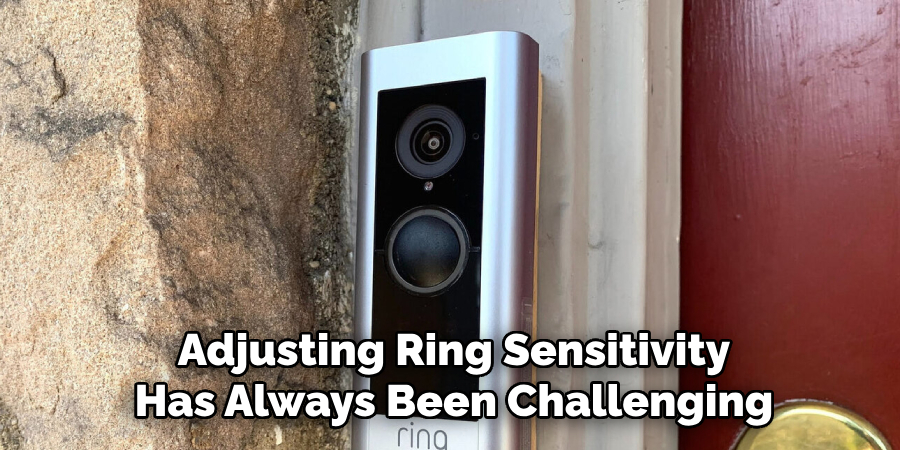
How To Adjust Ring Camera Sensitivity

Alright, let’s talk Ring cameras! Is yours currently sending you a notification every time a dust bunny sneezes past the lens? Or perhaps it’s decided that only a full-blown Sasquatch invasion warrants an alert, completely ignoring the mail carrier? If you’re nodding along, sighing dramatically, then grab a comfy seat because we're about to become the ultimate ringmasters of our digital eyes on the world!
The Magic Wand is Your Phone!
First things first, forget complicated manuals or tiny buttons on the camera itself. Your superhero tool for adjusting Ring camera sensitivity is none other than your very own smartphone or tablet. That's right, the entire universe of your camera's watchful eye is controlled from the super-friendly Ring app. So, if you haven’t already, crack open that app, log in, and select the specific Ring device you want to fine-tune. Consider this your mission control center, where all the digital wizardry happens!
Taming the Notification Beast with Motion Settings
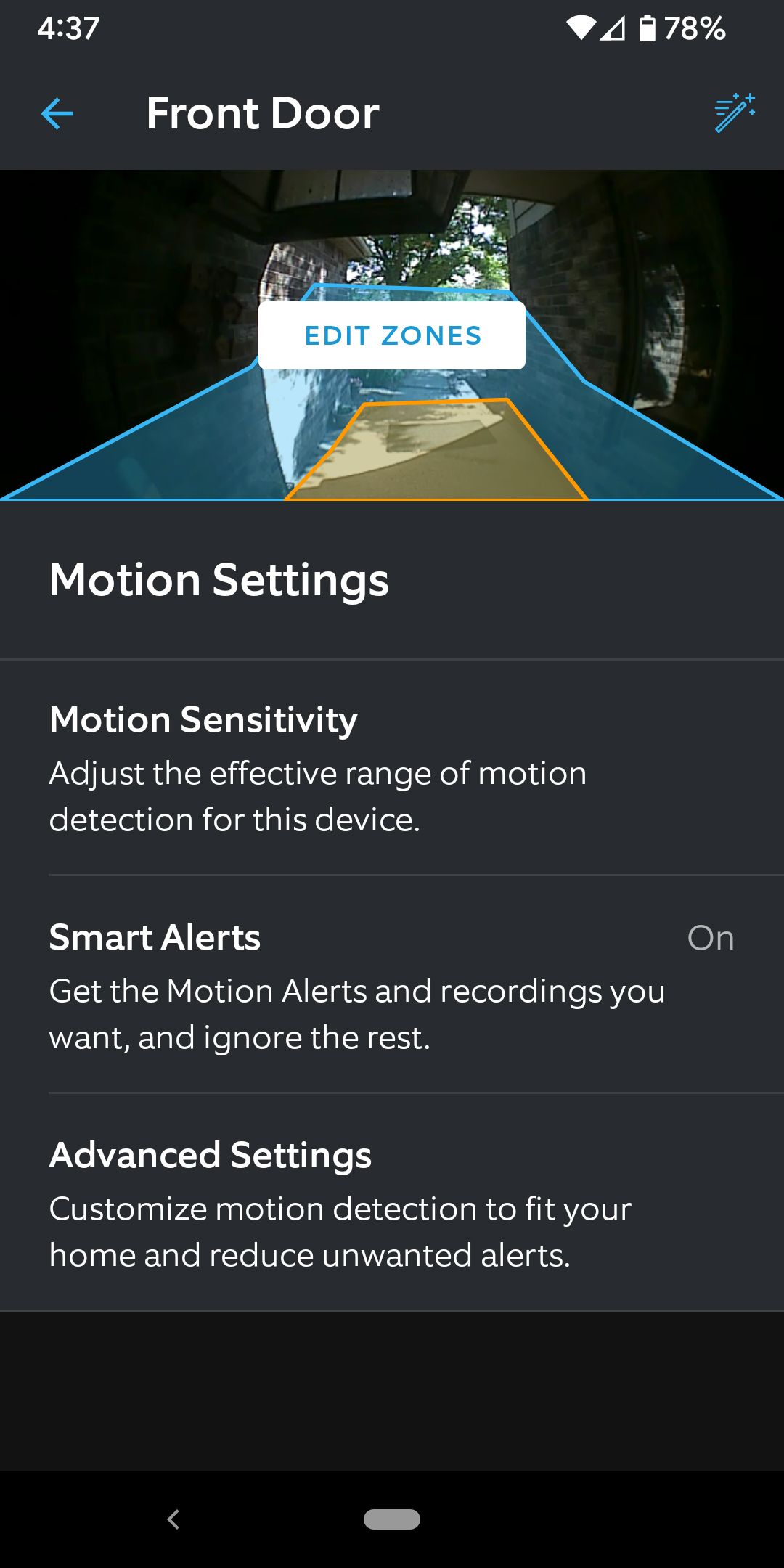
Once you’re in the device settings, you’re looking for something gloriously obvious: Motion Settings. Tap on that, and prepare to unlock a whole new level of surveillance enlightenment. This is where we tell our camera what truly matters and what can kindly be ignored (looking at you, neighbor's cat who thinks my porch is a catwalk).
Must Read
The Grand Slider of Sensitivity!
Within Motion Settings, you’ll often find a lovely little slider called Motion Sensitivity. Think of this like the volume knob for your camera's awareness. Slide it way up, and your camera becomes a hyper-alert guardian, noticing every single flicker, leaf, and maybe even the change in atmospheric pressure. Slide it down, and it gets a bit more chill, waiting for something truly substantial to waltz by.
The trick here? It’s all about experimentation! Start in the middle. Walk past your camera. Have a friend or family member do the same. See what triggers it. If it’s still getting excited over a rogue tumbleweed, nudge that slider down a bit. If a parade goes by and your camera is snoring, pump it up! It’s like teaching a puppy – a little trial and error goes a long way to getting the perfect response.
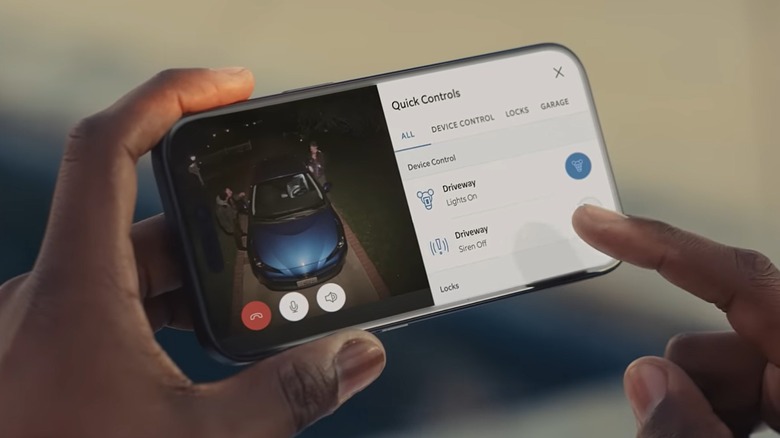
Drawing Your Personal Force Field: Motion Zones
This, my friends, is where Ring cameras go from "good" to "genius!" Motion Zones allow you to literally draw specific areas on your camera's view that you want it to pay attention to. Is there a busy street in the background that always triggers alerts? Draw a box around your porch steps and tell the camera, "Hey, only notify me if someone steps HERE!" You can exclude trees that wave dramatically in the wind, your neighbor's driveway, or even that spot where a mischievous squirrel frequently tries to audition for the circus.
This feature is a total game-changer for reducing false alarms. By focusing your camera's attention only on the areas that matter most to you – like your front door, package delivery spot, or a specific gate – you filter out all the unnecessary digital noise. It's like giving your camera tiny, invisible blinkers so it only sees what you want it to see. Pure brilliance!

The Smarty-Pants Feature: People Only Mode
If your particular Ring model boasts this incredible feature, embrace it with open arms! People Only Mode (sometimes called "Smart Alerts" or "Person Detection") is like giving your camera a tiny, helpful brain that helps it distinguish between a human shape and, say, a passing car, a swaying branch, or even your beloved dog doing their morning zoomies. It's not always 100% perfect, but it's a massive leap in intelligence, drastically cutting down on those "was that a person or just the wind?" moments. Turn it on, pair it with those clever motion zones, and watch your notification frequency plummet in the best way possible.
The "Chill Out" Button: Motion Frequency
Sometimes, even with perfect zones and sensitivity, if a lot is happening, you might get a barrage of notifications. That’s where Motion Frequency comes in. This setting determines how often your camera checks for motion after detecting an initial event. If it’s set to "frequent," it’s always looking. Set it to "standard" or "light," and it might take a brief pause after one event before looking for the next. This can be great if you're getting bombarded with alerts from a continuous source of movement, offering a gentler approach to notifications.
Pro Tips for a Smoother Ring Experience!
Remember, patience is a virtue, especially when teaching a camera to distinguish between a leaf and a potential lurker! Don't be afraid to tweak, observe, and tweak again.
- Be a Detective: After making adjustments, walk through your motion zones yourself. Have a friend walk by. See what triggers the camera and what doesn't. This real-world testing is invaluable.
- Light & Shadows: Sunlight glare, headlights at night, and dramatic shadows can sometimes trick your camera. Keep an eye on these factors as you adjust.
- External Factors: Wind, rain, or even spiders building webs can sometimes interfere. It’s not always about sensitivity; sometimes it’s about a little bit of camera lens cleaning!
So, there you have it! Adjusting your Ring camera's sensitivity isn't some dark art reserved for tech wizards. It's a fun, empowering process that lets you take control of your home's security. With a few taps, some playful experimentation, and a dash of detective work, you’ll have your camera operating like a perfectly trained security guard – alert when it matters, and blissfully ignoring the squirrel opera. You're not just adjusting settings; you're gaining peace of mind, one perfectly tuned alert at a time!