
How Do You Stop Background Apps From Running
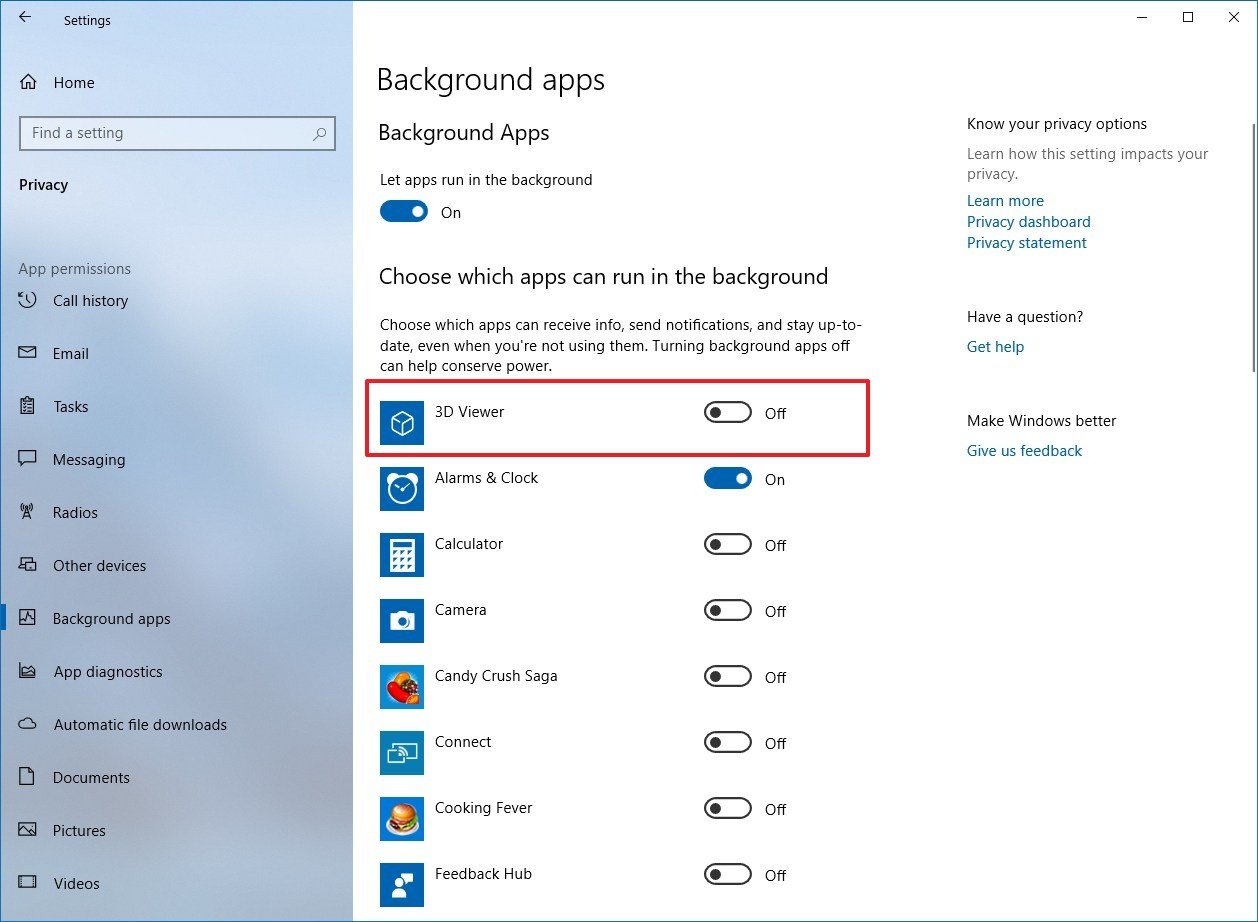
Hey there, tech enthusiast! Ever feel like your phone's being a bit… slow? Like it's running a marathon while you're just trying to order a pizza? Yeah, we've all been there. Blame those sneaky background apps!
But what are background apps? And more importantly, how do we wrangle them? Let's dive in!
What Are These Background Gremlins, Anyway?
Think of your phone like a bustling city. You're hanging out in your favorite coffee shop (your current app), but other businesses (the background apps) are still open, humming with activity. They're checking for updates, sending notifications, or just generally existing. Sometimes, that's helpful! Other times, it's a battery-draining nightmare.
Must Read
These apps aren't always visible. They’re chilling behind the scenes, like digital ninjas.
Did you know some apps are designed to constantly run in the background? It's true! They're like the Energizer Bunny of the app world. They just keep going… and going… and going…
Why Should You Care About Background Apps?
Okay, so they exist. Big deal, right? Wrong! Here's why you should pay attention:

- Battery Life: This is the big one. Those apps are sipping (or gulping!) your precious battery juice. Imagine a tiny vampire, constantly draining your phone's power.
- Performance: All that background activity hogs your phone's resources. It's like trying to drive on a highway with a million cars. Everything slows down.
- Data Usage: Some background apps use data, even when you're not actively using them. Hello, unexpected data charges!
- Privacy: Some apps track your location or collect data in the background. It's a bit creepy, right?
Think of it this way: a clean background is a happy, fast, and efficient phone!
How Do You Tame the Beast? (Stopping Background Apps)
Alright, enough doom and gloom. Let's get practical! Here's how to stop those background apps from wreaking havoc:
For Android Users:
Android gives you a bunch of options. Let's break it down:

- Force Stop: Go to Settings > Apps (or Application Manager) > Select the app > Tap "Force Stop." This is like telling the app, "Okay, party's over! Shut down now!" Be careful though, it might cause some apps to misbehave on restart.
- Disable Background Data: In the same app settings, look for "Data usage" (or similar). You can restrict background data. This is great for apps that are secretly downloading tons of stuff.
- Battery Optimization: Android has a built-in battery optimization feature. Go to Settings > Battery > Battery Optimization. You can let the system automatically manage app background activity.
- Developer Options (Use with Caution!): For the more adventurous, you can limit background processes in the Developer Options. To unlock this, go to Settings > About Phone > Tap "Build number" seven times. Then, in Developer Options, you can set a limit on the number of background processes. But be warned, messing with this can cause unexpected issues if you don't know what you're doing!
Android Pro-Tip: Some manufacturers have their own battery-saving modes that aggressively kill background apps. Explore your phone's settings!
For iPhone Users:
iOS is a bit more… secretive. But you still have some control!
- App Refresh: Go to Settings > General > Background App Refresh. Here, you can turn off background app refresh entirely, or customize it for individual apps. This is crucial for saving battery life.
- Location Services: Go to Settings > Privacy > Location Services. Make sure apps only have location access when you're actively using them. "Always" is a battery hog!
- Force Quit: Swipe up from the bottom of the screen (or double-tap the home button on older iPhones) to see your open apps. Swipe up on an app to force quit it. It's like gently nudging it out the door. Note: iOS handles memory management pretty well, so don't feel like you need to do this constantly.
iPhone Fun Fact: iOS is pretty good at managing background apps automatically. It puts apps to "sleep" when you're not using them. But it's still good to keep an eye on things!
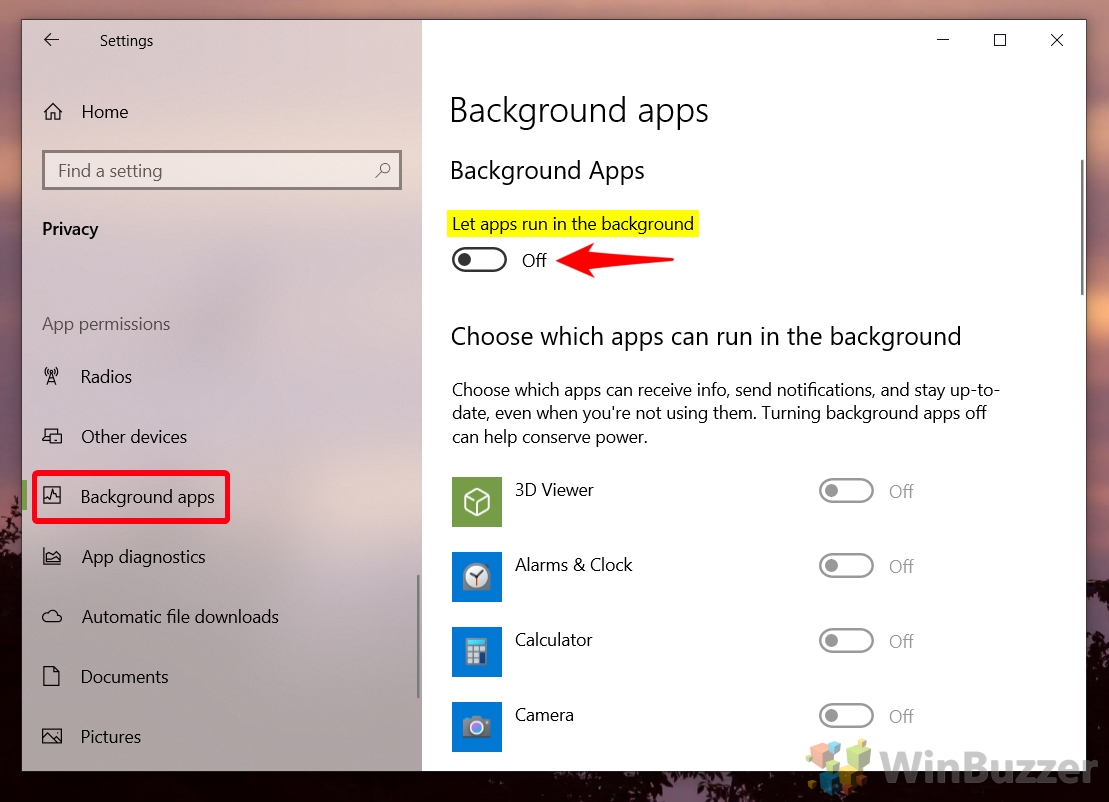
Regular Maintenance: Keep Things Tidy
Stopping background apps isn't a one-time thing. It's like cleaning your house; you need to do it regularly!
Here's a checklist:
- Review Apps: Periodically go through your apps and uninstall anything you don't use. Less apps = less background activity.
- Update Apps: Make sure your apps are up to date. Developers often include performance improvements and battery optimizations in updates.
- Restart Your Phone: A simple restart can clear out temporary files and close any rogue background processes. It's like giving your phone a fresh start.
Think of your phone as a garden. You need to weed out the unwanted apps and prune back the resource-hungry ones to keep everything healthy and thriving!

Final Thoughts: Be a Smart App Manager!
Stopping background apps is all about being proactive and understanding how your phone works. Don't be afraid to experiment and see what works best for you.
With a little bit of effort, you can keep your phone running smoothly, your battery lasting longer, and your data usage under control. Happy app managing!
Now go forth and conquer those background apps! You got this!