How Do You Make Your Iphone Screen Stay On Longer

Ever find yourself in that annoying situation where you're trying to read a recipe, follow a map, or show someone a hilarious meme on your iPhone, only for the screen to dim and go black right when you need it most? We've all been there! It's a digital cliffhanger we didn't sign up for. Luckily, there's a simple solution, and that's exactly what we're diving into – how to keep your iPhone screen on longer! It's a small change that can make a big difference in your daily tech life.
So, why would you want to do this? The purpose is simple: to extend the amount of time your iPhone's screen stays illuminated before automatically turning off. The default setting is often quite short, designed to conserve battery life. However, there are plenty of times when having that extra screen time is incredibly useful. Think about:
- Following a GPS navigation app while driving (safely, of course!).
- Reading a lengthy article or e-book without constant tapping.
- Showing photos or videos to a group of friends.
- Using your phone as a makeshift flashlight.
- Referencing a digital grocery list while shopping.
The benefits are clear: increased convenience, reduced frustration, and a smoother user experience. Instead of constantly tapping the screen to keep it awake, you can focus on the task at hand. Who doesn't want a little less digital interruption in their life?
Must Read
Ready to unlock the secret to longer screen-on time? Here’s how:

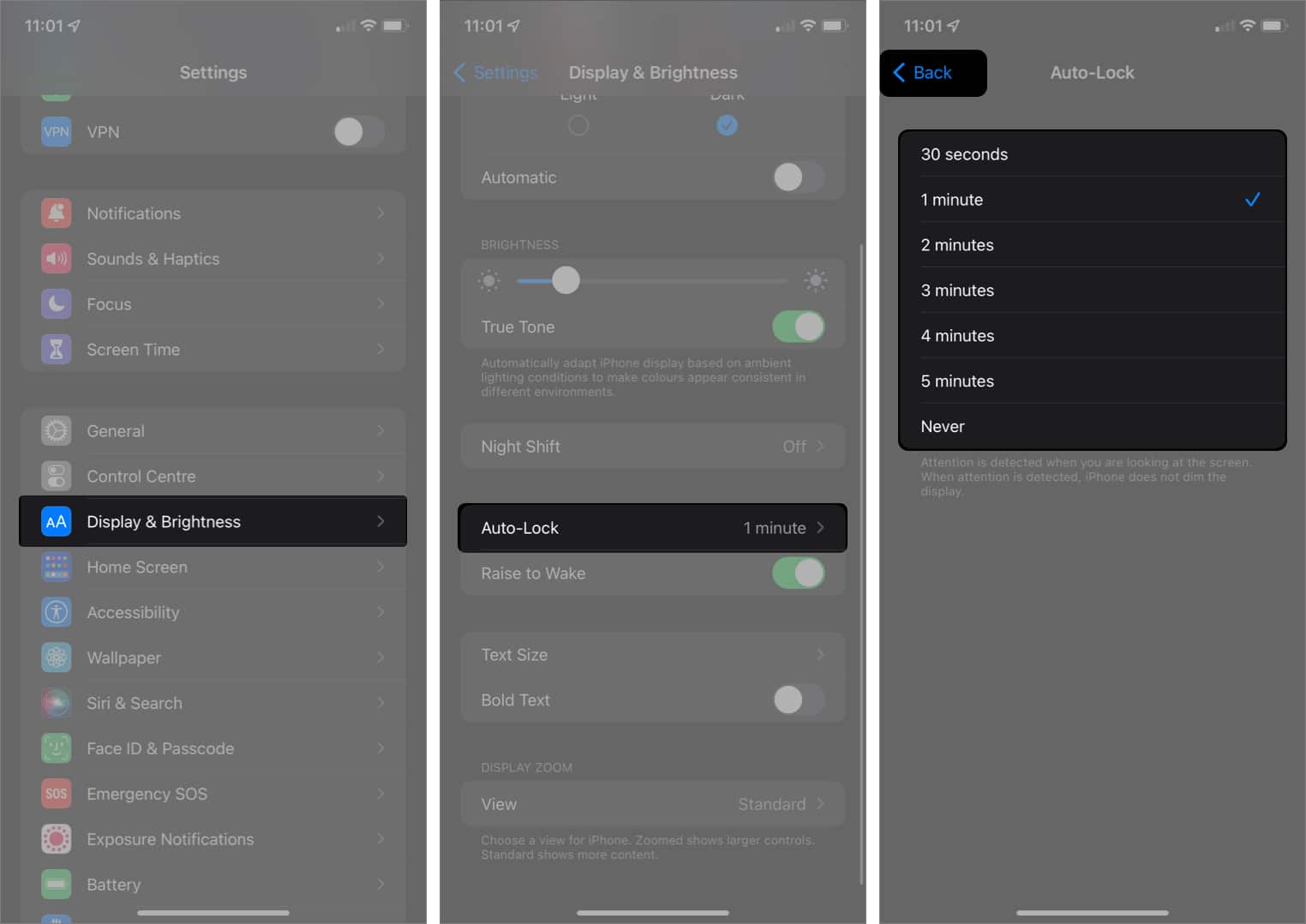
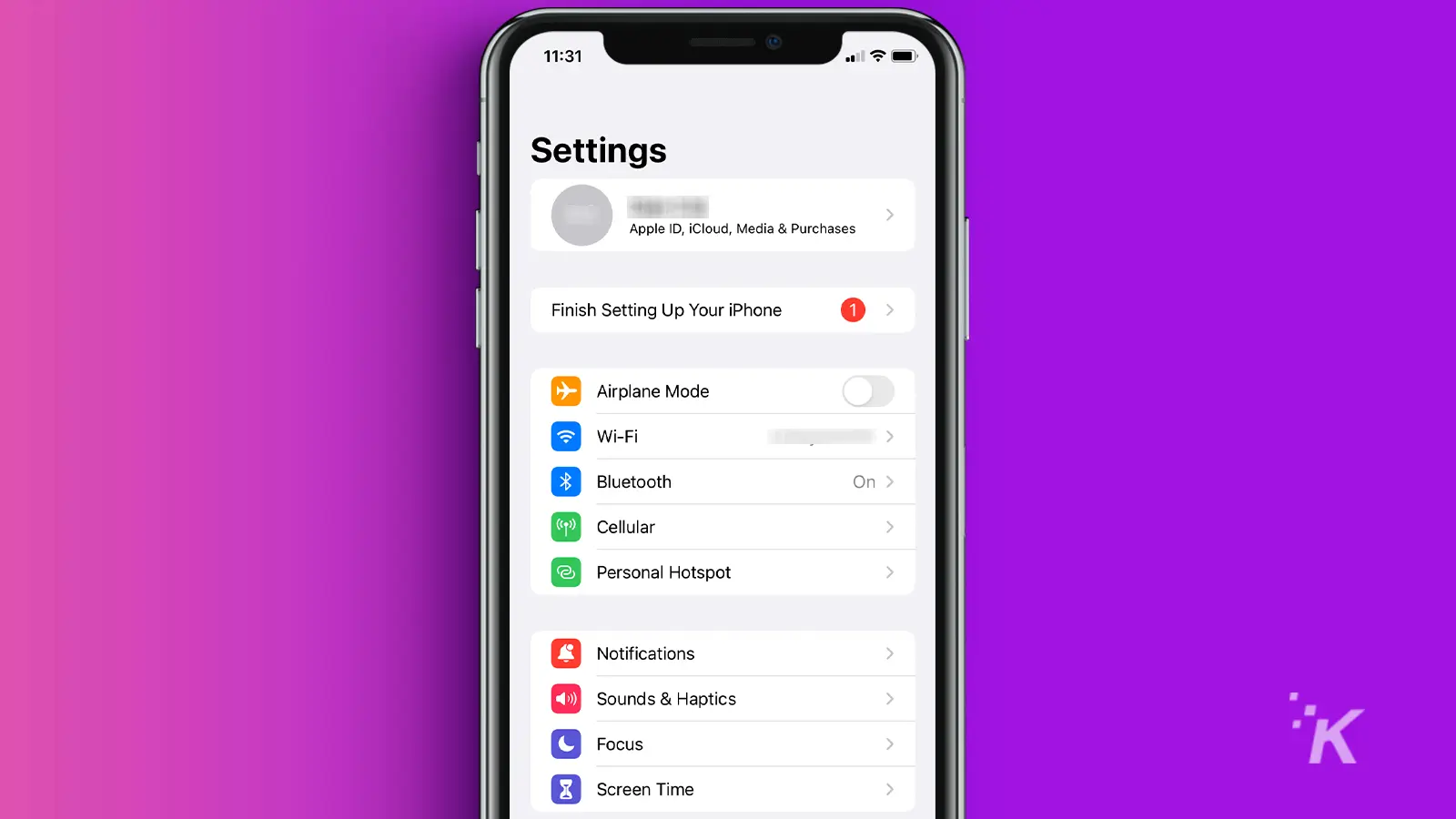
- Open the Settings app on your iPhone. This is the grey icon with the gears. You know the one!
- Scroll down and tap on Display & Brightness. It's usually nestled among other helpful visual settings.
- Look for the option labeled Auto-Lock. This is the key to controlling how long your screen stays on.
- Tap on Auto-Lock. You'll see a list of time options, ranging from 30 seconds to 5 minutes, or even "Never".
- Choose your preferred duration! If you want the screen to stay on for as long as possible (until the battery dies or you manually lock it), select "Never". Be warned though, this will drain your battery faster. Consider 1, 2, 3, 4 or 5 minutes for a good compromise.
That's it! You've successfully adjusted your iPhone's Auto-Lock setting. Now, your screen will stay illuminated for the duration you selected. Remember to consider the impact on your battery life. A longer screen-on time means more power consumption. If you're out and about and not near a charger, you might want to revert to a shorter Auto-Lock duration to conserve battery.
Experiment with different Auto-Lock settings to find the perfect balance between convenience and battery life for your needs. Enjoy your extended screen time and say goodbye to those frustrating mid-task screen blackouts!