How Do You Know How Charged Your Apple Pencil Is

Let's face it, the Apple Pencil is a magical little wand that turns your iPad into a digital canvas. But like all magical things, it needs power! Ever been in the middle of sketching your masterpiece, only to have your Pencil die on you? It's a digital disaster! That's why knowing how to check your Apple Pencil's battery life is essential. Luckily, Apple has made it pretty straightforward.
The purpose of knowing your Apple Pencil's charge level is simple: to avoid interruptions. It prevents you from losing your creative flow, missing important notes, or being caught off guard during a presentation. The benefits are clear: more productivity, less frustration, and a happier you!
So, how do you peek at the power level of this sleek stylus? Here are a few methods, starting with the easiest:
Must Read
1. The Widget Wonder: This is probably the quickest and most convenient way. If you're not already using widgets on your iPad, you're missing out! To add the Batteries widget, simply:
- On your iPad's Home Screen or Today View, touch and hold an empty area until the apps jiggle.
- Tap the "+" button in the upper-left corner.
- Search for "Batteries" in the widget search bar.
- Choose a size (small is perfectly fine).
- Tap "Add Widget".
- Tap "Done" in the upper-right corner.
Voila! The widget will now display the battery percentages of your iPad and any connected devices, including your Apple Pencil. Easy peasy, lemon squeezy!
2. The Notification Center Ninja: Similar to the widget, you can also check your Pencil's battery life in the Notification Center. Simply swipe down from the top-left corner of your iPad's screen. The Batteries widget (if added, see above) will be displayed. If not, you might need to add it in the Today View settings. It's a slightly less direct route than the widget on your home screen, but still a very effective option.
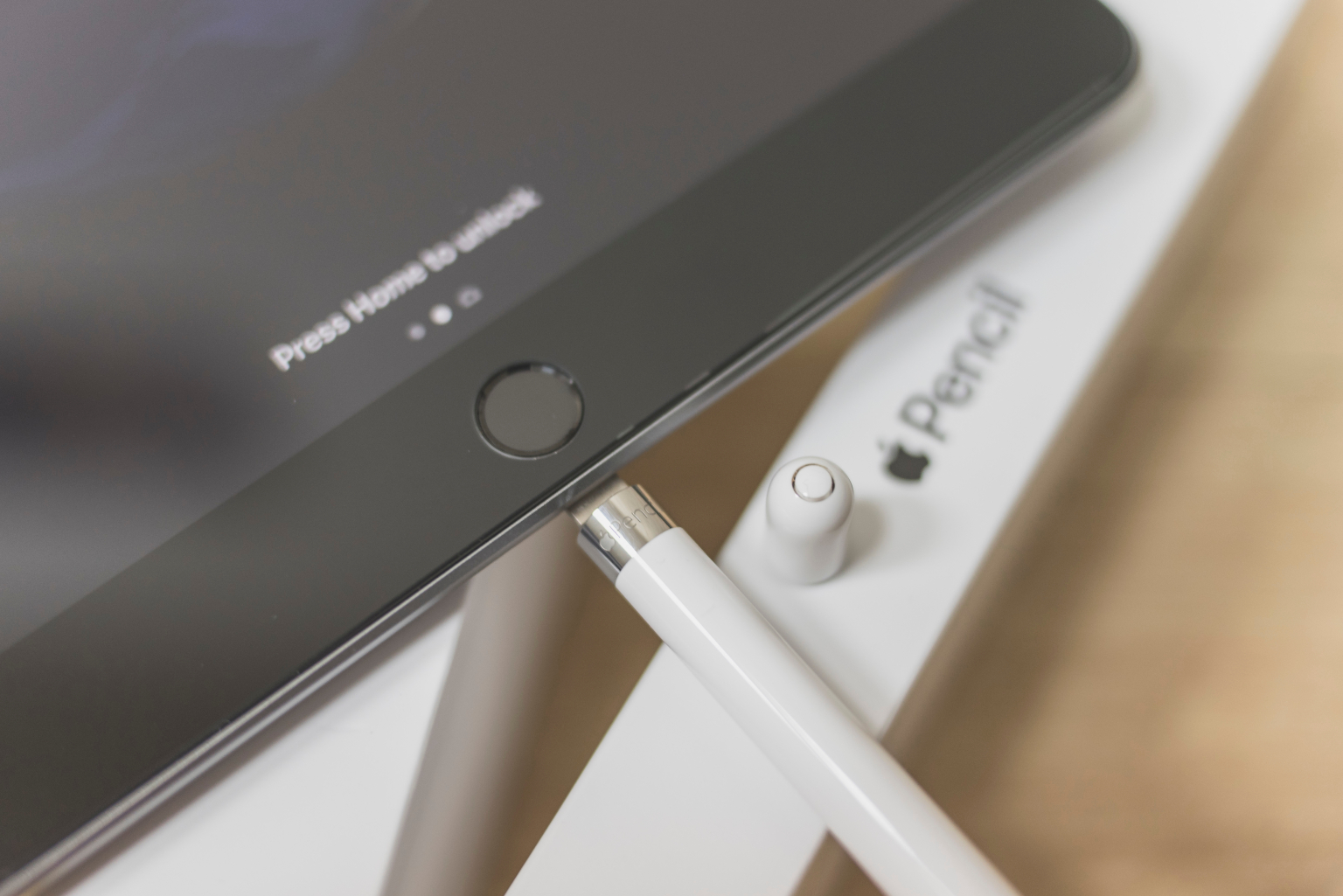
3. The Pairing Pop-Up (1st Generation Pencil): For those rocking the original Apple Pencil, there's a special trick. Simply remove the cap and plug the Pencil into the Lightning port on your iPad. A handy little pop-up will appear, displaying the current battery percentage. This is super convenient when you're actively charging your Pencil.
4. The Charging Status (2nd Generation Pencil): The 2nd generation Apple Pencil magnetically attaches to the side of your iPad to charge. When you attach it, a notification briefly appears at the top of the screen showing the Pencil's current charge level. It's a quick and unobtrusive way to stay informed.
Pro Tip: Keep an eye on that battery percentage! If you see it consistently dipping below 20%, it's probably time to give your Apple Pencil a little juice. This will ensure you're always ready to unleash your creativity or tackle those important tasks. Now go forth and conquer, armed with the knowledge of your Apple Pencil's power levels!