
How Do I Turn Silent Mode Off

Ever had that moment when you realize your phone has been giving you the silent treatment all day? You know, you’re waiting for an important call – maybe about that thing you ordered, or a doctor’s appointment – and then you check your phone only to find three missed calls and zero rings. It’s like your trusty sidekick suddenly decided to go on a secret ninja mission without telling you. Frustrating, right? But don't worry, you're not alone in this digital maze! Let's get your phone to sing again.
It’s a truly common occurrence, like forgetting where you put your keys, but with more beeps and buzzes... or rather, lack thereof. Often, it's just a tiny flick of a switch or a quick tap in the wrong direction that sends your phone into its silent slumber. Let’s unravel the mystery and bring back the joy of a ringing phone!
Why Does It Even Matter If My Phone Is Silent?
"Oh, it's just a few missed calls," you might think. But imagine this: you've got a flight tomorrow, and your alarm is set. You wake up in a panic because the sun is already high, only to realize your phone, your loyal timekeeper, stayed as quiet as a mouse on velvet. Oops! Or perhaps your best friend is trying to tell you about an emergency (or just an amazing new meme), and you're completely out of the loop.
Must Read
Your phone isn't just for scrolling social media; it's your lifeline to the world, your alarm clock, your emergency contact point, and sometimes, even your reminder to take out the bins! When it's silent, you miss out on those crucial connections and helpful nudges. It's about staying connected and, let's be honest, avoiding those "Why didn't you answer?!" texts.
The Most Common Culprits & How to Fix Them
Let's play detective! We'll start with the usual suspects that often send your phone into its quiet corner.

1. The Secret Agent Switch (Mostly iPhone)
This is perhaps the number one reason iPhone users find themselves in a silent predicament. Look at the left side of your iPhone. See that small switch, usually above the volume buttons? That's your "Ring/Silent" switch.
If it's pushed toward the back of the phone (meaning you can see a little orange stripe), your phone is in Silent Mode. It's designed for quick muting, like when you're sneaking into a movie theater (shh!). To get your sounds back, simply flick that switch forward, towards the screen. You should feel a slight vibration and see a notification pop up that says "Ringer On." Bingo! You’ve disarmed the silent ninja.
2. The Volume Buttons (Both iPhone & Android)
This one might seem obvious, but hey, sometimes the simplest things stump us! Your phone has physical volume buttons on its side. Most phones have one long button or two separate ones: one for up and one for down.

You want to press the "volume up" button repeatedly. As you press it, a volume bar should appear on your screen. Make sure the 'Ringer' or 'Media' volume is turned all the way up, or at least visible and not zero. If it shows a speaker icon with a line through it, you're still muted! Keep pressing "volume up" until you see that icon change to a normal speaker. Easy peasy!
3. The Digital Cone of Silence: Do Not Disturb / Focus Modes (Both iPhone & Android)
Ah, Do Not Disturb (DND) or Focus Mode. These features are brilliant for when you genuinely need quiet time – like during a big meeting or when you're trying to read a book without interruptions. But they're also notorious for being accidentally left on.
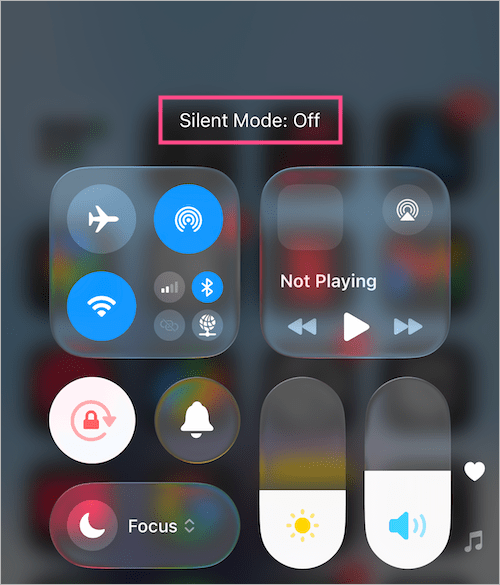
For iPhone: Swipe down from the top-right corner of your screen (for newer iPhones) or up from the bottom (for older ones) to open the Control Center. Look for a crescent moon icon or a bed icon. If it's highlighted or green, that means DND or a Focus Mode (like "Sleep" or "Work") is active. Tap it to turn it off. You might see a little menu pop up, asking how long you want it off. Just select "Off" or tap the icon until it's no longer highlighted.
For Android: Swipe down from the top of your screen to open your Quick Settings panel. Look for an icon that might be a crescent moon, a 'Do Not Disturb' text, or a minus sign in a circle. If it's active, it'll usually be highlighted. Tap it to deactivate it. Some Android phones might also have "Silent Mode" as a separate toggle here – make sure that's off too!
4. Silent Mode in Settings (Mainly Android Specifics)
Sometimes, on Android phones, there's a more in-depth "Silent Mode" or "Vibrate Mode" nestled in your sound settings.

Go to your phone’s Settings app (usually a gear icon). Then find "Sound & vibration" or "Sounds." Here, you’ll often find options for "Ringer volume," "Media volume," and possibly "Silent mode" or "Vibrate mode." Make sure your ringer volume is turned up and that "Silent mode" isn't selected. Sometimes, you have "Sound," "Vibrate," and "Silent" as options – you want "Sound"!
A Quick Checklist to Get Your Phone Back on Track:
- iPhone users: Is that little switch on the left side of your phone pushed forward (no orange showing)?
- Everyone: Have you pressed the "volume up" button a few times? Does the on-screen volume bar look healthy?
- Everyone: Is Do Not Disturb or any Focus Mode turned off in your Quick Settings/Control Center?
- Android users: Did you check your sound settings to ensure "Sound" mode is active and not "Silent" or "Vibrate"?
Most of the time, one of these quick checks will solve the mystery of your silent phone. It’s like finding that remote control hiding under the sofa – once you know where to look, it’s always there!
So next time your phone goes rogue and decides to give you the cold shoulder, you’ll be armed with the knowledge to bring it back to life. No more missed alarms, no more worried friends, and definitely no more wondering why your phone isn’t playing that silly ringtone you love. Go forth and make some noise! Your phone (and your peace of mind) will thank you.