How Do I Turn On Wireless Charging On My Motorola
Ever dreamt of ditching those pesky charging cables? Wireless charging is like magic – you simply place your phone on a pad, and poof, it starts fueling up. It's convenient, looks futuristic, and can declutter your life. But what if you have a Motorola phone and aren't sure how to tap into this wireless wonder? Don't worry, it's usually simpler than you think! Let's explore how to get your Motorola wirelessly charging, focusing on models that actually support it (because, spoiler alert, not all do!).
First things first: Does your Motorola actually support wireless charging? This is the crucial question. While wireless charging is becoming more common, it's not a standard feature on every phone. Some Motorola models do offer it, often the higher-end ones. To find out, the easiest way is to consult your phone's manual or check the official Motorola website. Look for the specifications of your specific model and see if "Qi wireless charging" or just "wireless charging" is listed. If you're unsure, a quick Google search like "[Your Motorola Model] wireless charging" should give you a definitive answer.
Now, assuming your Motorola does support wireless charging, here's the (usually very simple) process to get it going:
Must Read
- Get a Qi-compatible wireless charging pad. This is the essential piece of hardware. Qi (pronounced "chee") is the most common standard for wireless charging. There are tons of options available online and in stores, ranging from basic pads to fancy stands. Make sure the charging pad is compatible with the Qi standard to ensure it works with your phone.
- Plug in the charging pad. Connect the charging pad to a power source using the provided adapter. Make sure the adapter is properly plugged into both the wall and the charging pad.
- Position your phone correctly. This is often the trickiest part. Center your phone on the charging pad. The charging coils inside your phone and the pad need to align properly for efficient charging. You might need to experiment slightly to find the sweet spot. If your phone isn't positioned correctly, it might not charge at all or might charge very slowly.
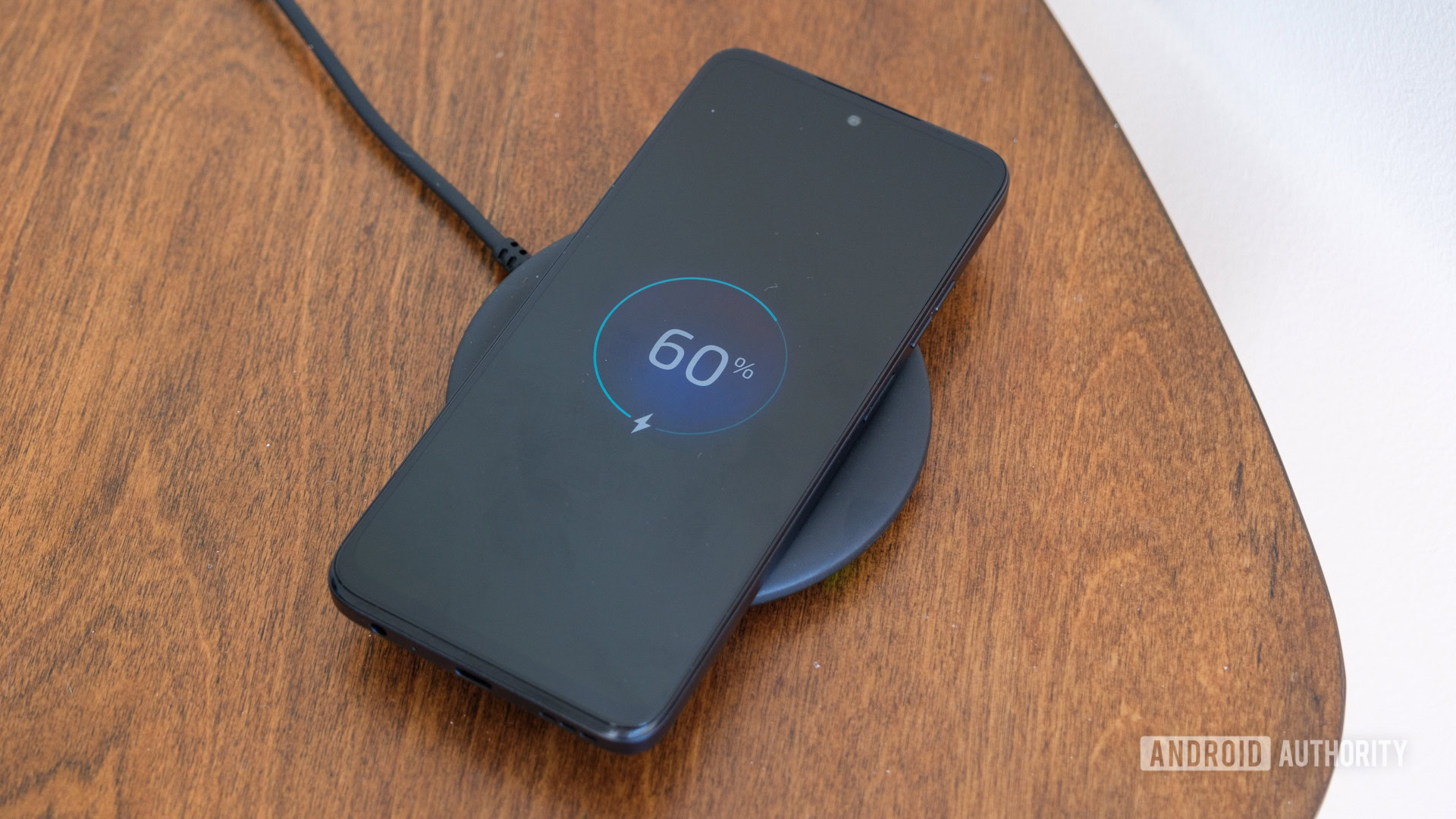
- Look for the charging indicator. Once your phone is correctly positioned, you should see a charging indicator on the screen. This usually appears as a lightning bolt icon next to the battery percentage. Some phones also play a sound or vibrate to confirm that charging has started. If you don't see the charging indicator, try repositioning your phone.
Troubleshooting Tips:
- Check your phone case. Thick or metallic cases can interfere with wireless charging. Try removing the case and see if that makes a difference.
- Ensure your charging pad is working. Try using the charging pad with another Qi-compatible device to make sure the pad itself is functioning correctly.
- Restart your phone. Sometimes a simple restart can resolve minor software glitches that might be preventing wireless charging from working.
- Software Updates: Keep your phone's software updated. Manufacturers often release updates that improve performance and compatibility, including wireless charging functionality.
Wireless charging is a fantastic convenience when it works. By verifying your Motorola model's capabilities and following these simple steps, you'll be well on your way to a cable-free charging experience. Enjoy the magic!