
How Do I Setup An Access Point
Okay, so picture this: It's a lazy Sunday afternoon, perfect for binge-watching that new show everyone's talking about. You've got your snacks, your comfiest blanket, and you settle onto the patio swing, thinking, "Ah, peak relaxation!" You hit play... and then the dreaded buffering wheel starts its hypnotic, infuriating dance. Or maybe you're in that one bedroom, the Wi-Fi dead zone, where your phone consistently reverts to data, even though your router is literally two rooms away. Seriously, what gives?
I've been there. We've all been there. Trying to hold your laptop up to the ceiling in a desperate attempt to catch a stray signal, or finding that the strongest Wi-Fi is actually outside your house, much to the delight of your neighbors. It’s enough to make you want to throw your router out the window. But before you resort to such drastic (and expensive) measures, let me introduce you to a little hero that doesn't get enough credit: the Access Point.
What Even Is an Access Point?
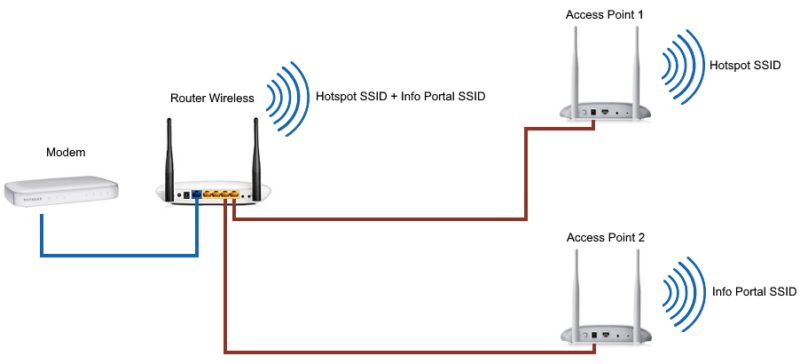
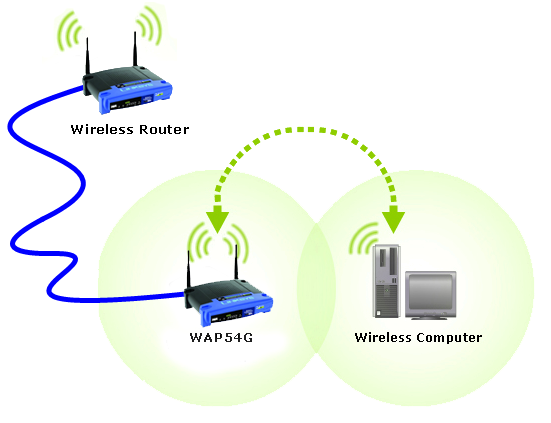
Think of your main router as the central brain of your home network, dishing out internet love (and IP addresses). An access point (AP) is like its super-powered megaphone, specifically designed to extend that love further. It takes the wired internet signal from your router and broadcasts it wirelessly, creating a brand-new Wi-Fi hotspot. It doesn't do all the router's other jobs, like managing all the traffic or setting up firewalls; it just focuses on making your Wi-Fi reach those stubborn corners.
Must Read
So, if you've got a dead zone, an AP is your knight in shining armor. It's not a Wi-Fi extender (which just repeats a weak signal, often making it slower), and it's not a mesh system (which is a whole other beast, though APs can be part of one). An AP is about creating strong, new Wi-Fi coverage where you need it most.
Setting Up Your New Wi-Fi Hero: The Basics
Now, I know what you might be thinking: "Setup? That sounds like a job for someone who speaks fluent 'tech support.'" But I promise you, it's usually surprisingly straightforward. You don't need a degree in network engineering; you just need a few minutes and maybe a fresh cup of coffee. Let's get to it!
1. Unbox and Scout for Placement
First things first, get your new AP out of its box. Admire its sleek lines (or chunky practicality, depending on the model). The most crucial step here is finding the right spot. You want it somewhere central to the area you're trying to cover, ideally not tucked away in a cupboard or behind a mountain of books. High up on a shelf or even mounted on a wall is often best, as Wi-Fi signals like to travel downwards and outwards. Think line-of-sight if possible, minimizing walls or large metal objects.
2. Power Up and Plug In
Next, plug your AP into a power outlet. It'll probably have a few blinking lights that look like they're trying to tell you secrets in Morse code. Give it a minute or two to boot up and get its bearings.

Now, this is where the magic (and the wire) happens: You need to connect your AP to your main router. Grab an Ethernet cable (usually comes with the AP, or you can use any standard Cat5e or Cat6 cable). One end goes into a LAN port on your main router, and the other end goes into the uplink/WAN/PoE port on your access point. If your AP is PoE (Power over Ethernet), it might even get power through this cable, saving you an outlet! How cool is that?
3. The "Brainy Bit": Configuration
This is where we tell the AP what to do. Most APs have a default IP address you can type into a web browser (like 192.168.1.1 or 192.168.0.1, check your manual!). You might need to temporarily connect your computer directly to the AP via Ethernet, or connect to its default Wi-Fi network (the name and password are usually on a sticker on the AP itself).
Once you're in, you'll see a login screen. The default username and password are always something obvious like admin/admin or admin/password. Change these IMMEDIATELY! Seriously, this is a big one for security. Don't be that person whose neighbor is using their Wi-Fi to download cat videos.

Inside the interface, you'll look for settings related to Wireless or Wi-Fi. Here's what you'll typically configure:
- Operation Mode: Make sure it's set to Access Point Mode. If it's a router that can be an AP, this is crucial.
- SSID: This is the name of your new Wi-Fi network. You can name it something fun, like "FBI Surveillance Van" or "Pretty Fly for a Wi-Fi." Or, you can just name it the same as your main Wi-Fi network for a more seamless roaming experience (devices will automatically switch to the strongest signal).
- Security Type: Choose WPA2-PSK (AES) or, even better, WPA3 if your devices support it. Avoid WEP or WPA; they're about as secure as a screen door on a submarine.
- Password/Passphrase: Set a strong, unique password. The stronger, the better!
- Optional: You might see options for Wi-Fi channels. If you live in a crowded area with lots of Wi-Fi networks, choosing a less congested channel (like 1, 6, or 11 for 2.4GHz, or specific non-DFS channels for 5GHz) can improve performance. But for a first setup, auto-selection is usually fine.
Save your settings, and the AP will likely reboot. Ta-da!

4. Test it Out!
Once it's back up, grab your phone or laptop. You should see your new Wi-Fi network name (SSID) available. Connect to it using the password you just set. Then, walk around. Go to that dreaded dead zone. Stream a video. Run a speed test. Bask in the glory of uninterrupted connectivity!
If something isn't working, don't panic. Double-check your Ethernet cable connections, make sure it's in AP mode, and verify your Wi-Fi password. A quick reboot of both your main router and the AP can often clear up minor glitches too.
And just like that, you've conquered your Wi-Fi dead zones. No more contorting yourself into strange positions to catch a signal. Your patio swing, your favorite reading nook, even that mysterious corner of the basement – all now bathed in glorious, stable Wi-Fi. You're welcome. Go forth and binge!