How Do I Know My Mac Is Charging
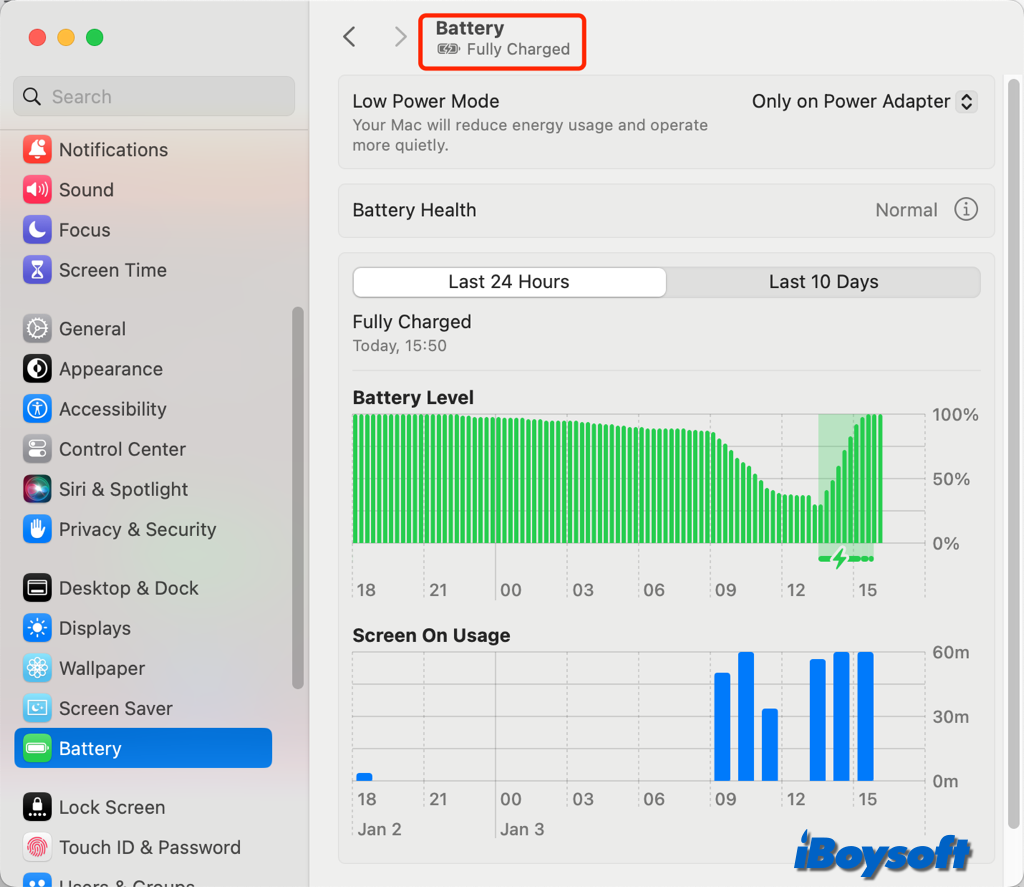
Ah, the universal modern anxiety! You’re deep into an email, laughing at a cat video, or just about to crack the code on your next big idea, when a subtle flicker catches your eye. Down in the corner of your screen, a tiny, ominous icon appears: your battery is low. Panic, a tiny, digital panic, begins to set in. You grab your charger, fumble for the port, and plug it in. But then comes the crucial, often nerve-wracking question: is it charging?
It’s a moment we all know, a silent plea to the digital gods. We’ve all been there, hovering over our beloved Apple device like a protective parent, squinting at the screen, hoping for that definitive sign of life. It's not just about power; it's about trust, about knowing your faithful companion is getting the juice it needs to keep your world spinning. And thankfully, Apple, in its infinite wisdom, has baked in some wonderfully intuitive, almost poetic, signals to put our minds at ease.
The first, and perhaps most comforting, sign is often a little beacon of hope right on the connector itself. If you're using an older MagSafe charger, you'll know this joy well. The moment that magnetic connector snaps into place with a satisfying, almost audible clunk, a small LED light will glow. First, it might be a soft amber, a gentle promise that power is flowing and your Mac is busy refueling. Then, as if reaching a peaceful state of contentment, it often shifts to a serene green, signifying that your battery is full and ready for anything. It’s like a tiny traffic light for your Mac’s energy levels, a visual whisper that says,
"All systems go!"
Must Read
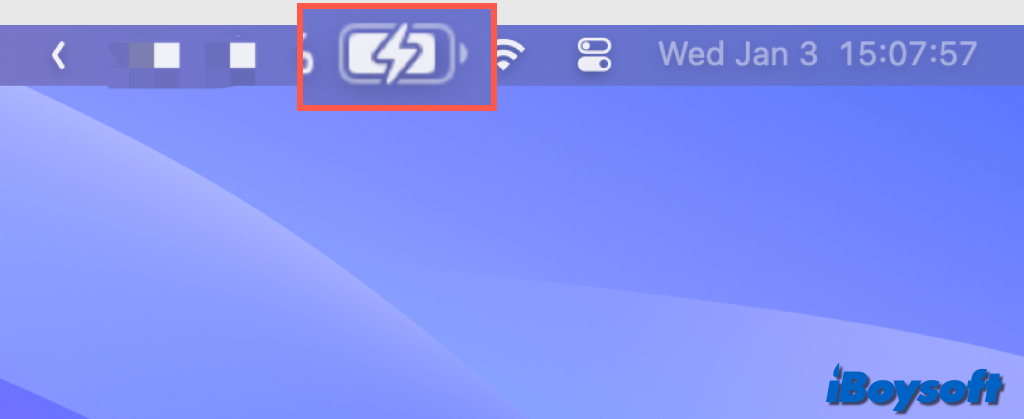
For those with newer USB-C Macs, that little light on the connector might not be there, but fear not! Your Mac has other, equally charming ways of reassuring you. Look up to the top right corner of your screen, where the menu bar lives. This is where your Mac truly speaks to you, in a language of icons. Find the battery icon, usually a small rectangle that looks like, well, a battery. When you’re successfully plugged in and charging, you’ll notice a tiny, unmistakable lightning bolt icon magically appear inside or next to it. That bolt is your Mac’s way of winking at you, saying, "Yep, I'm getting my grub on!"
And if you want to get really specific, a quick click on that battery icon will bring up a small dropdown menu. Not only will it tell you the exact percentage of power you have left, but it will also clearly state, "Power Source: Power Adapter" and confirm, "Battery is Charging". It’s like getting a detailed, reassuring report card for your Mac's energy intake. No guesswork, just pure, unadulterated confirmation.
Beyond these clear visual cues, sometimes it’s the subtle sensory details that truly confirm the deal. There’s the distinct thunk or secure snap as the charger connects, a small physical affirmation. You might even notice a faint, almost imperceptible warmth emanating from the bottom of your Mac after a few minutes, a gentle hum of internal activity as the electrons dance. It’s a bit like tucking your pet into bed and hearing their soft, contented breathing – a quiet sign that all is well.
So, the next time that low battery warning sends a shiver down your spine, take a breath. Know that your Mac is designed to communicate its needs and its status with elegant simplicity. It's more than just a machine; it's a partner in your daily adventures, and knowing it's safely charging isn't just about power – it's about peace of mind, allowing you to return to those cat videos or world-changing ideas with a fully charged heart, and a fully charged Mac.