
How Do I Keep My Iphone Screen From Turning Off
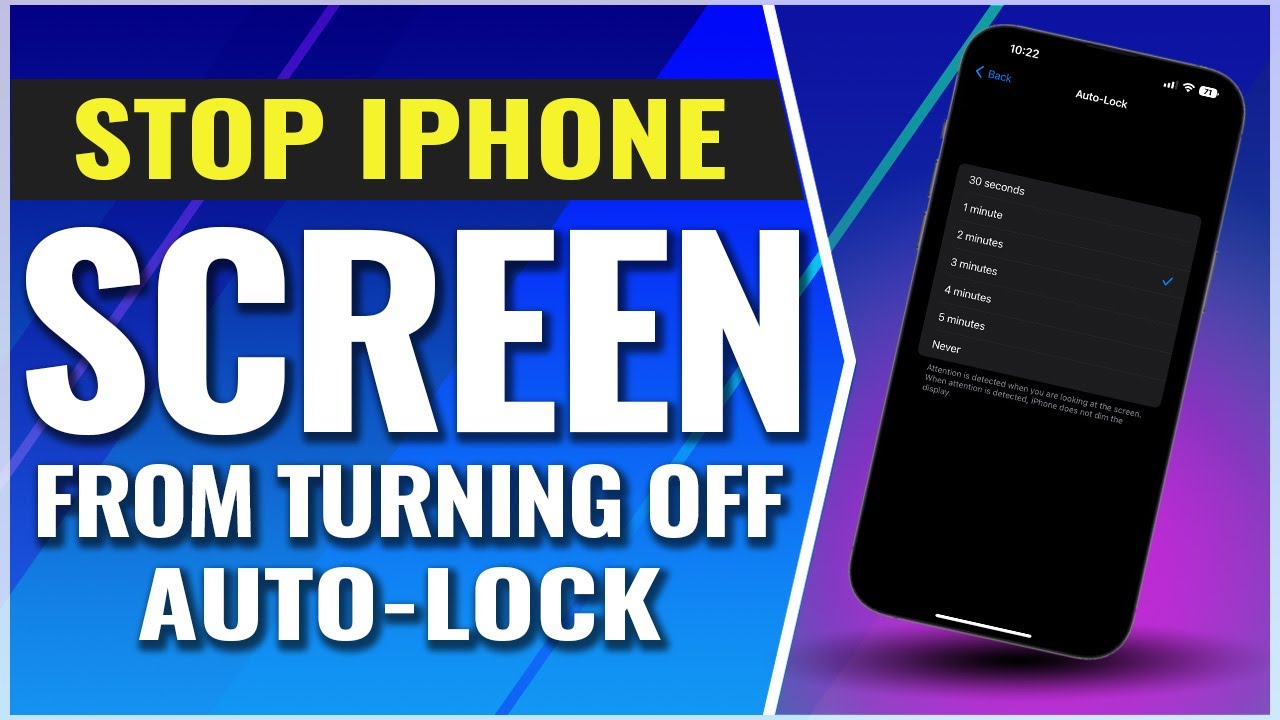
Ever been engrossed in a hilarious meme only for your iPhone screen to suddenly plunge you into darkness? It's like the universe is personally censoring your laughter!
The Frustrating Fade-Out: A Universal Struggle
We've all been there. You're showing off your vacation photos, reading a crucial recipe mid-bake, or deep in a thrilling text conversation, and poof – black screen. This unexpected interruption can be more than just annoying.
Imagine trying to follow a complicated yoga pose on YouTube, only to have your phone dim just as you're contorting yourself into something resembling a pretzel. Talk about a recipe for disaster (and potential back pain)!
Must Read
Awake! Awake! The Auto-Lock Settings
The culprit is usually your iPhone's Auto-Lock setting. This is the phone's built-in timer that determines how quickly your screen goes to sleep after you stop touching it. Thankfully, you can control this!
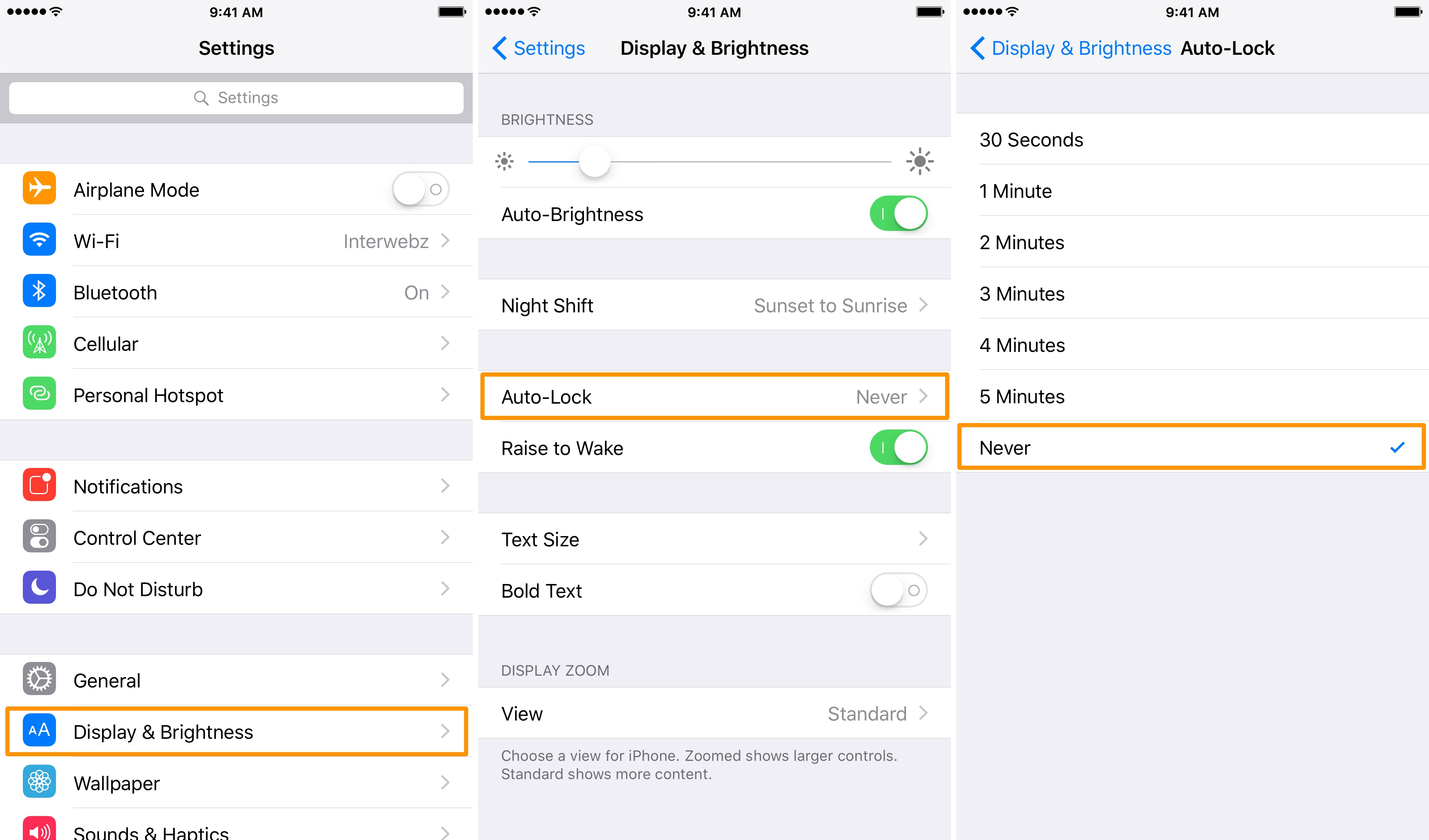
Open your Settings app. It’s that little gear icon you see among your apps. Think of it as your iPhone's control panel.
Scroll down and tap on Display & Brightness. It’s usually hanging out somewhere in the middle of the menu. This is where you tweak all things visually related on your iPhone.
Now, look for Auto-Lock. Tap on that. A list of time options will appear. You'll see options ranging from 30 seconds to 5 minutes, and even a "Never" option.
Choosing Your Screen-On Destiny
This is where you get to decide how long your screen stays lit. If you choose 30 seconds, your phone will go to sleep fairly quickly. If you choose 5 minutes, you'll have a longer window of screen time.
Be careful with that "Never" option, though! While it might seem tempting to keep your screen on indefinitely, doing so can drain your battery. Imagine forgetting your screen is on, and then finding your iPhone completely dead when you need it most.

Finding the right balance is key. Experiment with different time settings to see what works best for your needs. Perhaps 2 or 3 minutes is the sweet spot.
A Moment of Reflection: Battery Life and Being Considerate
Choosing a longer Auto-Lock time does have a trade-off: battery life. A screen that's constantly on consumes more power. It’s like leaving a light on in an empty room.
So, be mindful of your battery percentage. If you're running low, consider shortening the Auto-Lock time to conserve energy. Your future self will thank you!
Think about situations where a constantly lit screen might be distracting to others, like in a dark movie theater. Being considerate of your surroundings is always a good idea.
Beyond Auto-Lock: The Accessibility Feature
There's another setting, tucked away in the Accessibility settings, that can sometimes override your Auto-Lock preferences. It's called Guided Access.
Guided Access is designed to keep your iPhone locked to a single app. It's often used by parents to prevent kids from accidentally exiting an educational app. But, sometimes, it can unintentionally affect your screen timeout.
If you've used Guided Access in the past, it's worth checking to make sure it's not still active. You can find it in Settings > Accessibility > Guided Access.
The Heartwarming Side of Screen Time
Think about how often we use our iPhones to connect with loved ones. Sharing photos, videos, and messages is a huge part of modern relationships.
A longer screen timeout can make those moments more enjoyable. You can linger over a funny picture or read a heartfelt message without the interruption of a dimming screen.
Imagine video-calling with a grandchild who lives far away. A stable, consistently lit screen allows you to fully engage in the conversation and soak up every precious moment.
Humorous Mishaps and Screen Timeout Troubles
We've all had those moments where technology seems to conspire against us. The unexpected screen timeout can lead to some truly comical situations.
Picture this: you're attempting to show a friend a hilarious cat video, but the screen keeps going dark just as the cat is about to perform its most acrobatic feat. Frustration and laughter intertwine!

Or, you're trying to navigate using your iPhone's GPS in a new city, and the screen dims just as you're approaching a crucial turn. "Recalculating…" becomes your new mantra.
More Than Just Settings: The Power of Customization
Ultimately, controlling your iPhone's screen timeout is about more than just tweaking settings. It's about customizing your device to fit your unique needs and preferences.
It's about taking control of your digital experience and making your iPhone work for you, rather than the other way around. It’s about enhancing all aspects of your daily routine.
So, take a few minutes to explore your iPhone's display settings and find the perfect balance between screen time and battery life. You might be surprised at how much of a difference it makes.
The Zen of the Never-Ending Screen (Almost)
There's a certain zen-like quality to having your iPhone screen stay on for the perfect amount of time. It allows you to be fully present in the moment, whether you're reading a book, watching a video, or connecting with a friend.
No more frantic taps to keep the screen awake! No more jarring interruptions! Just smooth, seamless screen time that flows naturally with your activities.

So go forth and conquer your Auto-Lock settings! Embrace the power of customization and create an iPhone experience that is truly your own. The world of endless screen time (within reason) awaits!
Remembering the Basics: A Quick Recap
Just to recap, here’s the quick path to changing your screen timeout. Remember the Settings > Display & Brightness > Auto-Lock sequence, and you’ll be set!
Experiment with different settings to find what works best for you. Don't be afraid to adjust them as your needs change.
And most importantly, remember to laugh at those inevitable moments when technology throws you a curveball. After all, it's all part of the digital adventure.
Embrace the Light (and the Longer Screen Time)!
With a little bit of tweaking, you can finally banish the frustrating fade-out and embrace the joy of uninterrupted screen time. So go ahead, dive into that meme, finish that recipe, or linger over that precious photo.
Your iPhone screen is now your loyal companion, ready to stay lit for as long as you need it. And who knows, maybe it will even help you discover a new level of digital zen.
After all, a well-configured iPhone is a happy iPhone. And a happy iPhone leads to a happy you!