
How Do I Find The Ssid Number
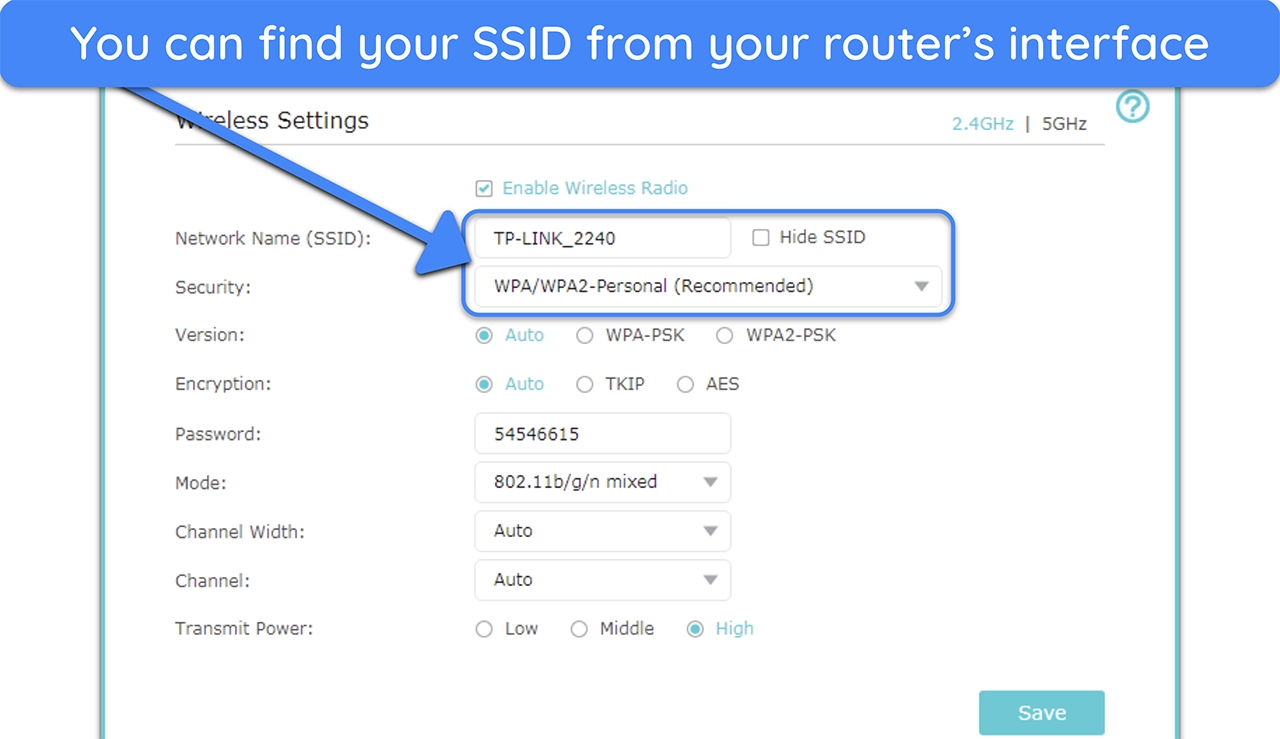
Ever felt like you're on a digital scavenger hunt, desperately trying to connect to Wi-Fi, but you just can't find its secret handshake? You know, that mysterious name that pops up in the list of networks?
Well, my friend, that "secret handshake" is actually called the SSID, which is just a fancy tech way of saying your Wi-Fi network's name. It's like the official name tag for your internet connection, telling your devices exactly where to go!
Don't let the acronym intimidate you; finding your SSID is usually as easy as pie, and sometimes even more delicious. Let's dive into this tech treasure hunt with a huge smile on our faces!
Must Read
The Grand Reveal: Look for the Sticker!
Alright, let's start with the absolute easiest method, the one that often hides in plain sight. Think of your Wi-Fi router as a superhero, and sometimes, even superheroes have their secret identity printed on their uniform.
Go take a peek at your actual router. Yes, the blinking box that brings all the internet magic into your home! Many, many routers have a little sticker, usually on the bottom or back, that proudly displays its default name.
Look for labels like "Network Name," "SSID," or just a clear name next to a Wi-Fi symbol. It might also have a "Password" or "Wi-Fi Key" right next to it.
It’s like finding the winning lottery ticket just by flipping over your router! This is often the first place to check because it's so incredibly straightforward.
If you haven't changed your Wi-Fi name from its factory settings, this sticker is your golden ticket. High five for finding it so fast!
Connect and Conquer: Check Already Connected Devices!
What if your router is playing hard to get, or you’ve changed the name since you got it? No worries! We've got more tricks up our sleeve, like a digital detective with a magnifying glass.
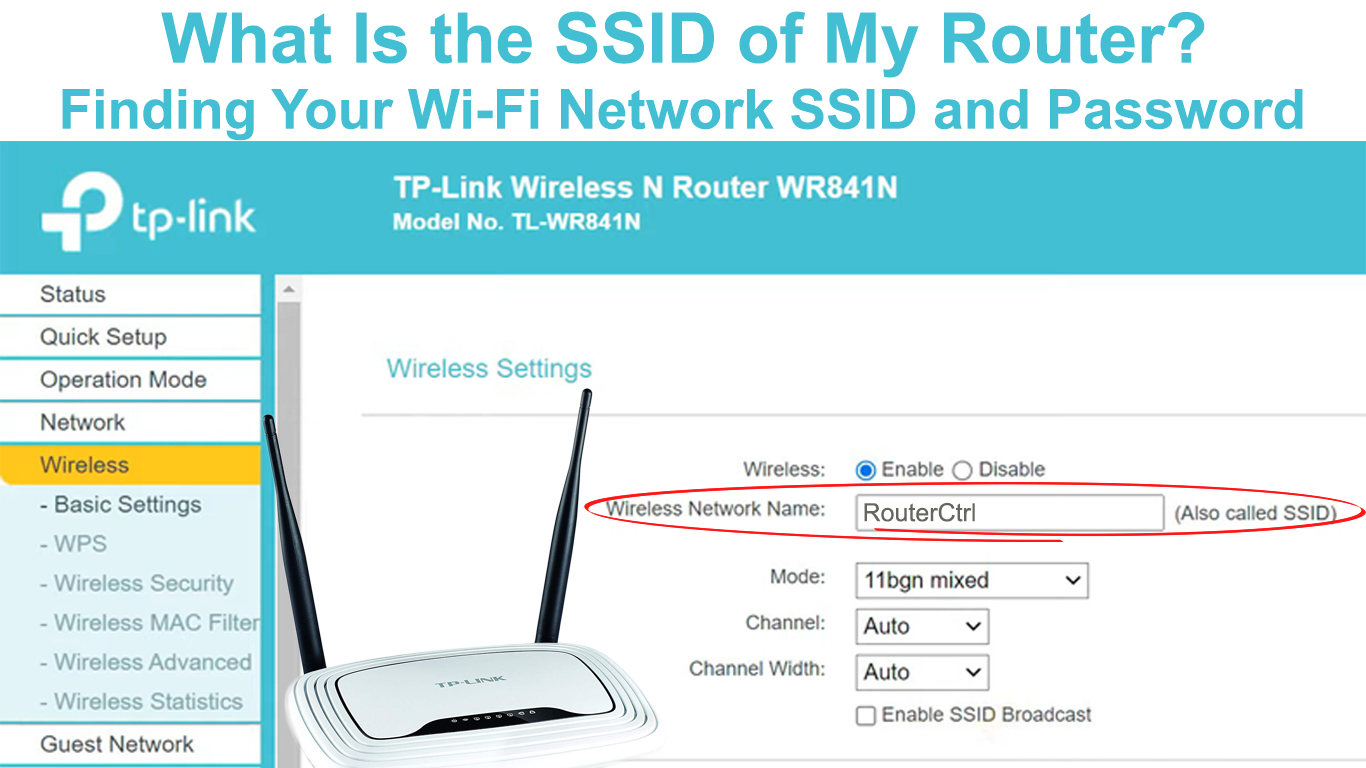
Think about any device that's already connected to your Wi-Fi. Your phone, your laptop, maybe even a smart TV? These devices already know the secret handshake!
They're like your loyal sidekicks, ready to spill the beans on the Wi-Fi's true identity. Let's ask them nicely.
On Your Speedy Smartphone (iOS & Android)
Your phone is practically a Wi-Fi wizard. It knows all the networks! Grab your mobile marvel and let's get digging.
For Apple iOS Super-Sleuths:
Unlock your iPhone or iPad. Tap on the "Settings" app – it looks like a gear! Then, give a gentle tap on "Wi-Fi."
The network name you're currently connected to will be front and center, probably with a little blue checkmark next to it. That, my friend, is your SSID!
It's like your phone is shouting, "Here I am, connected to this awesome network!" Easy peasy lemon squeezy.

For Android Ace Investigators:
Wake up your Android device. Swipe down from the top of the screen to reveal the quick settings panel, then press and hold the "Wi-Fi" icon.
Alternatively, go into "Settings," then find "Network & internet," and finally, "Wi-Fi." The name of the network you're currently connected to will be proudly displayed right there.
It's practically waving a little flag saying, "I'm connected to this Wi-Fi name!" Mission accomplished!
On Your Powerhouse PC or Mac
Your computer is another treasure trove of information. It's like having a super-intelligent librarian who remembers every Wi-Fi network it's ever met.
For Windows Whizzes:
Head down to the bottom-right corner of your screen. Look for the little Wi-Fi icon (it looks like a little signal strength meter or a globe).
Click on it! A panel will pop up, and at the very top, you'll see the name of the network you're currently connected to. Boom! That’s your SSID, shining bright like a diamond.
Windows is practically saying, "Here's the network I'm enjoying right now!" Pretty neat, right?

For Mac Mavericks:
Glide your mouse up to the very top-right corner of your screen. Spot the Wi-Fi icon in the menu bar (it looks like a little fan or radiating waves).
Click on it! The first network listed, with a checkmark next to it, is your current connection's name. That's your SSID, revealed in all its glory!
Your Mac is subtly whispering, "This is the amazing network keeping me online!" High-fives all around!
The Deep Dive: Router's Admin Page (for the Brave and Curious!)
Okay, this method is for when the stickers have vanished, and no devices are connected to spill the beans. Think of this as going directly to the Wi-Fi headquarters.
It sounds a little more technical, but it’s still totally doable and quite empowering! We're essentially asking the router itself, "Hey, what's your name?"
Accessing the Brains of the Operation
First, you'll need to know your router's IP address. This is usually something like 192.168.1.1 or 192.168.0.1. You can often find this on that same sticker we talked about earlier, or a quick search for your router's brand and "default IP" might tell you.
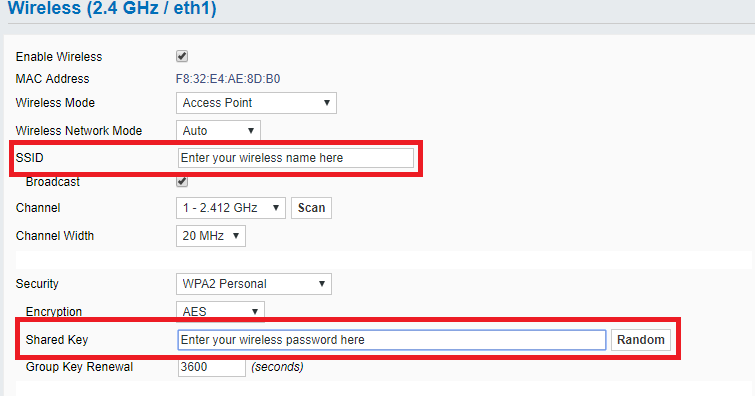
Open a web browser (like Chrome, Firefox, Safari, or Edge) on a computer that is connected to your network (even if it's via an Ethernet cable, for now!). Type that IP address into the address bar and hit Enter.
You'll probably be greeted by a login screen. This requires a username and password, which are also often on that little sticker, or "admin" and "password" are common defaults. If you've changed them, you'll need to remember your super-secret credentials!
Once you're in, navigate to the "Wireless" or "Wi-Fi Settings" section. This is where your router proudly announces its name, the SSID. It's usually labeled very clearly.
Phew! You've just unlocked the inner workings of your Wi-Fi kingdom. Give yourself a pat on the back for that adventure!
You Did It! You Found Your Wi-Fi's Secret Identity!
See? Finding your SSID isn't some mythical quest reserved for tech gurus. It's a simple, achievable task, often hiding in plain sight or just a few taps away.
Whether you peeked at the sticker, consulted your connected devices, or ventured into the router's brain, you've now mastered the art of uncovering your Wi-Fi's name.
Now go forth and connect to all the things! Enjoy that sweet, sweet internet freedom you've just unlocked. You're officially a Wi-Fi name detective, and that's pretty awesome!