Ah, the Apple Watch! It’s become such an integral part of our daily lives, hasn't it? From tracking our morning runs and reminding us to stand up, to delivering important notifications right to our wrists, these clever little devices are brimming with personalized data. But have you ever paused to wonder, "What actually happens to all that precious information if I get a new watch, or if something happens to my current one?" It's a natural and smart question to ask, and thankfully, backing up your Apple Watch is one of those wonderfully behind-the-scenes magic tricks that Apple handles for you, mostly without you even realizing it!
The core purpose of backing up your Apple Watch is simple: to provide a safety net for all your settings, health data, app layouts, and customizations. Imagine you upgrade to the latest model, or perhaps your current watch takes an unfortunate tumble. Without a backup, you’d be starting from scratch – losing all your fitness streaks, meticulously arranged app icons, and personalized watch faces. The immense benefit here is peace of mind. Knowing that your digital life on your wrist is preserved means you can swap watches, restore after an issue, or even just feel secure that your years of activity data are safe and sound.
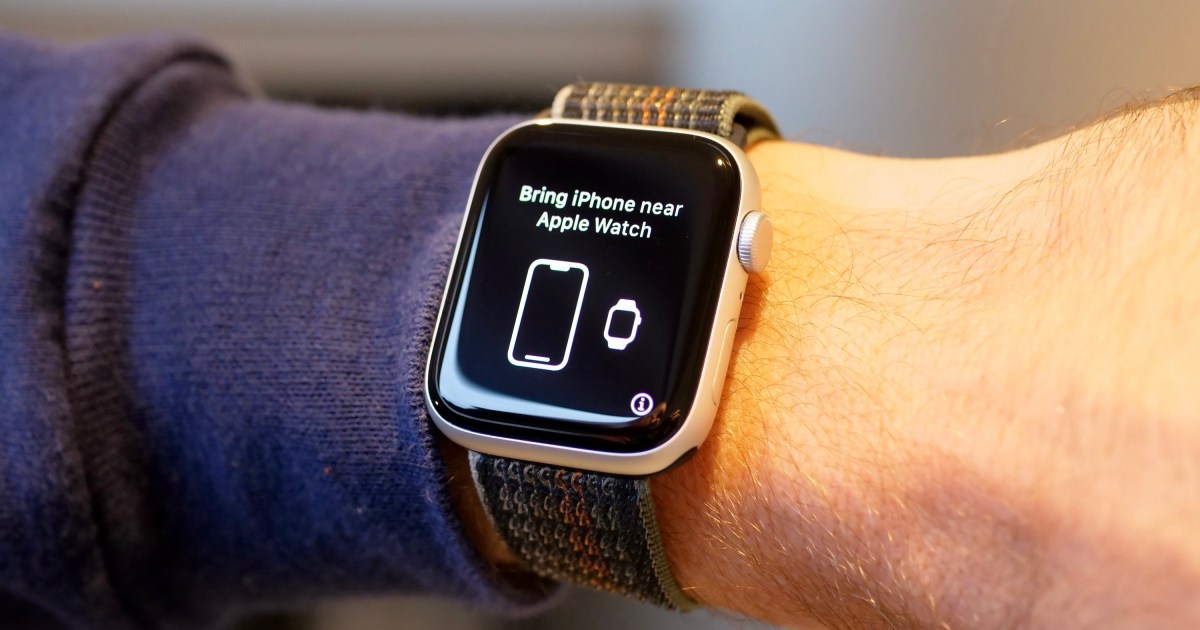
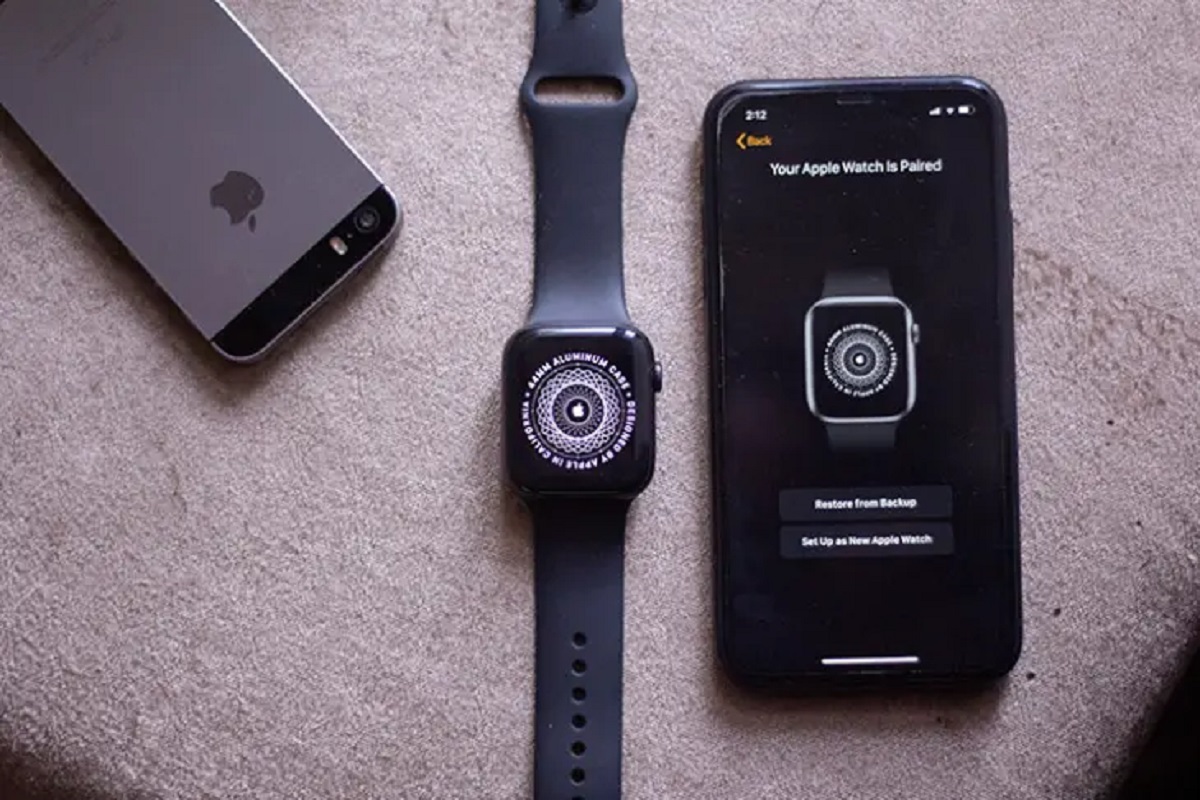
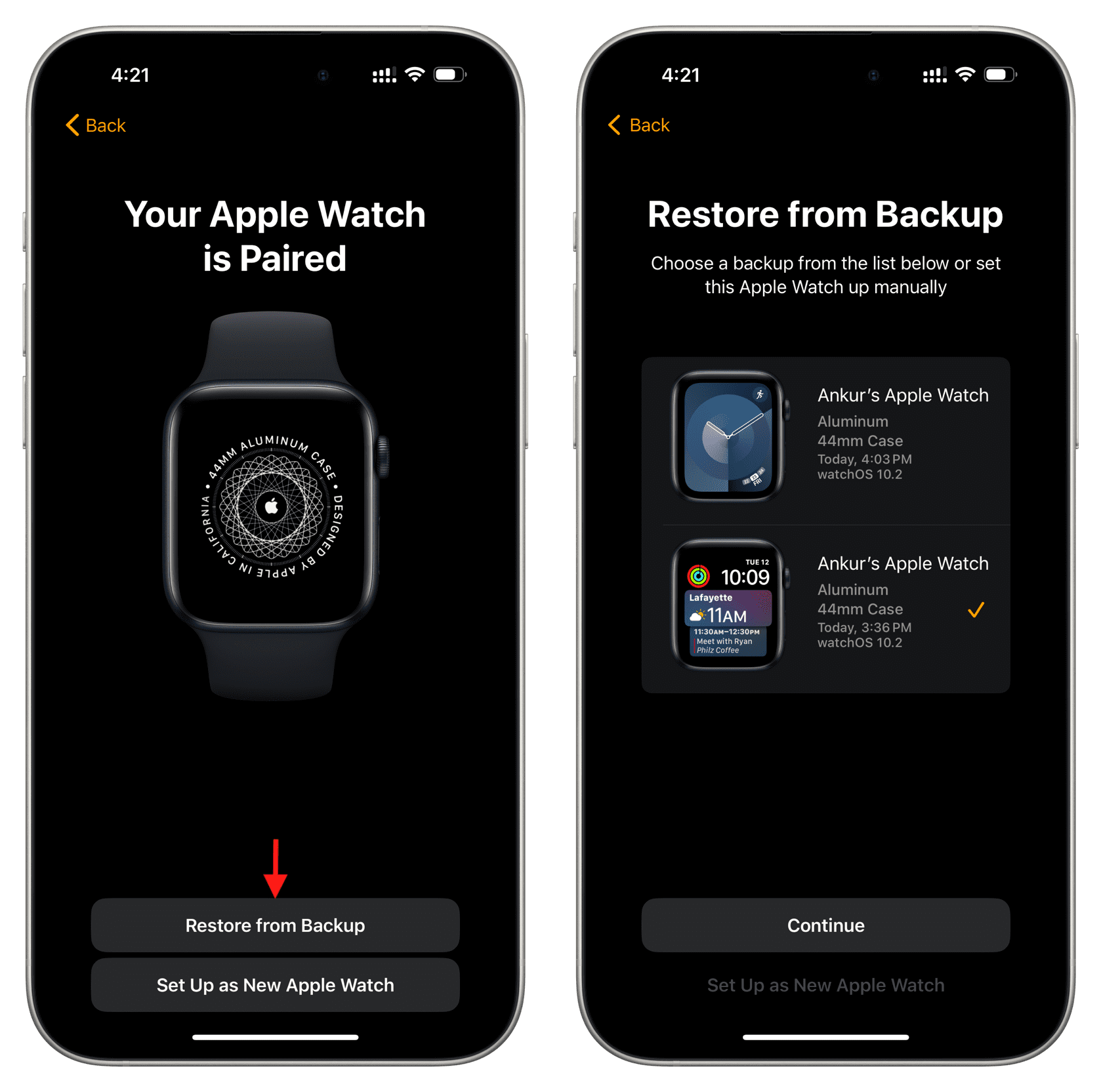
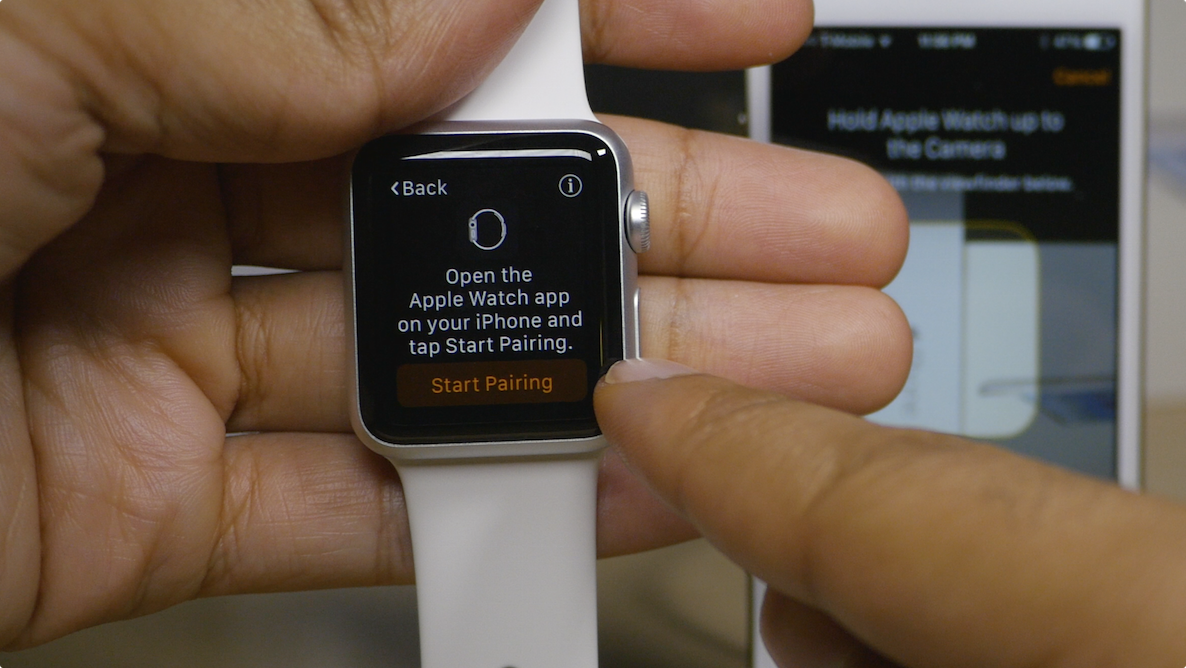
So, how does this invisible magic work? The truth is, your Apple Watch backup is tethered directly to your iPhone. Every time you back up your iPhone – whether it's automatically to iCloud or manually to your computer via Finder or iTunes – it includes a snapshot of your Apple Watch data. Think of it like this: your Apple Watch is a digital extension of your iPhone, and its data is simply bundled along with your phone's own backup. This makes upgrading to a new watch incredibly smooth. You might get a shiny new Apple Watch, pair it with your iPhone, and then during the setup process, it will offer to restore from your most recent backup. Just like that, all your apps, custom settings, and even your activity rings reappear as if by magic! This is immensely useful in daily life – no more re-downloading apps one by one or spending an hour trying to get your watch face just right again.
Ready for some practical tips and ways to "explore" this hidden feature? The most important takeaway is this: you don't actually "back up" your Apple Watch directly. Instead, you back up your iPhone! So, to ensure your watch data is safe, simply make sure your iPhone is regularly backed up. You can check your iCloud Backup status by going to Settings > your name (Apple ID banner) > iCloud > iCloud Backup on your iPhone. Ensure it's turned on and ideally, plugged in and connected to Wi-Fi overnight for those automatic backups. Another crucial moment is when you unpair your Apple Watch from your iPhone. Before unpairing, your iPhone will automatically create a fresh backup of your watch. This is key if you’re selling your watch or sending it in for service. Don't be intimidated by the tech – Apple has designed this process to be as seamless and automatic as possible, letting you enjoy your watch without constantly worrying about its data.