
How Can I Connect My Apple Watch To My Iphone

Okay, let’s be honest. Getting your Apple Watch and iPhone to play nice can feel like trying to convince a toddler to share their toys. Sometimes it’s smooth sailing. Other times? Prepare for a mini-meltdown (yours, probably).
So, you’re staring at your shiny new Apple Watch, and your iPhone is just sitting there, judging you. They're supposed to be best friends, right? A dynamic duo? Well, first, let's acknowledge the elephant in the room. Sometimes, technology just doesn't want to cooperate. It’s like it senses your desperation. Don’t let it win!
Here's the lowdown on getting these two connected. This isn’t rocket science, but let's walk through it like we're explaining it to your tech-challenged Uncle Barry (sorry, Uncle Barry!).
Must Read
Step 1: Charge Everything!
Yes, I know. Obvious, right? But trust me. Nothing's more frustrating than going through the entire process only to have one of the devices die mid-pairing. It’s like a sitcom trope waiting to happen. So, plug 'em both in. Grab a snack. Maybe binge-watch something mindless while you wait.
Step 2: Turn On the Watch (Duh)
Long press the side button on your Apple Watch. You should see the Apple logo. If you don't, maybe it’s really out of battery. Go back to Step 1. I’ll wait.
Step 3: The iPhone's Got This (Hopefully)
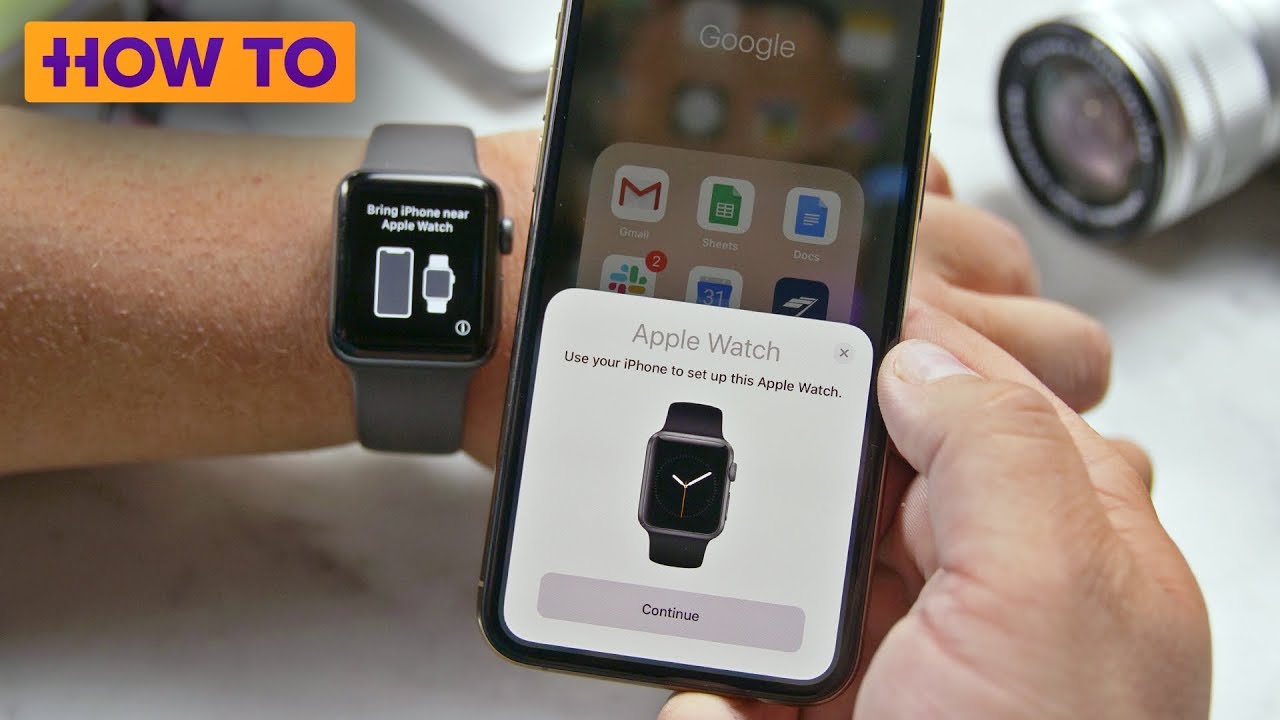
Unlock your iPhone. If it’s brand new, or you just reset your Apple Watch, your iPhone should automatically detect the Watch and a screen will pop up asking if you want to use it to set up the Watch. If that happens, give yourself a pat on the back. You're already winning!
But what if your iPhone is being stubborn? No problem. Open the Watch app (it’s usually hanging out on your home screen, looking all…watch-like). If you don't see it, maybe you accidentally deleted it (oops!). Just redownload it from the App Store. It happens to the best of us.
Step 4: Pairing Shenanigans
Inside the Watch app, you should see a button that says "Start Pairing." Tap it. Your iPhone camera will magically turn on. Now, hold the Watch screen up to your iPhone. You're basically trying to fit the swirling animation on the Watch inside the frame on your iPhone. It's like a tiny, techy staring contest.
This is where things can get a little wonky. Sometimes, it just doesn't work. Maybe the lighting is bad. Maybe your hands are shaky from all that anticipation. Try moving the Watch and iPhone around a bit. Pretend you're a tech-savvy dancer, gracefully maneuvering your devices.
If it still doesn't work, don't panic! There's another way. Inside the Watch app, tap "Pair Manually." This will give you a code to enter on your iPhone. It's a bit old-school, but it gets the job done.
Step 5: Setup Time (Prepare for Choices!)
Now comes the fun part: setting up your Apple Watch. You'll be asked if you want to restore from a backup or set it up as a new Watch. If you've had an Apple Watch before, restoring from a backup is usually the easiest option. If not, go for the "Set Up as New Apple Watch" option. Prepare for a barrage of questions. Siri? Activity tracking? Notifications? It's like a tech personality quiz.
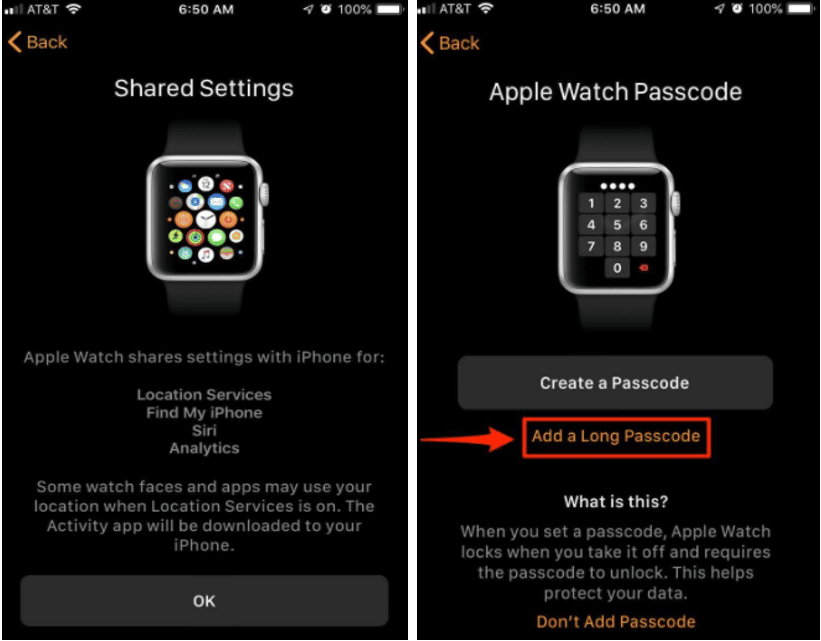
You'll also be asked to create a passcode. Don't skip this! It's important for security. Plus, it's kinda fun to have a secret code that only you and your Watch know.
Step 6: Patience, Young Padawan
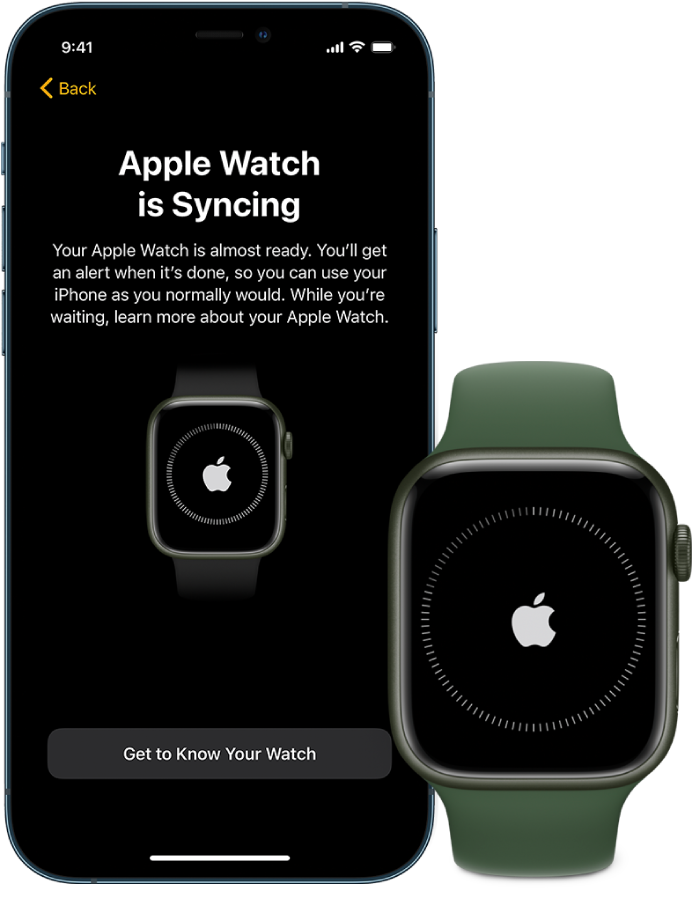
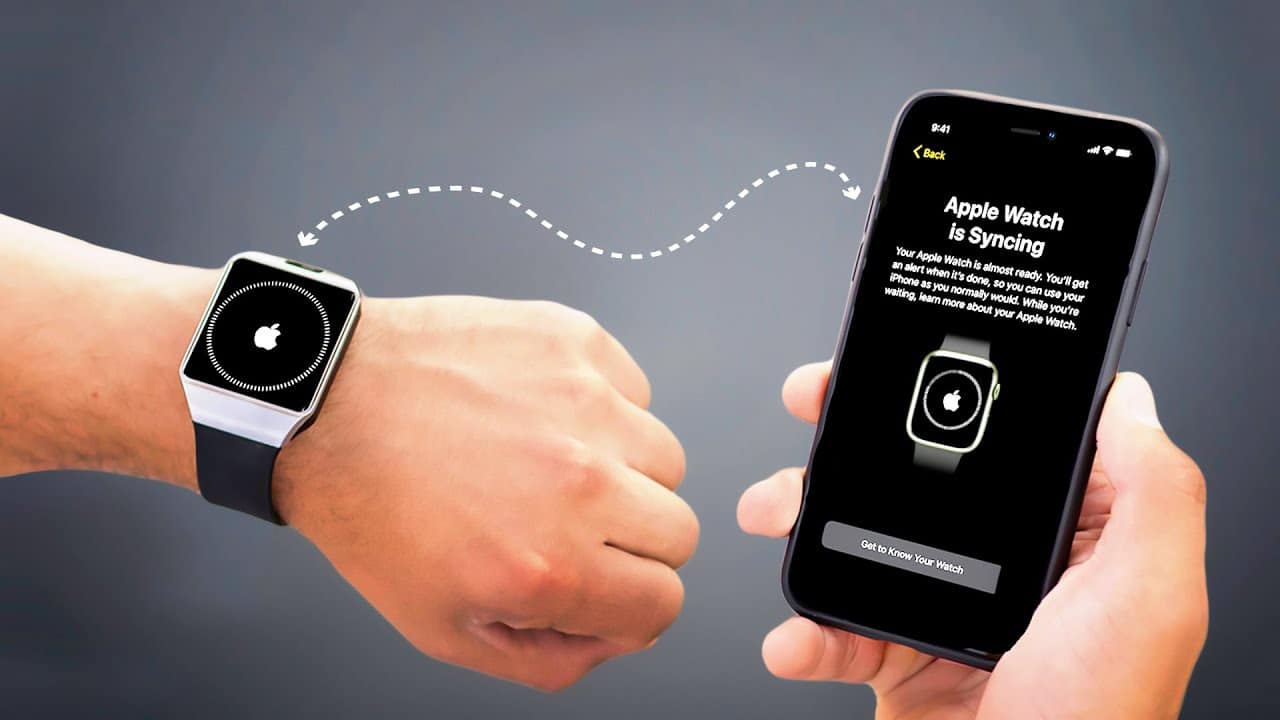
The setup process can take a while. It's syncing data, downloading apps, and generally getting its digital ducks in a row. Just be patient. Grab another snack. Maybe watch another episode of that mindless show. Your Apple Watch will be ready to rock and roll soon enough.
Step 7: Enjoy Your Connected Life!
Once everything is set up, you're good to go! You can now receive notifications, track your activity, control your music, and generally feel like a futuristic superhero (or at least someone who's slightly more organized than they were before).
See? It wasn't so bad, was it? And if it was bad, well, at least you made it through. Now go forth and conquer the world (or at least your to-do list) with your newly connected Apple Watch and iPhone!
And remember, if all else fails, there’s always Apple Support. But let's be real, figuring it out yourself is way more satisfying, right?
Unpopular Opinion Alert: I kind of miss the days when technology was simple. Like, rotary phone simple. But hey, at least my Apple Watch tells me when I need to stand up. Baby steps, people. Baby steps.