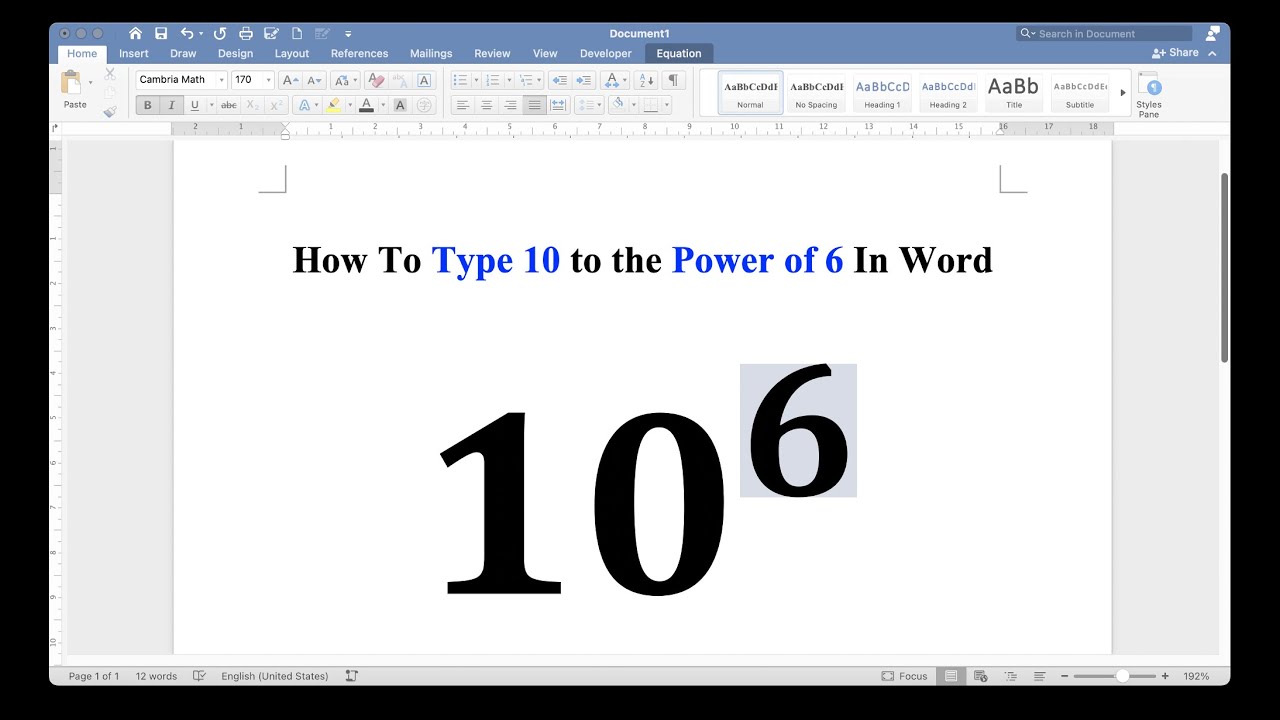
Ever found yourself typing away in Word, crafting a recipe, helping a kid with their math homework, or perhaps just jotting down a really important note, and you needed that little number to float *above* the rest? You know, like when you want to write "x squared" (x²) or add a neat little footnote mark¹? It might seem like a small detail, but getting that tiny number just right can make your documents look so much more polished and professional. And guess what? It's one of those super
This isn't just about fancy formatting; it’s about clarity and precision. For
So, what kind of powers or "up-high" numbers might you encounter? The most common are definitely in
Ready to give it a try? Here are a few simple ways to type a power in Word, and you'll be amazed at how quickly it becomes second nature:
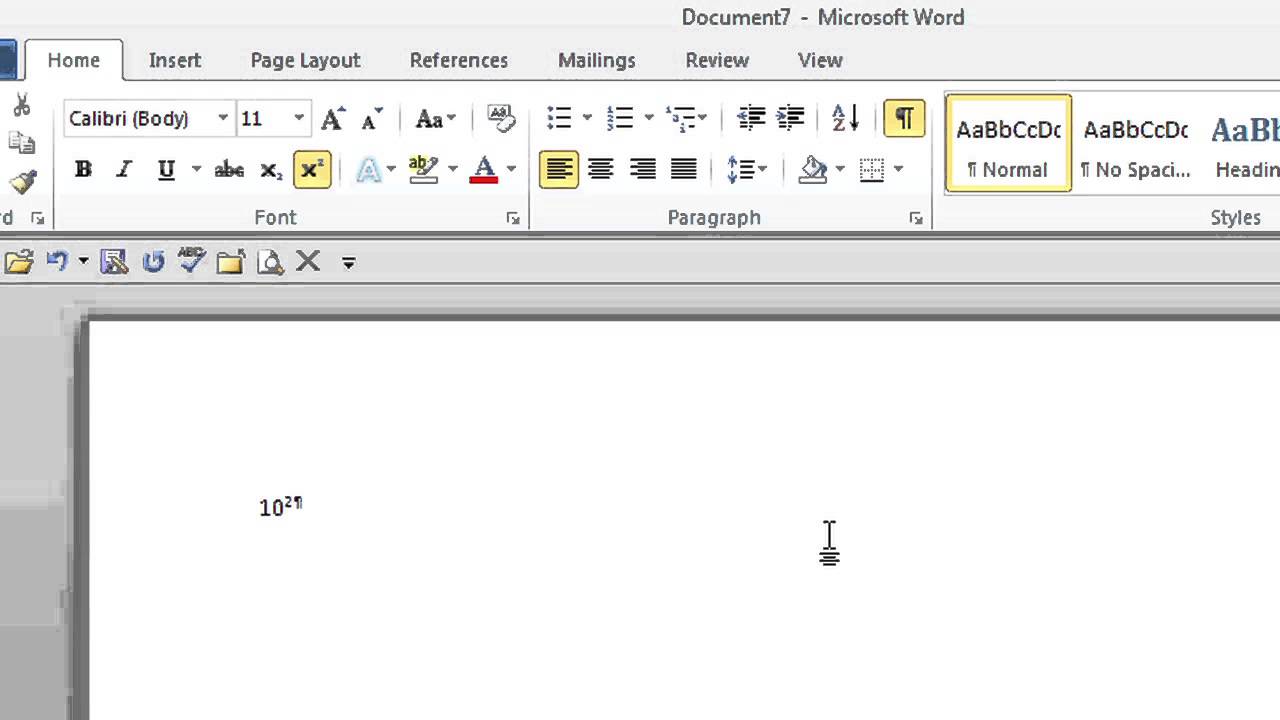
The Keyboard Shortcut (Your Fastest Friend): This is my favorite! Type the number or symbol you want to elevate (e.g., "2" after an "x"). Now, select just that number or symbol. Then, pressCtrl + Shift + + (that's the plus sign key). Voila! It jumps up. To turn it off, just press the same shortcut again. Super speedy!The Ribbon Button (Easy to Spot): If shortcuts aren't your thing, or you just can't remember it, head to theHome tab in Word. In the "Font" group, you'll see an icon that looks likeX² . Click it to turn superscript on, type your number, then click it again to turn it off. Simple and visual!The Font Dialog Box (For More Control): For those who like to dive a little deeper, you can open the Font dialog box (either by pressingCtrl + D or clicking the tiny arrow in the bottom right corner of the "Font" group on the Home tab). Under "Effects," just check the box next toSuperscript . This method also works great if you want to apply other font effects at the same time.
Remember, the key is to
See? Typing a power number in Word isn't some secret wizardry; it's a straightforward skill that adds a touch of polish and professionalism to your documents. It’s a little detail that makes a big difference in readability and presentation. So, go ahead, experiment with these methods, and start making your Word documents look as smart and precise as your ideas. You'll be amazed at how much more enjoyable and effective your writing becomes!