Alright, so you’ve just wrapped up an epic gaming session, maybe you finally beat that ridiculously unfair boss, or perhaps you’ve just realized it’s 3 AM and you have, like, actual responsibilities tomorrow. Time to put your trusty PlayStation 4 to bed, right? But here’s the thing: you don’t just want to pull the plug, do you? That’s basically digital sacrilege! What you want, my friend, is rest mode. And trust me, it’s a game-changer.
Think of rest mode as your PS4 taking a really chill power nap. It’s not fully off, no sir. It’s just... resting. Like you after a particularly intense workout (or a really long Netflix binge, no judgment here). This magical state allows your console to do all sorts of cool stuff while using minimal power. We’re talking about charging your controllers, downloading updates, even letting you resume your game super fast. It’s like having a butler who takes care of everything while you’re off in dreamland. Pretty neat, huh?
Method 1: The Controller Connoisseur’s Choice
This is probably the most common way, and honestly, the easiest. Grab that DualShock 4, your trusty sidekick. Seriously, don’t try this with a TV remote; it never works (I’ve tried, it was awkward). Now, listen closely, because this is where the magic happens:
First, you want to press and hold down the PS button. You know, that little button in the middle of your controller that looks like the PlayStation logo? Yeah, that one. Give it a good, firm press for about, oh, two seconds. Don’t be shy!
Voila! A quick menu pops up on the left side of your screen. It's like a secret agent revealing their gadget briefcase. Now, use your directional pad or the left stick to navigate down. You’ll see a few options, but the one we’re after is usually labeled Power. It’s pretty intuitive, even for someone who sometimes struggles to find the milk in the fridge (again, no judgment).
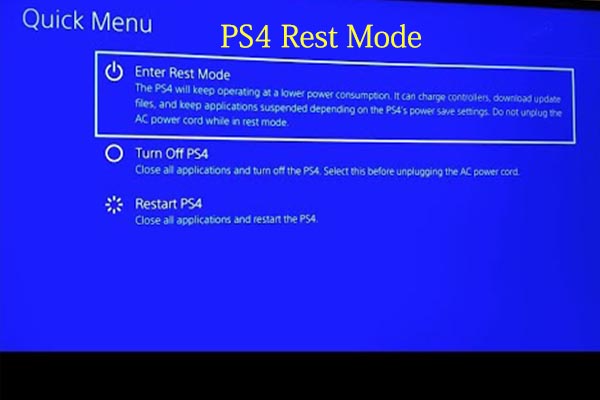
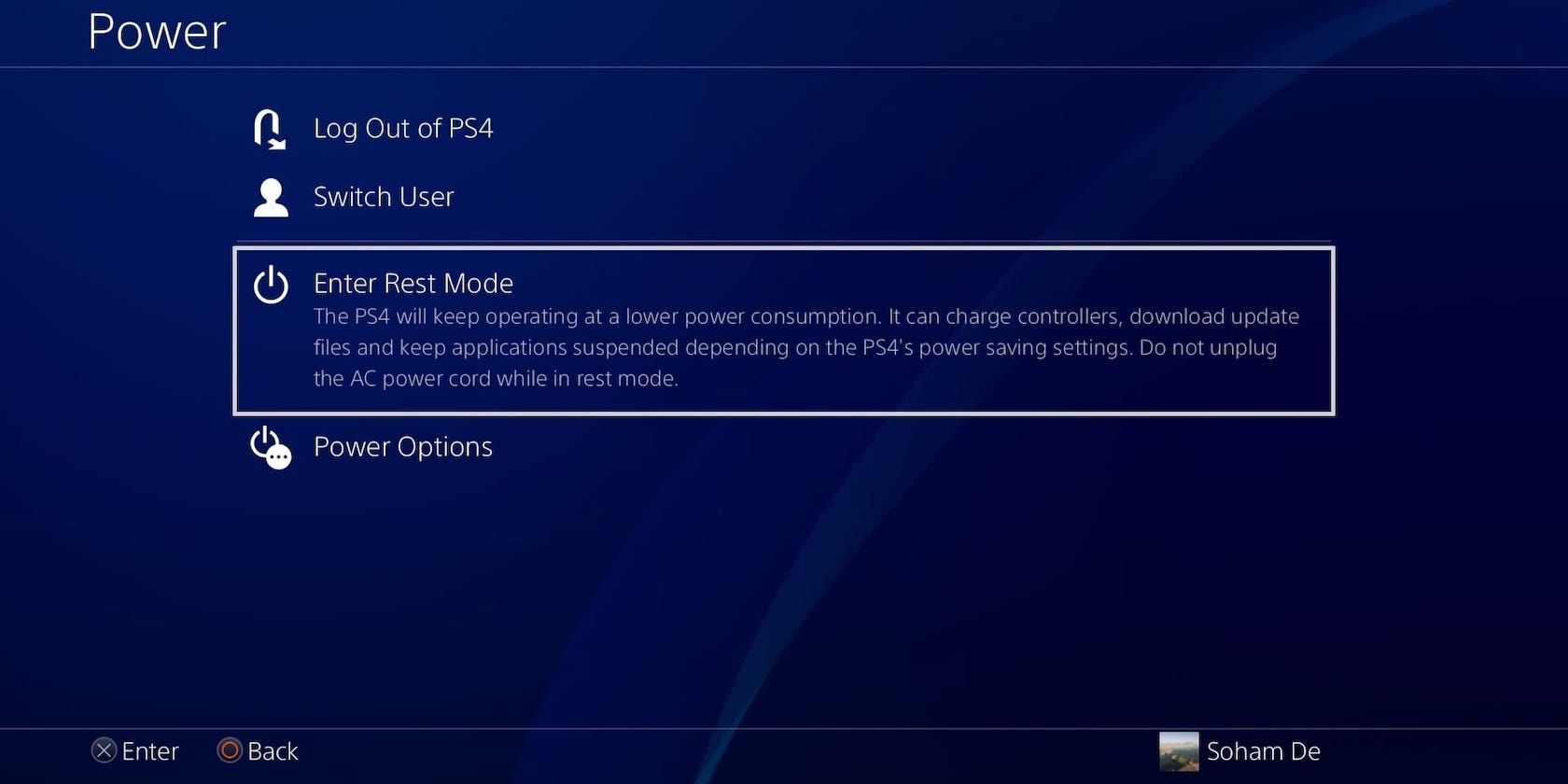
Once you’ve highlighted Power, hit that X button. Another submenu will appear, because why have one menu when you can have two? Here, you’ll see choices like "Turn Off PS4" or "Restart PS4." But the superstar of this show is "Enter Rest Mode." Select that bad boy.
And just like that, your PS4 will start doing its thing. The light bar on your console (if it’s one of the models with one) will flash white a few times, then settle into a soothing, sleepy orange glow. That orange? That’s the universal sign for "I’m in rest mode, leave a message after the beep... but there’s no beep." Easy peasy, right?
Method 2: The Console’s Own Command
Okay, so maybe your controller battery is dead, or it’s mysteriously vanished into the sofa cushions, never to be seen again (a common plight). Fear not! You can still put your PS4 into rest mode directly from the console itself. It's like the emergency brake, but for relaxation.
Find the power button on your PS4. Depending on your model (the original big boy, the Slim, or the Pro), it might be a physical button or a touch-sensitive strip. Either way, it’s usually on the front, near the disc drive slot.
Now, instead of just a quick tap (which would turn it completely off – we don’t want that!), you’re going to press and hold this power button. Keep holding it! You’ll hear one beep initially, which means it’s powering down. But if you keep holding it for a few more seconds, you’ll hear a second beep. That second beep is your golden ticket, signaling that your console is entering rest mode. The light bar will then do its orange glow thing. See? Even without a controller, you’re still a power player!
Why Even Bother with Rest Mode?
Good question! Why not just turn it off completely, you ask? Well, my friend, because rest mode is packed with perks. It’s like the VIP section of powering down.
-
Charging Controllers: This is a big one! When your PS4 is in rest mode, those USB ports are usually still active. This means you can plug in your DualShock 4 (or even other USB-powered devices!) and they’ll happily charge up while you’re, you know, not gaming. No more waking up to a dead controller just when you’re about to jump into a raid. Pure bliss!
-
Downloading Updates and Games: Ever want to play a new game, only to realize there’s a massive 50GB update? Ugh. In rest mode, your PS4 can continue to download game updates, system software updates, and even full games in the background. So, when you boot it back up, everything is ready to roll. It’s like magic, but with more Wi-Fi.
-
Quick Start-Up: If you’re just in rest mode, your PS4 boots up significantly faster than if it were fully powered off. You’re back in the action quicker, which is crucial when you only have a few minutes for a quick gaming fix.
-
Lower Power Consumption: While not fully off, rest mode uses much less power than having the console completely on. So you’re saving a bit on your electricity bill and doing your part for Mother Earth. You’re practically an eco-warrior!
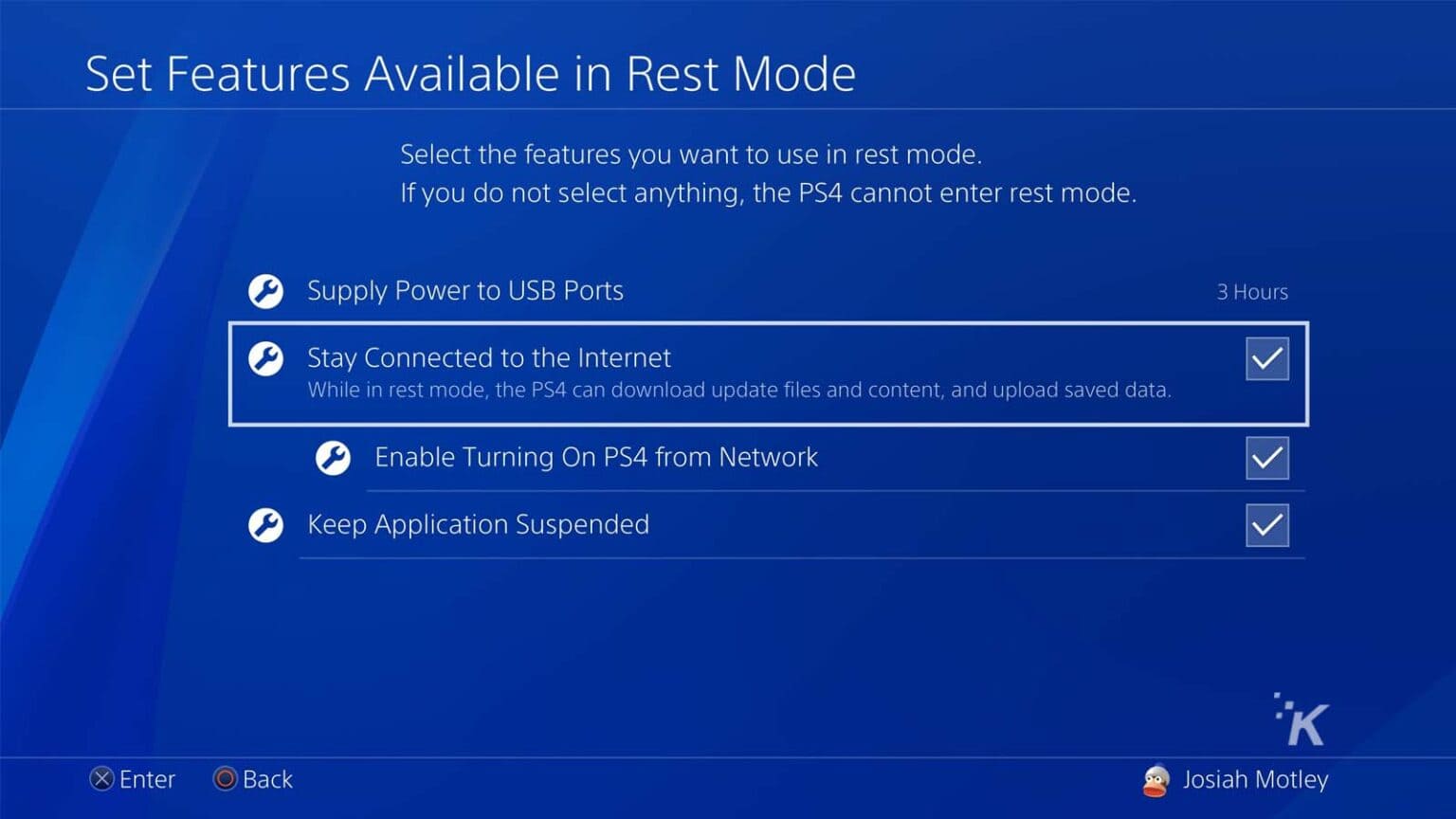
You can even customize what happens in rest mode through your PS4’s settings (Settings > Power Save Settings > Set Functions Available in Rest Mode). Want USB ports to always provide power? Or only for three hours? Want it to stay connected to the internet? It’s all there, waiting for you to tweak it to perfection. Because you’re the boss!
So there you have it. Putting your PS4 in rest mode is not just about turning it off; it’s about smart, efficient, and convenient gaming. It’s about being prepared for your next epic adventure without any annoying delays. Go forth, game on, and let your PS4 nap like a champ!