In a world that never truly sleeps, our gadgets often feel the same pressure. We're constantly on the go, and our PCs, those digital sidekicks, are usually right there with us, buzzing away. But just like us, even the mightiest machines need a little downtime. And no, we're not talking about a full shutdown (though that's important too!). We're talking about the art of the nap – specifically, putting your PC into sleep mode. It’s like a mini-vacation for your computer, and a smart, energy-saving move for you.
Why Embrace the Digital Nap?
Think of sleep mode as hitting the pause button on your digital life. Your PC uses significantly less power, kind of like how a smart home light dims when you leave the room. This isn't just good for your electricity bill; it's a small win for the planet, too! Every little bit of energy saving adds up.
Beyond the eco-friendly cred, sleep mode is all about convenience. Your apps, documents, and browser tabs stay exactly where you left them, ready to spring back to life in mere seconds. No more tedious re-opening everything after a full shutdown. It's the ultimate "grab-and-go" for your digital workspace. Plus, your PC goes wonderfully quiet – no more fan hums distracting your thoughts or your quiet contemplation of the perfect latte.
The Windows Way: A Gentle Slumber
If you're rocking a Windows machine, initiating sleep mode is as easy as brewing your morning coffee.
-
The Classic Start Menu Route: Click the Start menu icon (that familiar Windows logo) in the bottom-left corner of your screen. Look for the Power icon (it often looks like a circle with a vertical line). Click it, and a small menu will pop up. Select "Sleep." Voila! Your PC drifts off to dreamland.
-
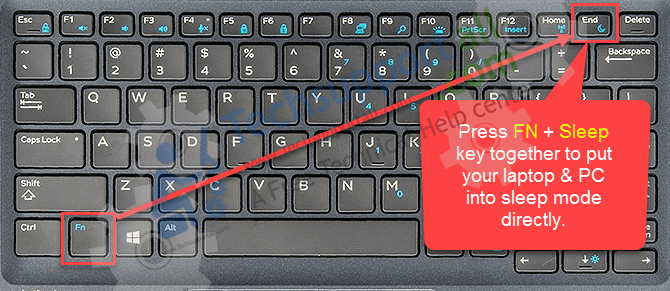
The Keyboard Shortcut Superpower: Feeling like a tech wizard? For a quick lock and sleep, hit Windows Key + L to lock your screen, then use your mouse to click the power icon on the lock screen and choose "Sleep." Some keyboards even have a dedicated Sleep key – often a crescent moon icon – which is the ultimate shortcut.
Mac Magic: Putting Your Apple to Bed
Mac users, your path to power-saving slumber is just as graceful and intuitive.
-
The Apple Menu Approach: Head to the top-left corner of your screen and click the Apple menu icon. From the dropdown, simply select "Sleep." Your Mac will politely dim its screen and enter a state of peaceful rest.
-
Keyboard Combo Charm: For a swift transition, try hitting Option + Command + Power button (or Eject key, if you have an older Mac). Your Mac will quickly go to sleep, leaving your desktop exactly as you left it. Easy peasy!
Pro Tips & Fun Facts for the Savvy Sleeper
Want to truly master the art of PC sleep? Here are a few extra nuggets of wisdom:
-
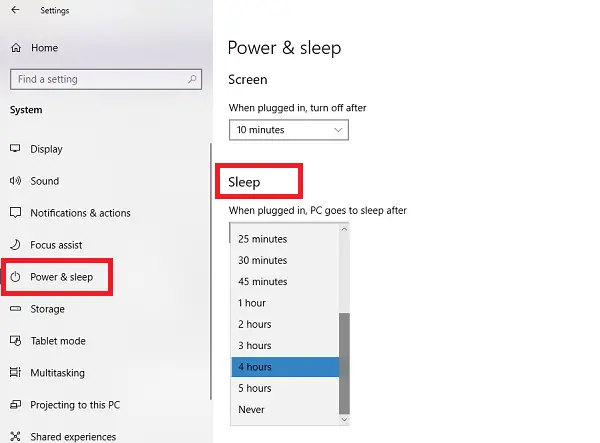
Customize Your Sleep Schedule: Did you know you can tell your PC to automatically snooze after a certain period of inactivity? In Windows, search for "Power & sleep settings." On Mac, look for "Energy Saver" in System Settings (or System Preferences). You can set different times for when your computer is plugged in versus on battery, giving you ultimate control over its digital siesta. It’s like setting a smart alarm, but for turning off!
-
Prevent Accidental Wake-Ups: Ever had your PC wake up just because your cat nudged the mouse? You can often prevent this! In Windows Device Manager, find your mouse or keyboard, go to its properties, and uncheck "Allow this device to wake the computer." It’s a game-changer for peaceful digital slumbers.
-
The "Hybrid Sleep" Superpower: Windows users might encounter "Hybrid Sleep." This cool feature combines sleep mode with a tiny bit of hibernation. It saves your open work to the hard drive and keeps it in RAM, so if power is lost, your work is still safe. It's like having a digital safety net for your afternoon nap!
-
What About Downloading? A common question! Generally, no, your PC won't download large files or run updates in sleep mode. For those tasks, you'll need to leave it awake or use a dedicated "modern standby" feature on some newer devices, or set it to hibernate.
A Little Rest Goes a Long Way
Just as we benefit from taking a moment to recharge, stepping away from the screen, or even enjoying a quick power nap, our PCs appreciate a similar courtesy. Putting your computer to sleep isn't just a technical maneuver; it's a small act of mindful digital living. It conserves energy, protects your work, and keeps your machine running smoothly for longer. It’s a simple habit that adds up to a calmer, more efficient digital life – giving both you and your trusty PC the rest you deserve. So go on, give your computer a well-deserved break; it’ll thank you for it with snappy performance when you’re ready to dive back in.