Imagine your computer, that tireless helper, suddenly deciding it's naptime. You're in the middle of a thrilling game, a crucial download, or simply enjoying some background tunes, and *poof* – it's gone. The screen goes black, the hum fades, and you're left staring at a silent box.
Frustrating, isn't it? What if we told you there’s a secret way to keep your digital companion wide awake, always ready for action? No more unexpected snoozes, just pure, uninterrupted digital delight. Let's embark on a little adventure to banish sleep mode forever!
Waking Up Windows: The Classic Approach
Our first stop on this quest for eternal wakefulness is deep within your PC's settings. Think of it as gently nudging your computer awake from its cozy slumber. We’re going to whisper sweet nothings into its digital ear, reminding it there’s fun to be had.
Start by finding the magical portal known as the Start Menu. It's usually tucked away in the bottom-left corner of your screen, a little window icon waiting to be clicked. Give it a friendly tap, and a world of options will unfurl before you.
Now, seek out the mystical word "Settings". It might look like a gear or a cogwheel, symbolizing the inner workings of your digital realm. Click on this, and prepare for enlightenment.
The Power & Sleep Sanctuary
Within the vast expanse of Settings, you'll find a section called "System". This is where the core essence of your computer resides. Enter boldly!
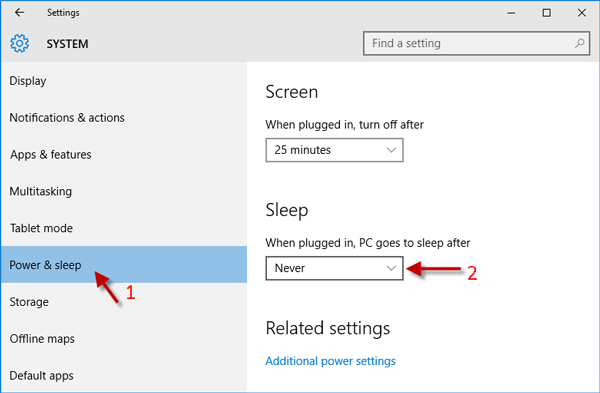
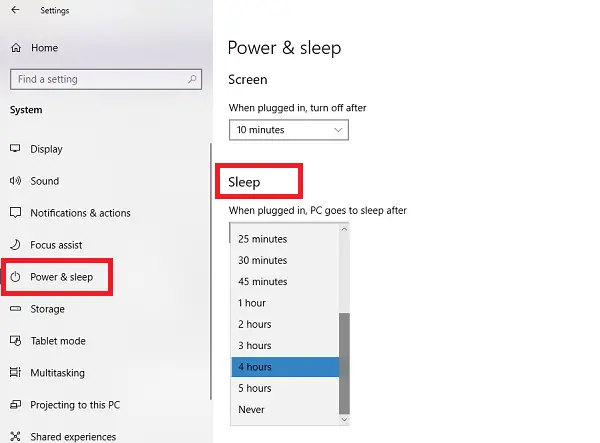
On the left-hand side, a menu will appear, revealing various categories. Your target, the beacon of wakefulness, is labeled "Power & Sleep". This is where we will cast our spell.
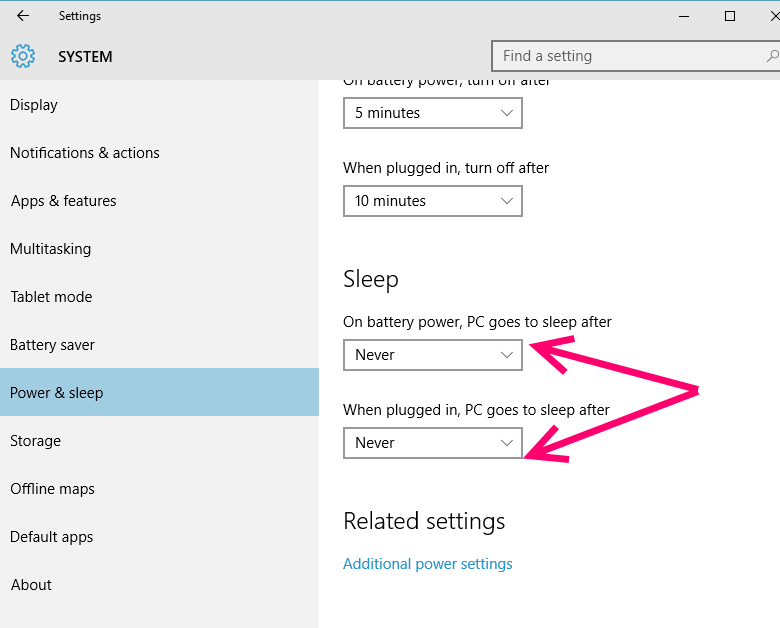
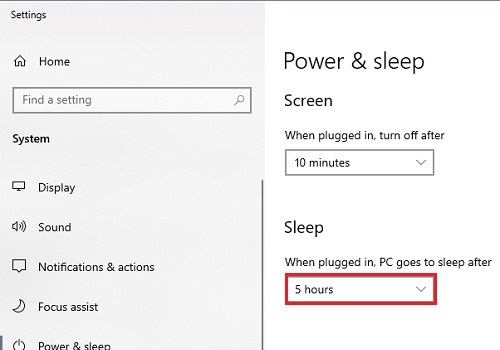
Once inside, you'll see two key guardians: "Screen" and "Sleep". These are the settings that dictate when your display dims and when your entire PC decides to take a nap. We need to persuade them to stay alert.
Under "Screen", you'll find options for when your screen turns off. Click the drop-down menu and choose "Never". This simple act keeps your vibrant desktop visible, a constant source of joy and information.
Next, under "Sleep", you'll see another similar drop-down. Again, select "Never". This is the crucial step that prevents your entire computer from drifting off into dreamland, ensuring it's always humming with potential.
And just like that, with a few clicks, you've convinced your PC to stay bright-eyed and bushy-tailed! No more sudden black screens or moments of digital silence.
Diving Deeper: Advanced Power Options
For those who crave even more control, there’s a secret garden hidden within the power settings. This area offers a finer touch, allowing you to truly customize your PC’s wakefulness. It's like having a master key to the sleep kingdom.
Return to the Start Menu and type "Power" into the search bar. You'll likely see an option called "Edit power plan" or "Choose a power plan". Click on one of these, and a new window will magically appear.
This window might seem a little more technical, but fear not! Look for "Change advanced power settings". This is our gateway to granular control.
The Art of Customization
A smaller box will pop up, filled with expandable categories. This is where the true power lies. Scroll through and discover wonders like "Hard disk", "USB selective suspend setting", and of course, "Sleep".
Expand the "Sleep" section. Here you will find "Sleep after". Click on it to expand further and change the setting to "Never" for both "On battery" and "Plugged in." This ensures consistency, whether you're tethered or free.
You can also explore "Display" and find "Turn off display after". Set this to "Never" as well, ensuring your screen always stays vibrant, a constant beacon of light.
Don't forget to click "Apply" and then "OK" to seal your changes. It's like signing a decree, declaring your PC's everlasting wakefulness. Your computer will now remain ever-present, a silent and ready companion.
The PowerToys "Awake" Tool: A Modern Marvel
Sometimes, you need a quick, temporary solution, or simply prefer a more elegant toggle. Enter Microsoft PowerToys, a collection of nifty utilities designed to enhance your Windows experience. Among its treasures is the wonderful "Awake" tool.
Think of Awake as a magic potion that keeps your PC from dozing off, but only when you want it to. It's perfect for those moments when you just need your computer to stay focused for a while, without changing permanent settings.
First, you'll need to acquire PowerToys. You can find it on the official Microsoft Store or by searching online for "PowerToys." It’s a free and fantastic addition to your digital toolkit, a veritable Swiss Army knife for Windows.
Unleashing the "Awake" Magic
Once PowerToys is installed, launch it. You’ll see a list of its various superpowers on the left. Find and click on "Awake". This is where the enchantment truly begins.
You'll see a simple toggle at the top to "Enable Awake". Flip this switch, and your PC suddenly gains newfound alertness. It's like giving it a digital energy drink!
Below, you’ll find different modes of wakefulness. You can choose "Keep awake indefinitely" for ultimate vigilance, or "Keep awake temporarily" for a scheduled period of alertness, like during a long download.
There’s even an option to "Keep screen on", ensuring your display remains bright and active, even if the rest of your PC might eventually want to rest. It’s like telling your monitor,
"Stay shiny!"
The beauty of Awake is its simplicity. With a few clicks, you can control your PC’s sleep habits on the fly. It's a delightful gadget for those who appreciate instant gratification and seamless control over their digital environment.
Mac Magic: Keeping the Apple Awake
For our friends in the Apple ecosystem, the process is equally charming. Your Mac, too, can be persuaded to shed its sleepy tendencies and remain a vibrant, active presence on your desk. It’s a different kind of magic, but just as effective.
Head to your System Settings (or System Preferences on older macOS versions). It’s usually found via the Apple menu in the top-left corner, or through the Dock. This is the central hub for all things Mac customization.
Within System Settings, look for "Displays" or "Battery", depending on your macOS version and whether you're on a desktop or laptop. The goal is to find the energy-saving options.
On newer macOS versions, under "Displays", you might find options like "Prevent automatic sleeping on display when inactive". Check this box, and your screen will glow on, endlessly.
For deeper sleep control, especially on laptops, explore the "Battery" settings. Here, you'll likely find a section for "Power Adapter" (when plugged in). Look for a slider or checkbox that says "Prevent your Mac from automatically sleeping when the display is off".
Checking this option (or sliding the sleep timer to "Never") will keep your Mac humming, even if the screen decides to take a breather. It’s a wonderful way to ensure your digital workflow remains unbroken, just like a calm, flowing river.
And for a quick boost, a little utility called Caffeine (a third-party app) can be a delightful addition, simply keeping your Mac awake with a single click in your menu bar. It’s pure, effortless bliss for the perpetually busy.
The Joy of an Always-On PC
So why go through all this trouble? Because having an always-on PC is pure digital liberation! Imagine never waiting for your computer to wake up when inspiration strikes or a friend messages you. It’s always there, eager and ready.
Your games can download massive updates overnight without interruptions. Your videos can stream seamlessly from start to finish. Your creative projects, rendered in the background, will never pause their diligent work.
It’s like having a trusty robot companion that never needs to recharge its batteries, always standing by for your command. The screen glows, the fans whisper, and the world of possibilities remains wide open, uninterrupted.
Embrace the always-on life! Enjoy the continuous hum, the instant access, and the sheer delight of a PC that truly feels like an extension of your own tireless spirit. Your digital world, forever vibrant, forever awake.