Ever found yourself scratching your head, USB stick in hand, wondering why a file just won't copy, or why your smart TV is giving your perfectly good drive the cold shoulder? You're not alone! It's a common little mystery, and often, the culprit is something called FAT32. Sounds like a robot's diet plan, right? But it's actually super important, and knowing a little about it can save you a lot of tech headaches. Think of it as being a bit of a digital detective!
What in the World is FAT32, Anyway?
Alright, let's peel back the curtain. Imagine your USB drive isn't just a generic storage space, but a tiny apartment building. How the apartments are organized – the layout, the rules for moving furniture in – that's the "file system." FAT32 is one of the oldest and most widely used apartment layouts. It's like the beloved, slightly retro, but incredibly friendly building in town.
Its biggest superpower? Compatibility! Nearly every device ever made knows how to read and write to a FAT32 drive. Your grandma's old digital photo frame? Probably loves FAT32. Your car's ancient stereo system that still plays MP3s from a stick? Yep, FAT32. It's the universal translator of the USB world.
So, Why Should You Care About This "Old-Timer"?
This is where the rubber meets the digital road, folks. Knowing about FAT32 isn't just for tech geeks; it's for anyone who uses a USB stick for anything beyond tiny school reports. Here are the two big reasons:
1. The "Too Big to Copy" Heartbreak!
This is the most common FAT32 drama. Imagine you just finished editing that epic 4K video of your cat's latest shenanigans – it's 6GB of pure fluffball joy. You grab your trusty USB, drag the file over, and BAM! An error message pops up: "File too large." *Grumble.*
That's because FAT32 has a limitation: no single file can be larger than 4GB. It’s like trying to fit a whole sofa into a mini-fridge – it just won't go! Modern files, especially videos, high-res photos, or game installations, often sail past this 4GB mark. If your USB is FAT32, you're stuck.
2. The "My Device Doesn't See It!" Frustration
Ever plug a brand-new, super-duper USB stick into your older smart TV, your car's entertainment system, or even an older game console (like a PlayStation 3 or an original Xbox 360), and it just… doesn't show up? Or maybe it asks you to format it?
Many older or simpler devices were designed when FAT32 was king. They simply haven't learned to speak the language of newer file systems like NTFS (mostly for Windows computers) or exFAT (a newer, more flexible format). So, for these devices, a FAT32 drive isn't just preferred; it's often the only option. It’s like trying to play a vinyl record on a CD player – different formats, different rules!
How to Be a USB Detective: Checking Your Drive's Format
Good news! You don't need a magnifying glass or a trench coat for this. Checking your USB's file system is incredibly easy, whether you're on a Windows PC or a Mac. Let's do this!
On a Windows PC (The "Right-Click-and-Peek" Method):
- Plug your USB drive into your computer.
- Open "File Explorer" (that little yellow folder icon).
- Look for your USB drive under "This PC" or "Devices and drives." It might be named something like "USB Drive (E:)" or "Removable Disk."
- Right-click on your USB drive.
- Select "Properties" from the menu that pops up.
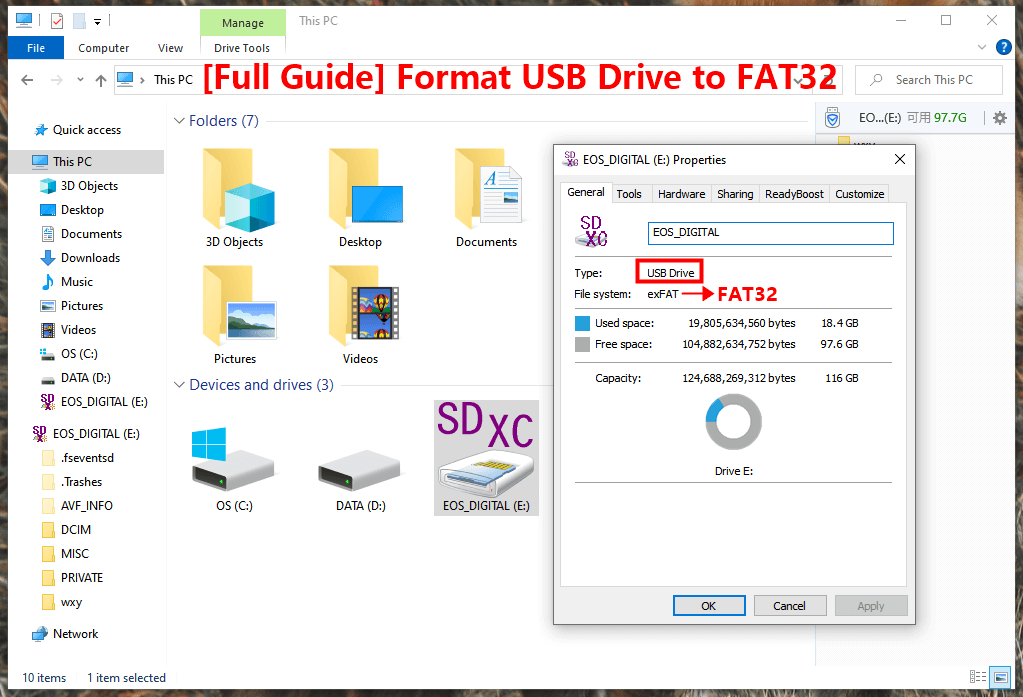
- A new window will appear. Look under the "General" tab (it's usually the first one). You'll see "File system:" and right next to it, it will say FAT32, NTFS, or exFAT. Bingo!
On a Mac (The "Cmd-Click-and-See" Method):
- Plug your USB drive into your Mac.
- Find your USB drive icon on your Desktop or in a Finder window (under "Locations" in the sidebar).
- Control-click (or right-click if you have a multi-button mouse) on the USB drive icon. You can also click the icon once and then press Cmd + I on your keyboard.
- Select "Get Info" from the contextual menu.
- A new "Info" window will appear. Look for the "Format:" line under the "General" section. It will tell you if it's FAT32 (often listed as "MS-DOS (FAT)"), exFAT, or APFS/Mac OS Extended (Journaled).
Easy, right? Now you know exactly what kind of digital "apartment building" your USB stick is!
What If It's Not FAT32 and You Need It To Be? (A Quick Note on Formatting)
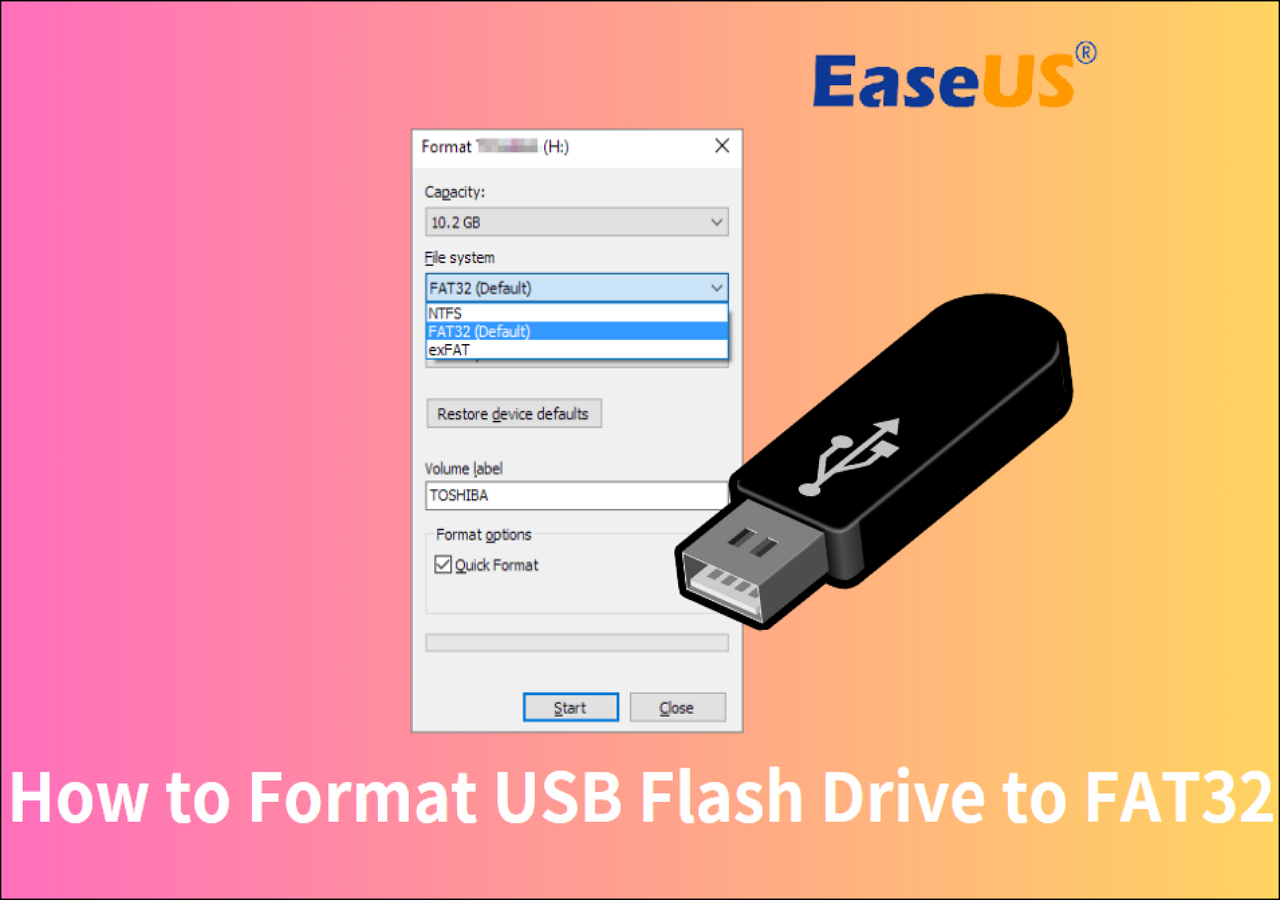
If your USB isn't FAT32 but you need it to be – perhaps for that vintage car stereo or an older gaming console – you can "format" it. Formatting is like giving your USB drive a complete clean-out and setting up a new file system. It's super simple, but here's the big, flashing, neon sign warning: Formatting will erase absolutely everything on the drive! So, make sure you've backed up any important files before you do it.
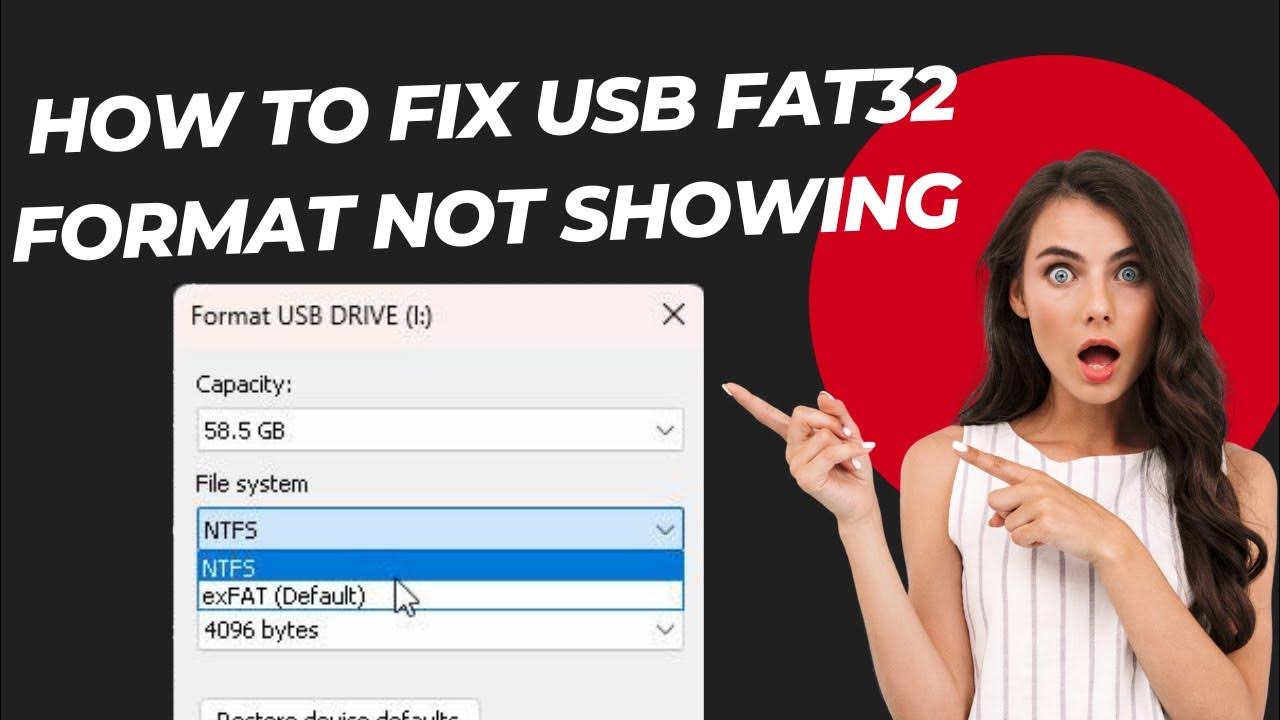
You can usually find the "Format..." option by right-clicking the drive in Windows File Explorer or through "Disk Utility" on a Mac. Just choose FAT32 (or MS-DOS (FAT)) from the "File system" or "Format" dropdown menu, click start, and you're good to go!
Wrapping It Up
So there you have it! FAT32 isn't just a quirky tech term; it's a fundamental piece of your digital puzzle. Understanding its quirks and how to check for it means no more puzzling errors with big files, and no more frustrating moments when your favorite device refuses to play ball. Go forth, digital detective, and make your USB drives work for you!