Alright, let’s be real for a second. We’ve all been there, staring at a calculus problem, eyes glazing over, feeling like our brain cells are staging a tiny, internal protest. You know, those moments when the professor scribbles something on the board that looks less like math and more like an ancient hieroglyph for “pure confusion.” And then comes the dreaded 'I' word: Integration.
Suddenly, you’re not just trying to solve for x anymore; you’re trying to find the area under a curve, or the volume of a solid of revolution, or some other mind-bending concept that feels like trying to herd cats while reciting the alphabet backward. It’s enough to make you want to trade your textbook for a comfy blanket and a Netflix binge. But fear not, my friend! Your trusty sidekick, the TI-84 calculator, is here to save the day, or at least, your GPA.
Think of your TI-84 not just as a calculator, but as that one friend who always knows the shortcut. While you're over here trying to manually untangle a giant ball of Christmas lights (that’s manual integration, by the way), your TI-84 is just like, "Hey, want me to just give you the perfectly lit tree?" Yes, please!
What Even Is Integration, Anyway? (The Super Casual Version)
Before we dive into button-mashing bliss, let’s quickly demystify integration. In the simplest terms, imagine you have a very squiggly line on a graph. Integration is like trying to figure out the total space that line encloses with the x-axis. Or, if you prefer a baking analogy, it’s like trying to figure out the exact amount of batter needed to fill a strangely shaped cake pan. You could measure every tiny speck, or you could just trust your amazing calculator to do the heavy lifting.
It’s all about summing up infinitesimally small parts to get a whole. Like trying to count all the grains of sand on a beach to find the total beach area. Sounds tedious, right? Exactly! That’s why we have our little plastic brainiac.
Your TI-84: Your Integral-Solving Genie
Okay, enough with the analogies. Let’s get down to business. Pull out your TI-84. It’s probably got some dust bunnies clinging to its screen from all those intense study sessions. Give it a gentle wipe. We’re about to embark on a quest for mathematical enlightenment!
First things first:
1. Turn it on! (Duh, right? But hey, sometimes the most obvious steps are the most overlooked. Like trying to bake without preheating the oven.)
2. Find the magical integral button. This is your key to unlocking the calculator's full power. You’re looking for the MATH button. It’s usually on the left side, just below the ALPHA key. Press it. A menu will pop up, like a secret scroll revealing ancient wisdom.
3. Scroll down to option 9: `fnInt(`. This stands for "function integral." It’s your golden ticket! You can either scroll down with the arrow keys or just press the number 9. Easy peasy.
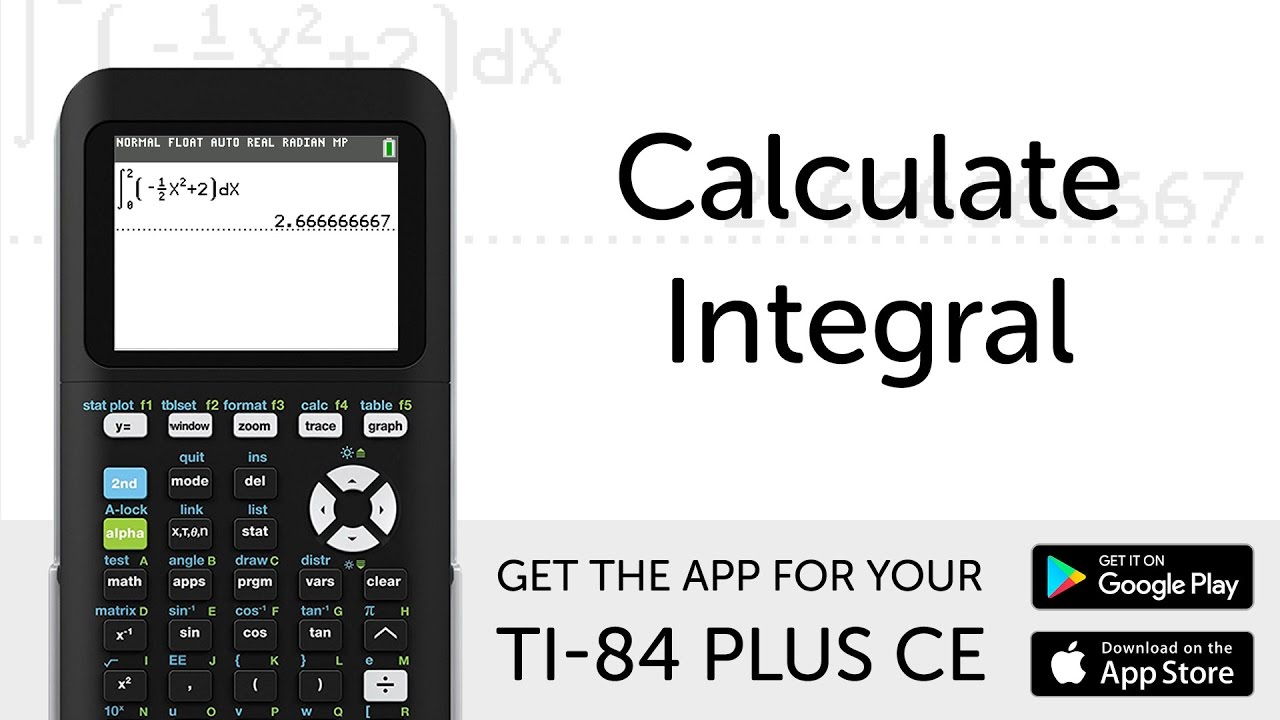
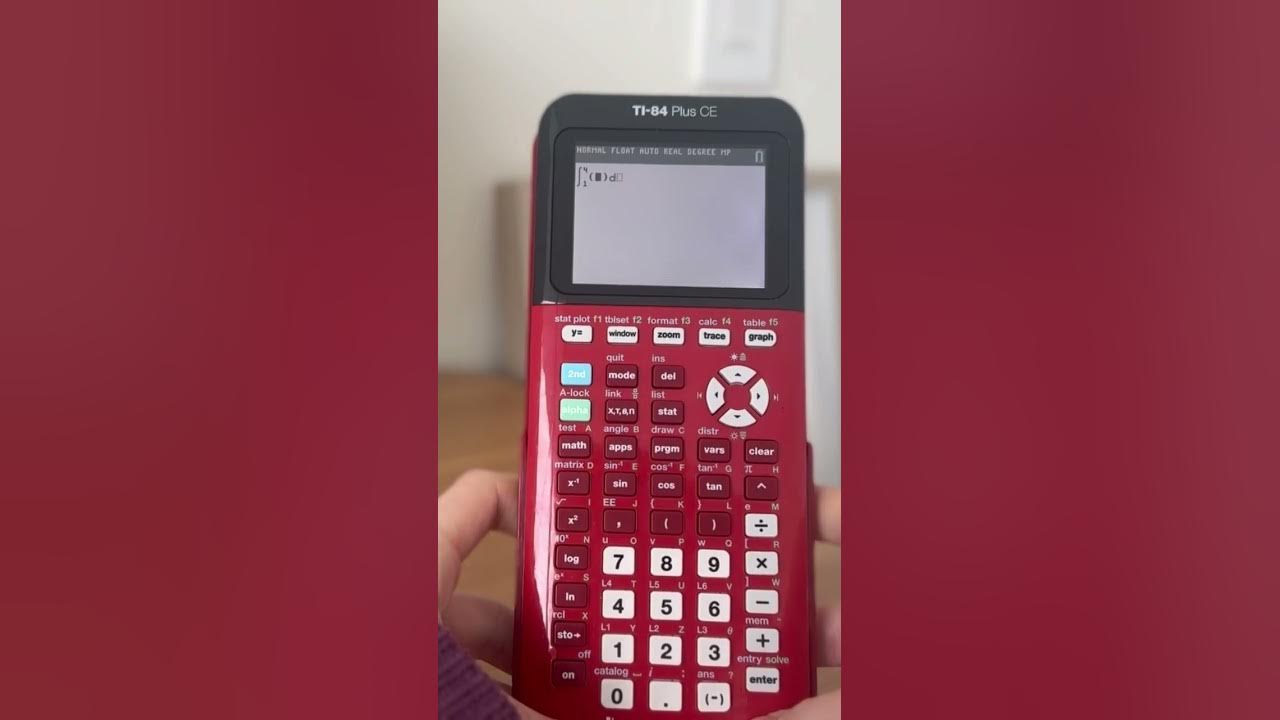
Once you select `fnInt(`, your screen will transform. If you have a newer TI-84, you'll see a visually pleasing integral symbol appear, complete with little boxes for you to fill in. It's like a fill-in-the-blanks puzzle, but for geniuses!
If you have an older model (the OG TI-84, bless its heart), you’ll see `fnInt(` followed by an open parenthesis. Don't panic! It just means you’ll be typing things in a specific order.
The Nitty-Gritty: Telling Your Calculator What To Do
Here’s how you fill in those blanks, or type out the command, depending on your model:
4. Input your function. This is the squiggly line itself. For example, if you're integrating x-squared, you'd type `X^2`. Remember to use the X,T,θ,n button (right next to the ALPHA button) for your variable x. Your calculator is particular; it won't understand if you use the multiplication x.
5. Tell it your variable. This is super important. Even if you only have x, you need to tell the calculator *which* variable you're integrating with respect to. So, you'll enter `,X`. (The comma is essential, found above the 7 key).
6. Define your limits! These are your "start" and "end" points for the integration – where the squiggly line begins and ends its journey along the x-axis. So, if you're integrating from 0 to 2, you'd enter `,0,2` (for older models) or fill in the lower and upper boxes (for newer models).
So, for an older model, a complete command might look like: `fnInt(X^2,X,0,2)`. Notice the commas separating everything? They’re like traffic cops, keeping your calculator’s instructions in order.
For a newer model, you'd just navigate to the respective boxes and type `X^2`, then `X`, then `0`, then `2`.
7. Press ENTER! This is the moment of truth, the grand finale! You've set the stage, given the instructions, and now your calculator, like a tiny supercomputer, will whir (mentally, of course) and spit out the answer. It's usually within a few seconds, which is a lot faster than you trying to remember all those integration rules, substitutions, and constant of integration headaches!
Boom! You've got your numerical answer. It's like finding a twenty-dollar bill in an old coat pocket – a small but satisfying victory.
Embrace the Tech, Free Your Brain!
Now, before anyone yells, "But you still need to learn how to do it by hand!" Yes, absolutely. Understanding the *why* is crucial. But knowing how to use your TI-84 for those tricky definite integrals? That's not cheating; that's smart resourcefulness. It’s like knowing how to drive a car even if you also know how to build one from scratch. Sometimes, you just need to get from A to B!
This little trick can save you precious minutes on a test, allowing you to focus on the more conceptual parts of the problem, or double-check your manual calculations. It frees up your mental bandwidth for other important things, like remembering if you turned off the stove, or what you're going to have for dinner.
So next time you're facing down an integral, don't despair. Give your TI-84 a confident tap, follow these steps, and watch it work its magic. You’ll be integrating like a pro, and perhaps, even cracking a small smile. Because let's face it, getting the right answer with minimal fuss is always a reason to celebrate.