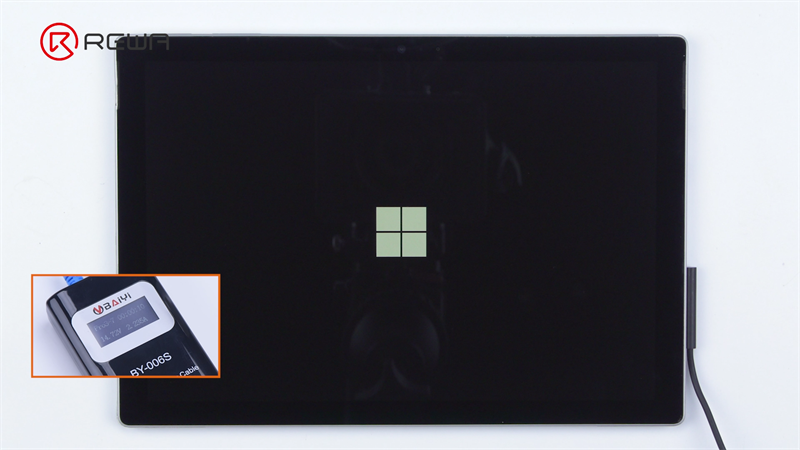
Surface Pro Won't Turn On Even When Plugged In

Let's face it, the Microsoft Surface Pro is a marvel. It's the sleek tablet that wants to be your laptop, and for many of us, it succeeds! We love them because they're the ultimate in portable productivity. Need to bang out emails on the train? Surface Pro. Want to sketch ideas during a brainstorming session? Surface Pro. Binge-watching your favorite show in bed? You guessed it, Surface Pro. It's the jack-of-all-trades device we've come to rely on.
The beauty of the Surface Pro lies in its versatility. It bridges the gap between a tablet's casual convenience and a laptop's powerful functionality. Think of it as your digital Swiss Army knife. It’s a fantastic tool for students taking notes in class, professionals presenting to clients, artists creating digital masterpieces, and even casual users browsing the web. Its 2-in-1 design means you can switch between typing up a report and drawing a quick diagram with a flick of the wrist (and a detachment of the keyboard).
But what happens when this paragon of portable power decides to… well, not power on? The dreaded black screen of death, even when plugged in, can strike fear into the heart of any Surface Pro user. You've plugged it in, the little charging light should be on, but nothing. Nada. Zilch. Before you start panicking and imagining the cost of a replacement, let's explore some potential solutions.
Must Read
First, try the forced shutdown. This is often the simplest and most effective fix. Press and hold the power button for a full 20-30 seconds. Yes, it feels like forever, but trust the process. This forces a hard reset, bypassing any software glitches that might be preventing the device from booting. After releasing the power button, wait a few seconds and then press it again to turn the Surface Pro on.
/win10timeline-5b0a410a1d64040037f6b391.jpg)
If the forced shutdown doesn't work, consider the possibility of a completely drained battery. Even though it's plugged in, sometimes the charging circuit can be finicky. Leave it plugged in for at least an hour, and preferably overnight. This gives the battery ample time to recover, even if it was completely depleted. Use the original Surface Pro charger, as other chargers may not provide enough power to properly charge the device, especially when starting from zero.
Next, check the charger connection. Make sure the charging cable is securely plugged into both the Surface Pro and the power outlet. Try a different outlet to rule out any issues with the power source itself. Wiggle the connector slightly to see if you can trigger any sign of life. A faulty connection can prevent the battery from charging, even if the charging light seems to be on.

Finally, if none of these steps work, it might be a more serious hardware or software issue. In this case, contacting Microsoft support or taking your Surface Pro to a qualified repair technician is the best course of action. Don't try to disassemble the device yourself, as you could void your warranty or cause further damage.
Remember, prevention is key! To enjoy your Surface Pro more effectively and minimize the chances of future power issues, avoid letting the battery completely drain regularly. Keep the device updated with the latest software and drivers, and treat it with care. With a little preventative maintenance, your Surface Pro can continue to be your reliable companion for years to come.