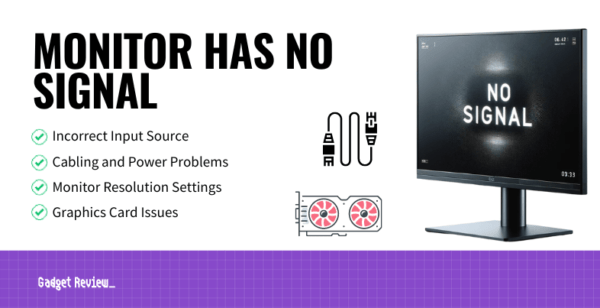
Ah, the dreaded black screen. You’ve just settled in, perhaps with a cup of coffee or a sneaky snack, ready to conquer your email inbox (or, let’s be real, dive headfirst into cat videos). You hit the power button on your computer, you hear the familiar hum, the fan whirs to life… but your monitor? It’s staring back at you with a blank, cold gaze, proudly displaying the message: “No Signal Detected.”
It’s like your computer threw a party, but forgot to send the monitor an invitation. Or, even worse, the invitation got lost in the mail! Before you start gently weeping into your keyboard or contemplating a career as a luddite hermit, take a deep breath. This isn’t usually a sign of impending digital doom. In fact, it’s one of the most common, and often simplest, tech mysteries to solve. Think of it as a little puzzle, and you, my friend, are the brilliant detective!
Why Does My Monitor Play Hard to Get?
Your monitor isn't being dramatic; it's simply telling you that it's not receiving the visual information it needs from your computer. It's like calling your best friend, but their phone is off – you know they exist, but you just can't connect right now. The good news? Most of the time, the fix is less about complex circuitry and more about
1. The "Is It Even Plugged In?" Classic
Let's start with the most embarrassing, yet incredibly common, culprit. Imagine searching for your sunglasses for an hour only to realize they're perched on your head. Yep, we've all been there! Your monitor needs two main things: power and a connection to the computer.
Action Item:
- Power Cable: Is the power cable securely plugged into both the monitor and the wall outlet (or power strip)? Give it a firm push at both ends. Sometimes a playful pet or an enthusiastic sweep of the vacuum cleaner can nudge it loose.
- Video Cable: This is the cable that carries the actual visual signal (like HDMI, DisplayPort, or DVI). Check both ends of this cable! One end goes into your monitor, the other goes into your computer. Wiggle it, unplug it, plug it back in firmly. Make sure it's not bent, kinked, or looking like it's been through a washing machine.

2. The "Wrong Input Source" Mix-Up
Okay, all cables are snug. Great! Now, imagine trying to watch your favorite show on Netflix, but your TV is set to the "DVD Player" input. It’s showing a blank screen, right? Your monitor can suffer from the same confusion.
Action Item:
Most monitors have multiple video inputs (like HDMI 1, HDMI 2, DisplayPort, etc.). You need to make sure your monitor is listening to the
- Look for buttons on your monitor, usually along the bottom or back edge. One of them might be labeled "Input," "Source," or have an arrow icon.
- Press this button repeatedly to cycle through the available inputs (e.g., HDMI 1, HDMI 2, DisplayPort). If you see a flicker or your desktop briefly appears, you're on the right track!
3. The "Sleepy Computer" Syndrome
Sometimes, your computer isn't truly off, but it's in such a deep sleep that it forgot to tell the monitor to wake up. It’s like when you try to wake a teenager for school – sometimes they need a little more convincing than just an alarm!
Action Item:
- Jiggle & Click: Try moving your mouse vigorously or pressing a few keys on your keyboard. This often rouses a slumbering computer.
- The Hard Reset: If that doesn't work, sometimes a good old-fashioned restart is all it takes. Hold down your computer's power button for about 5-10 seconds until it completely shuts down. Wait a few seconds, then press it again to power it back on. This can often clear up minor glitches in the computer's startup process that prevent it from sending a signal.
4. The "Grumpy Graphics Card" or "Faulty Cable"
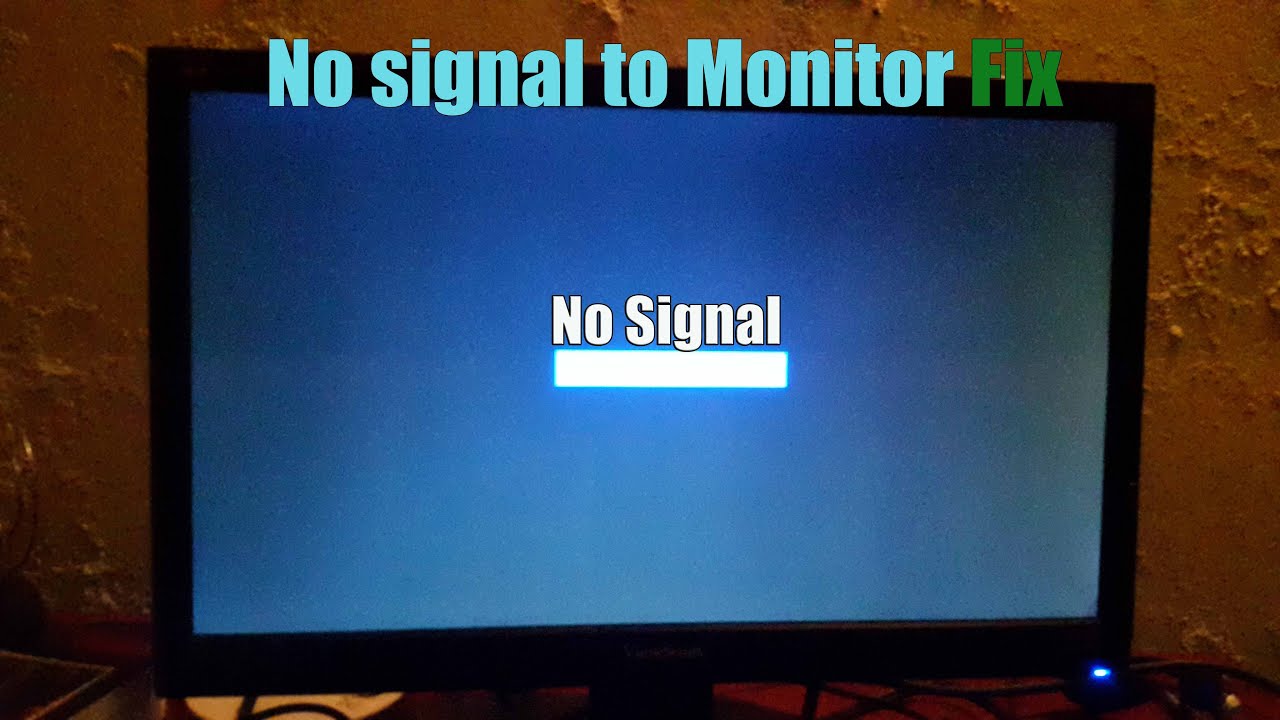
If you've checked all the basics and your monitor is still playing coy, we might be looking at something a tiny bit more serious, but still fixable. If you have a desktop computer, the graphics card (the part that creates all the pretty pictures) might be having a moment. Or, that video cable, even if it looks fine, could have an internal boo-boo.
Action Item:
- Try a Different Cable: If you have a spare HDMI or DisplayPort cable lying around, swap it out. Cables can go bad, and they don't always show external signs of damage. It’s like when your phone charger mysteriously stops working – no visible damage, just… nada.
- Test Another Monitor (If Possible): If you have access to another monitor or even a TV, try plugging your computer into it. If it works, you know the problem is with your original monitor. If it doesn't work, then the issue is definitely with your computer or its graphics output.
- For Desktop Users: If you're comfortable and your computer is off, you can try gently pushing on your graphics card (if it's a separate component) to make sure it's fully seated in its slot. Sometimes they can wiggle loose. If you're unsure, perhaps skip this one or ask a tech-savvy friend.
Why Should You Care About This Little Digital Dance?
Because your monitor is your window to the digital world! Without it, you can’t work, you can’t play, you can’t connect. Solving this "No Signal" puzzle yourself is not just about saving money on a technician; it's about the
So, the next time your monitor gives you the cold shoulder, don't despair. Remember these simple steps. More often than not, a loose connection, a confused input, or a sleepy computer is all that stands between you and your daily dose of internet goodness. Happy troubleshooting!