
How To Turn Off The Notification Light On Iphone

Okay, picture this: it's 3 AM. You're dead asleep, dreaming of fluffy kittens and winning the lottery (a much-needed combination, I might add). Suddenly, a bright, pulsating light pierces through your eyelids. Is it aliens? A rogue firefly that somehow made it indoors? Nope. It's your blasted iPhone, merrily blinking away because, well, it feels like it. Sound familiar? Yeah, me too. I almost chucked mine across the room the other night.
That little notification light, while seemingly harmless, can be a serious annoyance. It’s like your phone is constantly whispering, “Hey! Look at me! I’m important!” Even when, let's be honest, 99% of the time it's just a marketing email from a company you forgot you subscribed to. Annoying, right?
The (Not-So) Secret Mission: Killing the Blink
Now, for the bad news: iPhones don't actually have a dedicated notification light in the traditional sense, like some Android phones do. So, you can't just flip a switch and be done with it. Sorry to burst your bubble (I wish it were that easy!). But fear not! We're not completely helpless. What you're probably seeing is the LED flash being used for alerts. Good news – we can disable that!
Must Read
Operation: Stop the Flashing
Here’s how we silence the light-obsessed monster in your pocket, step-by-step. Get ready, because you're about to become a ninja of notification management!
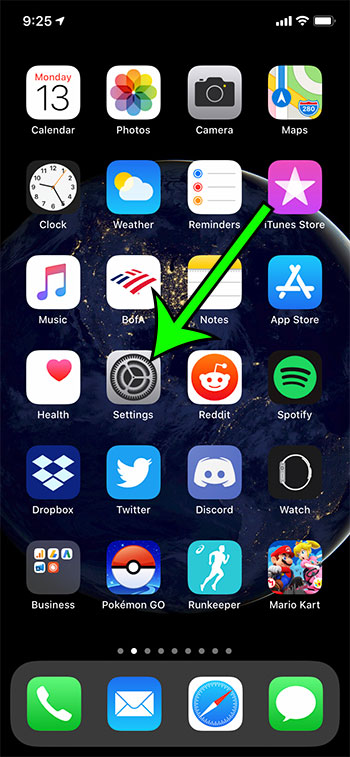
Step 1: Dive into Settings.

First, unlock your iPhone and tap on the Settings app. You know, the one with the little gear icon. It's probably lurking somewhere on your home screen, possibly buried under a mountain of unread app badges (guilty!).
Step 2: Access Accessibility.
Scroll down (and keep scrolling… iPhones love to hide things deep within menus) until you find Accessibility. It's usually nestled somewhere between "Privacy & Security" and "Wallpaper." Think of it as a hidden doorway to a quieter, less flashy world. Okay, maybe that’s a bit dramatic, but still…

Step 3: Audio/Visual Settings.
Inside Accessibility, look for the Audio/Visual section. This is where we’ll find the controls for our light-based nemesis. Tap on it. Don't be intimidated by all the options – we're laser-focused on our mission.
Step 4: Disable "LED Flash for Alerts".

Aha! There it is: LED Flash for Alerts. You'll probably see a little toggle switch next to it. If it's green, that means it's ON, and your phone is staging its own private light show every time you get a notification. Flip that switch to the OFF position (grey). Bam! You've just neutralized the flashing threat.
Step 5: (Optional) Turn off Flash on Silent.
There's also an option right below that says Flash on Silent. This controls whether the flash will go off when your phone is on silent mode. It might be useful in some scenarios (like if you really need to know you're getting calls while in a meeting), but if you're trying to achieve complete darkness nirvana, you should probably turn this off too. Your choice, Captain!
Congratulations!
You've successfully disabled the LED flash for alerts! Now you can enjoy a more peaceful existence, free from the tyranny of blinking lights. Go ahead, treat yourself to a celebratory nap. You've earned it.
Bonus Tip: Notification Center Customization
While you're at it, you might also want to dive into your Notification Center settings (Settings > Notifications). You can customize which apps are allowed to send you notifications in the first place. Be ruthless! Do you really need to be notified every time someone likes your Instagram post from three years ago? Probably not. Pare down the list and reclaim your sanity. You’ll be amazed how much quieter your digital life can become.
So, there you have it. A simple guide to shutting down that pesky iPhone notification light. Now go forth and conquer your sleep schedule!