
How To Turn Off Apps Running In The Background
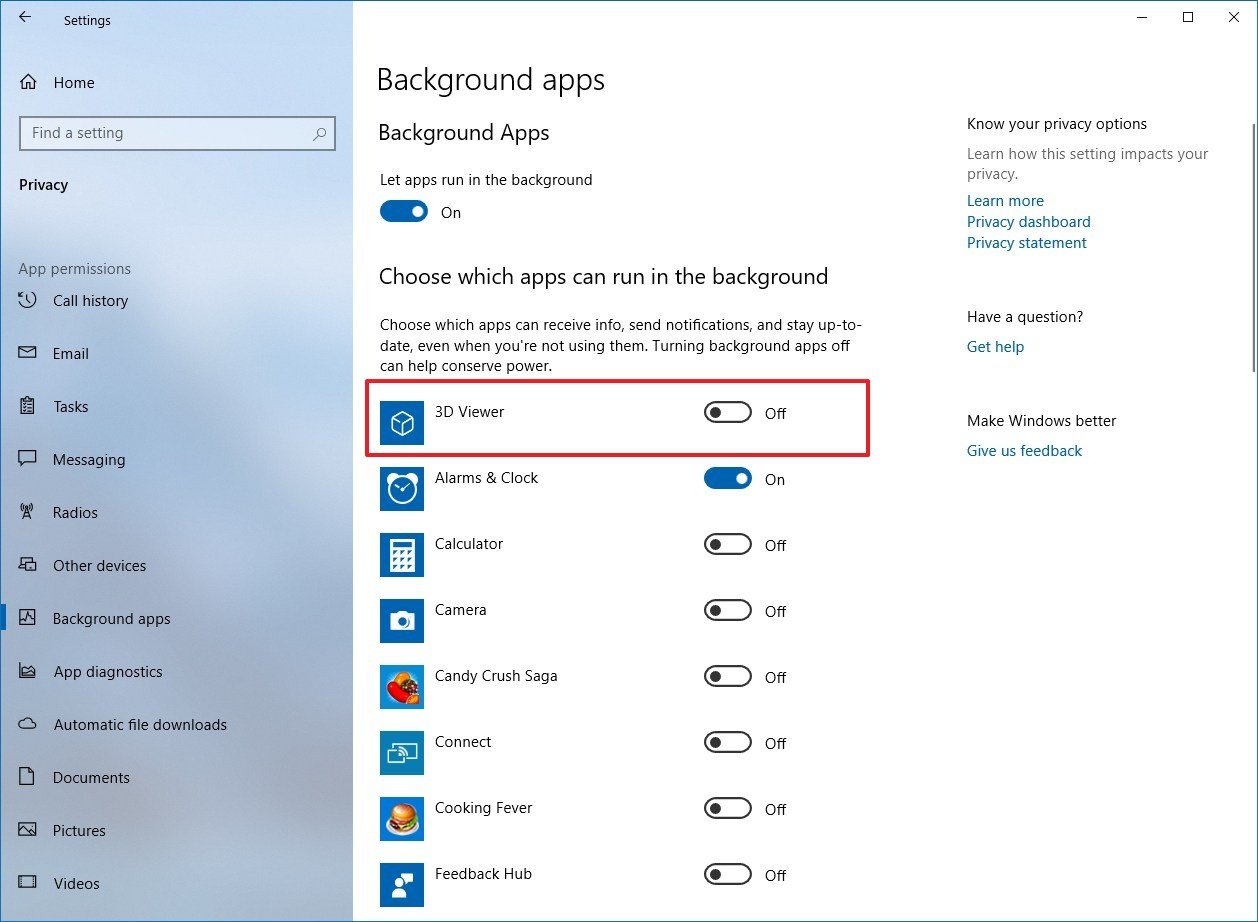
Okay, let's talk about something near and dear to my heart: background apps. Or, more accurately, my burning desire to banish them to the digital underworld.
Am I the only one who feels like my phone is secretly running a marathon behind my back? All those little apps, whispering sweet nothings to the processor, draining the battery like a thirsty vampire.
Time for some ruthless spring cleaning. No app is safe!
Must Read
The Great App Purge: Android Edition
Android users, fear not! We have options. Beautiful, glorious options.
The "Recent Apps" Swipe-a-thon
First up, the classic swipe-away. Open your recent apps. (You know, that little square thingy at the bottom).
Now, swipe those pesky app thumbnails into oblivion! Feel the power! Each swipe is a victory.
I like to imagine each one yelling "Noooo!" as it disappears. But maybe that's just me.
The "Settings" Deep Dive
Feeling a bit more... strategic? Head to your Settings. Brace yourself; it's about to get real.
Find the "Apps" section. (It might be called "Applications" or something equally vague. Good luck!).
Now, prepare for a parade of your installed apps. Stare into the abyss! The abyss of apps stares back.
Tap on the app you suspect of being a battery hog. Now, look for "Battery".
See anything about "Background activity" or "Battery optimization"? Time to pounce!
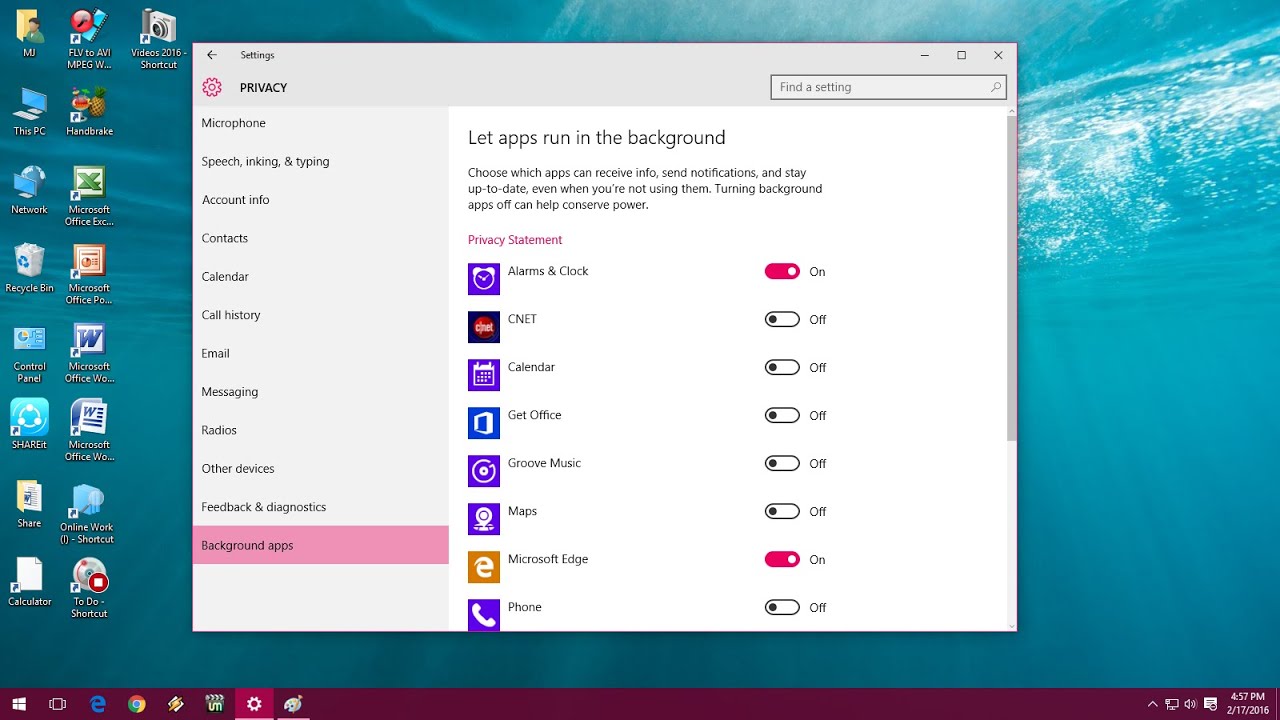
Switch that "Background activity" toggle to "Off". Or, if you're feeling daring, choose "Optimized" instead of "Unrestricted".
That's it! You've just told that app to chill out when you're not looking at it. Go you!
The "Force Stop" Nuclear Option
Okay, things are getting serious. That app still won't behave? Time for the "Force Stop" button.
It's like the digital equivalent of slamming the door in someone's face. Harsh, but effective.
Just be warned: forcing an app to stop might cause it to act a little wonky next time you open it. But hey, at least it's not draining your battery right now!
Use this power responsibly. Don't go around force-stopping everything willy-nilly.
“With great power comes great responsibility.” – Uncle Ben (probably talking about force-stopping apps)
iPurge: The iOS App-ocalypse
Apple users, I haven't forgotten about you. Your methods are a little… different. Shall we say, more elegant?
The Double-Tap Home Button Swipe
Just like Android, you can double-tap the home button (or swipe up from the bottom on newer iPhones) to reveal your recent apps.
Swipe those apps upwards and away. Send them to the digital farm upstate.
This method is quick, satisfying, and requires minimal brainpower. Perfect for when you're already halfway through a Netflix binge.
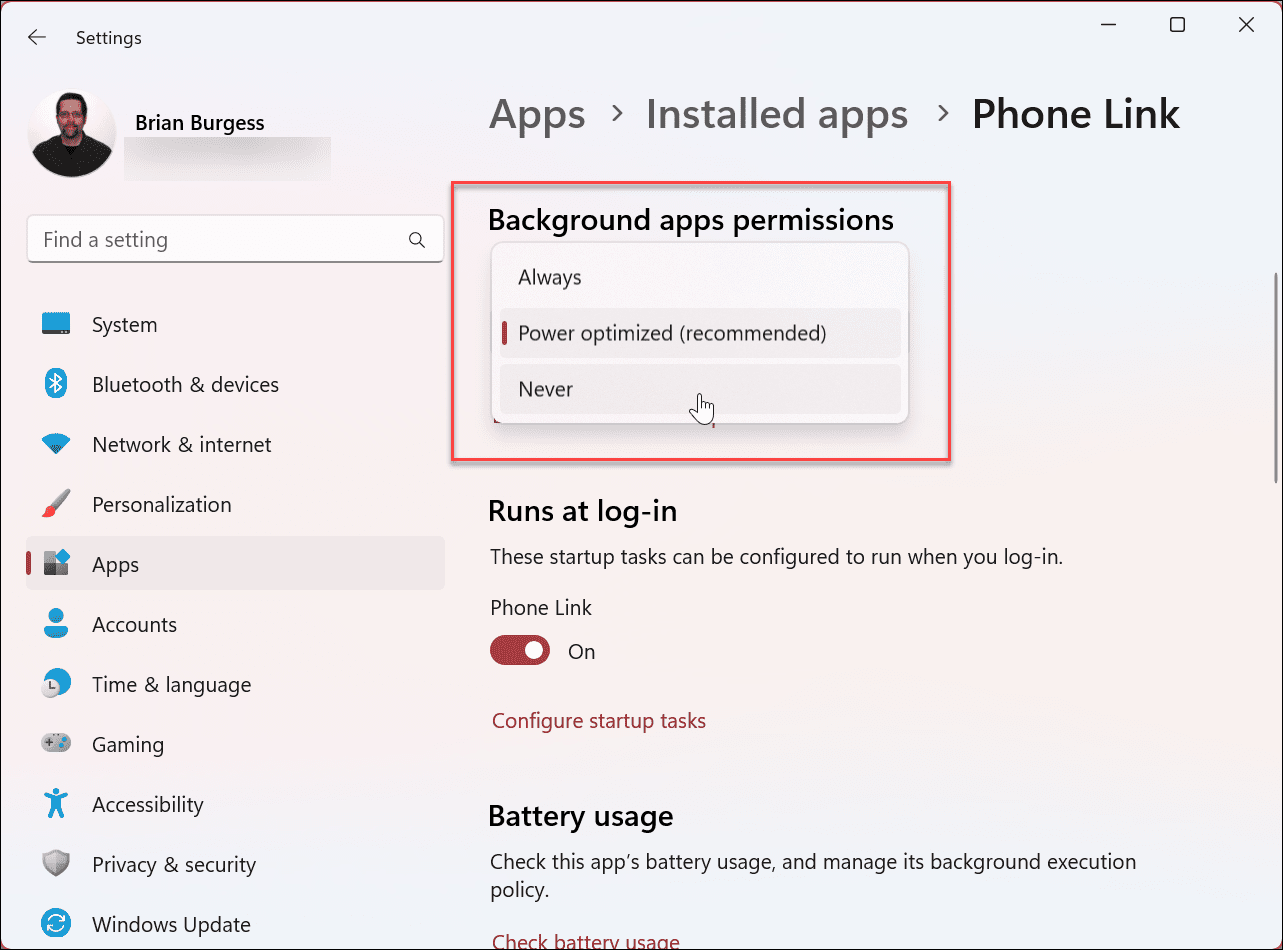
The "Background App Refresh" Settings Smackdown
For a more comprehensive approach, head to Settings. (Yes, even Apple users have to venture into the dreaded Settings).
Scroll down to "General" and then tap on "Background App Refresh".
Behold! A list of all the apps that are sneakily refreshing in the background. Traitors!
You can either turn off Background App Refresh entirely (the nuclear option, but tempting) or selectively disable it for individual apps.
I personally like to go through this list every few weeks and ruthlessly cull the herd. It's surprisingly therapeutic.
Think of it as digital weeding. You're pulling out the weeds (the apps) so your phone can thrive.
Location, Location, Location!
While you're in Settings, take a look at your location permissions. Some apps are constantly tracking your location, even when you're not using them.
Go to "Privacy" then "Location Services". Check each app's location permission.
Does that random shopping app really need to know your location at all times? Probably not.
Change the permission to "While Using the App" or, if you're feeling particularly bold, "Never".
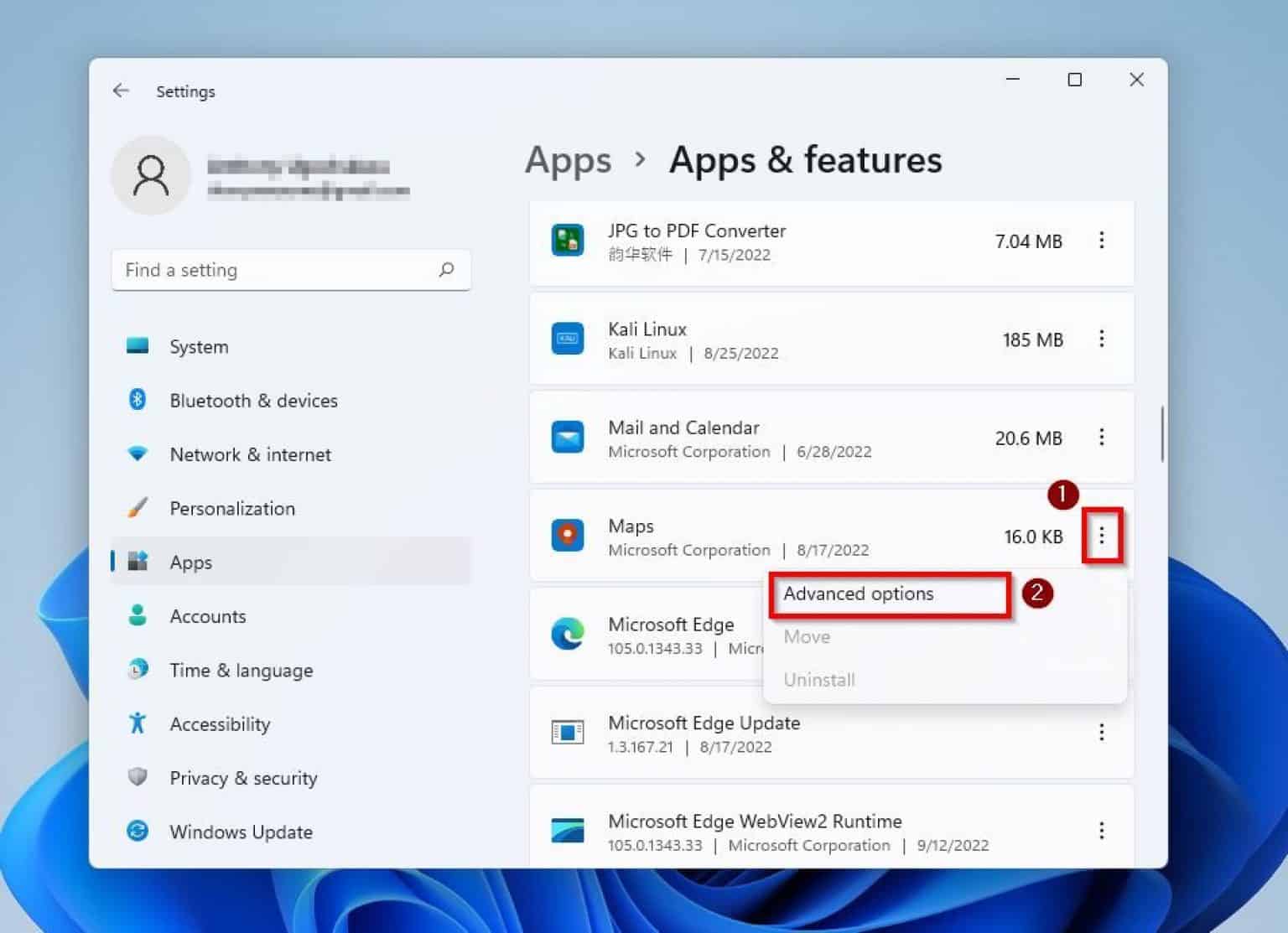
Your battery (and your privacy) will thank you.
Unpopular Opinion Time: My App-Killing Philosophy
Okay, here's where things might get controversial. I'm about to reveal my deeply held belief about background apps.
Ready? Here it is:
I don't care what the experts say. I kill my apps. All the time. Relentlessly.
I know, I know. The conventional wisdom is that iOS and Android are designed to manage background apps efficiently. That killing apps can actually increase battery drain.
But here's the thing: I don't trust them! I've seen too many apps misbehave. Too many surprise battery drains. Too much sluggish performance.
So, I'm sticking to my guns (or, you know, my swipes). I'm going to keep killing those apps. It makes me feel good. It gives me a sense of control.
And frankly, my phone seems to run better when I do. Maybe it's a placebo effect. Maybe I'm just crazy. But hey, it works for me.
The Caveats (Because I'm Not a Total Madman)
Of course, there are a few exceptions to my app-killing spree. Certain apps need to run in the background to function properly.
For example, music streaming apps. You probably don't want your music to stop every time you switch to another app.
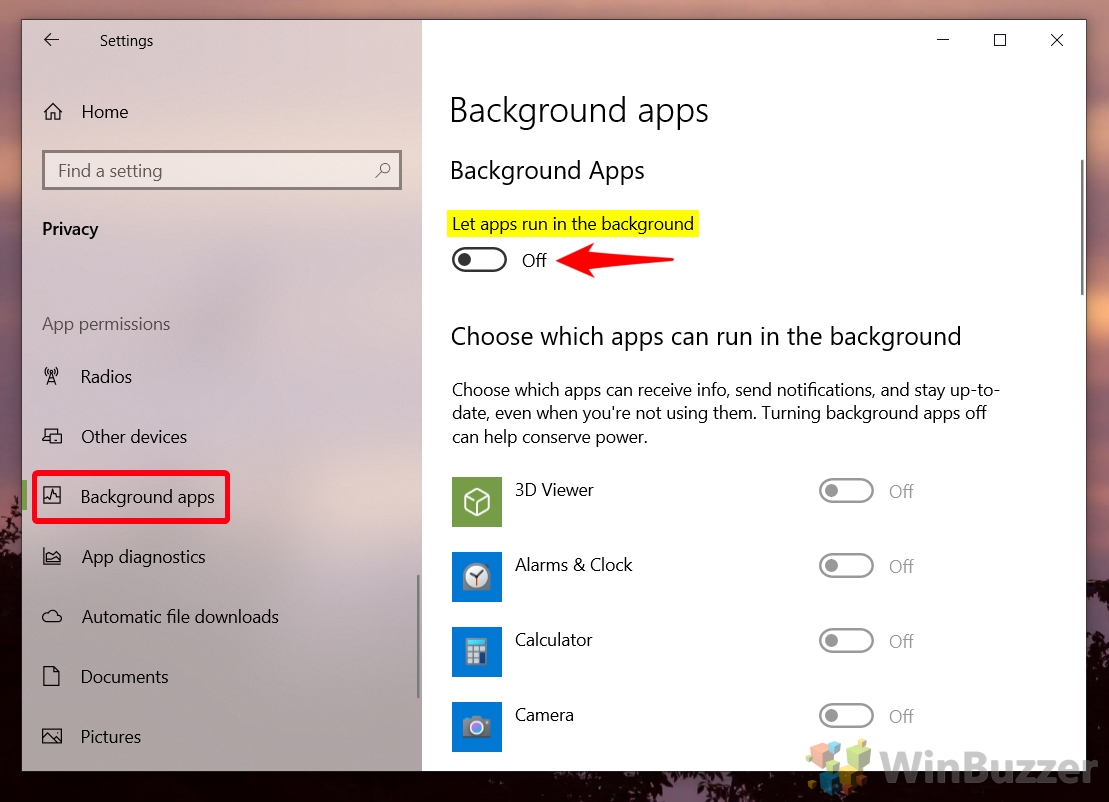
Similarly, messaging apps need to run in the background to deliver notifications. Otherwise, you'd miss all those important cat memes.
And navigation apps need to track your location so you don't end up driving into a lake. (Trust me, it's happened to a friend of a friend...).
So, use your common sense. Don't go killing apps that you rely on for essential functions.
Final Thoughts: Embrace Your Inner App Assassin
Ultimately, the decision of whether or not to kill background apps is a personal one. There's no right or wrong answer.
Experiment. See what works for you. If you find that killing apps improves your battery life and performance, then go for it.
But if you're happy with the way your phone is running, then feel free to ignore everything I've said. I won't be offended. (Okay, maybe a little).
Just remember: you're in control of your device. Don't let those pesky background apps boss you around!
Embrace your inner app assassin. Swipe away with pride. And may your battery life be long and prosperous!
Now, if you'll excuse me, I'm off to kill some apps. It's a dirty job, but someone's gotta do it.
Happy app-killing, everyone!