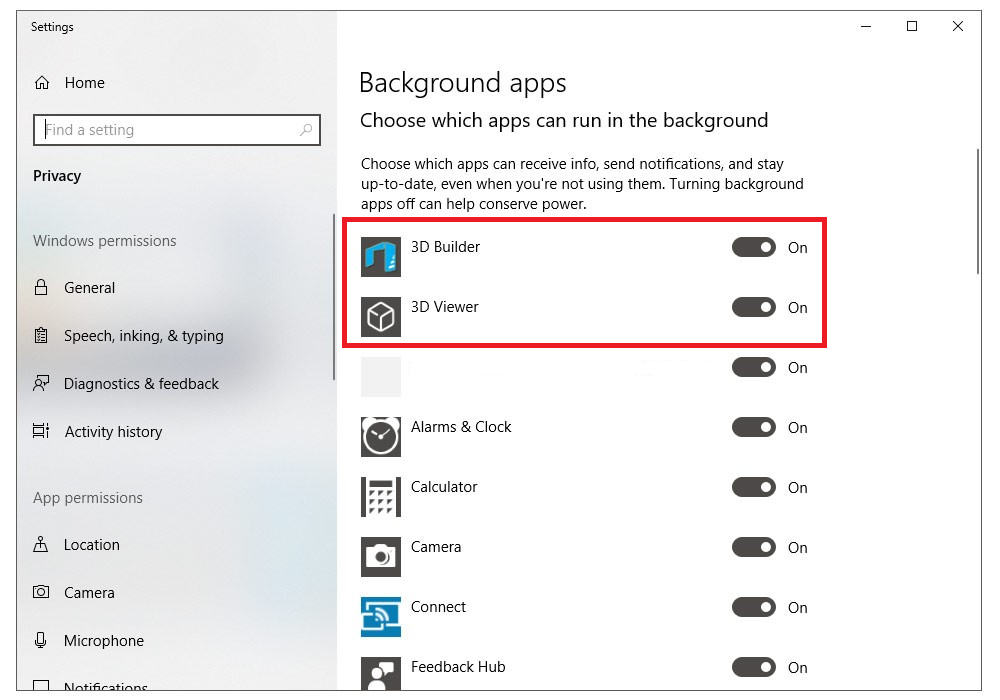
How To Stop Apps From Running In The Background
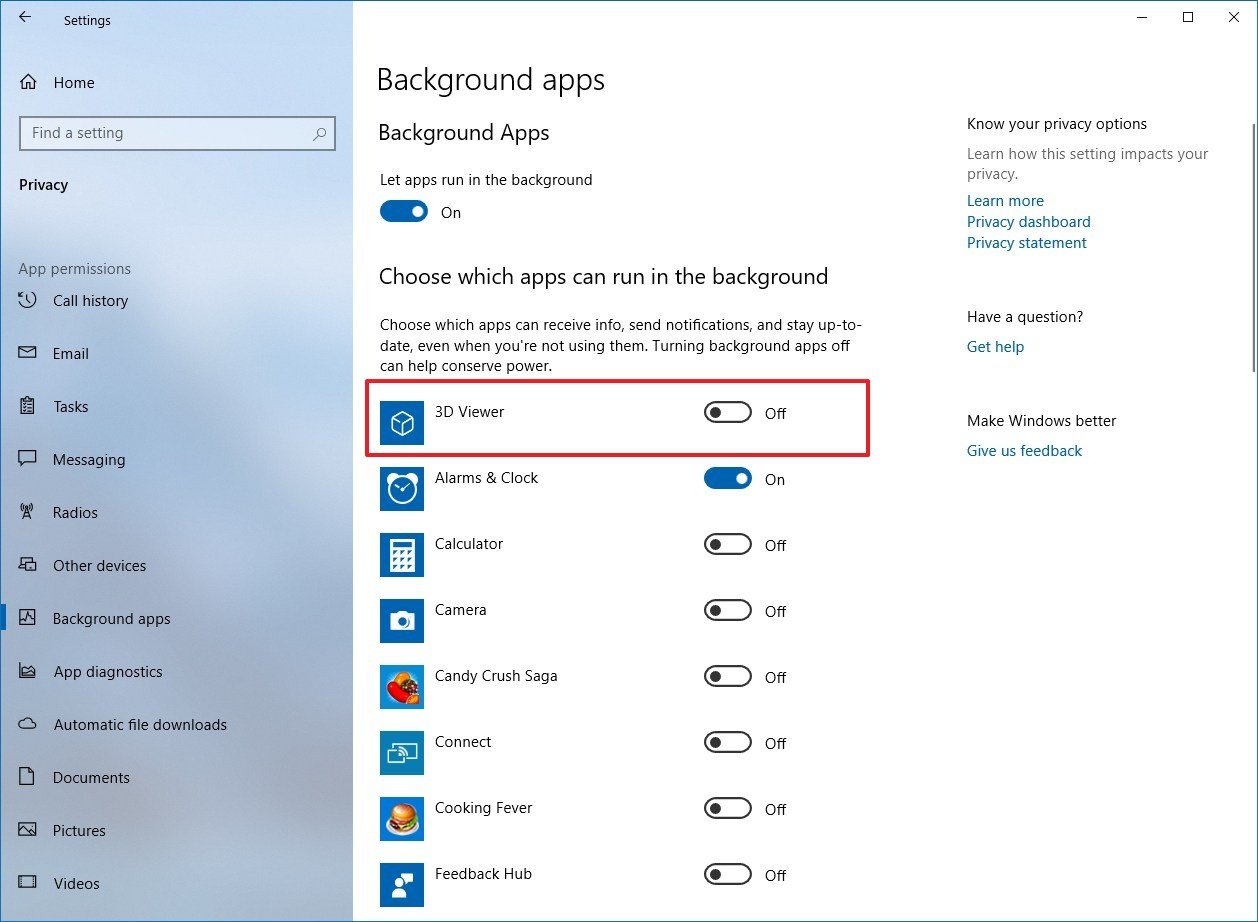
Hey there, tech explorer! Ever feel like your phone's battery is draining faster than a leaky faucet? Or that your data plan is vanishing like cookies in the cookie jar? You might be surprised to learn that the culprit could be hiding in plain sight: apps running in the background.
Think of it like this: Your phone is a bustling city. You're actively using certain buildings (your apps), but behind the scenes, other buildings (those background apps) are still consuming energy, even if you're not inside! Cool, right? But also… a bit annoying when your battery life is suffering.
Why Should I Care About Background Apps?
Good question! Let's break it down. Leaving apps running in the background isn't always a bad thing. Some apps, like music players or fitness trackers, need to hum along subtly to do their job. But others? They might be silently refreshing, checking for updates, or tracking your location, even when you're not actively using them. That's where the problems can start.
Must Read
Specifically, background apps can:
- Eat your battery life: This is the big one! All that constant activity requires power, and that power comes from your battery.
- Gobble up your data: Those sneaky updates and data syncs can really add up, especially if you're on a limited data plan.
- Slow down your phone: All that background processing can put a strain on your phone's resources, making it feel sluggish. Imagine trying to run a marathon with a backpack full of bricks!
- Jeopardize your privacy: Some apps may be collecting data about your location or usage habits without you even realizing it. Spooky, huh?
Okay, I'm Convinced. How Do I Stop This Madness?
Don't worry, you don't need to be a tech wizard to take control! The process is surprisingly simple, although it varies slightly depending on whether you're an Android aficionado or an iOS enthusiast.

For the Android Crew:
Android offers a few different ways to tackle background app activity. Here's a common approach:
- Open your phone's Settings app.
- Look for something like "Battery," "Battery optimization," or "Power saving." The exact wording can vary depending on your Android version and phone manufacturer.
- You should see a list of apps and their battery usage. Here's where you can identify the worst offenders.
- Tap on an app to see its options. You'll usually find options like "Optimized," "Restricted," or "Unrestricted."
- Choose "Optimized" or "Restricted" to limit the app's background activity. "Optimized" is a good starting point, as it lets the system decide when the app can run in the background. "Restricted" is the most aggressive option, preventing the app from running in the background almost entirely.
You can also use the "Force Stop" option (usually found in the app's settings under "Apps") to completely shut down an app. But be aware that it might restart automatically later!
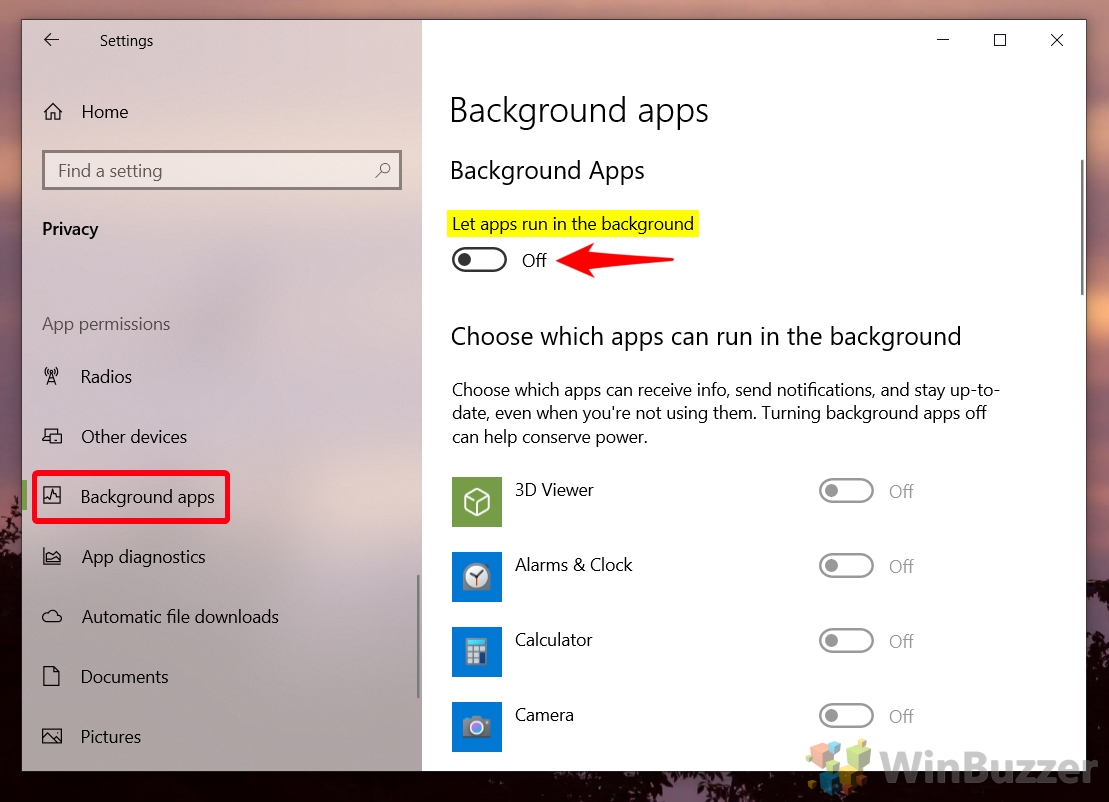
For the iOS Fanatics:
Apple's iOS is a bit more streamlined, but you still have control over background app refresh.
- Open your iPhone's Settings app.
- Scroll down and tap on "General."
- Tap on "Background App Refresh."
- Here, you can either turn off Background App Refresh entirely (not recommended, as it can impact some apps' functionality) or disable it for individual apps.
- Toggle the switch next to each app to control its background activity. Green means it's allowed to refresh in the background; gray means it's not.
Easy peasy, right? You can also close apps by swiping up from the bottom of the screen (on iPhones without a home button) or double-tapping the home button (on iPhones with a home button) and then swiping up on the app preview. This isn't exactly the same as preventing background activity, but it does close the app entirely.
Pro Tips and Tricks!
- Don't go overboard! Disabling background activity for all apps might break some functionality. Start with the apps you use the least.
- Keep an eye on your battery life. After making changes, monitor your battery usage to see if you notice an improvement.
- Consider uninstalling apps you rarely use. If you haven't touched an app in months, why keep it around, sucking up resources? Think of it as decluttering your digital life!
- Use battery-saving mode. Both Android and iOS have built-in battery-saving modes that automatically limit background activity.
The Takeaway? You're in Control!
Ultimately, managing background app activity is all about finding the right balance between convenience and efficiency. By taking a few simple steps, you can boost your battery life, save data, and keep your phone running smoothly. So go forth and conquer those sneaky background apps! Your phone (and your wallet) will thank you.