
How To Shut Down Programs Running In Background
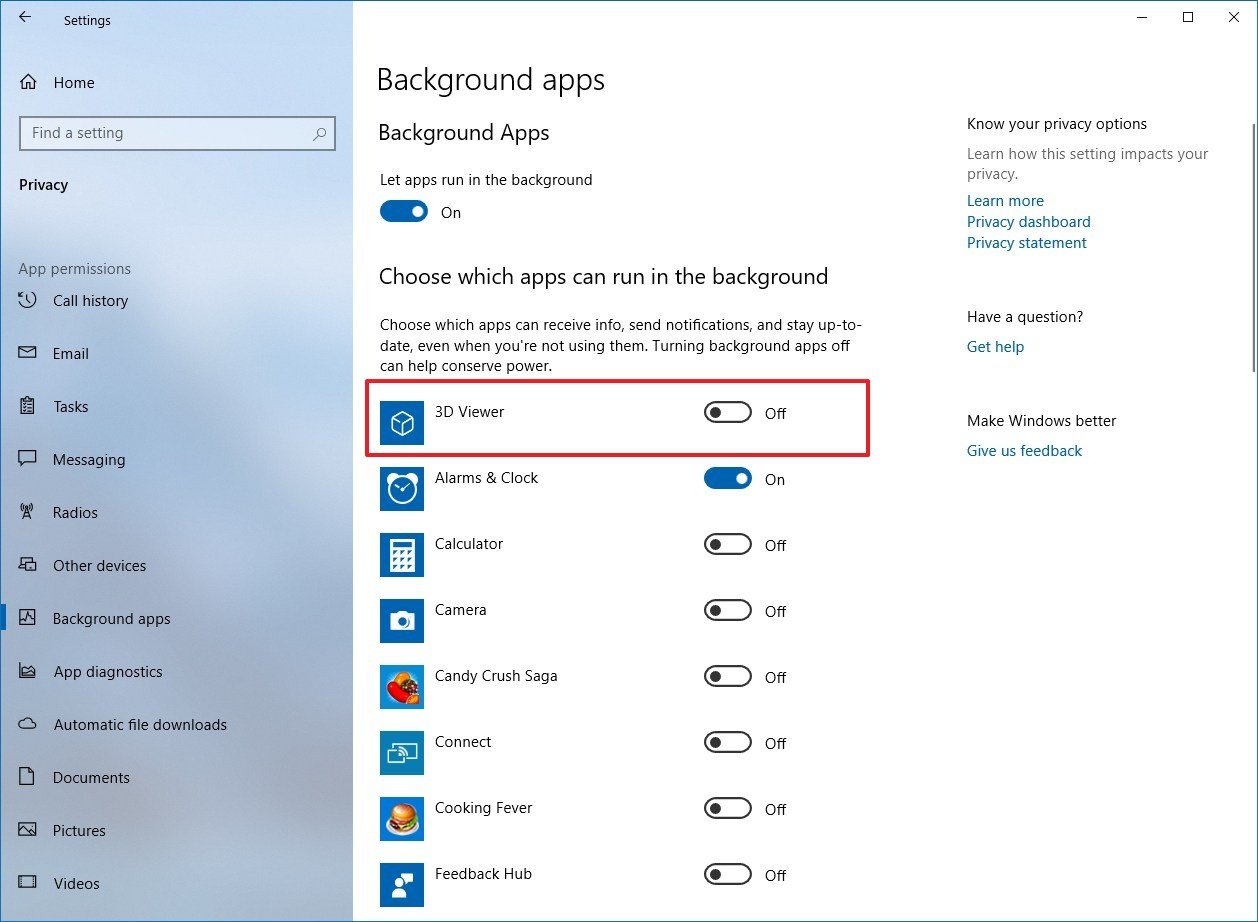
Let's talk about those sneaky little programs. You know, the ones hogging your computer's resources.
The ones you didn't even know were running? Yeah, those guys.
The Great Escape: Background App Edition
I'm going to tell you something maybe unpopular. I hate background processes.
Must Read
They're like uninvited guests who eat all the snacks. And then complain about the Wi-Fi.
Windows: The Ctrl+Shift+Esc Route
First, let's tackle the Windows world. Think of this as your secret agent training.
Hit Ctrl+Shift+Esc. Bam! Task Manager appears.
This is your command center. A place of power.
Look for the "Processes" tab. It's usually open by default. If not, click it.
Now, the fun begins. Scroll through the list like you're window shopping for digital doom.
See something suspicious? Something you definitely didn't open? Something called "HelperApp_DefinitelyNotAVirus.exe"?
Click it. Then, click "End task". Feel the power surge through you.
Sometimes, the Task Manager won't let you end a process. Those processes are super annoying.
It is like trying to get a toddler to put on their shoes. We will deal with them later.
The "Startup" Tab: Preemptive Strike
Want to stop the madness before it starts? Head over to the "Startup" tab in Task Manager.
This shows you what programs automatically launch when your computer boots. The villains!
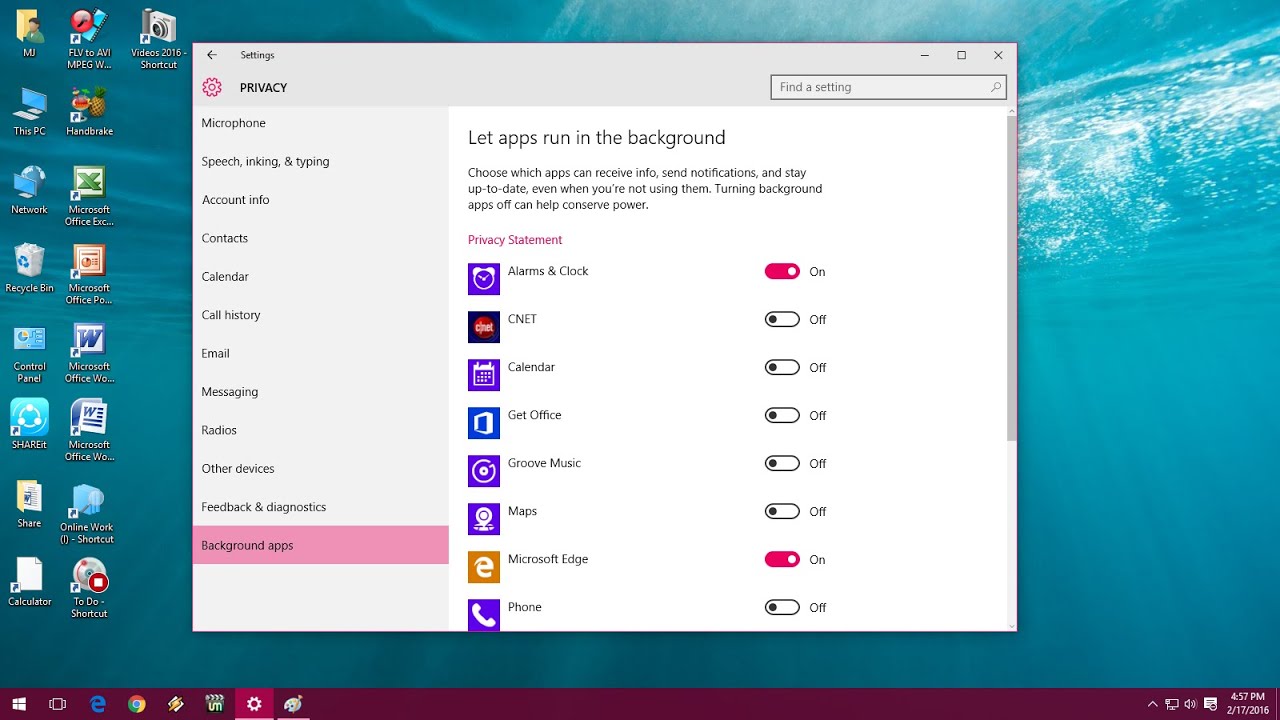
Disable anything you don't need. Seriously, be ruthless.
Don't recognize something? Google it! Knowledge is power!
Disabling a startup program doesn't uninstall it. It just prevents it from launching automatically.
You can still run it manually if you need it. It is a safety net.
macOS: The Activity Monitor Adventure
Alright, Mac users, it's your turn. Time to delve into the Activity Monitor.
Press Command+Space. Type "Activity Monitor" and hit Enter. Spotlight search to the rescue!
This is the macOS equivalent of Task Manager. Just a bit…prettier.
The Activity Monitor shows you all the processes running on your Mac, sorted by CPU usage.
Or memory usage. Or energy impact. Basically, pick your poison. Err, metric.
Find the offending app. Click it. Then, click the "X" button in the toolbar.
A pop-up will ask if you're sure you want to quit the process. Say yes!
If it's being stubborn, try "Force Quit." Sometimes, you need to be firm.
Force Quit is like the digital equivalent of a stern talking-to.

The Dock: Quick Quit
Another way to quickly quit an app on macOS? The Dock!
Right-click (or Ctrl+click) the app icon in the Dock. Select "Quit."
If it's unresponsive, hold down the Option key while right-clicking. "Quit" will change to "Force Quit."
It's like a secret, more aggressive quit button. Use it wisely.
The "Login Items" Tab: Startup Control
Just like Windows, macOS has a way to manage startup programs. It is called Login Items.
Go to System Preferences -> Users & Groups. Select your user account. Click on "Login Items".
See a list of apps that launch automatically when you log in? These are your targets.
Select the ones you don't want and click the "-" button. Easy peasy.
Remember to click the lock icon at the bottom left to make changes if necessary.
Admin privileges might be needed for some changes. So keep the password close.
Third-Party Tools: The Heavy Artillery
Sometimes, the built-in tools aren't enough. You need the big guns. The super soakers of app management.
There are tons of third-party apps that can help you monitor and control background processes.
Research and choose wisely. Some are free, some are paid. Read reviews before installing.
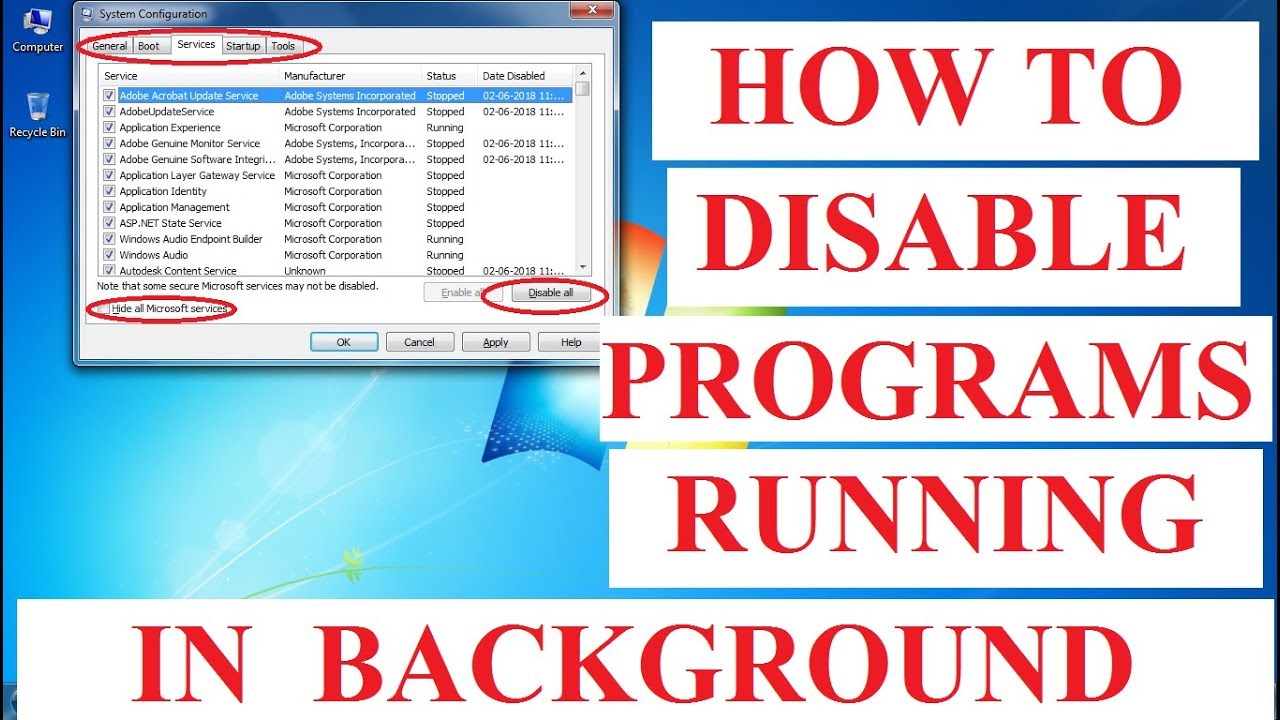
Tools such as CCleaner are popular in Windows to disable and clean up programs.
There are also specific tools that monitor CPU usage, memory usage and network usage. htop is a good command line tool.
Just be careful when installing third-party software. Make sure it's from a reputable source.
The Nuclear Option: Reinstalling Your OS
Okay, this is the extreme option. The "I've tried everything else" scenario.
If your computer is riddled with unwanted background processes and you can't get rid of them, consider reinstalling your operating system.
This will wipe everything clean and give you a fresh start. A drastic measure but sometimes necessary.
Back up your important data first! This is crucial. You will lose everything if you don't.
Reinstalling your OS is like performing digital surgery. It's not for the faint of heart.
If you're not comfortable doing it yourself, seek professional help. Seriously.
Unpopular Opinion: It's Okay to Be Brutal
Here's where I get really controversial. I have no qualms about ending processes I don't recognize.
If it's hogging resources and I didn't start it, it's gone. End task. Force quit. Whatever it takes.
Some might call it reckless. I call it efficient.
If something breaks, you can always reinstall it. Or Google the error message.
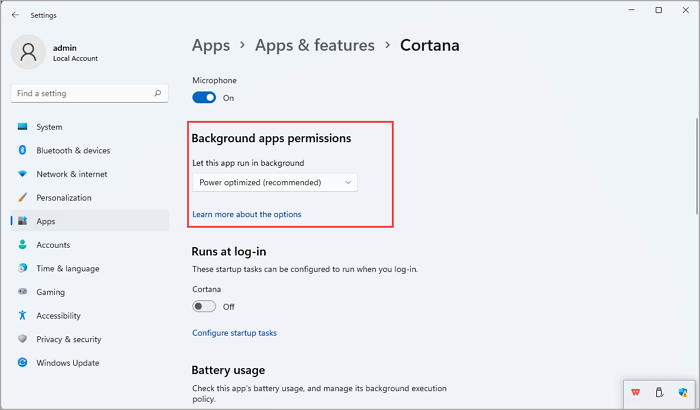
But most of the time, nothing bad will happen. Your computer will just run faster.
So be brave! Be bold! End those unwanted background processes!
Caveats and Disclaimers
Okay, before you go on a process-killing spree, a few words of caution.
Be careful when ending processes. Some are essential for your operating system to function properly.
If you're not sure what a process does, Google it before you end it.
Ending the wrong process can cause your computer to crash or malfunction. Proceed with caution.
I am not responsible for any damage you cause to your computer. This is just for entertainment purposes.
Read the fine print. Consult a professional. Wear safety goggles. All that jazz.
In Conclusion: Reclaim Your Resources!
Background processes can be annoying resource hogs. But you don't have to put up with them.
With a little knowledge and a bit of courage, you can reclaim your computer's resources and make it run faster.
So go forth and conquer those background apps! Your computer will thank you for it.
And remember, it's okay to be a little bit ruthless. Your computer, your rules.
Happy process-killing!