How To Print Using 3d Printer

Ever looked at a cool gadget and thought, "I wish I could just make that myself"? Or perhaps you've stumbled upon a broken part and realized a replacement is impossible to find. Well, welcome to the wonderful world of 3D printing! This isn't just a futuristic technology anymore; it's a vibrant hobby, a powerful tool for innovators, and an incredibly fun way to bring your digital dreams into the physical world. The magic of watching an object materialize, layer by tiny layer, right before your eyes is genuinely captivating, making it a popular and useful skill for creators and problem-solvers alike.
So, what exactly is the purpose of a 3D printer, and what benefits does it offer? Imagine being able to create custom parts for your electronics, print personalized gifts for friends, design unique board game pieces, or even prototype an invention quickly and affordably. 3D printers allow you to manufacture objects on demand, offering unparalleled flexibility and customization. From intricate models and artistic sculptures to functional tools and essential household repairs, the ability to produce physical items from a digital design empowers you to be an inventor, an artist, and a solution-finder all in one.
Ready to dive into how it all works? It's simpler than you might think! Here’s a friendly, step-by-step guide to printing your first 3D object:
Must Read
Step 1: Get a 3D Model. The journey begins with a digital blueprint. You can either design your own 3D model using software like Tinkercad or Fusion 360, or — much easier for beginners — download one from countless online repositories like Thingiverse or Printables. These platforms host thousands of free designs, from useful gadgets to fun toys. Most models come in an .STL file format, which is the universal language for 3D printers.

Step 2: Slice It! Your 3D printer can't directly understand an STL file. It needs a special set of instructions. This is where slicer software (like Ultimaker Cura or PrusaSlicer) comes in. You load your STL file into the slicer, which then "slices" the model into hundreds or thousands of horizontal layers. The software generates a G-code file, which is essentially a detailed recipe telling your printer exactly where to move, how much material to extrude, and at what temperature for each layer. This is the brain of your print job!
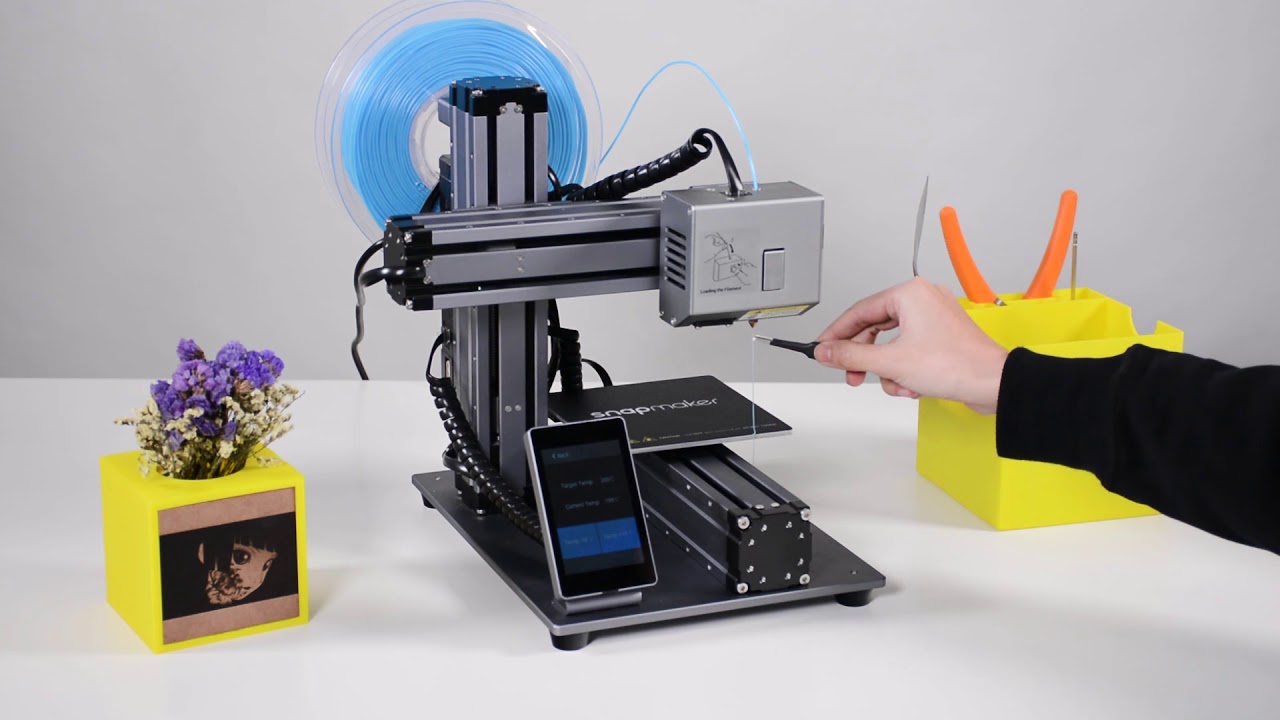
Step 3: Prepare the Printer. Before you hit print, a little prep work is needed. First, load your chosen filament (the plastic material your object will be made from) into the printer. Ensure the print bed is clean and, crucially, properly leveled. A level bed prevents your print from detaching mid-job. Finally, preheat your printer's nozzle and print bed to the temperatures specified by your slicer software for your chosen filament type.

Step 4: Print! Transfer your G-code file (usually via an SD card or USB) to your 3D printer, select the file, and hit "print." Now, the magic truly begins! The printer will meticulously melt the filament and deposit it layer by layer, building your object from the ground up. It's mesmerizing to watch as a virtual design slowly becomes a tangible reality. Keep an eye on the first few layers, as they are crucial for a successful print.
Step 5: Post-Processing. Once the print is complete and has cooled down, carefully remove it from the print bed. Depending on the complexity of your model, you might need to remove any support structures (temporary pieces printed to hold up overhangs) or a brim (a flat layer around the base for better adhesion). A little light sanding or trimming can smooth rough edges, and then – voilà! – you have your very own 3D-printed creation ready to admire, use, or paint. Happy printing!