
How To Play Iphone Movies On Tv

Ever found yourself squinting at your iPhone, trying to catch all the action in that hilarious home video or the latest blockbuster? You know, the one where Uncle Barry tries to juggle flaming torches, or the epic scene where the hero finally gets the girl? We’ve all been there. It’s like trying to enjoy a gourmet meal through a tiny keyhole. Your big, beautiful TV is sitting right there, practically begging to be part of the party, while you’re huddled over a screen the size of a biscuit.
Well, what if I told you there’s a super easy way to liberate those movies and videos from your phone and let them shine on the big screen? No more squinting! No more "Can you pass that closer?" This isn't just about watching a movie; it's about transforming a solo screen experience into a shared spectacle. Imagine movie night becoming a real movie night, with popcorn flying and everyone laughing together, rather than just you, your phone, and a sad little glow in the dark.
So, let's dive into how you can make your iPhone the star of your living room. It's surprisingly simple, and I promise, you don't need to be a tech guru or have a secret decoder ring.
Must Read
The Wireless Wonder: AirPlay (It's Like Magic!)
This is probably the easiest and most "wow!" way to get your iPhone content onto your TV. If you have an Apple TV box (that sleek black box that lives near your TV) or a newer smart TV that says it’s "AirPlay 2 compatible," you’re in for a treat. AirPlay is Apple's own brilliant technology that lets you send pretty much anything from your iPhone, iPad, or Mac wirelessly to a compatible TV or speaker. Think of it like sending your video on an invisible, super-fast beam of light straight to your big screen.
How to Do It:
- First things first, make sure your iPhone and your TV (or Apple TV box) are both connected to the same Wi-Fi network. This is crucial, like making sure everyone's invited to the same party.
- Open the app where your video lives – maybe it’s the Photos app, Netflix, YouTube, or Apple TV+. Start playing your video.
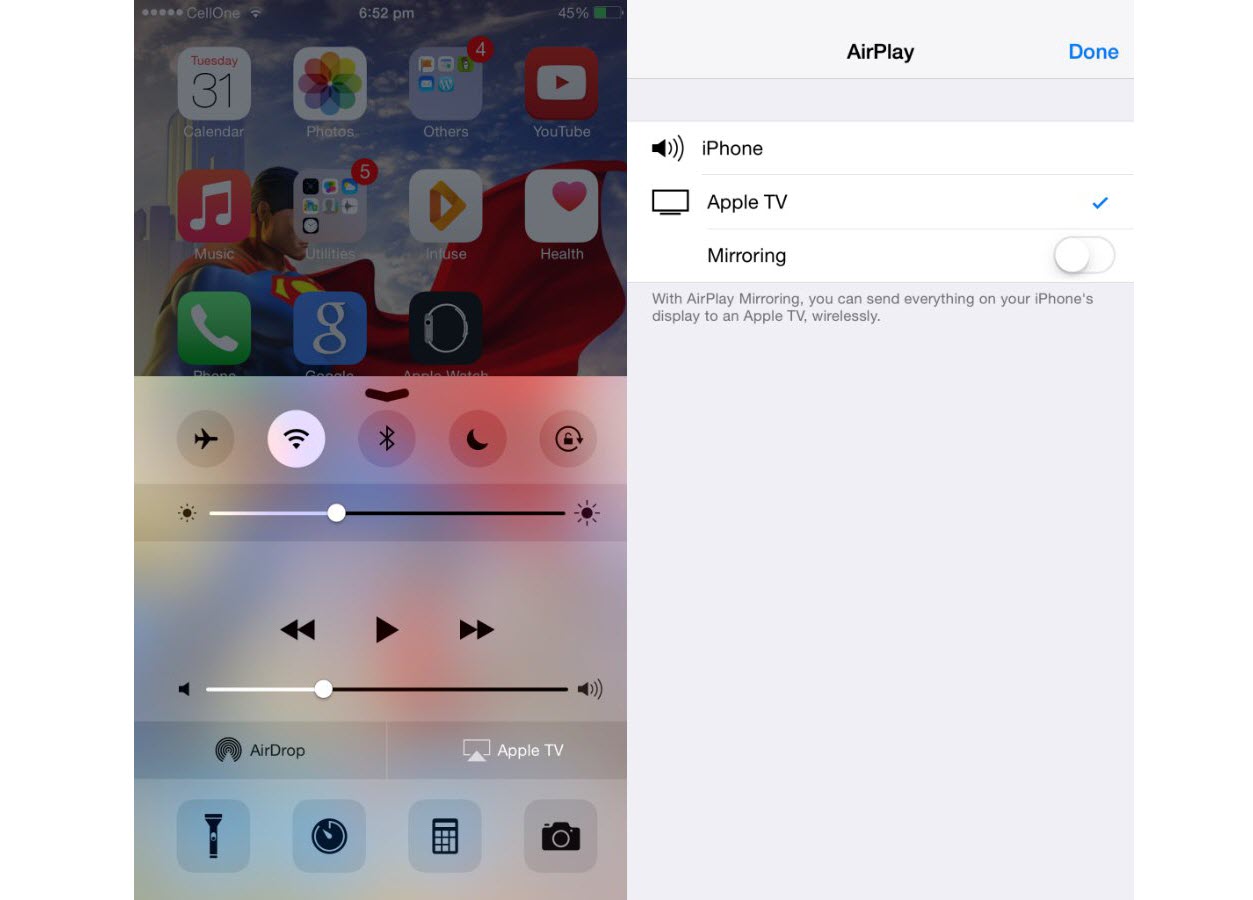
- Look for the AirPlay icon. It usually looks like a rectangle with an upward-pointing arrow at the bottom. Sometimes you might need to tap the screen once to make it appear, or hit a "share" button first.
- Tap that icon, and a list of available devices will pop up. Your TV should be there! Select it.
- Voila! Your iPhone screen will likely go dark (or show a remote control), and your video will magically appear on your TV.
Presto chango! You've just performed a tech miracle. Now you can kick back on the couch and enjoy that adorable video of your dog chasing its tail, in glorious full-screen. No more passing the phone around like it’s a precious, breakable artifact. Everyone can see it!
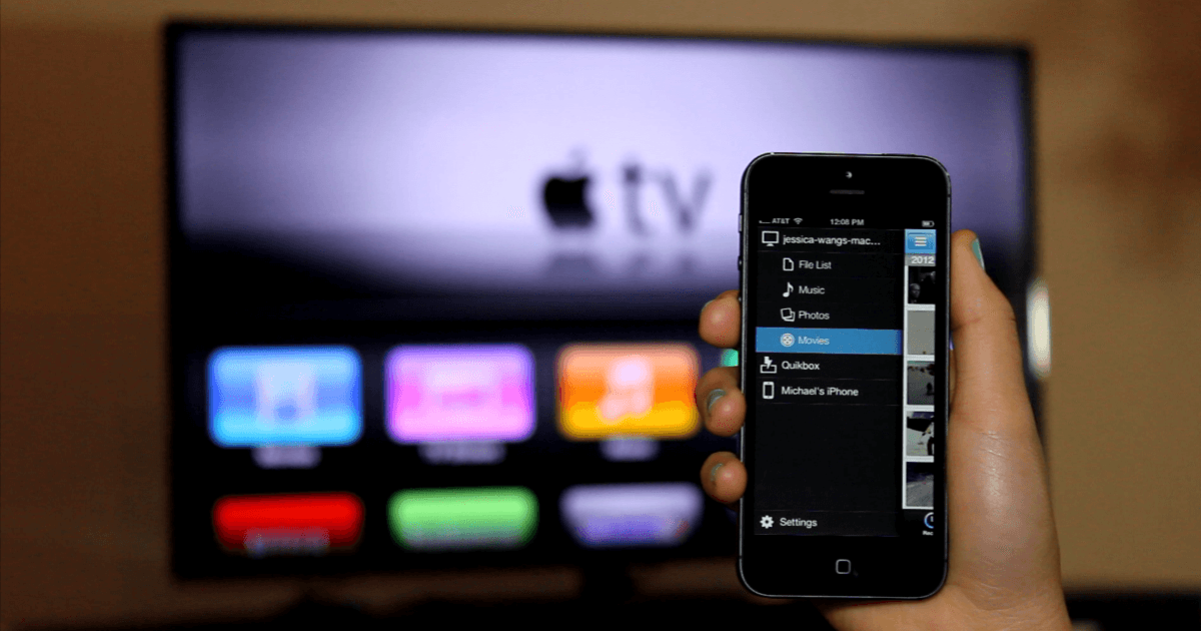
Why you’ll love it: It’s incredibly convenient. You can still use your phone for other things (like checking messages, though try not to get too distracted!) while the video plays on the TV. It’s perfect for impromptu family photo slideshows or showing off your latest vacation footage to a crowd. Just tap, cast, and enjoy!
The Trusty Cable: HDMI Adapter (The Reliable Friend)
Maybe your TV isn't "smart" enough for AirPlay, or perhaps your Wi-Fi is being temperamental (we've all had those days, right?). Don't fret! There's an old-school, super reliable method that works every single time: the cable. Think of it like plugging in a lamp – simple, direct, and always works.
For this method, you'll need two things:
- A Lightning to HDMI Adapter. This is a small dongle that plugs into the charging port of your iPhone. Make sure you get an official Apple one or a reputable third-party brand to ensure compatibility and quality.
- A standard HDMI cable. You probably have a few of these lying around from your game console or DVD player.
How to Do It:
- Plug the Lightning end of the adapter into your iPhone’s charging port.
- Plug one end of the HDMI cable into the adapter.
- Plug the other end of the HDMI cable into an available HDMI port on your TV. Your TV likely has several, usually labelled "HDMI 1," "HDMI 2," etc.
- Using your TV remote, switch your TV’s input to the HDMI port you just plugged into. For example, if you plugged into "HDMI 2," select "HDMI 2" from your TV’s input menu.
- Boom! Whatever is on your iPhone screen should now be mirrored on your TV. Just open your video app, hit play, and enjoy!
Why you’ll love it: This method is fantastic because it's virtually foolproof. No Wi-Fi required, no compatibility checks beyond the adapter itself. It's the old reliable workhorse that will always get the job done, perfect for when you're at a friend's house with an older TV or when the internet is deciding to take a nap.

Which Way to Watch?
Both methods are fantastic, and choosing one really just depends on your setup and preference. AirPlay offers the freedom of wireless, letting you roam with your phone, while the HDMI adapter is the steadfast, no-fuss option that guarantees a connection.
No matter which route you choose, the outcome is the same: goodbye small screen, hello cinematic bliss! So go ahead, dust off those hilarious vacation bloopers, queue up your favorite movie, and transform your everyday viewing into an event. Your eyes (and your friends and family) will thank you!
