How To Make Your Screen Darker Than The Lowest Setting
Hey friend! Ever been in that situation where you’re trying to doomscroll at 3 AM (no judgment, we've all been there!), but your screen is still way too bright, even on the lowest setting? Like, it's practically a spotlight in your face, ruining your night vision and probably waking up everyone else in the house? Yeah, been there, felt that! Turns out, there's a super simple way to fix it. Let's dive in and get your screen darker than a vampire's soul!
Darkness, My Old Friend: Why Go Darker?
Okay, so why would you even want your screen darker than the manufacturer intended? Well, let's be honest: phone and computer makers aren't always thinking about our late-night, tired-eye needs. Maybe you have sensitive eyes, or you’re just trying to be considerate of those around you (good for you, you shining example of digital etiquette!). Whatever the reason, sometimes "low" just isn't low enough. Think of it as needing an extra level of stealth for your screen. You know, ninja-level dimming.
The Secret Weapon: Accessibility Settings (It's Easier Than It Sounds!)
Don’t let the word "Accessibility" scare you! It's not just for people with disabilities (although, it definitely helps them too!). These settings are like a secret menu of cool features hidden in your phone or computer. We're gonna use them to trick our devices into going even darker. Think of it as a friendly hack, not a digital crime!
Must Read
For iPhones (and iPads, because Apple):
Alright, Apple fans, let’s do this. Here's the step-by-step guide to dimness domination:
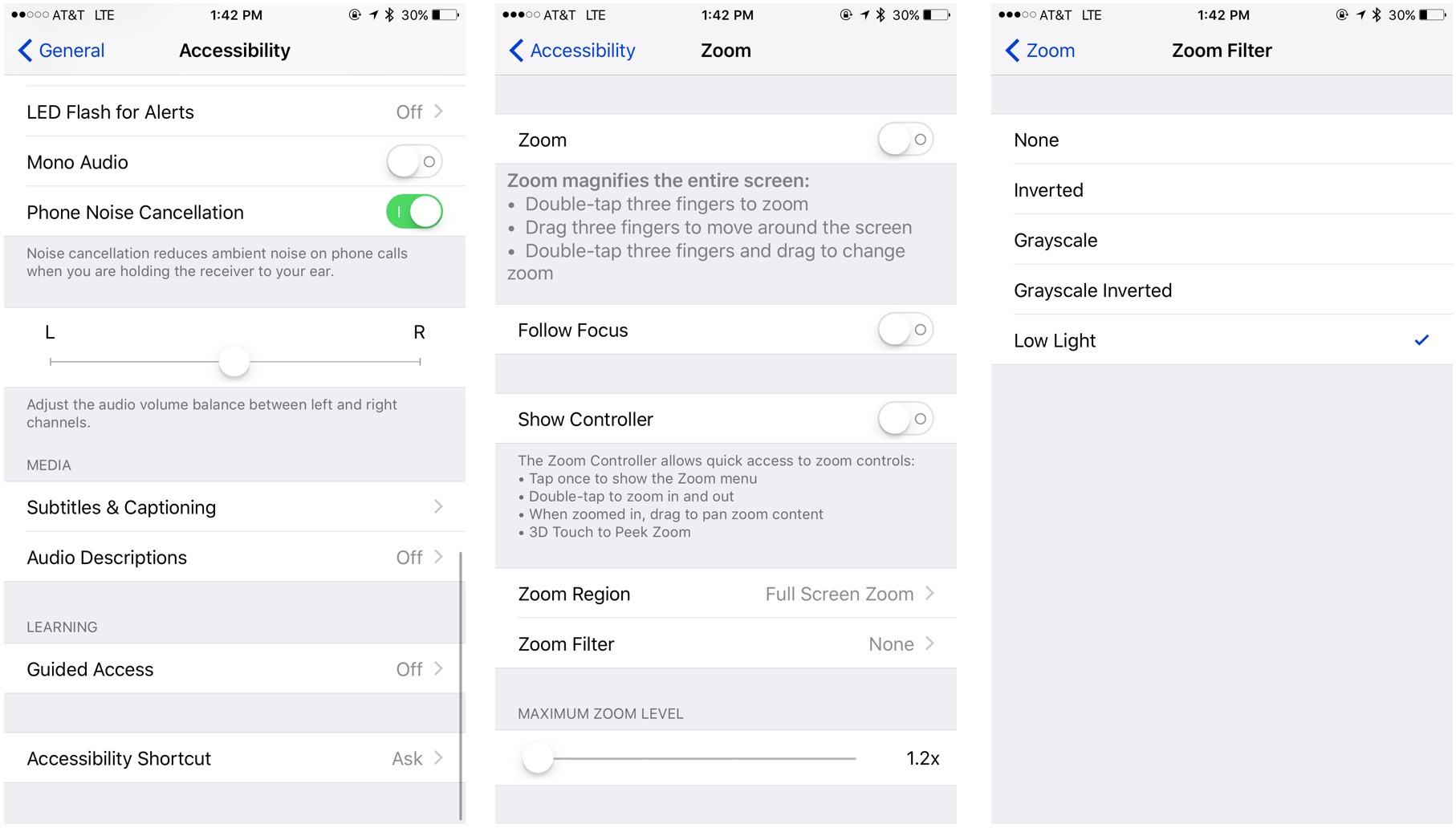
- Go to your Settings app. (You know, the one with the gears.)
- Scroll down (or search, if you're feeling fancy) to Accessibility.
- Tap on Display & Text Size.
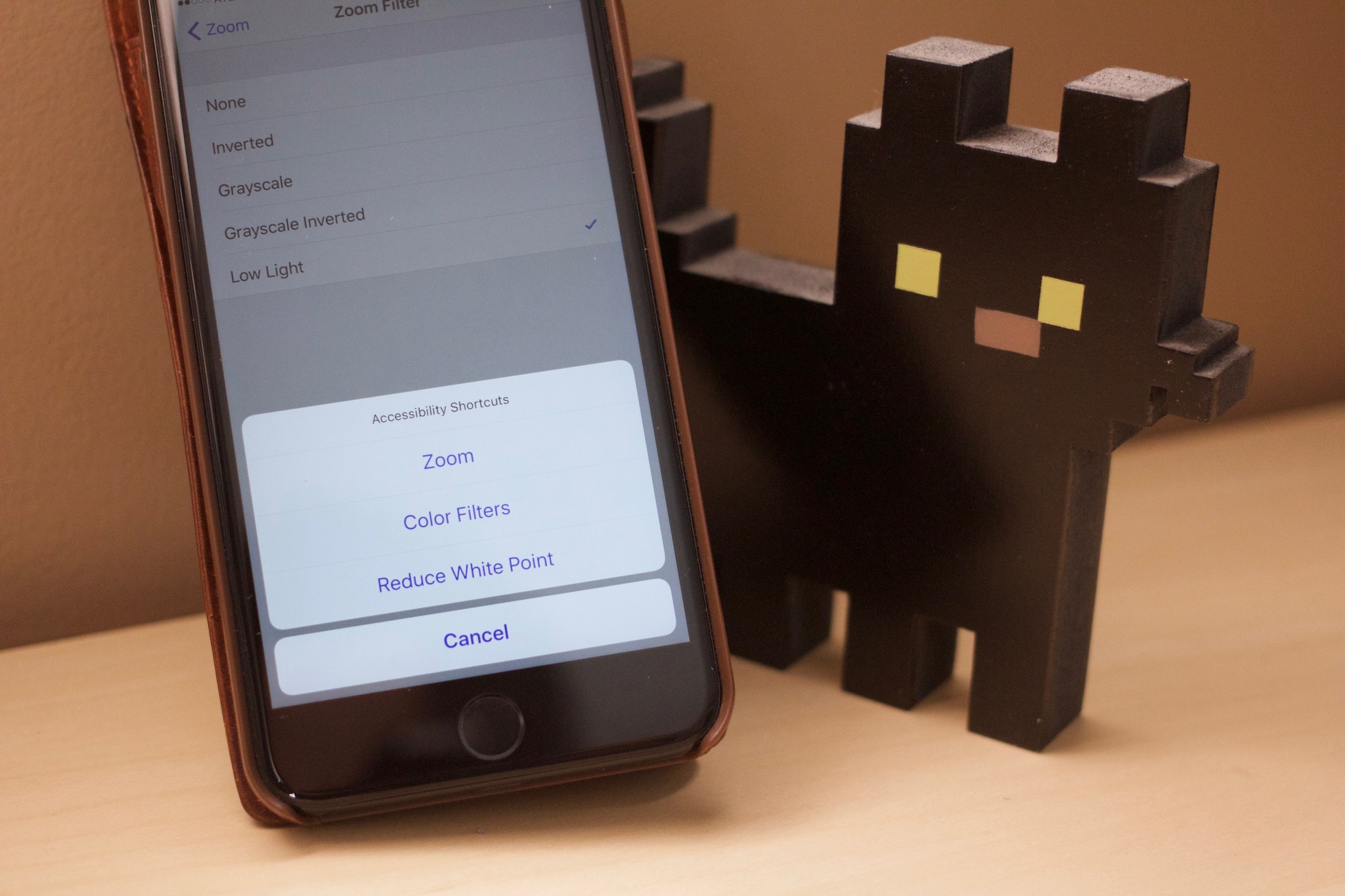
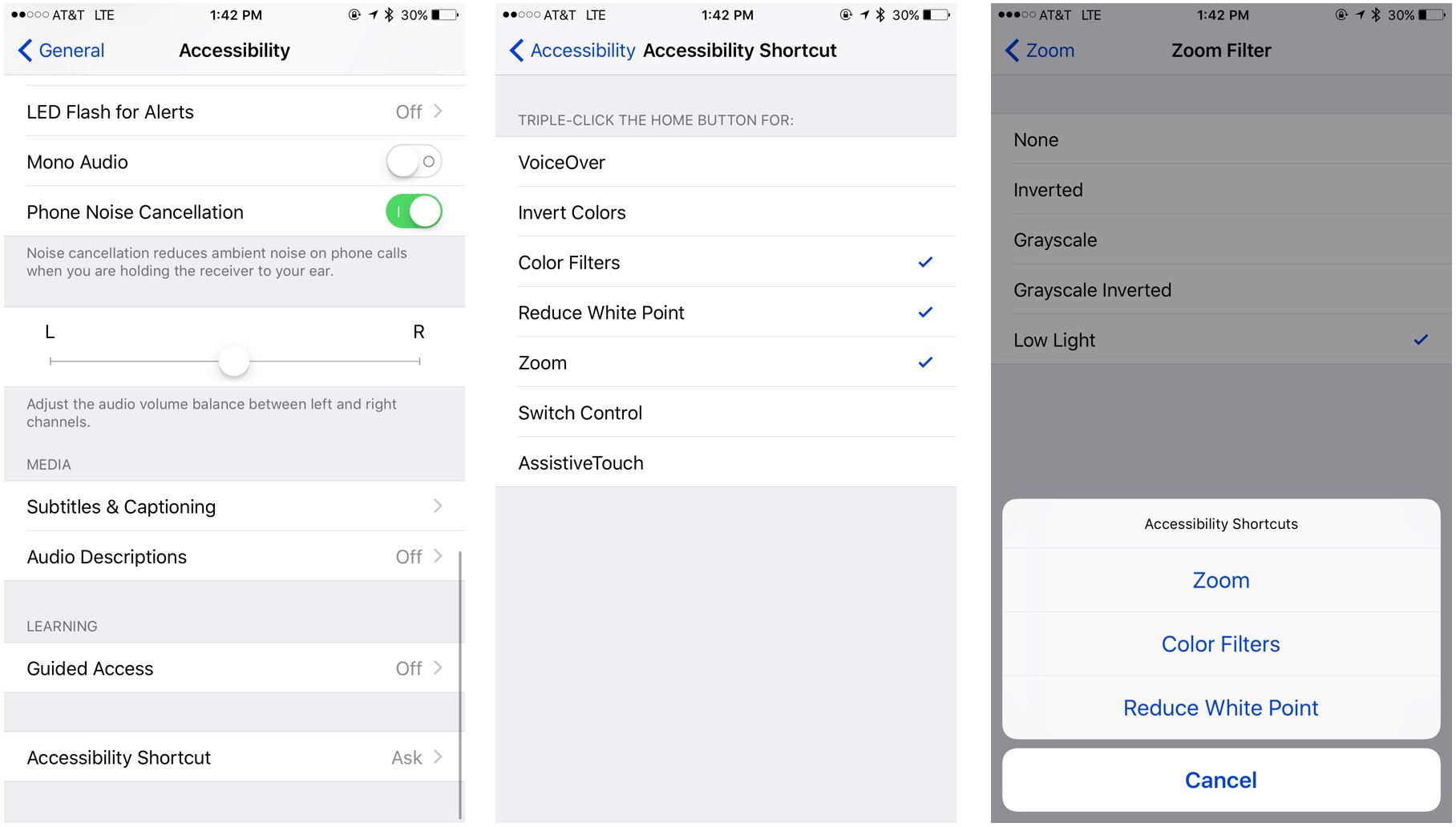
- Now, flip the switch for Reduce White Point.
Bam! Suddenly, the screen is noticeably dimmer. But wait, there's more! After you flipped the switch for "Reduce White Point" you can adjust the intensity of the dimming with the slider that appears at the bottom of the screen. Drag it to the right to make it super dark. Like, almost invisible dark. Okay, maybe not that dark, but you get the idea. Now, you can scroll through TikTok at 3am without blinding yourself. You're welcome!
For Android (Because Variety is the Spice of Life):
Android users, don't fret! You've got options too, maybe even more options, because Android is all about customizability. Here’s one popular method:
- Head to your Settings app. (The one that probably looks different from everyone else's!)
- Find Accessibility. (It might be under "General Management" or "System," depending on your phone.)
- Look for something like Extra Dim or Reduce Brightness. (Again, names vary!)
- Turn that bad boy ON!
Just like on iPhone, you'll likely find a slider to adjust the intensity of the dimming. Experiment until you find the perfect level of darkness. Remember, we're aiming for comfortable, not completely invisible! You can also search the settings using keywords like “screen dimmer” to find more solutions. Remember you can also try downloading a third-party app from the play store, but be careful which ones you download, make sure they're from a reputable developer!
Bonus Tip: Dark Mode is Your Friend!
Okay, this might seem obvious, but make sure you're using Dark Mode (or Night Mode, or whatever your phone calls it) whenever possible. It’s not just a trendy aesthetic; it actually helps reduce eye strain and saves battery life! And it looks cool, let's be honest.
Troubleshooting: Help, It's Still Too Bright!
If you've tried all of the above and your screen is still searing your eyeballs, here are a couple of things to check:
- Auto-Brightness: Make sure it's turned off! Auto-brightness can sometimes override your manual settings.
- Third-Party Apps: Some apps can interfere with screen brightness. Try disabling any brightness-altering apps you might have installed.
- Restart: Sometimes, a good old-fashioned restart is all it takes to fix weird software glitches.
Go Forth and Dim!
There you have it! Now you’re armed with the knowledge to conquer even the brightest of screens. Go forth, dim those displays, and enjoy your late-night browsing in peace and comfort. Remember, taking care of your eyes is important, and sometimes, that means taking matters into your own hands (or, you know, phone settings). Happy dimming, and may your nights be filled with comfortable scrolling!